
If your iPhone suddenly stops syncing emails or won’t let you log in, it can disrupt your day—especially if you rely on email for work or personal communication. The good news is that most email access issues on iPhones are fixable with a few systematic steps. Whether the problem lies in network settings, account configuration, or iOS bugs, this guide walks you through practical, tested solutions.
1. Verify Your Internet Connection
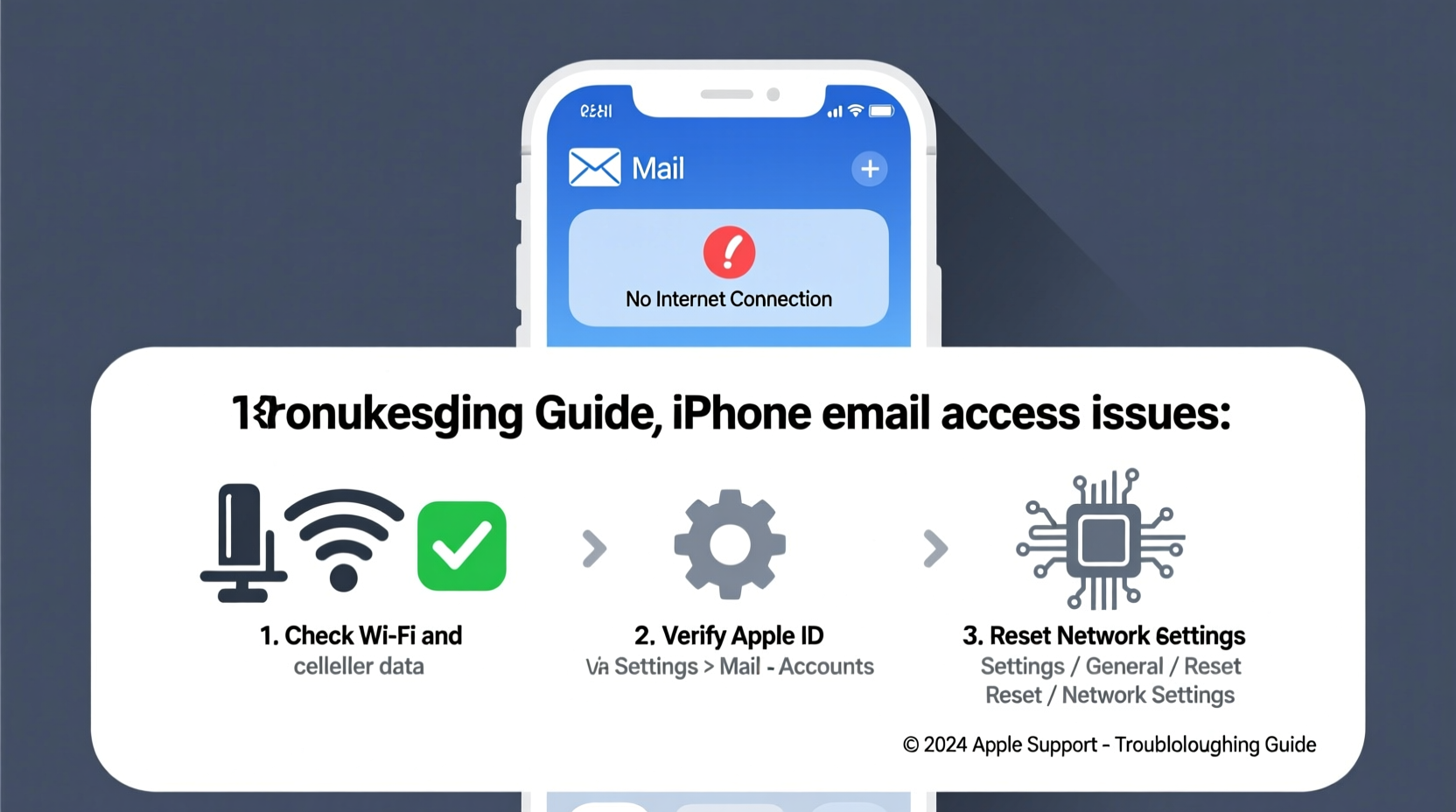
Email requires a stable internet connection. If your iPhone isn’t connected properly to Wi-Fi or cellular data, you won’t be able to send or receive messages.
- Go to Settings > Wi-Fi and ensure you’re connected to a working network.
- Try loading a website in Safari to confirm connectivity.
- Toggle Airplane Mode on and off to reset network interfaces.
- Restart your router if Wi-Fi seems unstable.
2. Check Email Server Status
Before assuming the problem is with your device, verify that your email provider’s servers are operational. Services like Gmail, Outlook, Yahoo, and corporate email systems occasionally experience outages.
Visit the provider’s status page:
- Google Workspace Status Dashboard
- Microsoft 365 Service Health
- Yahoo and iCloud provide outage alerts via their support Twitter accounts.
“Over 30% of reported email issues stem from temporary server-side disruptions rather than device problems.” — Jordan Lee, Mobile Support Analyst at TechCare Solutions
3. Restart and Update Your iPhone
A simple restart can resolve minor software glitches affecting the Mail app. Outdated iOS versions may also cause compatibility issues with email protocols.
- Press and hold the side button and either volume button until the power slider appears.
- Slide to power off, wait 30 seconds, then turn the phone back on.
- After rebooting, check if the email loads.
- Navigate to Settings > General > Software Update to install the latest iOS version.
Apple regularly patches bugs related to email syncing and authentication in system updates. Staying current helps prevent known issues.
4. Re-enter Account Password
One of the most common reasons for losing email access is an outdated or incorrect password. This often happens after a password change that wasn’t updated on the iPhone.
To update your password:
- Open Settings > Mail > Accounts.
- Select your email account (e.g., Google, Outlook).
- Tap “Account” and scroll to “Password.”
- Re-enter your current password and save.
If using two-factor authentication (2FA), ensure your trusted devices are up to date. For Gmail, you may need to generate an App Password if you’ve enabled 2FA and use IMAP/POP.
5. Reconfigure the Email Account
If basic fixes don’t work, removing and re-adding the email account often resolves deeper configuration errors.
- Go to Settings > Mail > Accounts.
- Select the problematic account and tap “Delete Account.”
- Confirm deletion—this removes only the account from the device, not your emails.
- Tap “Add Account,” choose your provider (e.g., Google, iCloud), and sign in again.
- Allow full sync permissions when prompted.
This process rebuilds the account from scratch, eliminating corrupted settings that might block access.
6. Inspect Mail Fetch Settings
Your iPhone may not appear to receive new emails because of incorrect fetch settings. By default, some devices are set to “Manually” check mail, meaning they won’t auto-refresh.
To adjust:
- Go to Settings > Mail > Accounts > Fetch New Data.
- Select “Push” if available. If not, choose “Fetch” and set frequency to “Every 15 Minutes.”
- Ensure “Push” is enabled for your account.
Note: Push may not be supported by all providers. Gmail, for example, uses its own push notifications outside standard IMAP.
7. Fix SSL and Server Port Issues (Advanced)
For users with custom email setups (e.g., IMAP/POP with private domains), incorrect incoming or outgoing server settings can block access.
Common configurations:
| Provider | Incoming (IMAP) | Port | SSL | Outgoing (SMTP) | Port |
|---|---|---|---|---|---|
| Gmail | imap.gmail.com | 993 | Yes | smtp.gmail.com | 465 or 587 |
| Outlook.com | outlook.office365.com | 993 | Yes | smtp-mail.outlook.com | 587 |
| Yahoo | imap.mail.yahoo.com | 993 | Yes | smtp.mail.yahoo.com | 465 or 587 |
If you manage a business domain, consult your IT administrator for correct server details. A single typo in the server address can prevent connection.
8. Mini Case Study: Resolving a Stubborn Work Email Issue
Sarah, a marketing manager, couldn’t access her company email on her iPhone after returning from vacation. Her inbox showed “Cannot Connect to Server,” even though she had internet access.
She first tried restarting her phone and checking her password—no success. Then, she visited her company’s service status portal and found no outages. Next, she deleted and re-added her Microsoft 365 account. Upon re-entry, she noticed a prompt asking to install a configuration profile for Exchange security policies. After approving it, her email synced instantly.
The root cause? A silent certificate expiration during her absence. Re-adding the account triggered a fresh security handshake, restoring access.
9. Checklist: Step-by-Step Troubleshooting Guide
Follow this checklist in order to systematically resolve email access issues:
- ✅ Confirm Wi-Fi or cellular data is active and functional
- ✅ Test other apps to rule out general connectivity issues
- ✅ Check if your email provider is experiencing downtime
- ✅ Restart your iPhone
- ✅ Update iOS to the latest version
- ✅ Re-enter your email password in account settings
- ✅ Toggle off and on Mail sync under account settings
- ✅ Delete and re-add the email account
- ✅ Verify IMAP/SMTP settings if using manual configuration
- ✅ Contact your email provider or IT department if issues persist
10. Frequently Asked Questions
Why does my iPhone say my password is wrong when I know it’s correct?
This often happens when two-factor authentication is enabled but the device hasn’t been properly authorized. For Gmail, you may need to generate an App Password instead of using your regular password. Also, ensure Caps Lock is off and you're using the correct keyboard layout.
Will deleting my email account erase my messages?
No. Removing the account from your iPhone only deletes the local copy and settings. All emails remain safe on the server and will reappear once the account is re-added and synced.
Why does my email work on other devices but not my iPhone?
This typically indicates a device-specific configuration error. It could be outdated credentials, disabled background refresh, or a corrupted mailbox index. Follow the re-adding process to align the iPhone with current account settings.
Final Thoughts and Action Plan
Not being able to access email on your iPhone doesn’t have to mean lost productivity or a trip to the repair shop. Most issues stem from small misconfigurations or temporary glitches that you can fix in minutes. Start with the basics—internet, restart, password—and move toward more advanced steps like re-adding the account or adjusting server settings.
With the right approach, you’ll restore access quickly and gain confidence in managing mobile email issues independently.




 浙公网安备
33010002000092号
浙公网安备
33010002000092号 浙B2-20120091-4
Comments
No comments yet. Why don't you start the discussion?