
Suddenly receiving unwanted calls or messages from an unknown or persistent number can be frustrating. You reach for your phone’s block feature, only to find it isn’t working as expected. Despite tapping “Block,” the calls keep coming. This issue affects both Android and iPhone users and can stem from various technical, carrier-related, or platform-specific causes. Understanding why you can’t block a number—and how to resolve it—is essential for regaining control over your communication experience.
Why Blocking a Number Might Not Work
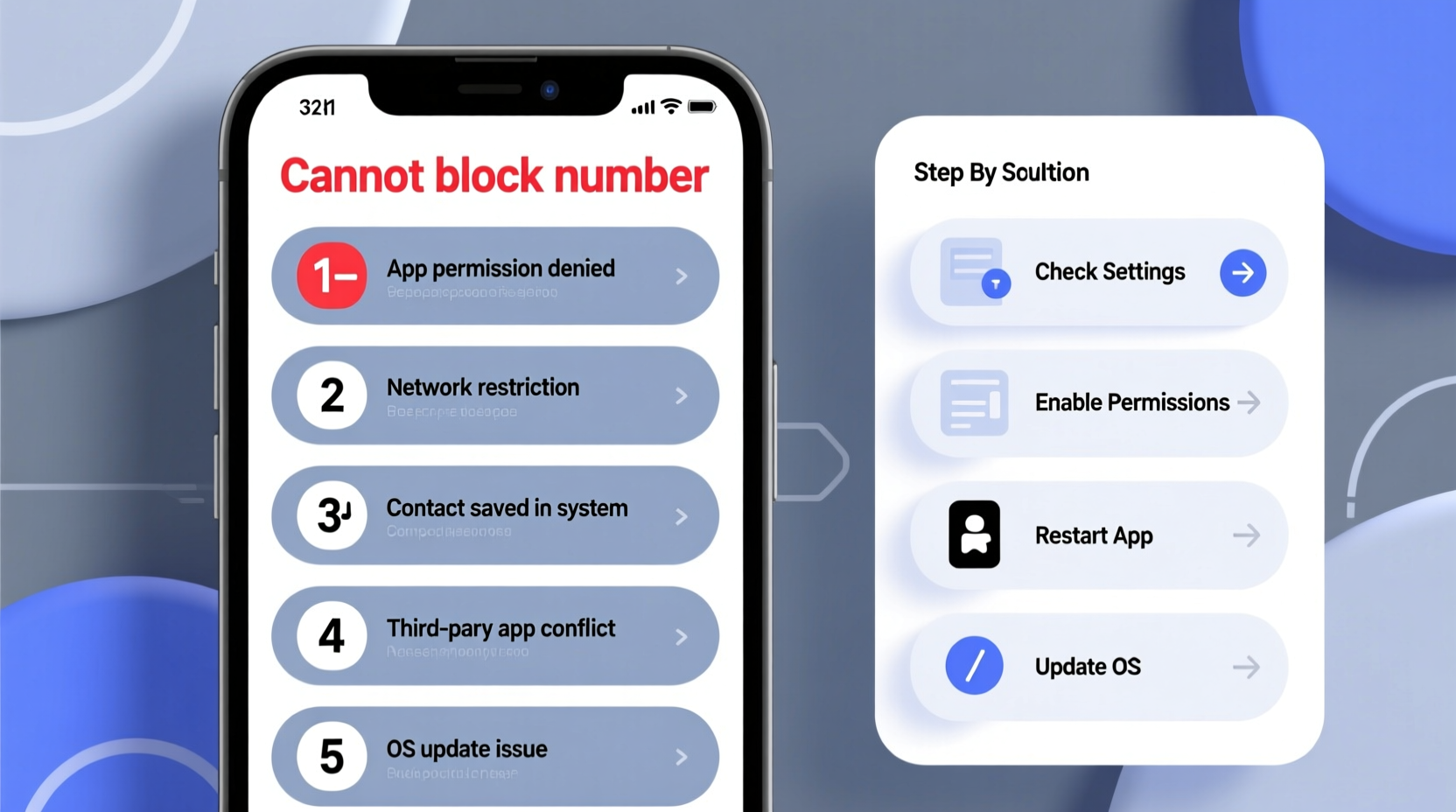
Blocking a number should be straightforward, but several factors can interfere with its effectiveness. The problem often lies not in user error, but in the limitations of operating systems, carrier policies, or third-party apps. Below are the most common reasons why blocking may fail:
- iOS or Android software bugs: Outdated OS versions or app glitches can prevent changes from taking effect.
- Carrier-level restrictions: Some carriers don’t fully support call blocking at the network level.
- Third-party messaging apps: SMS blockers may not apply to WhatsApp, Telegram, or iMessage unless blocked within those platforms.
- Caller ID spoofing: Scammers frequently mask their real number, making blocking ineffective.
- Blocked contacts syncing across devices: If using multiple Apple devices or Google accounts, sync issues can cause inconsistencies.
Step-by-Step Guide to Properly Block a Number
Follow this structured approach to ensure your block is applied correctly and remains active.
- Verify the exact number: Check recent calls or messages to confirm the full number, including country code.
- Use native blocking tools:
- iPhone: Open Phone app → Recents → Tap “(i)” next to number → Block this Caller.
- Android: Open Phone app → Recent calls → Tap number → Block/report spam.
- Confirm blocking in settings: Go to Settings → Blocked Contacts to verify the number appears on the list.
- Enable spam protection: Turn on built-in spam filters (e.g., iOS Silence Unknown Callers or Android Call Screen).
- Restart your device: Ensures the system refreshes call handling rules.
- Test the block: Have someone call from that number (or use a second phone) to confirm it goes straight to voicemail or doesn’t ring through.
Common Platform-Specific Issues and Fixes
Different operating systems handle blocking differently. Here’s how to troubleshoot based on your device:
iPhone: Blocked Numbers Still Ringing
Even after blocking, some iPhone users report the phone still rings. This typically happens when:
- The caller uses a different number each time (spoofing).
- “Silence Unknown Callers” is disabled in Settings → Phone.
- iCloud sync conflicts cause blocks to disappear across devices.
To fix: Enable “Silence Unknown Callers” and manually re-add the number to the block list on all synced devices.
Android: Spam Calls Bypassing Block List
On Android, Google’s default Dialer app includes spam detection, but it’s not foolproof. Some carriers override local blocks with their own services.
If blocking fails:
- Update the Phone app via Google Play Store.
- Disable carrier calling apps (like Verizon Call Filter) that might conflict.
- Use Google’s “Report as spam” option—this improves future filtering.
“We see increasing use of AI-powered robocalls with rotating numbers. Native blocking helps, but layered protection is key.” — David Lin, Senior Security Analyst at MobileShield Labs
Do’s and Don’ts When Blocking Numbers
| Action | Do | Don’t |
|---|---|---|
| Blocking Process | Use official phone app; verify number format | Rely solely on third-party apps without backup |
| After Blocking | Restart phone; test with a call | Assume it worked without verification |
| Repeated Offenders | Report to FTC or FCC (U.S.) or local telecom authority | Engage or respond to suspicious messages |
| Spam Messages | Block and report in Messages app | Delete without reporting—data helps improve filters |
Real Example: Maria’s Persistent Telemarketer Problem
Maria, a small business owner in Austin, began receiving daily calls from a number labeled “Bank Verification.” She blocked it through her iPhone’s Recents log, but the calls continued—sometimes from slightly altered numbers like +1 512-XXX-XX43 instead of XX42.
After researching, she realized the caller was spoofing numbers. Her initial block only stopped one variation. She enabled “Silence Unknown Callers” and started marking each new instance as spam. Within a week, the frequency dropped by 90%. She also reported the original number to the FTC via reportfraud.ftc.gov, contributing to broader fraud tracking.
This case illustrates that while single-number blocking has limits, combining it with system-wide features significantly improves results.
Enhanced Protection: Beyond Native Blocking
For users facing relentless spam or harassment, native tools aren’t always enough. Consider these advanced options:
- Third-party apps: Nomorobo, Hiya, and Truecaller offer enhanced spam detection and community-based blacklists.
- Carrier services: T-Mobile’s Scam Shield, AT&T’s Call Protect, and Verizon’s Call Filter provide free basic plans with scam blocking.
- Do Not Disturb mode: Schedule DND during off-hours and allow calls only from Favorites.
FAQ: Common Questions About Number Blocking
Does blocking a number stop texts too?
Yes, on both iPhone and Android, blocking a number prevents calls and messages (SMS/iMessage/RCS). However, messages already sent remain visible unless manually deleted.
Can a blocked number leave a voicemail?
On iPhone, yes—blocked callers can leave voicemails, but they go to a separate “Blocked Messages” section. On most Android phones, blocked numbers cannot leave voicemails unless configured otherwise in Voicemail settings.
What if the person uses a different number every time?
This is likely spoofing. Native blocking won’t help much. Instead, enable spam filtering, use carrier protection tools, and avoid answering unknown numbers. Let automated systems screen them first.
Final Checklist: Ensure Your Block Works
- Confirmed the correct number is being blocked.
- Used the native phone app (not Messages or email) to block.
- Checked Settings > Blocked Contacts to verify inclusion.
- Restarted the device after blocking.
- Enabled spam protection or Silence Unknown Callers.
- Tested the block with a call from another line.
- Reported persistent spam to your carrier or national fraud agency.
Take Control of Your Phone Experience
Being unable to block a number doesn’t mean you’re powerless. Most failures stem from misunderstandings about how blocking works or reliance on incomplete methods. By using native tools correctly, enabling additional protections, and understanding the limitations of caller ID, you can drastically reduce unwanted contact.
Your phone should serve you—not interrupt you. Take a few minutes today to audit your blocked contacts, update your OS, and activate spam filters. Small steps now can lead to long-term peace of mind.




 浙公网安备
33010002000092号
浙公网安备
33010002000092号 浙B2-20120091-4
Comments
No comments yet. Why don't you start the discussion?