
Trying to purchase a PlayStation Plus subscription only to be blocked by an error message can be frustrating, especially when you're ready to dive into online multiplayer or claim your monthly games. While the process should be straightforward, various technical, financial, and account-related issues can interfere. The good news is that most problems have clear, actionable solutions. Whether you're facing payment failures, network timeouts, or region-specific restrictions, this guide breaks down the most frequent errors and provides step-by-step fixes to get you back on track.
Common Reasons You Can’t Buy PlayStation Plus
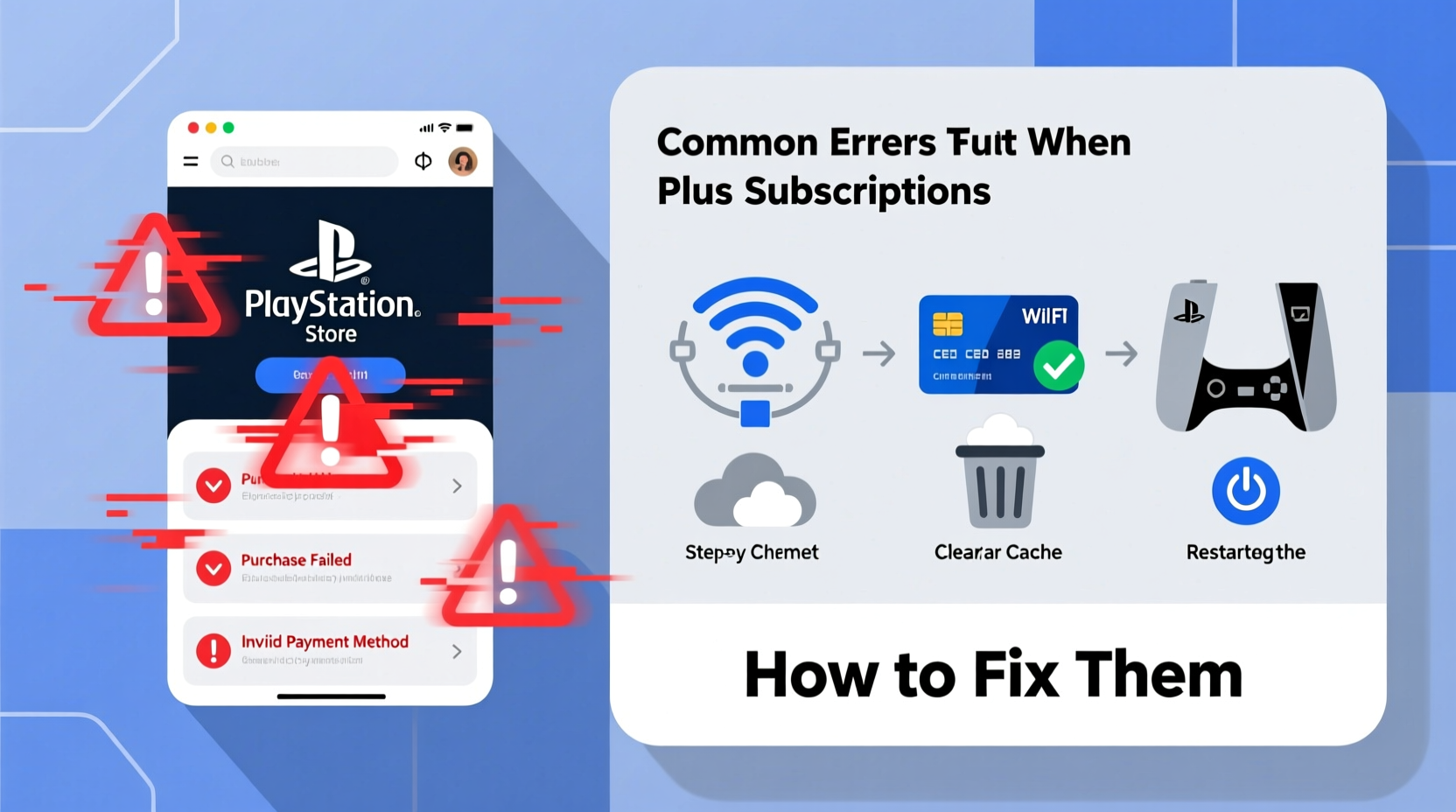
Purchase failures aren’t always due to one single cause. They often stem from a combination of factors related to your payment method, account status, console settings, or even temporary server issues. Understanding the root causes helps you troubleshoot efficiently.
- Invalid or declined payment method – Credit card, PayPal, or wallet issues.
- Account restrictions – Age verification, regional locks, or parental controls.
- Network connectivity problems – Unstable internet preventing transaction completion.
- PSN server outages – Temporary downtime affecting purchases.
- Outdated system software – Older firmware may not support current store functions.
Step-by-Step Guide to Fix Purchase Errors
Follow this structured approach to identify and resolve the issue blocking your PlayStation Plus purchase. Start with basic checks and progress to more advanced troubleshooting if needed.
- Check PSN Server Status
Visit status.playstation.com to confirm whether there are active outages. If services like “Sign-In” or “Web Store” show red indicators, wait until they’re restored. - Verify Internet Connection
Test your connection via Settings > Network > Test Internet Connection. A poor signal or DNS failure can interrupt transactions. - Update Your Console Software
Outdated systems may fail to communicate with the PlayStation Store. Go to Settings > System Software Update to install the latest version. - Restart Your Console and Router
Power cycle both devices. This clears cached data and re-establishes stable connections. - Clear Browser Cache (PS4/PS5)
On PS4: Settings > Initialisation > Initialize PS4 (Quick).
On PS5: Settings > System > System Storage Management > Clear Cache.
Payment Issues and How to Resolve Them
Most failed purchases trace back to payment problems. Even minor discrepancies can trigger denials.
| Error Type | Possible Cause | Solution |
|---|---|---|
| “Transaction Declined” | Bank rejection, insufficient funds, or expired card | Contact your bank; verify card details in Wallet settings |
| “Invalid Payment Information” | Typo in CVV, address, or card number | Re-enter payment details carefully; ensure billing address matches bank records |
| “Wallet Balance Insufficient” | Not enough funds in PSN wallet | Add funds using a valid payment method or redeem gift cards |
| “Payment Method Not Supported” | Card type not accepted (e.g., prepaid, virtual cards) | Use a major credit/debit card (Visa, Mastercard) registered in your country |
If your card is repeatedly declined despite being valid, remove it from your wallet and re-add it. Sometimes outdated tokenization causes silent failures.
“We’ve seen cases where users had correct card info but still faced declines because their bank flagged digital entertainment purchases as suspicious. Whitelisting PlayStation transactions with your bank resolves this instantly.” — Jordan Lee, Senior Support Analyst at GameTech Solutions
Account and Regional Restrictions
Your PlayStation Network account must meet specific criteria to subscribe to PlayStation Plus. Violations or mismatches in location, age, or family settings can block access.
Region Mismatch
You cannot use a wallet funded in one country to buy subscriptions in another. For example, a U.S.-funded wallet won’t work on a Japanese PSN account. Ensure your account’s country setting matches your current residence and payment method.
Age and Parental Controls
Children under 18 may be restricted from making purchases, even with linked payment methods. Parents must approve transactions through Family Management settings.
Account Suspension or Bans
If your account has been suspended for ToS violations, you’ll be unable to make purchases. Check your email for notifications from Sony. Appeals can be submitted via PlayStation Support.
Mini Case Study: Sarah’s Failed Subscription Attempt
Sarah, a long-time PS4 user, tried to renew her PlayStation Plus after a year-long break. Each time she selected the 12-month plan, she received a vague “An error occurred” message. She confirmed her internet was stable and restarted her console twice, but the issue persisted.
After checking her payment method, she realized her old debit card had expired. She added a new card but still failed — until she noticed her billing address didn’t match the one on file with her bank. After correcting the ZIP code and phone number, her purchase went through immediately.
The root cause? A mismatched billing profile, not a system or network flaw. This highlights why verifying every detail in your wallet settings matters.
Checklist: How to Successfully Buy PlayStation Plus
Before attempting another purchase, run through this checklist to eliminate preventable errors:
- ✅ Confirm PSN servers are online
- ✅ Ensure stable internet connection (minimum 3 Mbps download)
- ✅ Update console to latest system software
- ✅ Verify payment method is valid and supported
- ✅ Match billing address exactly to bank records
- ✅ Remove and re-add payment method if previously declined
- ✅ Check wallet balance and add funds if necessary
- ✅ Confirm account region matches payment method
- ✅ Disable any active ad-blockers or firewalls interfering with PSN
- ✅ Try purchasing via web browser (store.playstation.com) if console fails
Frequently Asked Questions
Why does my card keep getting declined even though it works elsewhere?
Banks sometimes block digital platform transactions by default. Contact your bank to confirm PlayStation purchases aren’t flagged as fraudulent. Also, ensure your card supports international transactions if your PSN account isn’t local.
Can I use a PlayStation gift card to buy Plus?
Yes. Redeem a PSN gift card to add funds to your wallet, then use the balance to purchase PlayStation Plus. This avoids card validation issues entirely.
What happens if I try to buy Plus while already subscribed?
The system will automatically stack your new subscription after the current one ends. You cannot have overlapping active periods, but you won’t lose time. However, avoid duplicate purchases unless intentional.
Conclusion
Being unable to buy PlayStation Plus doesn’t have to be a dead end. Most errors stem from simple oversights — an expired card, incorrect address, or temporary outage — and can be resolved in minutes. By methodically checking your payment details, network stability, and account settings, you regain control over the purchase process. Don’t let a minor glitch keep you offline or miss out on exclusive benefits like cloud saves, free monthly games, and online multiplayer.




 浙公网安备
33010002000092号
浙公网安备
33010002000092号 浙B2-20120091-4
Comments
No comments yet. Why don't you start the discussion?