
Suddenly unable to connect to your Wi-Fi network? You're not alone. Millions of users encounter the dreaded \"Can't connect to this network\" error on their PCs each year. Whether you're working from home, streaming a movie, or joining a video call, a disrupted Wi-Fi connection can bring everything to a halt. The good news is that most connectivity problems have straightforward fixes—many of which you can perform in under 10 minutes. This guide walks you through proven diagnostic steps, common root causes, and long-term prevention strategies to restore and maintain reliable wireless access.
Understanding the Error: What “Can’t Connect to This Network” Really Means
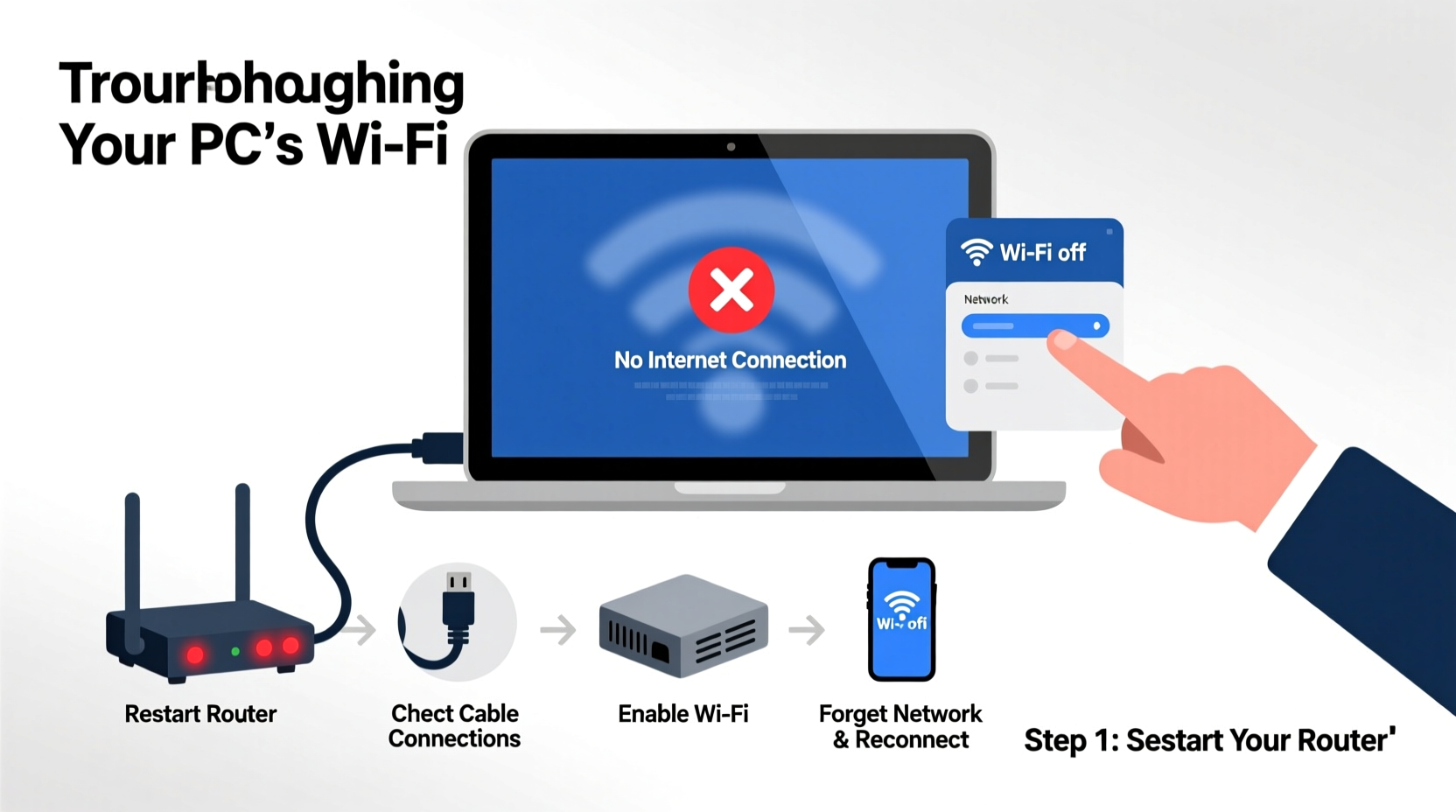
When Windows displays “Can’t connect to this network,” it typically means your PC detected the network but failed during authentication, IP assignment, or handshake negotiation. This isn’t the same as “No networks available,” which suggests a hardware or driver issue. Instead, this message implies communication began but broke down mid-process. Possible triggers include:
- Incorrect password entry (even one wrong character)
- Router firmware glitches
- IP address conflicts
- Outdated or corrupted network drivers
- Security protocol mismatches (e.g., WPA2 vs. WPA3)
- Overloaded DHCP server
Pinpointing the exact cause requires systematic testing—not guesswork. Jumping straight to router resets often wastes time when simpler solutions exist.
Step-by-Step Troubleshooting Guide
Follow this sequence to identify and resolve the problem efficiently. Each step builds on the previous one, eliminating variables methodically.
- Forget and Reconnect to the Network
Go to Settings > Network & Internet > Wi-Fi > Manage known networks. Select your network, click \"Forget,\" then reconnect by selecting it from the list and re-entering the password carefully. - Run the Built-in Network Troubleshooter
Right-click the network icon in the system tray and choose \"Troubleshoot problems.\" Windows will scan for common issues like DNS failures, IP conflicts, and adapter errors. - Restart Your Router and Modem
Power off both devices, wait 60 seconds, then power them back on in order: modem first, then router. This clears temporary glitches and refreshes IP leases. - Update or Reinstall Wi-Fi Drivers
Press Win + X, select Device Manager, expand \"Network adapters,\" right-click your Wi-Fi device, and choose \"Update driver.\" If that fails, uninstall the driver and restart your PC to trigger automatic reinstallation. - Reset Network Settings
In Settings > Network & Internet > Status, scroll down and click \"Network reset.\" This reinstalls all network adapters and sets configurations to default. Note: You’ll need to re-enter Wi-Fi passwords afterward.
Advanced Fixes for Persistent Issues
If basic steps fail, consider these deeper interventions:
- Change Wireless Channel on Router: Overlapping signals from neighboring networks can interfere. Log into your router’s admin panel (usually http://192.168.1.1) and switch from Auto to Channel 1, 6, or 11 for 2.4 GHz, or use 36–48 for 5 GHz.
- Disable Fast Startup: This Windows feature can prevent proper network initialization. Go to Control Panel > Power Options > Choose what the power buttons do > Change settings currently unavailable > Uncheck \"Turn on fast startup.\"
- Manually Assign an IP Address: If DHCP is failing, set a static IP within your router’s subnet range (e.g., 192.168.1.100) via Network Adapter Properties > Internet Protocol Version 4 (TCP/IPv4).
Checklist: Quick Fix Protocol for Wi-Fi Failures
Keep this checklist handy for immediate response to connectivity issues:
- ✅ Confirm other devices can connect to the same network
- ✅ Toggle Airplane Mode off and on
- ✅ Forget the network and reconnect with correct password
- ✅ Run Windows Network Diagnostics
- ✅ Restart router and modem
- ✅ Update Wi-Fi driver via Device Manager
- ✅ Perform a network reset if all else fails
Common Mistakes That Make the Problem Worse
Well-intentioned actions sometimes exacerbate the issue. Avoid these pitfalls:
| Do | Don’t |
|---|---|
| Use the correct security key with attention to case sensitivity | Type the password directly into the login field without copying |
| Check for router firmware updates monthly | Ignore blinking lights or unusual behavior on the router |
| Keep your PC’s OS updated | Install third-party \"Wi-Fi booster\" software—most are ineffective or malicious |
| Position your router centrally, away from metal objects | Place the router next to microwaves or cordless phones (they cause 2.4 GHz interference) |
“We see at least 30% of Wi-Fi issues stem from outdated router firmware or driver incompatibilities. Regular maintenance prevents most recurring problems.” — Raj Patel, Senior Network Engineer at NetSecure Solutions
Real-World Example: Office Worker Regains Connection in 15 Minutes
Sarah, a remote project manager, couldn’t join her morning stand-up due to a “Can’t connect to this network” alert. Her phone had full signal, ruling out internet outage. She followed the checklist: first forgetting the network, then running the troubleshooter (which found an IP conflict). After restarting her router, she still couldn’t connect. Then she checked Device Manager and noticed a yellow exclamation mark on her Intel Wi-Fi 6 AX200 adapter. A driver update resolved the issue instantly. The root cause? A recent Windows update had installed an incompatible driver version. Sarah now schedules monthly driver checks using Windows Update and keeps a USB Ethernet adapter as a backup.
Frequently Asked Questions
Why does my PC see the network but won’t connect?
This usually points to authentication failure. Double-check the password, ensure Caps Lock is off, and verify your router isn’t blocking your device’s MAC address. It could also indicate a mismatch in security settings—ensure your PC supports the network’s encryption type (WPA2/WPA3).
Does resetting my network settings delete files?
No. A network reset only removes saved Wi-Fi passwords, Bluetooth pairings, and virtual adapters. Your personal files, apps, and system settings remain intact. You will need to reconnect to all wireless networks afterward.
Can a virus cause Wi-Fi connection problems?
While rare, malware can modify network settings or install rogue proxies. If your connection drops only in certain browsers or after suspicious downloads, run a full system scan with Windows Defender or a trusted antivirus tool.
Prevent Future Outages: Proactive Maintenance Tips
Staying connected means more than fixing problems—it’s about preventing them. Implement these habits:
- Schedule monthly reboots of your router and PC to clear memory leaks and refresh connections.
- Enable automatic updates for both Windows and router firmware to patch security flaws and improve compatibility.
- Label your router’s configuration with login details and default IP to avoid setup delays during emergencies.
- Use a wired connection temporarily when diagnosing persistent Wi-Fi issues to maintain internet access while troubleshooting.
Final Thoughts: Take Control of Your Connectivity
Wi-Fi issues are frustrating, but they’re rarely permanent. With a structured approach, most “Can’t connect to this network” errors can be resolved in under 30 minutes. The key is patience and precision—avoid random fixes and follow a logical path from simple to complex solutions. By understanding how your PC and router communicate, you gain confidence to tackle future problems independently. Don’t wait for the next outage to strike. Audit your network setup today, update your drivers, and test your backup plan. Reliable internet isn’t luck—it’s preparation.




 浙公网安备
33010002000092号
浙公网安备
33010002000092号 浙B2-20120091-4
Comments
No comments yet. Why don't you start the discussion?