
Creating an Apple ID is the essential first step to accessing iCloud, the App Store, FaceTime, iMessage, and other core Apple services. Yet many users encounter obstacles when trying to set up a new account. Whether you're greeted with vague error messages, verification issues, or sudden crashes during registration, these problems can halt your device setup in its tracks. The good news: most Apple ID creation issues are fixable with the right approach. This guide walks through the most common causes and offers clear, actionable steps to resolve them—so you can get your Apple ecosystem up and running smoothly.
Common Reasons You Can’t Create an Apple ID
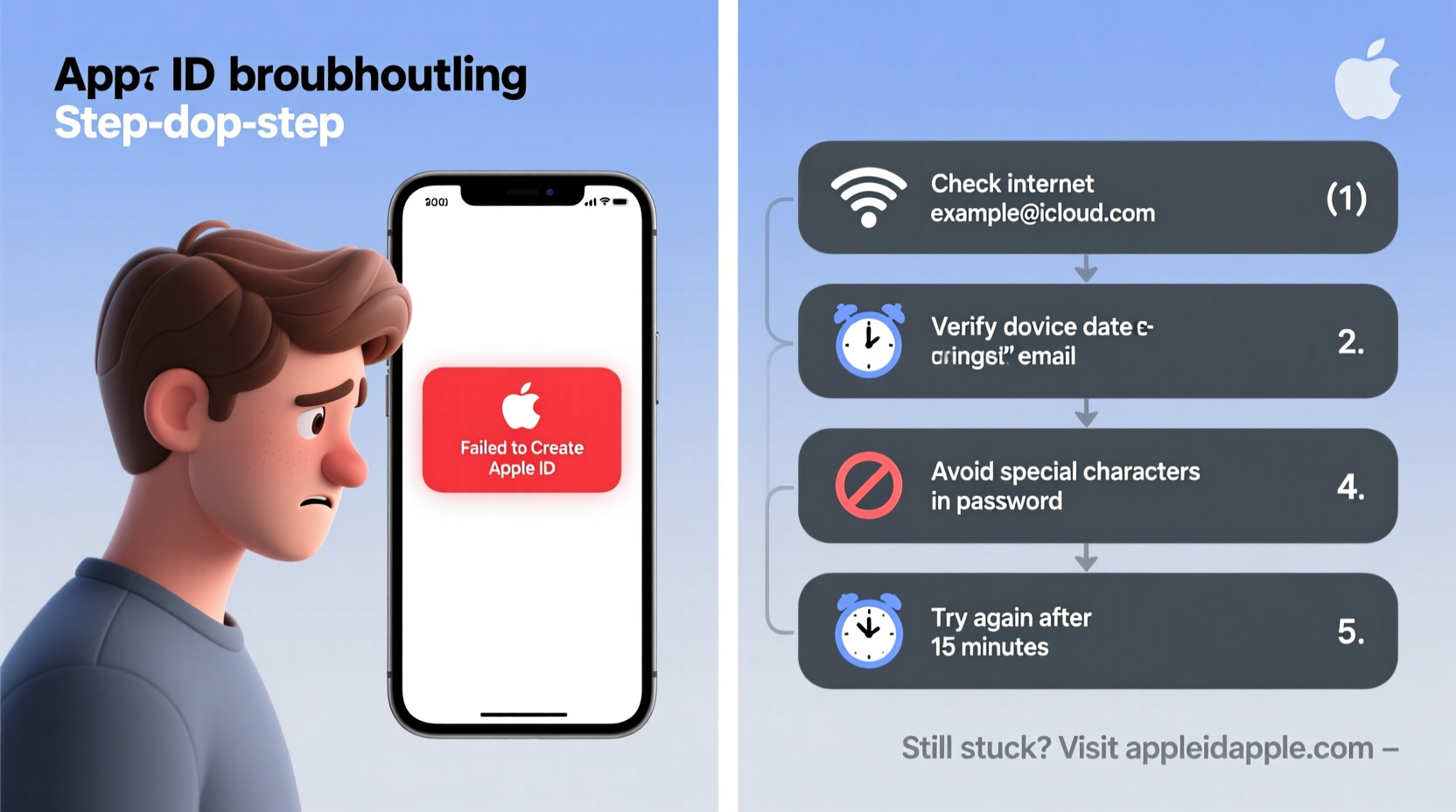
Before diving into fixes, it helps to understand what’s going wrong. Apple doesn’t always provide detailed error messages, but based on user reports and support documentation, several recurring issues stand out:
- Email address already in use: Even if you’ve never used it with Apple, the email may be linked to an existing Apple ID.
- Age restrictions: Apple requires users to be at least 13 years old (or older depending on region) to create an account.
- Network connectivity problems: Unstable Wi-Fi or restricted networks can interrupt registration.
- Birthday or country/region mismatch: Inconsistent information triggers security blocks.
- Device software outdated: Older iOS or macOS versions may not support current Apple ID protocols.
- Server-side issues: Temporary outages on Apple’s end can prevent account creation.
Step-by-Step Guide to Successfully Create an Apple ID
Sometimes the issue isn’t technical—it’s procedural. Following the correct sequence matters. Here’s how to create an Apple ID without hiccups:
- Ensure your device is updated: Go to Settings > General > Software Update (iOS) or System Settings > General > Software Update (macOS).
- Use a stable internet connection: Avoid public Wi-Fi; opt for a trusted home network.
- Navigate to Apple ID creation: On a new device, follow setup prompts until you reach the “Apple ID” screen. Tap “Don’t have an Apple ID?”
- Enter accurate personal details: Input your full name, birth date, and a working email address. Use your real birthday—Apple verifies age.
- Create a strong password: Must include uppercase, lowercase, numbers, and be at least eight characters long.
- Verify your email: Check your inbox for a confirmation email from Apple and click the verification link.
- Enable two-factor authentication: Enter the verification code sent to your trusted device or phone number.
If the process fails at any stage, note the exact error message. That detail is crucial for diagnosing the next steps.
Troubleshooting Specific Error Messages
Apple often displays cryptic codes like “Could Not Create Apple ID,” “There Was an Error Creating Your Account,” or “This Apple ID Cannot Be Used.” These aren’t dead ends—they’re signals pointing to specific underlying issues.
| Error Message | Possible Cause | Solution |
|---|---|---|
| \"Could Not Create Apple ID\" | Network issue or server downtime | Switch to a different Wi-Fi network or try again later. |
| \"This Apple ID Is Already in Use\" | Email linked to another account | Try signing in instead or use a different email. |
| \"Your Request Could Not Be Completed\" | Age restriction or invalid birth date | Double-check birth date; ensure you meet minimum age requirements. |
| \"Verification Failed\" | Email or phone number not verified correctly | Resend verification email/SMS and complete within 30 minutes. |
What to Do If You're Using a Family Plan or Managed Device
If you're setting up a child's device under Screen Time or a family sharing group, Apple imposes additional restrictions. For instance, minors cannot create an Apple ID independently—the parent must initiate it via Family Sharing settings. Similarly, school or work-owned devices may block personal account creation due to MDM (Mobile Device Management) policies.
“We see a lot of cases where parents try to create an Apple ID directly on a child’s iPad, only to hit a wall. The correct path is through their own device using Family Sharing.” — Jordan Lee, Apple Support Specialist with 7 years of experience
Essential Checklist Before Attempting Registration
Prevention beats frustration. Run through this checklist before starting the Apple ID creation process:
- ✅ Device is updated to the latest OS version
- ✅ You have a reliable internet connection
- ✅ The email address is active and accessible
- ✅ You know your exact date of birth and location
- ✅ Two-factor authentication method (phone number) is ready
- ✅ You’re not using a temporary or bulk email service
- ✅ Date and time settings on device are automatic
Real Example: Maria’s Successful Recovery
Maria, a college student, couldn’t create an Apple ID on her newly purchased iPad. Every attempt ended with “Could Not Create Apple ID.” She tried multiple times over two days, growing increasingly frustrated. Then she noticed her campus Wi-Fi redirected to a login portal. After switching to her mobile hotspot, the registration completed instantly. Later, she learned her university network blocked certain Apple domains due to firewall rules. Her story highlights how environmental factors—often overlooked—can derail the process.
When to Try Alternative Methods
If the standard in-device setup fails repeatedly, consider creating your Apple ID through a web browser:
- Visit appleid.apple.com on a computer.
- Click “Create Your Apple ID.”
- Fill in all required fields carefully.
- Complete email verification.
- Once created, sign in with the new credentials on your iPhone, iPad, or Mac.
This method bypasses device-specific bugs and often succeeds when the native setup fails. Just ensure the email and password match exactly when logging in elsewhere.
Frequently Asked Questions
Why does Apple say my email is already taken when I’ve never had an account?
It’s possible someone else used that email, or you previously signed up for an iTunes account or trial service. Try recovering the Apple ID using the “Forgot Apple ID or Password” option to check ownership.
Can I create an Apple ID without a phone number?
No. Apple requires a valid phone number for security and two-factor authentication. Use your own number—even if you don’t have SMS, voice calls can deliver verification codes.
How long should I wait if Apple says 'Try Again Later'?
Wait at least 24 hours. Repeated failed attempts can trigger temporary locks. Use this time to verify your information and network stability.
Final Recommendations and Next Steps
Most Apple ID creation issues stem from small oversights—incorrect birth dates, unstable connections, or reused emails. By methodically verifying each requirement and using alternative creation methods when needed, you can overcome nearly any obstacle. Remember: patience and precision matter. Rushing through the form increases the chance of errors that lead to rejection.
If all else fails, visit Apple Support and use the chat or phone options. Their agents can check backend systems and unlock accounts blocked by automated fraud detection.




 浙公网安备
33010002000092号
浙公网安备
33010002000092号 浙B2-20120091-4
Comments
No comments yet. Why don't you start the discussion?