
For many delivery drivers, the ability to go online and start accepting orders—commonly referred to as \"dashing\"—is essential for earning income. But when you open the DoorDash app and find you can’t dash, it’s more than frustrating—it impacts your livelihood. Whether you're a new Dasher or have been driving for years, encountering this issue is increasingly common. The causes range from technical glitches to account restrictions, and knowing how to diagnose and resolve them quickly is crucial.
This guide breaks down the most frequent reasons Dashers can't go online, provides actionable troubleshooting steps, and includes real-world insights to help you regain access and stay active on the platform.
Why Can’t You Dash on DoorDash?
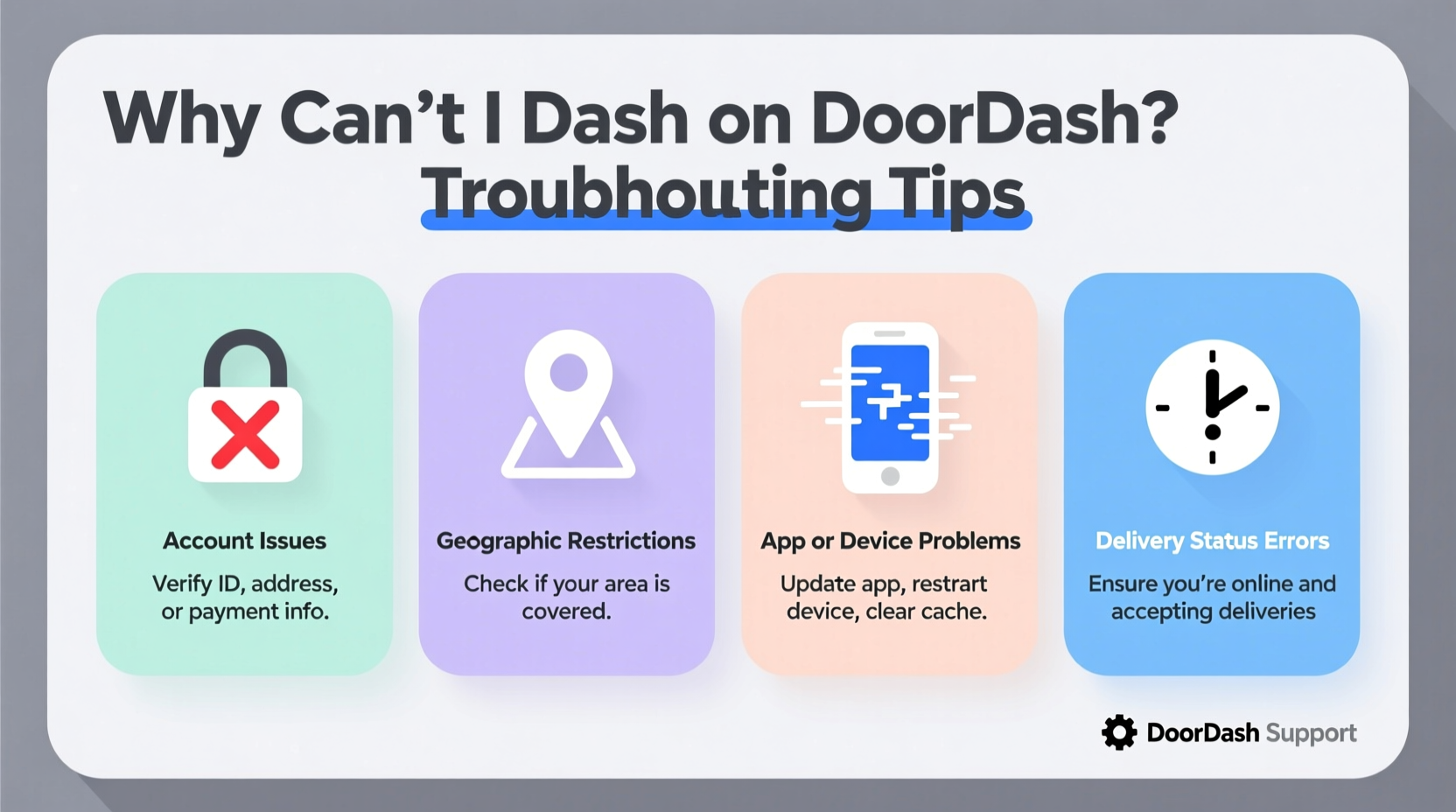
The inability to dash typically stems from one of several categories: technical problems with the app or device, connectivity issues, location inaccuracies, or account-related restrictions. While some fixes are simple, others may require contacting support. Understanding the root cause saves time and keeps you earning.
Common Technical Issues Preventing Dashing
Your smartphone and the DoorDash Driver app must work in harmony for dashing to function properly. When either component underperforms, the system blocks your ability to go online.
- App crashes or freezes: If the app closes unexpectedly when you try to dash, outdated software or corrupted data could be the culprit.
- GPS signal failure: DoorDash requires precise location tracking. Weak GPS or disabled location services prevent dashing.
- Outdated app version: Older versions may not communicate correctly with DoorDash servers.
- Background app restrictions: Battery-saving modes on Android or iOS may limit background processes needed for location updates.
Account and Compliance Restrictions
Sometimes, the problem isn’t your device—it’s your account status. DoorDash enforces performance standards and compliance policies that, if unmet, result in temporary or permanent restrictions.
| Issue | Description | Solution |
|---|---|---|
| Low acceptance rate | Frequent order rejections may trigger a soft block. | Maintain an acceptance rate above 70%. |
| Poor customer ratings | Consistently low feedback can lead to deactivation. | Improve service; contact support if wrongly rated. |
| Missing documentation | Expired vehicle registration or insurance. | Upload current documents in the app. |
| Policy violations | Unapproved substitutions or missed deliveries. | Review guidelines and appeal if necessary. |
“DoorDash monitors driver activity closely. A sudden drop in availability or repeated cancellations flags the account for review.” — Marcus Tran, Former DoorDash Operations Manager
Step-by-Step Troubleshooting Guide
If you’re unable to dash, follow this structured approach to identify and fix the issue efficiently.
- Check your internet connection: Switch between Wi-Fi and mobile data. Try loading other apps to confirm connectivity.
- Verify location permissions: Go to Settings > Apps > DoorDash > Permissions and ensure Location is enabled.
- Restart the app: Fully close the app and reopen it. On iPhone, swipe up; on Android, use the recent apps menu.
- Clear app cache (Android): Settings > Apps > DoorDash > Storage > Clear Cache.
- Reinstall the app: Uninstall, restart your phone, then reinstall from the official store.
- Test GPS accuracy: Open Google Maps or Apple Maps to see if your location updates in real time.
- Check for account alerts: Look for notifications or banners in the app indicating suspension or required actions.
- Contact DoorDash Support: If all else fails, submit a request via the Help section in the app.
Real-World Example: Regaining Dashing Access After a Sudden Block
Carlos, a full-time Dasher in Houston, opened his app one morning only to find the “Go Online” button grayed out. No error message appeared. He tried restarting his phone and toggling location settings, but nothing worked. After 30 minutes of frustration, he checked his email and found a notification stating his vehicle insurance had expired.
He uploaded a new proof of insurance through the Documents section of the app. Within two hours, he received confirmation of approval and was able to dash again. His takeaway: Always monitor document expiration dates—even one day late can lock you out.
Essential Checklist: Before You Try to Dash
Use this checklist daily to avoid last-minute surprises:
- ✅ Phone battery charged to at least 30%
- ✅ DoorDash app updated to latest version
- ✅ Location services enabled for DoorDash
- ✅ Strong cellular or Wi-Fi signal
- ✅ GPS accuracy confirmed (check via maps app)
- ✅ Vehicle documents up to date in app
- ✅ No pending messages or warnings from DoorDash
- ✅ Account in good standing (acceptance rate & ratings healthy)
Frequently Asked Questions
How long does it take to regain dashing privileges after fixing an issue?
Most technical fixes restore access immediately. For document or compliance issues, verification can take 1–24 hours. Emergency support tickets may expedite the process.
Can I dash in multiple cities without issues?
Yes, but ensure your profile reflects your current region. Frequent location changes without proper setup may trigger security checks. Always update your preferred delivery zones in the app settings.
What if my phone doesn’t support the latest app update?
DoorDash requires relatively modern devices. If your phone can’t run the current app version, consider upgrading. Older operating systems lose compatibility during major app updates.
When to Contact DoorDash Support
While many issues are self-resolvable, certain situations demand direct assistance. Reach out to support if:
- You receive a message about account suspension or review.
- You’ve completed all troubleshooting steps but still can’t dash.
- Your documents are uploaded but not verified after 24 hours.
- You suspect fraudulent activity on your account.
To contact support: Open the DoorDash Driver app > Menu > Help > Submit a Request. Choose the most relevant category and provide clear details, including screenshots if possible.
Preventing Future Dashing Issues
Proactive maintenance of your device and account minimizes downtime. Treat your Dashing setup like a small business operation—reliability is key.
Set calendar reminders for document renewals. Enable automatic app updates. Perform weekly device checks: reboot your phone, clear unnecessary storage, and test GPS functionality. These habits reduce the risk of being locked out during peak earning hours.
“Top-earning Dashers don’t just drive—they manage their tech and compliance like professionals. Prevention beats panic every time.” — Lena Patel, Gig Economy Coach
Conclusion
Being unable to dash on DoorDash disrupts your schedule and income. But with the right knowledge, most issues can be resolved quickly—or better yet, prevented entirely. From checking location permissions to maintaining account health, each step plays a role in keeping you online and on the road.
Don’t wait until you’re locked out to act. Review your app settings today, verify your documents, and run a quick system check. Small efforts now can save hours of lost earnings later.




 浙公网安备
33010002000092号
浙公网安备
33010002000092号 浙B2-20120091-4
Comments
No comments yet. Why don't you start the discussion?