
If you’ve ever tried to delete an app from your iPad only to find that the familiar “X” isn’t there or the icons won’t wiggle, you’re not alone. Many iPad users encounter this frustrating issue—especially after iOS updates or when certain restrictions are in place. The inability to remove unwanted apps can clutter your home screen and limit storage space. But before you consider a full device reset, understand that this is usually a solvable problem rooted in settings, permissions, or system-level configurations.
The good news is that most cases can be resolved quickly once you identify the underlying cause. Whether it’s Screen Time restrictions, MDM profiles, or a simple interface glitch, this guide walks you through every possible reason and provides clear, step-by-step solutions.
Why You Can’t Delete Apps on Your iPad
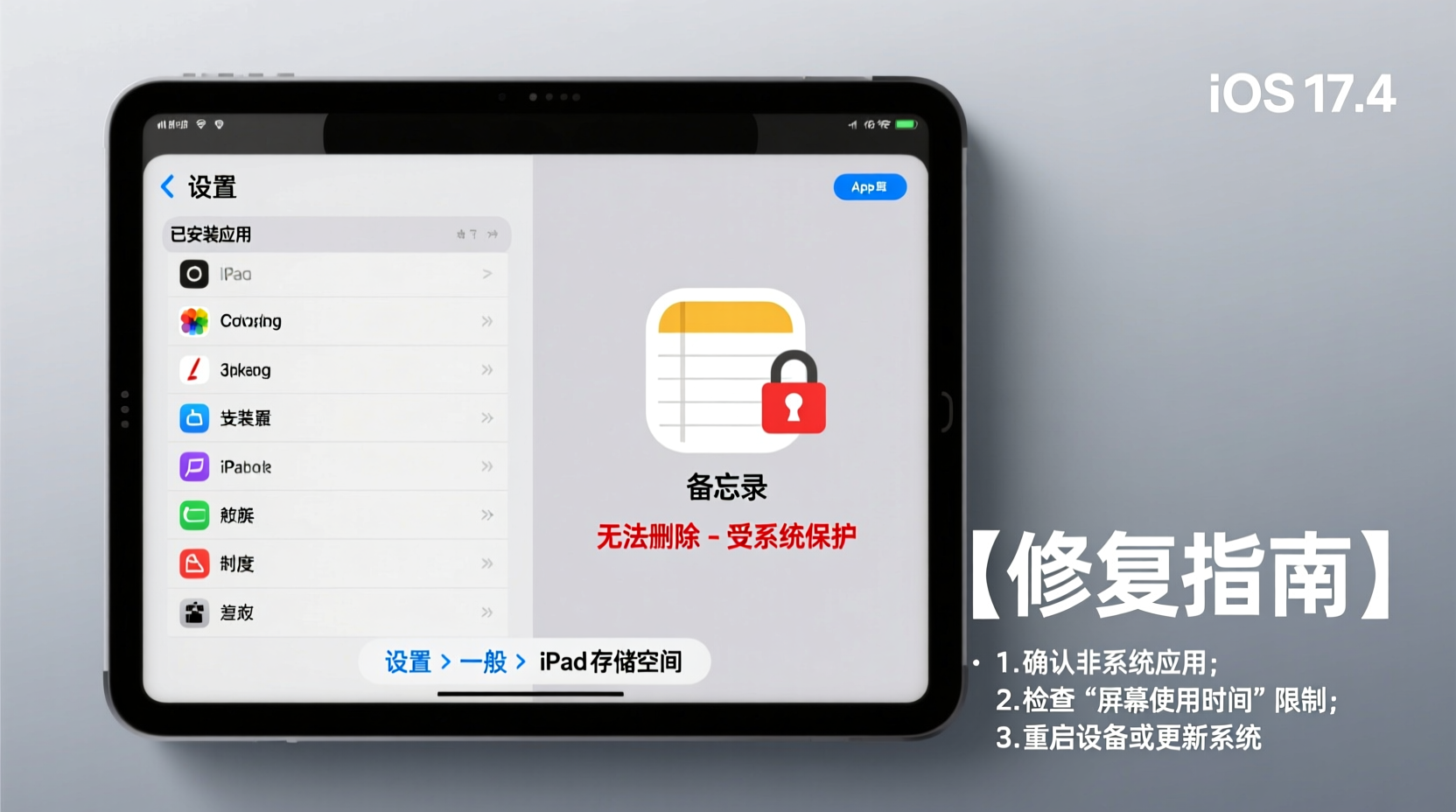
iPadOS is designed to give users control over their apps, but Apple also builds in safeguards—especially for shared devices, children’s iPads, or work/school-managed tablets. These protections sometimes prevent app deletion even when you expect to have full access.
Common reasons include:
- Screen Time content & privacy restrictions are enabled
- Mobile Device Management (MDM) profile installed (common in schools or workplaces)
- App was pre-installed by Apple (e.g., Stocks, Weather, Tips)
- Supervised mode is active
- Software glitch after an iOS update
- Insufficient permissions on a managed device
Unlike third-party apps, some built-in Apple apps cannot be fully deleted—they can only be hidden from the home screen. However, if even user-downloaded apps refuse to be removed, the issue lies elsewhere.
Step-by-Step Guide to Fix App Deletion Issues
Follow these steps in order to regain the ability to delete apps from your iPad.
- Restart Your iPad
Start with a soft restart. Sometimes a minor software hiccup prevents the home screen from entering edit mode. Press and hold the top button and either volume button until the power slider appears. Slide to power off, then turn it back on. - Enter Jiggle Mode Manually
Press and hold any app icon until all icons begin to wiggle. If they don’t, try tapping another empty area of the screen and repeat. Once wiggling, check if an “X” appears on the app you want to delete. - Check Screen Time Restrictions
Go to Settings > Screen Time > Content & Privacy Restrictions. Tap “iTunes & App Store Purchases.” Ensure “Deleting Apps” is set to “Allow.” If it’s set to “Don’t Allow,” change it. - Verify Your Apple ID Account Type
If you're using a child’s Apple ID linked via Family Sharing, parental controls may restrict deletions. The parent must approve changes unless the child requests permission. - Look for MDM or Supervision Profiles
Navigate to Settings > General > VPN & Device Management. If you see a configuration profile listed (especially from a school or company), it likely enforces app retention. Only the administrator can remove this restriction. - Update iPadOS
Outdated software can cause bugs. Go to Settings > General > Software Update and install any available updates. - Reset All Settings (Last Resort)
If nothing works, go to Settings > General > Transfer or Reset iPad > Reset > Reset All Settings. This won’t erase your data but will clear network, display, and privacy settings.
What to Do When the “X” Is Missing
If the delete “X” doesn’t appear during jiggle mode:
- It might be a built-in Apple app (like Calendar or Compass). These can't be deleted—only hidden.
- Tap and hold longer—sometimes the action requires a firm press, especially if Haptic Touch is enabled.
- Try deleting the app via the App Library: Swipe left past your last home screen, find the app, tap and hold its icon, then select “Delete App.”
Do’s and Don’ts When Troubleshooting App Deletion
| Do’s | Don’ts |
|---|---|
| ✅ Check Screen Time settings first | ❌ Assume all apps can be deleted |
| ✅ Restart your iPad after making setting changes | ❌ Share your Screen Time passcode with others |
| ✅ Use the App Library to attempt deletion | ❌ Factory reset without trying simpler fixes |
| ✅ Contact your institution’s IT department if MDM is present | ❌ Download third-party tools claiming to remove system apps |
Real Example: A Teacher’s iPad Locked by School Policy
Sarah, a middle school teacher in Portland, couldn’t delete outdated educational apps from her district-issued iPad. She followed standard deletion steps, but the icons wouldn’t wiggle. After checking online, she discovered a “Device Management” profile installed by her school’s IT team. This MDM policy locked core apps and prevented uninstallation to maintain compliance and security.
She contacted her tech support team, who confirmed that certain apps were mandatory for standardized testing and classroom management. While she couldn’t remove them, she learned how to move them into folders and hide them from her main screen—significantly improving usability.
This case highlights how institutional policies often override individual control—and why identifying MDM presence is crucial.
“Many iPad issues stem not from hardware failure, but from layered software restrictions. Understanding where control lies—user, parent, or administrator—is half the battle.” — Marcus Lin, Apple Support Specialist with 12 years of experience
Troubleshooting Checklist
Use this checklist to systematically resolve app deletion problems:
- ☐ Restart the iPad
- ☐ Enter jiggle mode by long-pressing an app icon
- ☐ Go to Settings > Screen Time > Content & Privacy Restrictions > iTunes & App Store Purchases
- ☐ Confirm “Deleting Apps” is set to “Allow”
- ☐ Check for a Mobile Device Management profile under Settings > General > VPN & Device Management
- ☐ Attempt deletion from the App Library
- ☐ Install the latest iPadOS version
- ☐ Reset all settings if necessary
Frequently Asked Questions
Why can’t I see the X on my apps?
The “X” only appears on apps you downloaded yourself. Built-in Apple apps (like Voice Memos or Find My) don’t show an X because they can’t be deleted. Also, if Screen Time restrictions or MDM profiles are active, the X may be hidden even for third-party apps.
Can I delete preinstalled Apple apps?
No, you cannot permanently delete most built-in Apple apps. However, you can remove them from the home screen by long-pressing the icon, selecting “Remove App,” then choosing “Remove from Home Screen.” The app remains in the App Library and system files.
What if my iPad is managed by my school or company?
If your iPad is supervised or enrolled in an MDM program (like Jamf or Microsoft Intune), administrators control which apps can be installed or removed. You’ll need to contact your IT department to adjust policies or request app removal.
Final Thoughts and Next Steps
Being unable to delete apps on your iPad is more common than you might think—and almost always fixable without drastic measures. In most cases, the solution lies within Screen Time settings or a simple restart. For managed devices, limitations are intentional and require administrative intervention.
Take time to review your settings, verify restrictions, and understand whether your device operates under external policies. With the right knowledge, you can reclaim control over your home screen and keep your iPad running smoothly.




 浙公网安备
33010002000092号
浙公网安备
33010002000092号 浙B2-20120091-4
Comments
No comments yet. Why don't you start the discussion?