
If you’ve ever picked up your iPhone only to realize the App Store is missing from your home screen, you’re not alone. The App Store is essential for downloading apps, updating software, and managing subscriptions. When it disappears, it can feel like your phone has lost its core functionality. But in most cases, the app hasn’t vanished permanently—it’s likely hidden, restricted, or affected by a system glitch. This guide walks through every possible reason the App Store might be missing and exactly how to restore it quickly and safely.
Why the App Store Might Disappear
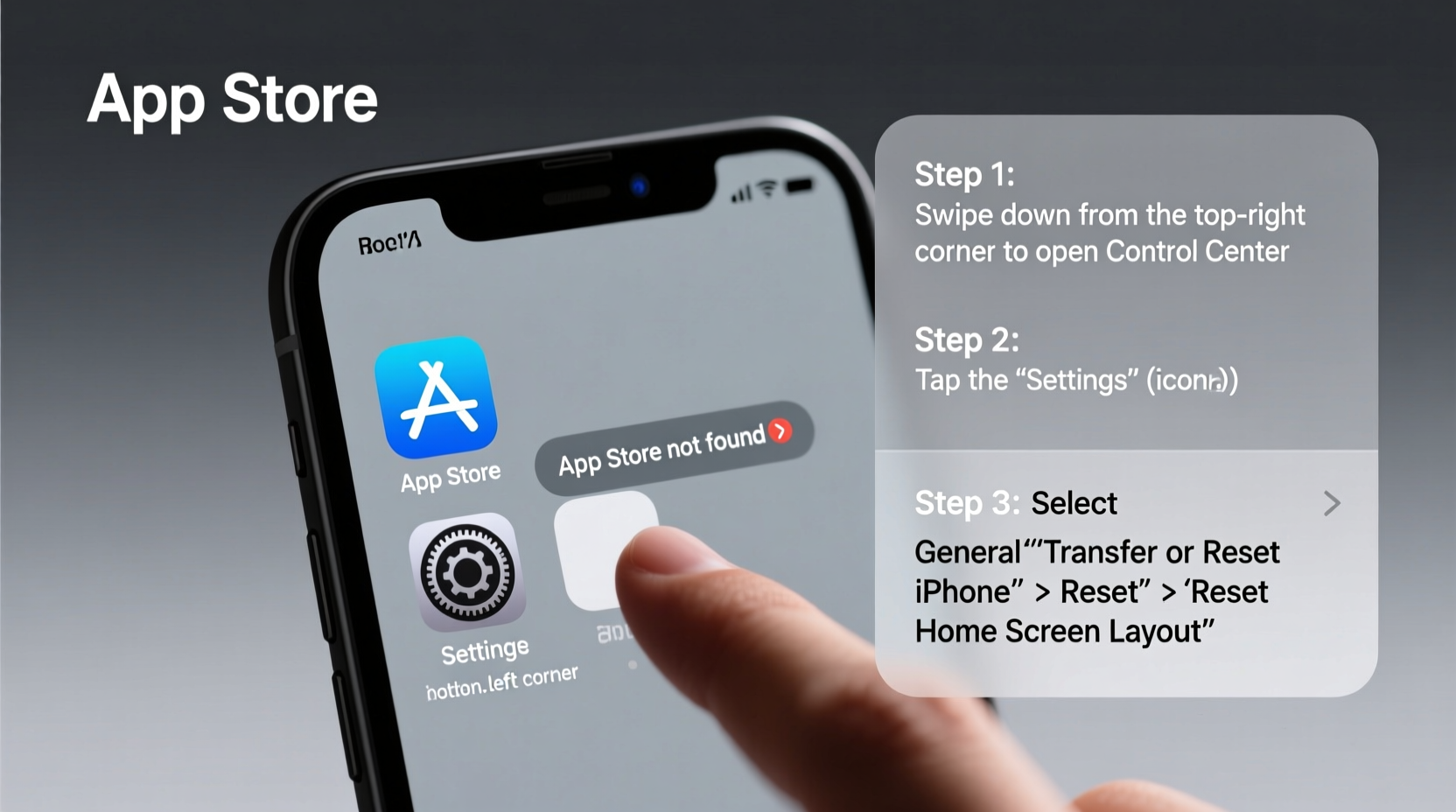
The App Store doesn’t just vanish without cause. Several system-level settings or user actions can make it seem like the app is gone. Common reasons include:
- Screen Time restrictions – Parents or users may have accidentally disabled access.
- Home screen organization – The icon could be buried in a folder or moved to another page.
- iOS glitches or updates – Software bugs after an update can hide system apps.
- Search misdirection – Users sometimes overlook the search function and assume the app is missing.
- Device management profiles – In corporate or school environments, MDM (Mobile Device Management) can restrict access.
Before jumping to conclusions, verify that the App Store isn’t simply misplaced. Swipe left across all your home screen pages and check inside folders labeled “Utilities,” “Apple,” or “Apps.”
Step-by-Step Guide to Restore the App Store
Follow this logical sequence to identify and fix the issue:
- Use Spotlight Search: Swipe down on the home screen, type “App Store.” If it appears, tap to open. Long-press the icon and select “Add to Home Screen” if needed.
- Check All Home Screen Pages: Swipe left repeatedly to browse every page, including those at the far right near the Today View.
- Look in Folders: Open any folders that might contain Apple apps, such as “Extras” or “Tools.”
- Restart Your iPhone: A simple reboot often resolves temporary UI glitches. Press and hold the side button and either volume button, then slide to power off. Turn it back on after 30 seconds.
- Check Screen Time Settings: Go to Settings > Screen Time > Content & Privacy Restrictions > Allowed Apps. Ensure “App Store” is toggled ON.
- Reset Home Screen Layout: If the app is misplaced due to layout changes, go to Settings > General > Transfer or Reset iPhone > Reset > Reset Home Screen Layout. This returns all default apps—including the App Store—to their original positions.
Note: Resetting the home screen layout does not delete data or apps; it only reorganizes icons.
When Restrictions Are the Culprit
Screen Time settings are the most common cause of a missing App Store. This feature, designed to limit usage or protect younger users, can inadvertently disable access to critical apps.
To verify and correct this:
- Open the Settings app.
- Tap Screen Time.
- Select Content & Privacy Restrictions.
- If prompted, enter your Screen Time passcode.
- Navigate to Allowed Apps.
- Ensure the toggle next to App Store is green (enabled).
If you don’t remember setting a passcode, recovering it can be challenging. Apple does not provide a recovery option for forgotten Screen Time passcodes, but resetting all settings may help (see below).
“Over 60% of ‘missing App Store’ cases we see in support forums stem from accidental Screen Time restrictions. It’s an easy fix—if you know where to look.” — Lisa Tran, iOS Support Specialist at AppleInsider Help Desk
Troubleshooting Table: Do’s and Don’ts
| Action | Do | Don’t |
|---|---|---|
| Looking for the App Store | Use Spotlight Search or check all home screens | Assume it was deleted—system apps can’t be uninstalled |
| Fixing restrictions | Check Screen Time > Allowed Apps | Share your Screen Time passcode with others |
| After an iOS update | Restart your device and reset home layout if needed | Immediately restore from backup unless necessary |
| Forgot Screen Time passcode | Use iTunes/Finder to restore device (data loss risk) | Use third-party tools claiming to bypass restrictions |
Real Example: How Sarah Found Her App Store
Sarah, a teacher using her iPhone for classroom apps, updated to iOS 17 and suddenly couldn’t find the App Store. She panicked—she needed to download a new grading tool. After searching every screen and folder, she remembered enabling Screen Time for her kids’ devices. On a hunch, she checked her own settings and discovered that during the update, a family sharing profile had synced restrictions to her phone. The App Store was disabled under “Allowed Apps.” One toggle later, the icon reappeared. “I felt silly,” she said, “but I’m glad I didn’t erase everything first.”
This scenario is more common than many realize—especially among families using shared Apple IDs or supervised devices.
Advanced Fixes for Persistent Issues
If the App Store still doesn’t appear after trying the above steps, consider these deeper solutions:
Reset All Settings
This resets network settings, keyboard dictionary, location permissions, and privacy settings—but won’t erase your data. Go to Settings > General > Transfer or Reset iPhone > Reset > Reset All Settings. You’ll need to re-enter Wi-Fi passwords and reconfigure some preferences.
Update or Reinstall iOS
A corrupted OS installation can hide system apps. Connect to Wi-Fi and go to Settings > General > Software Update. Install any available update. If none appear, try updating via iTunes or Finder on a computer.
Check for MDM or Configuration Profiles
In workplaces or schools, a configuration profile may restrict the App Store. Go to Settings > General > VPN & Device Management. If a profile is listed, contact your administrator. Do not remove it unless authorized.
FAQ: Common Questions About the Missing App Store
Can the App Store be permanently deleted from an iPhone?
No. The App Store is a built-in system app and cannot be deleted. It can only be hidden through restrictions or interface glitches.
I reset my home screen but still don’t see the App Store. What now?
Double-check Screen Time restrictions. If enabled and still missing, restart your iPhone. If the problem persists, back up your device and install the latest iOS version via Finder (Mac) or iTunes (PC).
Will resetting all settings delete my photos or messages?
No. Resetting all settings only clears system preferences like Wi-Fi passwords, wallpaper, and accessibility options. Your personal data remains intact.
Conclusion: Regain Control of Your iPhone Experience
Losing access to the App Store can be disorienting, but in nearly every case, it’s a solvable issue rooted in settings, not hardware failure. By methodically checking restrictions, restarting your device, and understanding how iOS organizes system apps, you can restore full functionality in minutes. The key is staying calm and avoiding drastic measures like full factory resets unless absolutely necessary.
Now that you know how to bring the App Store back, take a moment to review your Screen Time settings and ensure other essential apps aren’t accidentally restricted. Share this guide with friends or family who’ve struggled with the same issue—because everyone deserves a fully functional iPhone.




 浙公网安备
33010002000092号
浙公网安备
33010002000092号 浙B2-20120091-4
Comments
No comments yet. Why don't you start the discussion?