
Going live on Facebook is one of the most effective ways to connect with your audience in real time. Whether you're hosting a Q&A, launching a product, or sharing behind-the-scenes content, live video builds trust and engagement. But when the \"Go Live\" button doesn’t work—or worse, disappears—frustration sets in quickly. The good news: most issues have simple fixes. From app glitches to permission errors, this guide breaks down the most common reasons you can’t go live on Facebook and how to resolve them efficiently.
Common Reasons You Can’t Go Live on Facebook
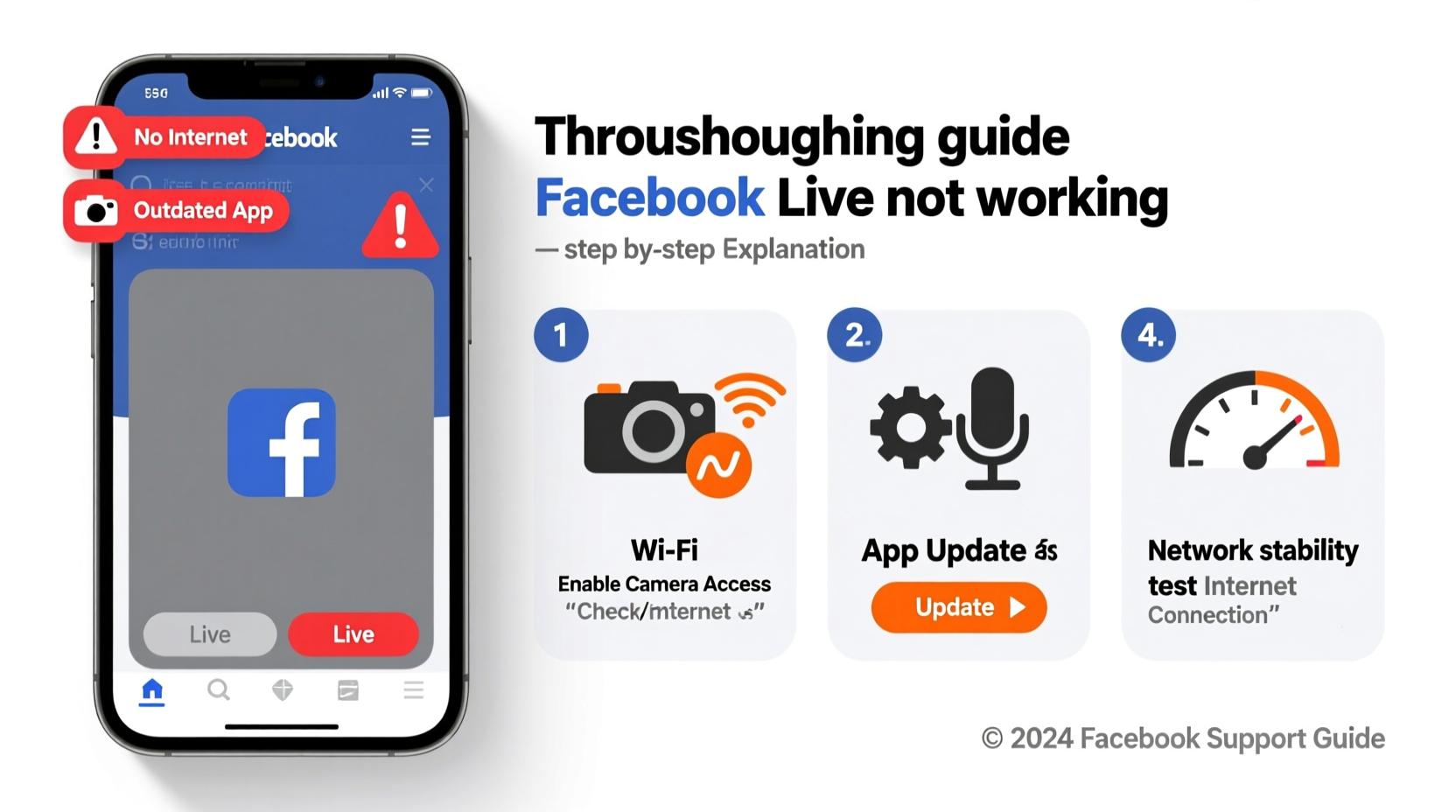
Before diving into solutions, it’s essential to understand what might be blocking your ability to stream. Facebook Live relies on multiple systems working together: your device, internet connection, app permissions, account status, and platform policies. A failure in any one area can prevent a successful broadcast.
- App or software bugs: Outdated or corrupted versions of the Facebook app may disable live features.
- Poor internet connection: Live streaming requires stable upload speeds (minimum 5 Mbps recommended).
- Disabled permissions: Your phone may not allow Facebook access to the camera, microphone, or storage.
- Account restrictions: Violations of Community Standards—even unintentional ones—can temporarily suspend live privileges.
- Device compatibility: Older smartphones or tablets may not support live broadcasting.
- Geographic or page-specific limitations: Some countries or business pages have restricted access due to policy enforcement.
Step-by-Step Troubleshooting Guide
If you're unable to start a live stream, follow this systematic approach to identify and fix the root cause.
- Check your internet connection. Use a speed test tool to confirm your upload speed. If below 3 Mbps, switch to a wired connection or move closer to your router.
- Restart your device. A simple reboot clears temporary memory issues that could interfere with app performance.
- Update the Facebook app. Visit your device’s app store and ensure you’re using the latest version.
- Verify camera and microphone access. Go to Settings > Apps > Facebook > Permissions and enable all required functions.
- Log out and back into Facebook. This refreshes your session and re-authenticates your identity.
- Try a different device. If possible, attempt a live stream from another smartphone, tablet, or computer.
- Test from a personal profile instead of a Page. Sometimes Pages inherit restrictions that don’t apply to profiles.
Do’s and Don’ts When Preparing to Go Live
Avoiding preventable mistakes starts with preparation. The table below outlines key actions to take—and skip—before hitting “Start Live Video.”
| Do’s | Don’ts |
|---|---|
| Use a tripod or stable surface for steady footage | Hold the phone with shaky hands |
| Ensure at least 70% battery or plug into power | Stream with less than 20% battery |
| Close unused apps to free up RAM | Run multiple data-heavy apps simultaneously |
| Announce your live session ahead of time | Start without notifying your audience |
| Review Facebook’s Community Standards | Use copyrighted music or explicit language |
Real Example: How Sarah Fixed Her Live Stream Failure
Sarah, a fitness coach with over 12,000 followers, scheduled a weekly live workout every Thursday evening. One week, she opened the Facebook app, tapped her Page, selected “Go Live,” but nothing happened—not even an error message. She tried three times before giving up.
After reviewing her settings, she discovered that a recent Android update had automatically revoked microphone access for several apps, including Facebook. Once she manually re-enabled microphone permissions under App Settings, the live function returned immediately. She also switched from public Wi-Fi to a personal hotspot for better bandwidth control.
The next week, her stream launched flawlessly. More importantly, she added a pre-live checklist to her routine, reducing future risks.
“Many creators assume the problem is with Facebook, but often it's a silent setting change on their own device.” — Jamal Reeves, Social Media Technologist at Digital Reach Labs
Checklist: Ensure You’re Ready to Go Live
Print or bookmark this checklist to verify everything is in order before each broadcast:
- ✅ Internet speed tested (upload ≥5 Mbps)
- ✅ Camera and microphone permissions enabled
- ✅ Facebook app updated to current version
- ✅ Device charged above 50% or connected to power
- ✅ Account in good standing (no recent warnings)
- ✅ Streaming location free of background noise or distractions
- ✅ Title and preview image prepared (if applicable)
- ✅ Audience notified via story or post 30–60 minutes prior
FAQ: Common Questions About Facebook Live Issues
Why has my “Go Live” button disappeared?
The button may vanish due to account restrictions, app bugs, or lack of permissions. It can also be hidden if your Page hasn’t met eligibility requirements (e.g., minimum follower count in some regions). Try logging in from a desktop browser—if the option appears there, the issue is likely mobile-specific.
Can I go live from a computer instead of a phone?
Yes. On desktop, navigate to your Profile or Page, click “Create,” then select “Live Video.” You’ll need a webcam and microphone. For advanced setups, use RTMP streaming with OBS Studio to broadcast professionally.
How long does a Facebook Live restriction last?
Temporary restrictions typically last between 24 hours and 30 days, depending on severity. First-time violations usually result in shorter holds. Repeated infractions may lead to permanent loss of live capabilities. Review Facebook’s notification emails for specific details.
Expert Tips for Preventing Future Live Stream Failures
Prevention beats troubleshooting every time. Seasoned streamers build redundancy into their process. Here are field-tested strategies used by professional creators:
- Use Ethernet adapters with mobile devices when possible—wired connections drastically reduce dropouts.
- Enable Data Saver mode off in the Facebook app settings to prevent compression or feature throttling.
- Maintain two backup devices—one primary and one ready-to-use alternative.
- Schedule recurring maintenance checks for app updates, storage space, and permission statuses.
- Monitor your Page’s Professional Dashboard regularly for health alerts or policy flags.
Conclusion: Take Control of Your Live Experience
Being unable to go live on Facebook doesn’t have to derail your content plans. Most obstacles are technical, temporary, and entirely fixable. By understanding the underlying causes—from connectivity hiccups to permission resets—you gain the power to respond quickly and confidently. The key is preparation: treat every live session like a production, not an afterthought.




 浙公网安备
33010002000092号
浙公网安备
33010002000092号 浙B2-20120091-4
Comments
No comments yet. Why don't you start the discussion?