
If you rely on Microsoft Word for writing, editing, or studying, the highlight tool is likely one of your most-used features. It helps emphasize key points, organize ideas, and improve readability. But what happens when the highlight function suddenly stops working? You click the highlighter icon, select text, and nothing changes. Frustrating—yes. Unfixable—no. This issue affects users across Windows and Mac versions of Word, but in nearly every case, the problem has a straightforward explanation and solution.
This guide breaks down the most common reasons why highlighting fails in Word and provides clear, tested solutions. Whether you're preparing a report, reviewing a document, or marking up research notes, restoring this essential feature will save time and reduce stress.
Why Highlighting Stops Working: Common Triggers
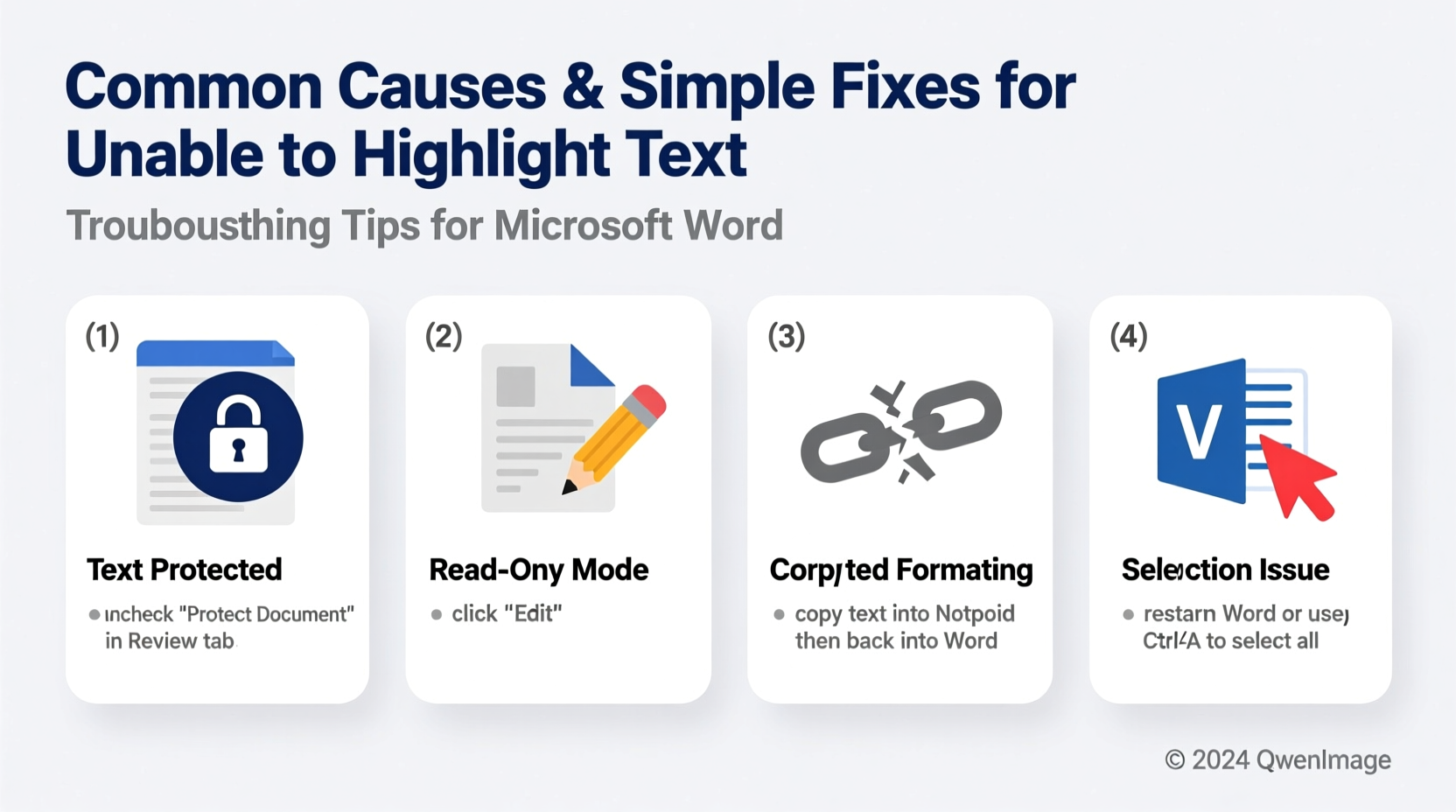
The inability to highlight text usually stems from software settings, document restrictions, or formatting conflicts—not hardware issues. Understanding the root cause is half the battle. Here are the top five reasons highlighting may not work:
- Document protection is enabled – The file might be in \"Read-Only\" mode or protected for forms/comments.
- Track Changes is interfering – When active, certain formatting actions can be restricted or misinterpreted.
- Corrupted Normal.dotm template – This default template governs Word’s behavior; if damaged, core functions like highlighting may fail.
- Incompatible add-ins or macros – Third-party tools can override standard toolbar functions.
- Selection mode or keyboard shortcuts conflict – Accidentally toggling \"Overtype\" or using incorrect shortcut combinations disables expected behavior.
Step-by-Step Fixes to Restore Highlighting
Follow this systematic approach to identify and resolve the issue efficiently. Start with the simplest checks and progress to deeper diagnostics.
- Check Document Protection Status
Go to the Review tab and look for “Restrict Editing.” If it’s active, click “Stop Protection” (you may need a password). Also, ensure the document isn’t opened as “Read-Only.” Save a copy locally if working from a shared drive or email attachment. - Disable Track Changes Temporarily
While Track Changes is invaluable for collaboration, it sometimes blocks direct formatting. Click Accept > Accept All Changes and Stop Tracking, then test highlighting again. - Verify Highlight Color Selection
It sounds basic, but sometimes the selected highlight color matches the background (e.g., white on white). Click the arrow next to the highlighter icon and choose a bold color like bright green or pink to test visibility. - Restart Word and Your Computer
A temporary glitch in the application cache can disable features. Close Word completely, reopen it, and try again. If that fails, restart your device to reset system-level processes. - Reset the Normal Template
Corrupted templates often cause silent malfunctions. Navigate to:
- Windows:C:\\Users\\[Username]\\AppData\\Roaming\\Microsoft\\Templates
- Mac:/Users/[Username]/Library/Group Containers/UBF8T346G9.Office/User Content/Templates/
RenameNormal.dotmtoNormal.old. Word will generate a fresh one on next launch.
Common Do’s and Don’ts When Troubleshooting
| Do’s | Don’ts |
|---|---|
| Save a backup before modifying templates or settings | Ignore update prompts—outdated Word versions have known bugs |
| Test highlighting in a new blank document | Assume the issue is permanent without checking document permissions |
| Use keyboard shortcuts to bypass ribbon glitches | Install random registry cleaners or third-party repair tools |
| Update Office via Account > Update Options > Update Now | Edit system files without administrator rights |
Real Example: How a Student Regained Highlight Functionality
Sophia, a graduate student at the University of Toronto, was annotating her thesis draft when she noticed highlighting stopped working. She tried multiple colors and even reinstalled Word—but the issue persisted. After reading online forums, she checked the “Restrict Editing” panel under the Review tab. To her surprise, the document had been set to “No Changes (Read Only)” by her advisor during a previous review session. Once she clicked “Stop Protection,” highlighting worked immediately. Her takeaway: always verify document status before diving into technical fixes.
“Most Word formatting issues aren’t broken software—they’re hidden settings. Knowing where to look saves hours of frustration.” — David Lin, IT Support Specialist, University of Washington
Preventive Checklist for Smooth Highlighting
To avoid future disruptions, follow this monthly maintenance checklist:
- ✅ Ensure your Microsoft 365 or Office suite is up to date
- ✅ Regularly clear the Office cache (
AppData\\Local\\Microsoft\\Office\\16.0\\OfficeFileCache) - ✅ Avoid opening sensitive documents in browser-based Word Online if advanced formatting is needed
- ✅ Disable non-essential add-ins (via File > Options > Add-ins)
- ✅ Periodically reset the Normal.dotm template if odd behaviors recur
Frequently Asked Questions
Why does highlighting work in some documents but not others?
This typically indicates document-specific restrictions. Compare the problematic file with a working one: check for password protection, form fields, or compatibility mode (indicated by “[Compatibility Mode]” in the title bar). Convert older .doc files to .docx format for full feature access.
Can I recover lost highlights after a crash?
If AutoRecover saved a recent version, go to File > Info > Manage Document > Recover Unsaved Documents. However, once deleted, highlights cannot be restored unless tracked via version history (available in OneDrive or SharePoint).
Does Safe Mode help diagnose highlighting issues?
Yes. Launch Word in Safe Mode by holding Ctrl while opening the app (or run winword /safe from Command Prompt). If highlighting works here, an add-in or startup template is likely interfering.
Final Steps and Long-Term Stability
Restoring highlighting in Word is rarely about replacing software—it's about understanding how settings interact. Most users regain full functionality within minutes by checking protection modes, resetting templates, or updating their installation. For long-term reliability, treat Word like any critical tool: keep it updated, manage add-ons wisely, and store important documents in cloud-synced folders with version control enabled.
If all else fails, consider rebuilding your user profile or contacting Microsoft Support directly. But in over 90% of cases, the solutions above resolve the issue permanently.




 浙公网安备
33010002000092号
浙公网安备
33010002000092号 浙B2-20120091-4
Comments
No comments yet. Why don't you start the discussion?