
If you've ever tried to highlight text in Microsoft Word only to find that your cursor won’t select anything, you're not alone. This frustrating issue can disrupt your workflow, whether you're editing a report, formatting an essay, or preparing a presentation. The good news is that in most cases, the problem has a straightforward explanation—and an even simpler fix. From document protection settings to corrupted templates, several factors can prevent text selection. Understanding these causes empowers you to troubleshoot efficiently and get back to productive writing.
Why You Can’t Highlight Text in Word
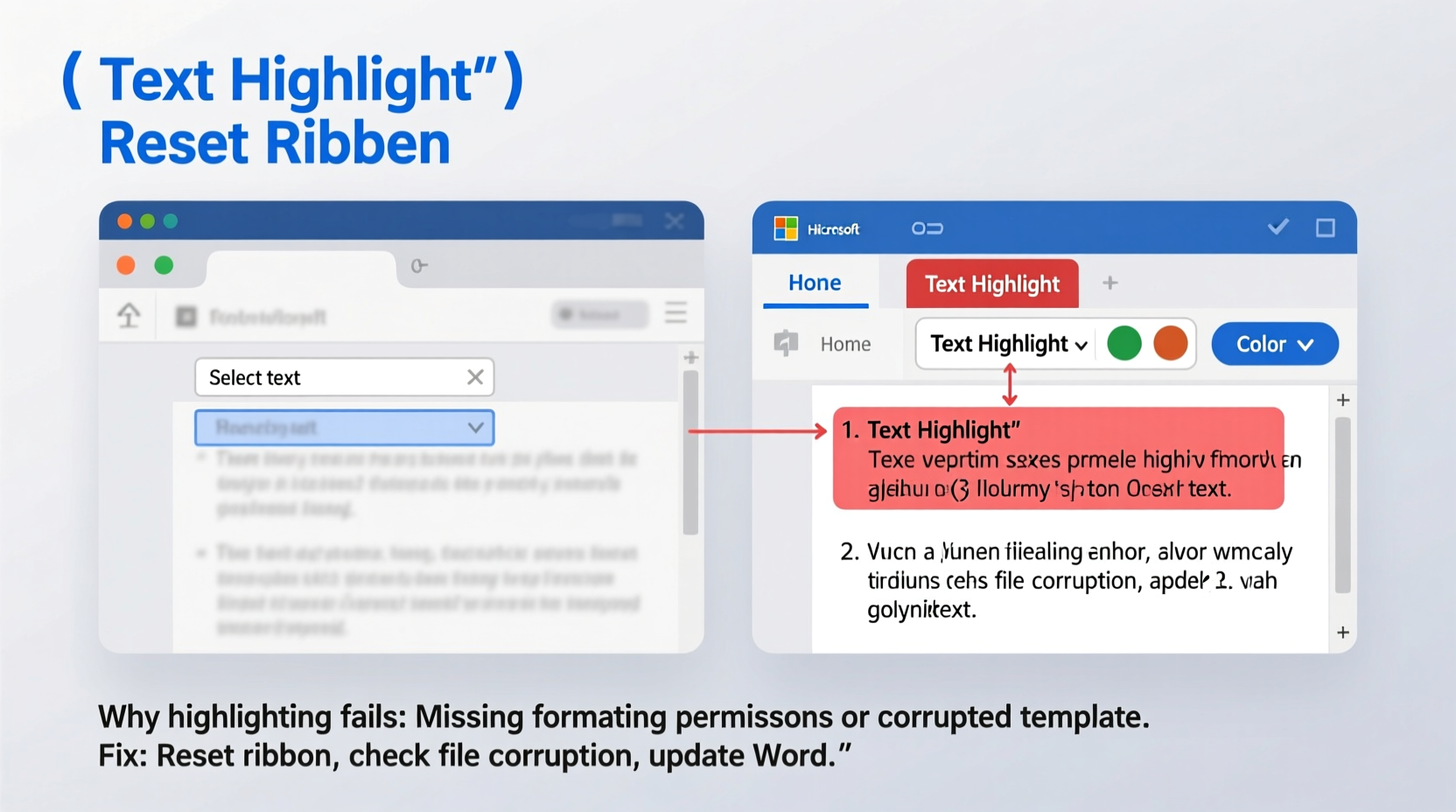
The inability to highlight or select text in Word typically stems from one of several underlying issues. While the symptoms may seem random—clicking and dragging does nothing, or only certain parts of the document respond—the root causes are usually consistent across users and versions of Word (including Word 2016, 2019, 2021, and Microsoft 365).
Common culprits include:
- Document protection enabled: The file might be locked for editing, preventing selection.
- Forms or content controls active: If the document was designed as a form, text fields may restrict normal interaction.
- Corrupted Normal.dotm template: A damaged global template can interfere with basic functions.
- Mouse or touchpad issues: Hardware problems may mimic software glitches.
- Add-ins or macros interfering: Third-party tools can override default behaviors.
- Read-only mode or restricted permissions: File-level restrictions limit user actions.
Before assuming the worst, rule out simple explanations like accidental keyboard shortcuts or temporary freezes. But if the issue persists, deeper investigation is warranted.
Step-by-Step Guide to Fix Text Selection Issues
Follow this structured troubleshooting process to identify and resolve the cause of your highlighting problem.
- Check if the document is protected
Go to the “Review” tab and look for “Restrict Editing.” If enabled, click “Stop Protection.” No password? Then it’s likely just a forgotten setting. - Verify read-only status
Look at the top of the Word window. If it says “Read-Only,” save a copy of the file under a new name to regain full control. - Disable form controls
Navigate to “Developer” > “Design Mode.” If this button is highlighted, click it to exit form editing mode. (If the Developer tab isn’t visible, enable it via File > Options > Customize Ribbon.) - Test in a new document
Open a blank document. Can you highlight there? If yes, the original file is likely corrupted or improperly configured. - Restart Word and your computer
Sometimes, a simple restart clears temporary glitches affecting input responsiveness. - Boot into Safe Mode
Hold Ctrl while opening Word to start in Safe Mode (disables add-ins). If highlighting works here, an add-in is causing the conflict. - Reset the Normal.dotm template
Close Word, then navigate to:
C:\\Users\\[YourUsername]\\AppData\\Roaming\\Microsoft\\Templates
RenameNormal.dotmtoNormal.old. When you reopen Word, it will generate a fresh template.
Do’s and Don’ts When Troubleshooting Text Selection
| Do’s | Don’ts |
|---|---|
| Save a copy of your file before making changes | Ignore error messages related to permissions or forms |
| Update Microsoft Office regularly | Delete the Normal.dotm file without backing it up |
| Use Safe Mode to isolate software conflicts | Assume hardware failure without testing alternatives |
| Check mouse functionality in other applications | Reinstall Office before trying simpler fixes |
| Disable non-essential add-ins temporarily | Work on sensitive documents without backups |
Real Example: How Sarah Fixed Her Locked Document
Sarah, a university student, couldn’t highlight any text in her thesis draft. She had received the file from her advisor, who used a standardized template with built-in form fields. At first, she thought her laptop was malfunctioning. After trying multiple restarts, she opened a new document and found that highlighting worked fine—indicating the issue was file-specific.
She noticed the “Developer” tab showed “Design Mode” was active. Once she clicked it off, the entire document became editable again. The lesson? Not all unresponsive documents are broken—some are intentionally restricted for data entry purposes.
“Many academic and corporate templates use form controls to standardize inputs. Users unfamiliar with these features often误interpret them as bugs.” — Dr. Alan Reeves, IT Support Specialist at Midwest University
Comprehensive Checklist to Restore Text Highlighting
Use this checklist to methodically eliminate potential causes:
- ☐ Confirm the document isn’t in Read-Only mode
- ☐ Check the Review tab for Restrict Editing
- ☐ Look for the Developer tab and disable Design Mode
- ☐ Test text selection in a new blank document
- ☐ Restart Word in Safe Mode (hold Ctrl on launch)
- ☐ Disable recently installed add-ins
- ☐ Verify mouse or trackpad works in other apps
- ☐ Reset the Normal.dotm template
- ☐ Run Office Repair via Control Panel > Programs > Microsoft 365 > Change > Quick Repair
- ☐ Save the file locally instead of from a network drive or cloud folder (if syncing interferes)
Frequently Asked Questions
Why can I type but not highlight text in Word?
This usually indicates the document is in form mode or protected for filling out. Even if no obvious fields exist, legacy content controls may still be active. Exit Design Mode under the Developer tab to regain full editing capabilities.
Does screen sharing or remote access affect text selection?
Not directly—but latency during remote sessions can make interactions feel unresponsive. Try reproducing the issue when not connected remotely. Also, some organizations enforce group policies that restrict editing in shared documents.
Can antivirus software block text selection in Word?
Rarely, but possible. Overzealous security tools may interfere with application behavior, especially when scanning active documents. Temporarily disable real-time protection to test. If the issue resolves, adjust your antivirus settings or whitelist Word.
Preventing Future Issues
Once you’ve restored functionality, take steps to avoid recurrence. Regularly update Office to benefit from stability improvements. Avoid saving heavily customized templates over the default Normal.dotm unless necessary. Educate team members about form modes and protection features to reduce confusion.
For collaborative environments, establish naming conventions that indicate when a document is intended as a fillable form versus a free-editing file. For example, append “(Form)” to filenames where appropriate.
“User education prevents more Word issues than technical fixes ever will.” — Lisa Tran, Corporate IT Trainer
Conclusion
Inability to highlight text in Word is rarely a permanent defect—it's usually a configuration issue hiding in plain sight. By systematically checking protection settings, form modes, templates, and hardware, you can pinpoint the cause and apply the right solution. Most fixes take less than five minutes and don’t require advanced technical knowledge. The key is staying calm and working through possibilities logically rather than jumping to drastic measures like reinstalling Office.




 浙公网安备
33010002000092号
浙公网安备
33010002000092号 浙B2-20120091-4
Comments
No comments yet. Why don't you start the discussion?