
Trying to play Minecraft with friends only to be met with a frustrating \"Unable to connect\" message is one of the most common multiplayer issues players face. Whether you're on Java Edition, Bedrock, or cross-platform devices, connectivity problems can stem from network settings, firewall restrictions, version mismatches, or account permissions. This guide breaks down every possible cause and provides clear, actionable steps to get you back into the game.
Understanding the Core Issue
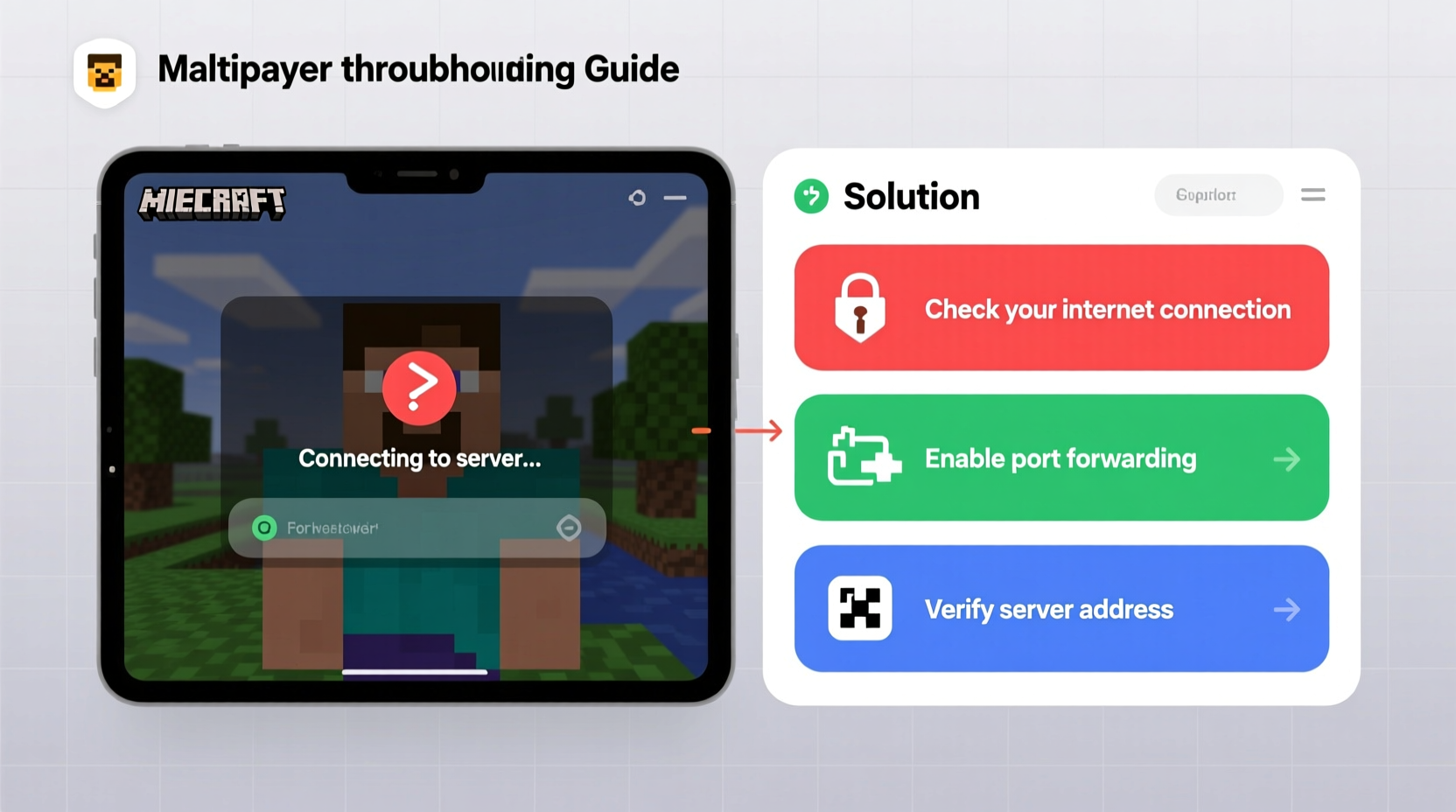
Minecraft’s multiplayer experience depends on several factors working in harmony: correct edition compatibility, stable internet, proper port configuration, and accurate server or invite handling. The error “Can’t join friends’ Minecraft game” typically appears when one or more of these components fail. Before diving into fixes, identify which platform you're using—Java Edition (PC), Bedrock Edition (consoles, mobile, Windows 10/11), or cross-play setups—as solutions vary significantly.
For example, Java and Bedrock are not natively compatible. A player on Java cannot join a friend on Xbox unless both are using official servers like Realm-compatible worlds. Misunderstanding this fundamental difference leads many users down unproductive troubleshooting paths.
Step-by-Step Troubleshooting Process
Follow this structured sequence to isolate and resolve the issue efficiently.
- Verify Game Versions: Ensure both players are on the same edition and update level. For Bedrock, check that all parties have the latest patch installed via their device’s store.
- Check Invite Status: In Bedrock, open the pause menu, go to “Invite to Game,” and confirm your friend has accepted the invitation. Sometimes invites expire or fail silently.
- Test Internet Connection: Run a speed test and ensure latency is under 100ms for smooth gameplay. High ping or packet loss disrupts connections.
- Restart Devices: Reboot your gaming device, router, and modem. This clears temporary glitches affecting network handshakes.
- Use Direct Connect (Java Only): If connecting to a LAN world, use the IP address shown in the host’s chat window. Enter it under “Multiplayer” → “Add Server.”
Firewall and Port Configuration (Java Edition)
If you're hosting or joining a Java server locally, incorrect port forwarding may block access. By default, Minecraft uses port 25565 (TCP). To allow traffic:
- Navigate to your router’s admin panel (usually http://192.168.1.1).
- Locate “Port Forwarding” under advanced settings.
- Create a new rule: External Port 25565, Internal Port 25565, Protocol TCP, internal IP set to your computer’s local IP.
- Save and restart the router.
Note: Public IP addresses are required for remote connections. Share this with friends securely—do not post publicly.
“Over 60% of connection failures in peer-to-peer Minecraft games stem from misconfigured NAT types or overly aggressive firewalls.” — Jordan Lee, Network Systems Engineer at GameConnect Labs
Cross-Platform Connectivity Guide
Microsoft’s integration of Xbox Live enables cross-play between Bedrock Edition users on different devices—Windows, Xbox, PlayStation (via Microsoft account), Switch, and mobile. However, prerequisites must be met.
| Device | Requires Microsoft Account? | Can Join Friends? | Common Pitfall |
|---|---|---|---|
| Windows PC (Bedrock) | Yes | Yes | Using legacy launcher instead of Microsoft Store version |
| Xbox Series S/X | Yes | Yes | Privacy settings blocking multiplayer invites |
| iOS/Android | Yes | Yes | Poor Wi-Fi signal strength during gameplay |
| PlayStation 5 | Yes (as of 2023) | Yes | Not signed into Microsoft account within Minecraft app |
| Linux (Java) | No | No (to Bedrock) | Assuming cross-play works across editions |
Real Example: Emma’s Failed Join Attempt
Emma tried joining her brother’s Minecraft world on his Nintendo Switch but kept seeing “Player Not Found.” After checking, she realized she had downloaded the Java Edition on her laptop by mistake. She uninstalled it, installed the Bedrock Edition from the Microsoft Store, signed into her Microsoft account, and successfully joined through the Friends tab. The root cause was edition mismatch—a simple fix once identified.
Essential Checklist Before Connecting
Use this checklist every time you plan to play with friends:
- ✅ Both players are using the same Minecraft edition (Java or Bedrock)
- ✅ All devices have updated to the latest game version
- ✅ You’re logged into your Microsoft/Xbox Live account (required for Bedrock)
- ✅ Your friend has opened the world to LAN or enabled “Multiplayer” in settings
- ✅ Firewall/router isn’t blocking Minecraft (especially important for Java hosts)
- ✅ Parental controls or family settings aren’t restricting communication
- ✅ Internet connection is stable (try wired Ethernet if possible)
Frequently Asked Questions
Why does it say “Unable to connect to world” on Nintendo Switch?
This usually occurs when the guest lacks an internet connection, the host hasn’t enabled multiplayer, or the Microsoft account isn’t properly linked. Ensure both players are connected to the internet and appear on each other’s Xbox friends list.
Can I play with my friend on PS5 if I’m on PC?
Yes—but only if both of you are using the Bedrock Edition and are signed into Microsoft accounts. Launch Minecraft on PS5 through the official app, sign in, add your friend via gamertag, and accept the invite.
Do I need a Minecraft Realm to play with friends?
No. While Realms offer a convenient always-on server, you can join friends via local Wi-Fi (LAN) or direct invites in Bedrock. Java players can also share their IP for direct connection without any subscription.
Final Recommendations and Prevention Tips
Preventing future connection issues starts with consistency. Stick to one edition per group, maintain updated software, and standardize login methods. For families or classrooms using Minecraft Education, consider setting up a shared Realm to avoid recurring technical hiccups.
Additionally, teach younger players how to locate their device’s network status and verify connection strength before launching the game. Small habits—like closing background apps that consume bandwidth—can dramatically improve stability.
Conclusion
Being unable to join a friend’s Minecraft game doesn’t have to mean the end of your adventure. With the right approach, most issues can be diagnosed and resolved in under 20 minutes. From verifying editions to adjusting network settings, each step brings you closer to seamless multiplayer fun. Don’t let technical barriers dim the creativity and joy Minecraft offers—apply these solutions today and rejoin your friends in building, exploring, and surviving together.




 浙公网安备
33010002000092号
浙公网安备
33010002000092号 浙B2-20120091-4
Comments
No comments yet. Why don't you start the discussion?