
Being locked out of your Snapchat account can be frustrating—especially when you rely on it for communication, content sharing, or business outreach. Whether you're seeing an “Incorrect password” error, a frozen login screen, or no verification code, the root cause isn’t always obvious. The good news is that most login problems are solvable with systematic troubleshooting. This guide walks you through every possible solution, from basic fixes to advanced recovery steps, so you can get back into your account quickly and securely.
Common Reasons You Can’t Log In to Snapchat
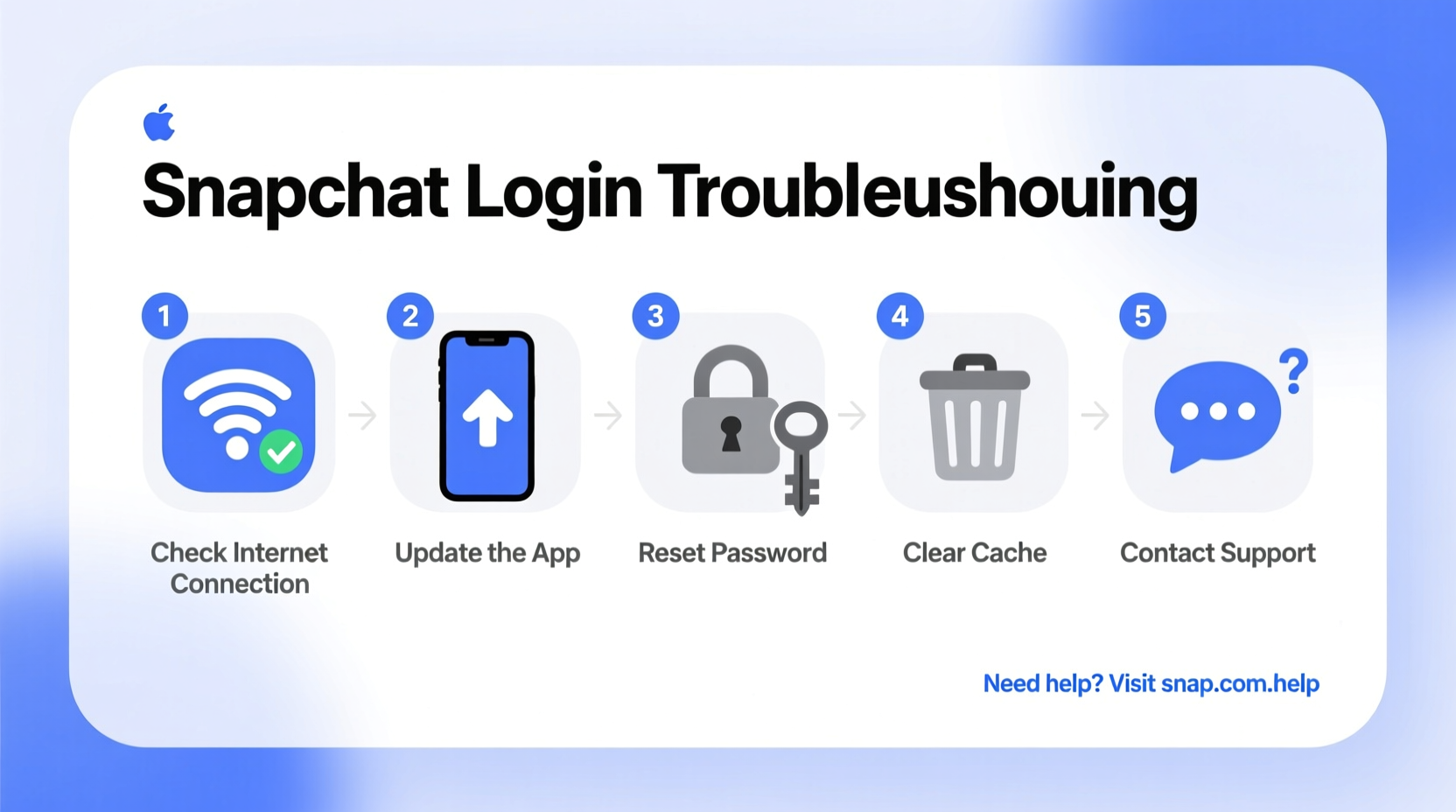
Snapchat login failures stem from various sources, ranging from simple user errors to technical glitches. Identifying the cause is the first step toward resolution. Here are the most frequent culprits:
- Forgotten password or username – Especially common if you haven’t logged in from a new device.
- Unstable internet connection – Snapchat requires consistent connectivity to authenticate users.
- Outdated app version – Older versions may not support current security protocols.
- Account lock due to multiple failed attempts – Temporary bans occur after repeated incorrect logins.
- Email or phone number no longer accessible – If your recovery options are outdated, verification becomes difficult.
- Suspicious activity or security breach – Snapchat may lock accounts it suspects have been compromised.
Step-by-Step Guide to Regain Access
If you’re unable to log in, follow this structured approach to systematically eliminate potential issues.
- Check Your Internet Connection
Open a browser and visit any website to confirm connectivity. Try toggling airplane mode on and off to reset network settings. - Restart the Snapchat App
Close the app completely and reopen it. On iOS, swipe up from the app switcher; on Android, clear Snapchat from recent apps. - Update the Snapchat App
Go to the App Store (iOS) or Google Play Store (Android), search for Snapchat, and install any available updates. - Verify Login Credentials
Ensure caps lock is off and that you're entering the correct username and password. Use the \"Show Password\" option if available. - Use Snapchat’s Password Reset Tool
Tap “Forgot your password?” on the login screen. Enter your username or email to receive a reset link. - Confirm Recovery Email or Phone Number
If you’ve added a recovery method, check your inbox or SMS for the verification code. - Wait Out Temporary Lockouts
If you've made too many failed attempts, wait 24–48 hours before trying again. Avoid automated tools or bots—they trigger permanent locks.
Recovering Access Without Email or Phone Verification
What if you no longer have access to your recovery email or phone number? Snapchat makes this challenging—but not impossible. Your best option is to use the Snapchat Support Portal.
Navigate to “My Account & Security” > “I think my account has been hacked” or “I can’t verify my email or phone number.” Fill out the form with as much accurate information as possible:
- Full name associated with the account
- Username and approximate creation date
- Last known email and phone number
- List of friends you frequently snap
- Previous passwords you remember
Snapchat reviews these requests manually, which can take 24–72 hours. Success depends on how much verifiable information you provide.
“We prioritize account security over convenience. Users who submit detailed, consistent information across their support request have a significantly higher recovery rate.” — Snapchat Trust & Safety Team, via public blog post
Troubleshooting Table: Do’s and Don’ts When Locked Out
| Do | Don't |
|---|---|
| Use the official Snapchat app for login attempts | Try logging in through third-party websites claiming to “recover” your account |
| Clear app cache (Android: Settings > Apps > Snapchat > Storage > Clear Cache) | Repeatedly enter wrong passwords more than 3 times |
| Reset your password using the official flow | Share your password or verification codes with anyone |
| Contact Snapchat support with accurate account details | Create multiple new accounts to “trick” the system into restoring access |
| Enable two-factor authentication once recovered | Ignore prompts to update your recovery information |
Real Example: Recovering a Hacked Snapchat Account
Jamie, a college student and social media influencer, suddenly found herself unable to log in to her Snapchat account. The app showed “Invalid credentials,” and her recovery email had been changed without her knowledge. Panicked, she tried resetting the password but received no email.
Instead of giving up, Jamie visited Snapchat’s support site and submitted a hacked account report. She included her old phone number, a list of five close contacts she regularly messaged, and screenshots of past conversations (from recipients’ devices). Within 36 hours, Snapchat responded, verified her identity, and restored access. They also guided her through enabling two-factor authentication to prevent future breaches.
This case highlights the importance of providing detailed, personal information during recovery—and never skipping security upgrades.
Checklist: What to Do When You Can’t Log In
Keep this checklist handy for quick reference:
- ✅ Confirm internet connectivity (Wi-Fi or data)
- ✅ Restart your device
- ✅ Update the Snapchat app
- ✅ Attempt password reset via the login screen
- ✅ Check email spam folder for reset links
- ✅ Verify if your phone number or email is still active
- ✅ Submit a support request if all else fails
- ✅ Enable two-factor authentication after regaining access
Frequently Asked Questions
How long does Snapchat take to respond to support requests?
Snapchat typically responds within 24 to 72 hours. During peak periods (e.g., holidays), response times may extend slightly. Make sure your submission includes accurate, consistent details to avoid delays.
Can I recover my Snapchat account without a phone number or email?
It’s extremely difficult, but not impossible. You must provide strong evidence of ownership through the support form. Include usernames, friend lists, account creation dates, and past content details. The more specific, the better your chances.
Why does Snapchat say “Something went wrong” when I try to log in?
This generic error often points to server-side issues or corrupted app data. Try uninstalling and reinstalling the app, or test login from a different network. If the problem persists, it may be a temporary Snapchat outage—check DownDetector for service status.
Prevent Future Login Issues
Once you regain access, take proactive steps to avoid repeating the experience. First, enable two-factor authentication (2FA) in Settings > Password and Authentication. This adds a second layer of security using either SMS or an authenticator app.
Next, store your login credentials in a secure password manager like Bitwarden, 1Password, or Apple Keychain. Avoid writing them down or saving them in unencrypted notes.
Finally, periodically review your account settings. Ensure your recovery email and phone number are current, and remove unused linked apps or devices.
Conclusion
Being unable to log in to Snapchat doesn’t mean your account is gone forever. With patience and the right steps, most access issues can be resolved—whether it’s a forgotten password, a lost recovery method, or a suspected hack. The key is acting methodically: start with basic troubleshooting, escalate to official support when needed, and always prioritize account security moving forward.




 浙公网安备
33010002000092号
浙公网安备
33010002000092号 浙B2-20120091-4
Comments
No comments yet. Why don't you start the discussion?