
If you've ever tapped \"Share\" only to be met with silence, a spinning wheel, or an unexpected error, you're not alone. Millions of users encounter posting issues on Instagram every day. While frustrating, most problems have simple explanations and even simpler solutions. Whether it's a network glitch, app bug, or account restriction, understanding the root cause is the first step toward getting your content online.
This guide breaks down the most frequent reasons why Instagram posts fail, what they mean, and exactly how to fix them—fast. No guesswork, no outdated advice. Just clear, actionable steps that work.
Common Technical Issues and How to Fix Them
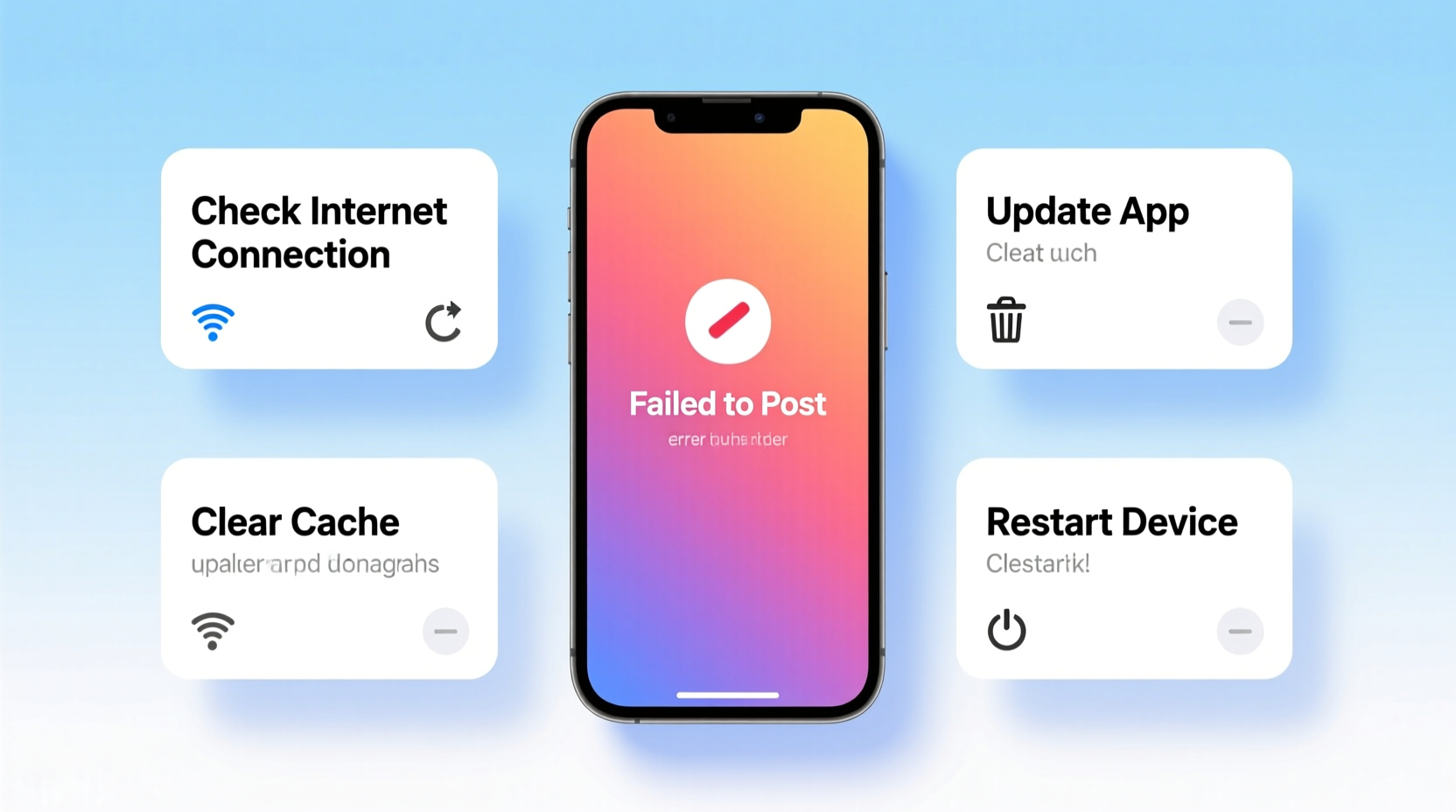
Technical glitches are the most frequent culprits behind failed Instagram posts. These usually stem from your device, connection, or the app itself—not your account.
- Poor internet connection: Instagram requires a stable connection to upload media. If Wi-Fi is weak or mobile data is spotty, uploads will stall.
- Outdated app version: Older versions may lack compatibility with current server protocols, leading to crashes or failed uploads.
- Insufficient storage: If your phone is nearly full, the app may struggle to process or cache images before posting.
- App cache overload: Over time, cached data can corrupt, interfering with normal functionality.
Step-by-Step: Troubleshooting Your Connection and App
- Switch between Wi-Fi and mobile data to test connectivity.
- Check if other apps can upload content (e.g., sending a photo via messaging).
- Update Instagram via the App Store (iOS) or Google Play (Android).
- Clear the app cache: Go to Settings > Apps > Instagram > Storage > Clear Cache (Android). On iOS, offload the app via Settings > General > iPhone Storage.
- Reinstall Instagram if problems persist.
Content Restrictions That Block Posts
Sometimes, the issue isn’t technical—it’s policy-related. Instagram enforces community guidelines strictly, and certain content gets flagged automatically, even if unintentionally.
Posts may be blocked for:
- Using copyrighted music in Reels without proper licensing.
- Including nudity, violence, or hate symbols—even in artistic or educational contexts.
- Excessive hashtags (over 30), spammy captions, or repetitive posting behavior.
- Images with watermarks from other platforms (TikTok, YouTube), which Instagram’s algorithm may interpret as low-quality or spam.
“Automated moderation systems sometimes flag legitimate content. If your post violates no clear rules, appeal through the app.” — Lena Torres, Social Media Policy Analyst
What Happens When Content Is Flagged?
You might see messages like “Couldn’t Share,” “Post Failed,” or “This Content Isn’t Allowed.” In some cases, Instagram won’t specify why. The post disappears from your feed, but may still appear in your activity log with a warning.
If this happens:
- Edit the caption or media to remove suspicious elements.
- Remove third-party watermarks.
- Avoid trending audio if unsure about copyright status.
- Try posting during off-peak hours when automated systems are less aggressive.
Account Limitations and Shadowbanning
Your ability to post can also be affected by account health. Instagram may restrict functionality if it detects unusual activity—often mistaken for “shadowbanning.”
Signs of restriction include:
- Posts not appearing in followers’ feeds.
- Sudden drop in engagement.
- Repeated posting failures without error messages.
These are typically triggered by:
- Too many actions in a short time (liking, commenting, following).
- Using third-party automation tools.
- Reports from other users.
Mini Case Study: Sarah’s Posting Freeze
Sarah, a small business owner, couldn’t post her new product launch Reel three days in a row. Each attempt failed silently. She checked her connection, restarted her phone, and updated the app—no luck.
After reviewing her activity, she realized she’d used a popular TikTok sound with a watermark. She re-edited the video, removed the watermark, and switched to an original audio clip. The next upload succeeded immediately.
The issue wasn’t her account or device—it was content compliance. A simple edit resolved a potentially damaging delay.
Device and Format Compatibility Problems
Not all media formats are supported equally. Instagram has specific requirements for resolution, aspect ratio, file size, and codec. Ignoring these leads to upload failure.
| Content Type | Max File Size | Aspect Ratio | Supported Formats |
|---|---|---|---|
| Photo | 8MB (in-app), 64MB (via web) | 1.91:1 to 4:5 | JPG, PNG |
| Video | 4GB | 1.91:1 (feed), 4:5 (stories), 9:16 (Reels) | MP4, MOV (H.264 codec) |
| Reels | 60 seconds max (usually) | 9:16 vertical | MP4 recommended |
If your video won’t upload, check:
- Duration: Reels must be under 90 seconds (varies by region).
- Resolution: Below 1080x1920 may compress poorly; above 4K may fail to process.
- File format: Convert MOV files to MP4 using free tools like HandBrake or Clipchamp if needed.
Checklist: Before You Hit Post
- ✅ Internet connection stable (test with another app)
- ✅ Instagram app updated
- ✅ Media within size and format limits
- ✅ No watermarks from competing platforms
- ✅ Caption free of spam-like phrases (#likeforlike, “follow me”)
- ✅ Account in good standing (no recent violations)
- ✅ Device has sufficient storage and battery
Frequently Asked Questions
Why does my post fail with “Couldn’t Share”?
This generic error usually means either a temporary server issue, poor connection, or content violation. Try again later, ensure your internet is stable, and double-check for watermarks or restricted content.
Does restarting my phone help if I can’t post?
Yes. A restart clears background processes, resets network settings temporarily, and reloads the operating system. It’s one of the fastest ways to resolve app-specific freezes.
Can I report a posting bug to Instagram?
Yes. Go to your profile > Menu (three lines) > Help > Report a Problem. Describe the issue, attach a screenshot if possible, and submit. Instagram’s team reviews critical bugs regularly, especially during widespread outages.
Expert Insight: Server vs. User-Side Errors
“When hundreds of users report the same issue simultaneously, it’s likely a server-side outage. Use Downdetector or Instagram’s official X (Twitter) account @MetaCare to verify.” — Amir Chen, Tech Support Specialist
Instagram occasionally experiences global downtimes. During these periods, no user can post, message, or refresh their feed. If multiple people confirm the issue, wait it out—no local fix will work until Meta restores service.
Conclusion: Stay Proactive and Patient
Being unable to post on Instagram doesn’t have to derail your content plan. Most issues are temporary and solvable with basic troubleshooting. Start with the simplest fixes—check your connection, update the app, review your content—and escalate only if needed.
Understanding the difference between technical errors, content restrictions, and account limitations empowers you to act quickly and confidently. Save this guide for future reference, and don’t hesitate to reach out to Instagram support when stuck.




 浙公网安备
33010002000092号
浙公网安备
33010002000092号 浙B2-20120091-4
Comments
No comments yet. Why don't you start the discussion?