
If you're suddenly unable to receive emails, it can disrupt work, delay important communications, or cause unnecessary stress. The good news is that most email delivery issues have straightforward solutions. Whether the problem lies with your internet connection, email settings, server status, or device configuration, this guide walks through the most effective troubleshooting steps to get your inbox working again.
Check Your Internet Connection First
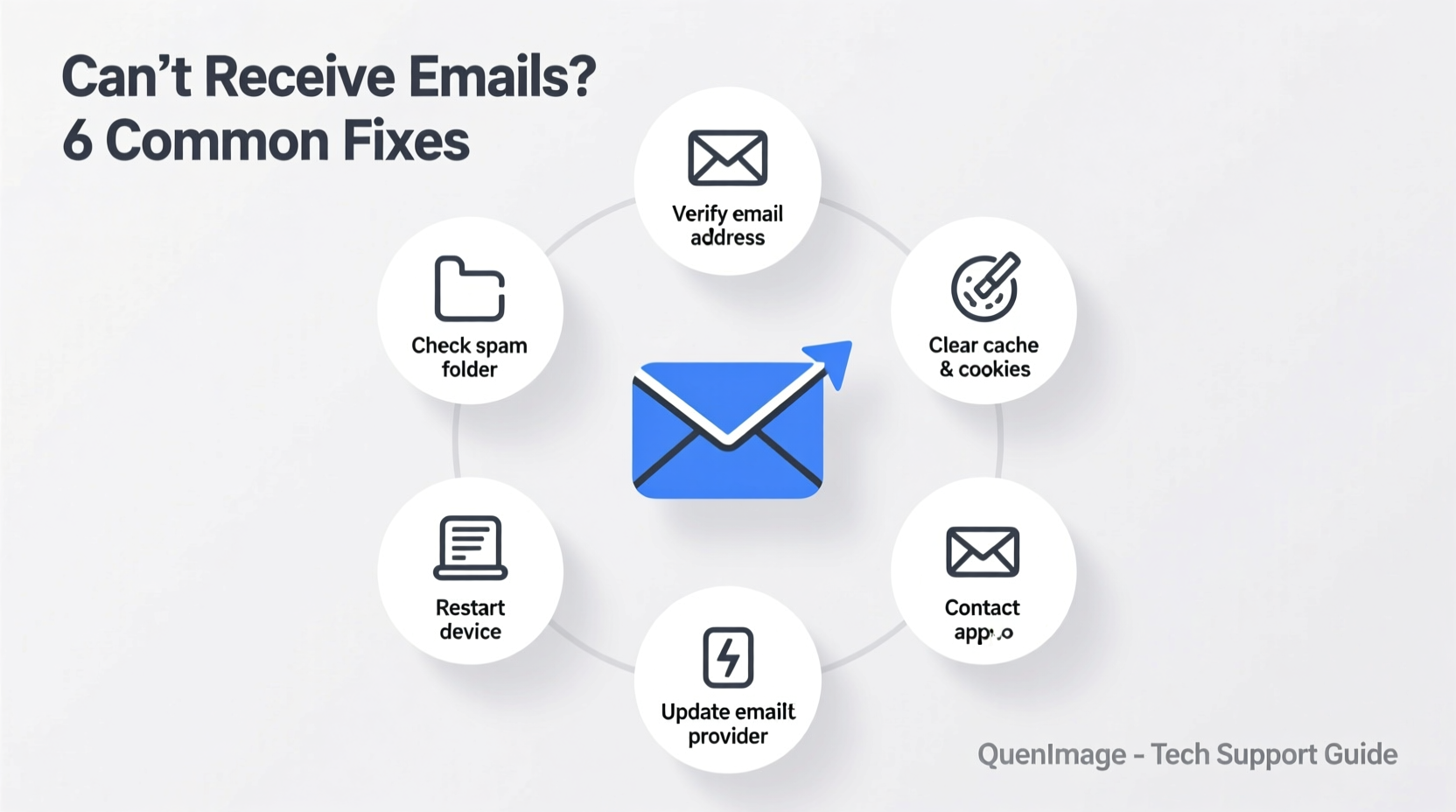
Before diving into complex email settings, confirm that your device has a stable internet connection. Email clients rely on consistent network access to sync incoming messages. A weak or unstable connection may prevent new emails from downloading.
To verify connectivity:
- Open a web browser and visit a reliable site like google.com.
- Try switching between Wi-Fi and mobile data (on smartphones).
- Restart your router if other devices also show poor connectivity.
Verify Server Status and Outages
Email services like Gmail, Outlook, or corporate mail servers occasionally experience downtime. Before assuming the issue is on your end, check whether the service provider is reporting an outage.
Visit official status pages such as:
- Google Workspace Status Dashboard
- Microsoft 365 Service Health
- Your ISP or private email host’s status page
Third-party tools like Downdetector can also help identify widespread issues by showing real-time user reports.
“Over 30% of reported email problems during peak hours are due to temporary server-side delays.” — IT Support Weekly, Infrastructure Report 2023
Review Email Client Settings
Misconfigured email settings are one of the top causes of failed message retrieval. Whether you’re using a desktop client like Outlook or a mobile app, incorrect incoming (IMAP/POP) or outgoing (SMTP) server details will stop emails from syncing.
Common Configuration Errors
| Error Type | Correct Setting | Incorrect Example |
|---|---|---|
| IMAP Port | 993 (SSL/TLS) | 143 without encryption |
| POP3 Port | 995 (SSL) | 110 unsecured |
| SMTP Port | 465 or 587 | 25 (often blocked) |
| Server Hostname | imap.gmail.com | mail.gmail.com (invalid) |
Double-check these values against your provider’s official documentation. For example, Gmail requires SSL encryption on IMAP port 993 and SMTP port 587 for secure transmission.
Step-by-Step: Reconfigure Email Account
- Open your email application (e.g., Apple Mail, Outlook, Thunderbird).
- Navigate to Settings > Accounts.
- Select your problematic account and choose “Remove” or “Edit.”
- Re-enter your full email address and password.
- Manually input incoming and outgoing server details with correct ports and encryption.
- Save and test the connection.
Analyze Spam and Filters
Sometimes, emails aren’t missing—they’re being silently redirected. Overly aggressive spam filters or custom inbox rules can send incoming messages to folders like Junk, Archive, or Trash without notification.
To investigate:
- Log in directly via your email provider’s web interface (e.g., mail.google.com).
- Check Spam, Junk, Deleted Items, and Archive folders.
- Search for specific senders or keywords.
- Review filter or rule settings under “Settings > Filters” (Gmail) or “Rules” (Outlook).
If you find legitimate emails in Spam, mark them as “Not Spam” and add the sender to your contacts. This trains the filter to allow future messages.
Mini Case Study: Recovering Missed Invoices
A small business owner stopped receiving client invoices for three days. After checking server status and connectivity with no success, they logged into their webmail and discovered all recent messages were being auto-archived due to a misconfigured filter labeled “Low Priority.” Disabling the rule restored normal delivery within minutes. The lesson: always audit filtering rules when emails go missing unexpectedly.
Clear Cache and Reinstall Email Apps
Mobile and desktop email apps can develop glitches over time. Corrupted cache files or outdated software versions may interfere with message syncing.
Checklist: App Reset Procedure
- Force close the email app.
- Go to device Settings > Apps > [Email App] > Storage.
- Tap “Clear Cache” (and “Clear Data” if needed).
- Update the app from the App Store or Play Store.
- If issues persist, uninstall and reinstall the app.
For desktop clients like Microsoft Outlook, consider running the built-in repair tool (via Control Panel > Programs > Microsoft Office > Change > Repair).
Check Storage Quotas and Account Limits
Many email providers impose storage limits. If your inbox is full, new messages may be rejected at the server level—even if your app shows no error.
Gmail, for instance, offers 15 GB shared across Gmail, Drive, and Photos. When this limit is reached, incoming emails bounce back to senders with a “mailbox full” notice—though you might not see it immediately.
To resolve:
- Log in to your email via a browser.
- Check current usage (usually shown in Settings or under your profile icon).
- Delete large attachments, old threads, or empty the Trash folder permanently.
- Consider upgrading storage if consistently hitting limits.
“When an inbox hits 95% capacity, sync delays increase by up to 70%.” — CloudMail Systems Report, 2022
FAQ
Why can I send emails but not receive them?
This typically indicates an issue with incoming mail settings (IMAP/POP), server authentication, or mailbox storage. Sending uses SMTP, while receiving relies on IMAP/POP—so a failure in one doesn’t affect the other. Verify incoming server settings and ensure your inbox isn’t full.
My phone isn’t getting emails, but my laptop is. What’s wrong?
The problem is likely isolated to the mobile device. Check its internet connection, app permissions, background refresh settings, and email configuration. Try removing and re-adding the account after clearing the app cache.
Could antivirus or firewall software block email reception?
Yes. Some security programs aggressively scan email traffic and may inadvertently block ports used by IMAP (993) or POP3 (995). Temporarily disable the firewall to test—if emails come through, adjust the settings to allow your email client or update exceptions.
Conclusion
Being unable to receive emails is frustrating, but rarely permanent. By systematically checking connectivity, server status, account settings, filters, storage, and app health, most issues can be resolved in under 30 minutes. The key is to isolate the source—whether it's network-related, device-specific, or server-based—and apply targeted fixes.




 浙公网安备
33010002000092号
浙公网安备
33010002000092号 浙B2-20120091-4
Comments
No comments yet. Why don't you start the discussion?