
If you’ve ever opened the Find My app expecting to see a friend’s location only to find nothing—no dot, no message, just silence—you’re not alone. Apple’s location-sharing feature is generally reliable, but it can fail for a variety of reasons. The good news is that most issues are fixable with a few straightforward steps. Whether it’s a temporary glitch, incorrect settings, or a privacy restriction, understanding what’s behind the problem is the first step toward resolving it.
This guide breaks down the most common causes of location visibility issues between iPhones and provides clear, actionable solutions. You’ll also learn how to prevent future problems and ensure seamless sharing when you need it most.
Why Can’t You See Your Friend’s Location?
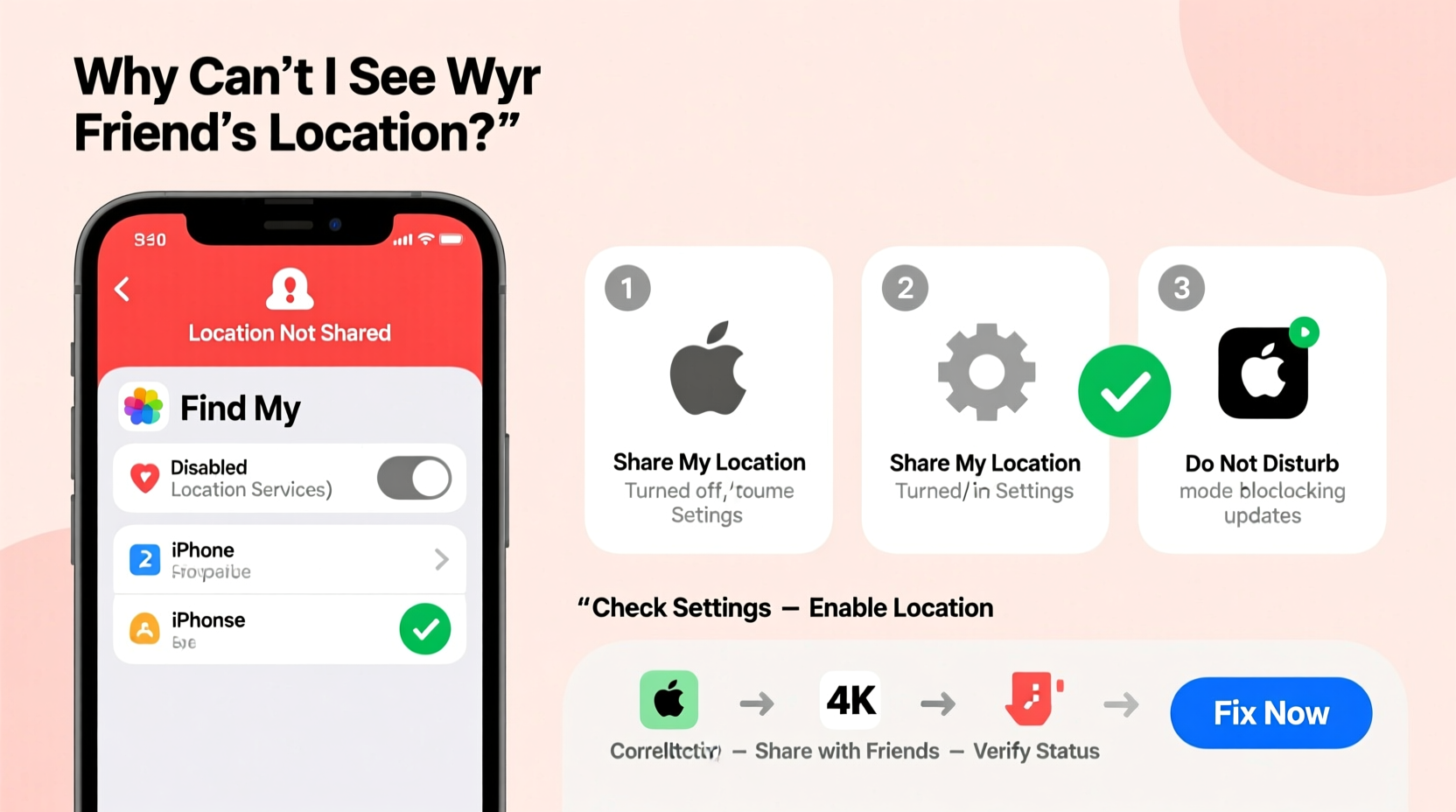
Apple’s “Share My Location” feature relies on a combination of hardware, software, and network connectivity. When any part of this system fails, location sharing stops working. Common culprits include:
- Location Services being turned off on either device
- Find My network disabled or malfunctioning
- Outdated iOS versions
- Incorrect sharing permissions or expired invitations
- Poor internet or cellular connection
- Low power mode disabling background activity
- User-initiated privacy controls (e.g., temporarily stopping sharing)
Before jumping to conclusions, remember: location sharing is opt-in and requires active participation from both parties. Just because someone owns an iPhone doesn’t mean they’re automatically visible to others.
Step-by-Step Guide to Fix Location Sharing Issues
Follow this structured approach to diagnose and resolve the issue efficiently.
- Check Your Own Device Settings
Go to Settings > Privacy & Security > Location Services. Ensure it’s turned on. Then tap Share My Location and confirm it’s enabled. This setting must be active for you to see others and for them to see you. - Verify Find My Is Enabled
Open Settings > [Your Name] > Find My > Find My iPhone. Make sure all options—including “Find My Network,” “Send Last Location,” and “Share My Location”—are toggled on. - Confirm Internet Connectivity
Location data requires Wi-Fi or cellular data. Ask your friend if their phone has signal or is connected to the internet. Airplane Mode or poor reception can interrupt updates. - Check Shared Location Invitations
Open the Find My app, go to the People tab, and look for pending requests. If you sent a request and it wasn’t accepted, or if it expired, you won’t see their location. Resend the invitation if needed. - Ask Your Friend to Restart Their iPhone
A simple reboot often resolves minor glitches affecting GPS or background processes. Suggest they restart and then re-enable location sharing. - Update iOS on Both Devices
Outdated software can cause compatibility issues. Navigate to Settings > General > Software Update and install any available updates. - Ensure Battery Isn’t Depleted
If your friend’s iPhone is powered off or below 10%, location sharing stops. “Send Last Location” will show their final known position before shutdown—if enabled.
Do’s and Don’ts of Location Sharing
| Do’s | Don’ts |
|---|---|
| Enable “Share My Location” in Settings | Assume location sharing works forever without checking |
| Use Wi-Fi or cellular data for real-time updates | Ignore expired sharing invitations |
| Keep iOS updated on all devices | Leave Low Power Mode on indefinitely—it disables background location refresh |
| Restart the device if location freezes | Share location with untrusted contacts without reviewing permissions |
| Verify both users are using Apple IDs with two-factor authentication | Forget that users can pause sharing at any time |
Real Example: Why Sarah Couldn’t See Her Partner’s Location
Sarah relied on location sharing to coordinate pickups after work. One evening, her partner’s location vanished from her iPhone. She assumed his phone died, but he insisted it was on and charged. After some investigation, she discovered that while his Location Services were on, the Find My app specifically had been denied access. He had recently reset settings during troubleshooting and unknowingly disabled app-level permissions.
Once he went to Settings > Privacy & Security > Location Services > Find My and selected “While Using the App,” his location reappeared within minutes. The issue wasn’t network-related or account-based—it was a granular permission oversight.
This case highlights how easy it is for one small setting change to disrupt an entire workflow. Regular audits of key permissions can prevent such lapses.
“Many location-sharing failures stem not from broken technology, but from misunderstood privacy controls. Users often disable permissions thinking they’re protecting battery life, not realizing they’ve cut off critical services.” — Dr. Marcus Lin, Mobile Systems Analyst at TechInsight Labs
Troubleshooting Checklist
Use this checklist to quickly identify and resolve issues:
- ✅ Is Location Services enabled on both devices?
- ✅ Is “Share My Location” turned on under your Apple ID settings?
- ✅ Are both devices connected to the internet via Wi-Fi or cellular?
- ✅ Has the location-sharing invitation been accepted?
- ✅ Is Low Power Mode disabled on the friend’s device?
- ✅ Are both iPhones running the latest version of iOS?
- ✅ Has either user restarted their phone recently?
- ✅ Is the Find My app allowed to use location “While Using” or “Always”?
- ✅ Has the person manually paused sharing in the Find My app?
- ✅ Does “Send Last Location” show a recent timestamp?
Frequently Asked Questions
Why does my friend’s location say “No Location Found”?
This message appears when the iPhone isn’t transmitting location data. Causes include: powered-off device, disabled Location Services, no internet connection, or the user has stopped sharing. It could also appear if the device is in Low Power Mode or if the Find My app lacks permissions.
Can someone see I’m checking their location?
No. Apple does not notify users when you view their shared location. However, they will know they’re sharing with you because they approved the initial request. They can also see who they’re sharing with in the Find My app under the People tab.
How long does location data stay active?
As long as both devices are on, connected, and permissions are granted, location updates in near real time. If a device powers off, “Send Last Location” stores the final known position for up to 24 hours. After that, it disappears until the device reconnects.
Conclusion: Stay Connected with Confidence
Not seeing a friend’s location on your iPhone can be frustrating, especially when timing matters. But in most cases, the solution lies in a few overlooked settings rather than a deeper technical failure. By systematically checking permissions, connectivity, and app functionality, you can restore visibility quickly.
More importantly, understanding how Apple’s ecosystem handles location data empowers you to use it more effectively—and responsibly. Privacy is central to Apple’s design, so features like location sharing require explicit consent and ongoing maintenance.




 浙公网安备
33010002000092号
浙公网安备
33010002000092号 浙B2-20120091-4
Comments
No comments yet. Why don't you start the discussion?