
If you’ve opened a post on Instagram only to find that comments are missing or not loading, you’re not alone. This issue affects users across devices and regions, often without warning. While it can be frustrating—especially if you're trying to engage with content or respond to your audience—it’s usually fixable. The root causes range from app glitches and privacy settings to account restrictions and network problems. Understanding what’s behind the issue is the first step toward resolving it.
Why Instagram Comments Might Not Be Visible
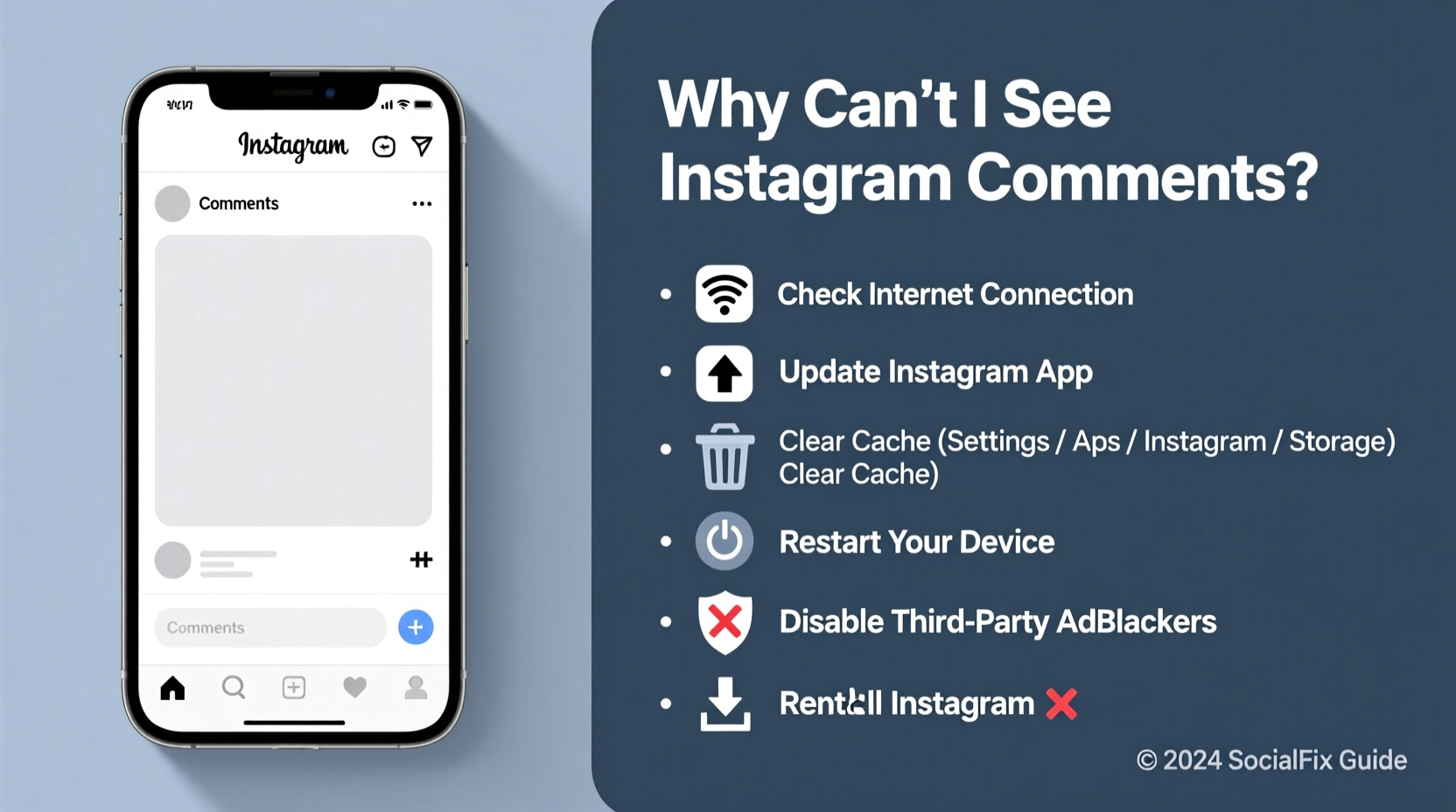
Instagram comments may disappear or fail to load for several technical and policy-related reasons. Some issues stem from your device or connection, while others relate to the poster’s settings or Instagram’s moderation systems. Identifying the cause determines the appropriate solution.
- App bugs or outdated versions: Older versions of the Instagram app may have compatibility issues that prevent comments from loading properly.
- Network connectivity problems: A weak or unstable internet connection can interrupt data retrieval, including comment sections.
- Account restrictions or shadowbanning: If your account has been flagged for policy violations, Instagram may limit your ability to view or interact with certain content.
- Post-specific comment filters: The content creator may have disabled comments, applied keyword filters, or restricted commenting to close friends.
- Server-side outages: Instagram occasionally experiences downtime or regional service disruptions that affect functionality.
Step-by-Step Guide to Restore Comment Visibility
Follow this systematic approach to diagnose and fix the issue. Start with the simplest solutions and progress to more involved ones if needed.
- Force-Close and Reopen the App
Close Instagram completely from your phone’s recent apps menu, then relaunch it. This clears temporary cache and resets active sessions. - Check Your Internet Connection
Switch between Wi-Fi and mobile data to test stability. Try loading other websites or apps to confirm connectivity. - Update the Instagram App
Visit your device’s app store (Google Play or App Store) and check for updates. Running an outdated version can cause feature malfunctions. - Clear App Cache (Android) or Offload App (iOS)
On Android: Go to Settings > Apps > Instagram > Storage > Clear Cache.
On iOS: Settings > General > iPhone Storage > Instagram > Offload App, then reinstall. - Reinstall the Instagram App
If clearing cache doesn’t work, uninstall and reinstall the app. This ensures a clean installation free of corrupted files. - Check for Account Restrictions
Go to your profile, tap the menu (three lines), and select “Settings.” Navigate to “Account” > “Restricted Accounts” or “Hidden Words” to ensure you haven’t accidentally blocked keywords or accounts. - Verify Post-Level Comment Settings
Open a post where comments aren’t visible. Tap the three dots above the post. If you see “Turn Off Commenting,” comments are enabled. If not, the user may have disabled them or restricted visibility based on follower status.
Common User Scenarios and Real Fixes
Sometimes, knowing how others resolved similar issues provides clarity. Here’s a realistic example:
Mini Case Study: Sarah’s Sudden Comment Disappearance
Sarah, a lifestyle influencer, noticed her followers couldn’t see comments on her latest reels. Engagement plummeted overnight. She checked multiple devices and confirmed the comments were missing across all platforms. After ruling out internet issues, she reviewed her privacy settings and discovered she had enabled “Advanced Comment Filtering” during a previous update. The filter was set to hide any comment with emojis or special characters—common in casual interactions. By adjusting the sensitivity level under “Privacy” > “Comments,” she restored full visibility within minutes.
This case highlights how automated tools, while helpful, can unintentionally suppress engagement if not monitored.
Do’s and Don’ts When Troubleshooting Missing Comments
| Action | Do | Don’t |
|---|---|---|
| Updating the app | Regularly update Instagram via official app stores | Ignore update notifications or use third-party APKs |
| Checking settings | Review comment filters, blocked users, and privacy options | Assume the problem is on the other user’s end without verifying |
| Engaging with support | Contact Instagram Help Center via the app if issues persist | Use unofficial “comment unlocker” tools or bots |
| Data management | Clear cache periodically to maintain performance | Delete app data without backing up login credentials |
Expert Insight: What Moderation Systems Can Hide Comments
Instagram uses AI-driven moderation to reduce spam and harmful content. While beneficial, these systems can sometimes over-filter legitimate interactions.
“Automated filtering is effective but imperfect. Many creators unknowingly silence genuine engagement by enabling aggressive keyword blocks.” — Lena Torres, Social Media Strategist & Digital Platform Consultant
If you manage a business or creator account, regularly audit your “Hidden Words” list under Settings > Privacy > Hidden Words. You can choose whether to automatically hide comments and messages containing specific terms—or allow manual review instead.
Checklist: Fix Instagram Comments in 5 Minutes
Use this quick-reference checklist when comments don’t appear:
- ✅ Restart the Instagram app
- ✅ Switch between Wi-Fi and cellular data
- ✅ Confirm the post allows comments (tap three dots on the post)
- ✅ Check for app updates in your device’s app store
- ✅ Review your Restricted Accounts and Hidden Words settings
- ✅ Test on another device or log in via browser at instagram.com
- ✅ Reinstall the app if no other steps work
Frequently Asked Questions
Why can I see comments on some posts but not others?
This typically means the specific post has comments disabled, filtered, or restricted. The original poster may have limited commenting to their close friends or turned off comments entirely. It’s not a problem with your account unless it happens across all posts consistently.
Does logging out and back in help restore comments?
Yes. Logging out clears session data that might be causing display errors. After logging back in, check if comments reappear. Make sure to save your password beforehand or use biometric login if available.
Can being shadowbanned prevent me from seeing comments?
Indirectly, yes. Shadowbanning limits your interaction with content. While you may still browse feeds, Instagram may suppress features like comment visibility or replies as part of reduced functionality. Signs include sudden drops in engagement and inability to appear in hashtag searches.
Conclusion: Take Control of Your Instagram Experience
Not seeing Instagram comments disrupts communication and diminishes engagement—but it’s rarely permanent. Most issues stem from simple technical hiccups or overlooked settings. By methodically testing your connection, updating the app, and reviewing privacy controls, you can resolve the vast majority of cases quickly. For content creators, staying informed about comment filters and moderation tools ensures your audience stays connected. Don’t rely on guesswork; use the checklist and strategies outlined here to regain full access.




 浙公网安备
33010002000092号
浙公网安备
33010002000092号 浙B2-20120091-4
Comments
No comments yet. Why don't you start the discussion?