
If you’ve opened Facebook Messenger only to find that your messages aren’t loading, appear blank, or are completely missing, you’re not alone. This issue affects users across iOS, Android, and desktop platforms. While it can be frustrating—especially when waiting for an urgent reply—most cases stem from fixable technical glitches rather than permanent data loss. The good news is that with the right steps, you can often resolve the problem within minutes.
Messenger relies on a stable internet connection, up-to-date software, and proper app permissions to function correctly. When any of these elements fail, message visibility is usually one of the first symptoms. This guide walks through practical, tested solutions to get your conversations back in view—no guesswork required.
Common Causes of Missing Messenger Messages
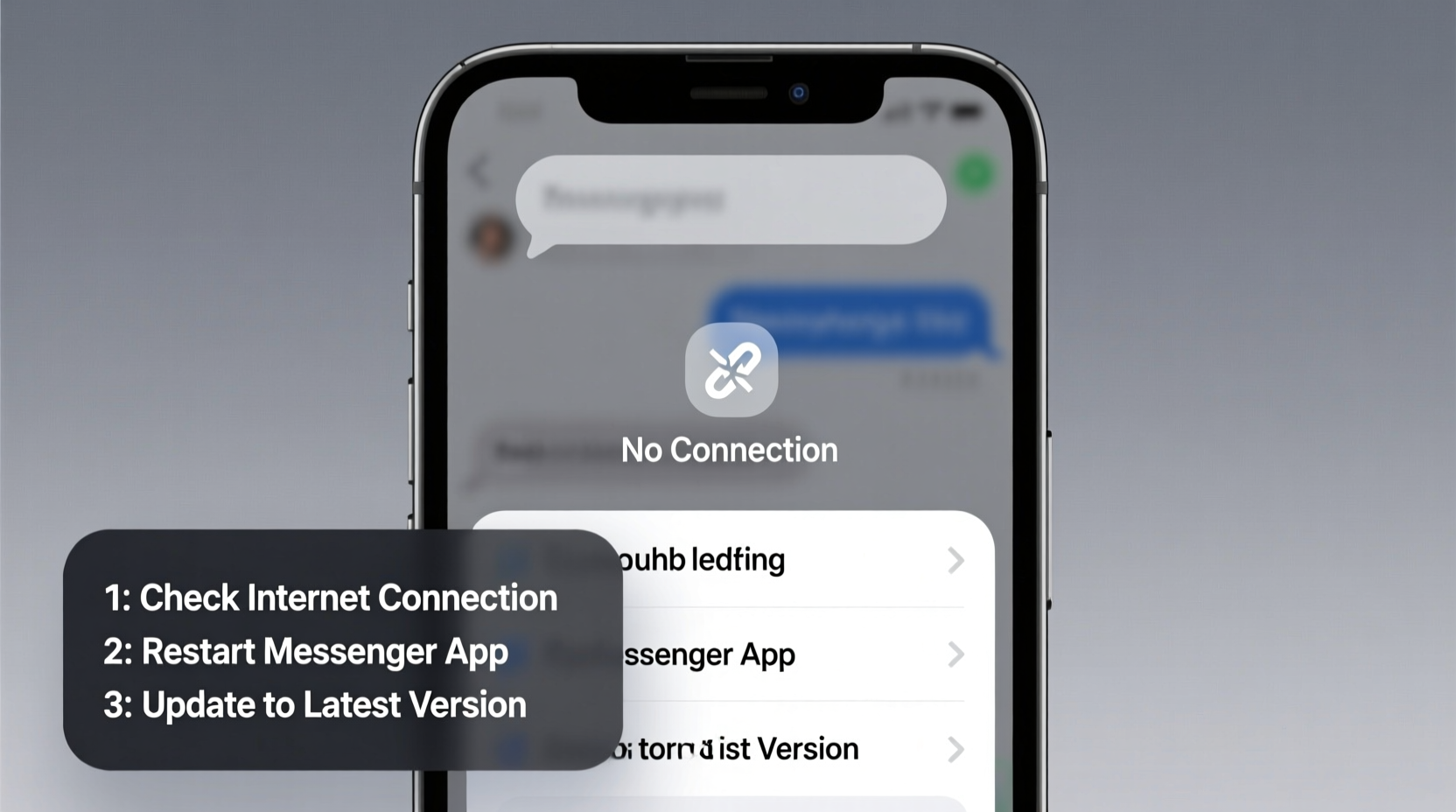
Before diving into fixes, it helps to understand what might be causing the issue. Messenger message visibility problems typically arise from one of the following:
- Network instability: A weak or intermittent internet connection prevents messages from syncing.
- App cache corruption: Stored temporary data becomes outdated or damaged.
- Outdated app version: Older versions may have bugs affecting message rendering.
- Server-side issues: Facebook’s servers may be down or experiencing delays.
- Account sync errors: Your login session may be disrupted, preventing message retrieval.
- Do Not Disturb or filtering settings: Messages may still exist but are hidden due to notification or chat filter settings.
Identifying the root cause streamlines the troubleshooting process. Start with the simplest explanations—like connectivity—before moving to more involved solutions.
Step-by-Step Troubleshooting Guide
Follow this logical sequence to diagnose and fix message visibility issues efficiently. Each step builds on the previous one, minimizing unnecessary effort.
- Check Your Internet Connection
Open a browser and visit a site like facebook.com. If pages load slowly or not at all, switch between Wi-Fi and mobile data. On mobile, try toggling Airplane mode on and off to reset network settings. - Verify Facebook Server Status
Visit Downdetector to see if other users are reporting outages. If Facebook or Messenger is listed as down, wait until services resume before continuing. - Force-Close and Reopen Messenger
Swipe the app away from your recent apps list (iOS/Android) or quit it via Task Manager (desktop). Relaunch to trigger a fresh sync. - Clear App Cache (Mobile Only)
Go to your phone’s Settings > Apps > Messenger > Storage. Tap “Clear Cache.” This removes temporary files without deleting your account or messages. - Update the Messenger App
Visit the App Store (iOS) or Google Play Store (Android) and search for Messenger. If an update is available, install it immediately. Outdated versions frequently cause display bugs. - Reinstall Messenger
If clearing the cache doesn’t help, uninstall the app completely, then reinstall it from the official store. Log back in and check if messages reappear. - Check Message Filtering Options
In Messenger, tap your profile icon > Privacy > Hidden Chats. Some conversations may be manually hidden. Also, disable any active filters under the Chats tab. - Log Out and Back In
Within Messenger settings, log out of your account, close the app, then reopen and log in again. This refreshes your authentication token and forces a full message sync.
Advanced Fixes for Persistent Issues
If basic troubleshooting fails, consider these deeper interventions. They require slightly more effort but address underlying sync and compatibility problems.
Use Messenger in a Web Browser
Access messenger.com via Chrome, Safari, or Firefox. If messages appear there but not in the app, the issue is app-specific. This confirms the need for a reinstall or OS-level fix.
Disable Battery Optimization (Android)
Some Android devices aggressively restrict background app activity. Go to Settings > Apps > Messenger > Battery > Battery Optimization. Set Messenger to “Unrestricted” to allow constant syncing.
Reset Network Settings (iOS/Android)
On iPhone: Settings > General > Transfer or Reset iPhone > Reset > Reset Network Settings.
On Android: Settings > System > Reset Options > Reset Wi-Fi, Mobile & Bluetooth.
Note: This erases saved Wi-Fi passwords, so have them ready.
Check for OS Updates
An outdated operating system can conflict with current app versions. Ensure your phone or computer is running the latest software release.
“Over 70% of Messenger sync issues stem from outdated apps or misconfigured background permissions. Regular maintenance prevents most problems.” — Tech Support Lead, Meta Help Team (via public forum statement)
Troubleshooting Checklist
Action Plan: Can’t See Messenger Messages?
- ✅ Test internet connection on another app or website
- ✅ Check Downdetector for ongoing outages
- ✅ Restart your device
- ✅ Force-close and relaunch Messenger
- ✅ Clear app cache (mobile)
- ✅ Update Messenger to the latest version
- ✅ Reinstall the app if needed
- ✅ Verify no chats are hidden or filtered
- ✅ Log out and log back into your account
- ✅ Try accessing messages via web browser
Real-World Example: Recovering Lost Messages
Samantha, a freelance designer in Austin, couldn’t see any new messages from her client for two days. Her Messenger app showed blank chat threads despite receiving notifications. She tried restarting her phone with no success. After checking Downdetector and seeing no widespread outage, she opened Messenger in her laptop browser—and found all messages intact.
This indicated the issue was isolated to the mobile app. She uninstalled Messenger, reinstalled it from the Google Play Store, and logged back in. Within seconds, her full message history synced. The root cause? A failed background update that corrupted local cache files. By switching to the web version first, she avoided losing confidence that the messages were gone for good.
Do’s and Don’ts When Fixing Message Visibility
| Do | Don’t |
|---|---|
| Check server status before assuming it’s your fault | Delete and recreate your Facebook account |
| Clear cache instead of data to preserve login info | Ignore app update notifications |
| Test on multiple devices or the web | Assume messages are permanently deleted |
| Back up important conversations manually | Disable background app refresh for Messenger |
Frequently Asked Questions
Are my messages actually gone if I can’t see them?
Not necessarily. In most cases, messages remain stored on Facebook’s servers even if they don’t appear in your app. As long as you haven’t manually deleted the conversation or been blocked, your messages are likely recoverable through syncing or reinstallation.
Why do I get message notifications but can’t open the chat?
This usually points to a partial sync failure. The notification system pulls data separately from the message thread viewer. Updating the app or logging out and back in typically resolves this mismatch.
Will reinstalling Messenger delete my messages?
No. Messenger stores conversations in the cloud, not locally on your device. Reinstalling the app does not erase your chat history as long as you log back into the same account. However, unsent drafts or offline edits may be lost.
Final Steps and Prevention Tips
Once your messages are visible again, take a few preventive measures to reduce future disruptions. Enable automatic app updates, keep your device’s OS current, and avoid using third-party or modded versions of Messenger. Consider bookmarking Messenger’s status page for quick reference during outages.
If none of the above solutions work and you’re certain no server issues are occurring, contact Meta Support directly through the Help Center inside the app or at facebook.com/help. Include details like your device model, OS version, and when the problem started.




 浙公网安备
33010002000092号
浙公网安备
33010002000092号 浙B2-20120091-4
Comments
No comments yet. Why don't you start the discussion?