
Sending a video through your phone’s messaging app should be simple—record, tap the send button, and it’s on its way. But if you’ve ever tried to share a long clip only to see it fail or get automatically trimmed, you’re not alone. Whether you're using iMessage, SMS, WhatsApp, or another platform, limitations on video length and file size are common. These restrictions aren’t arbitrary; they stem from technical, network, and device-specific constraints. Understanding why these limits exist—and knowing how to work around them—is key to sharing your full-length videos without frustration.
Why You Can’t Send Long Videos in Messages
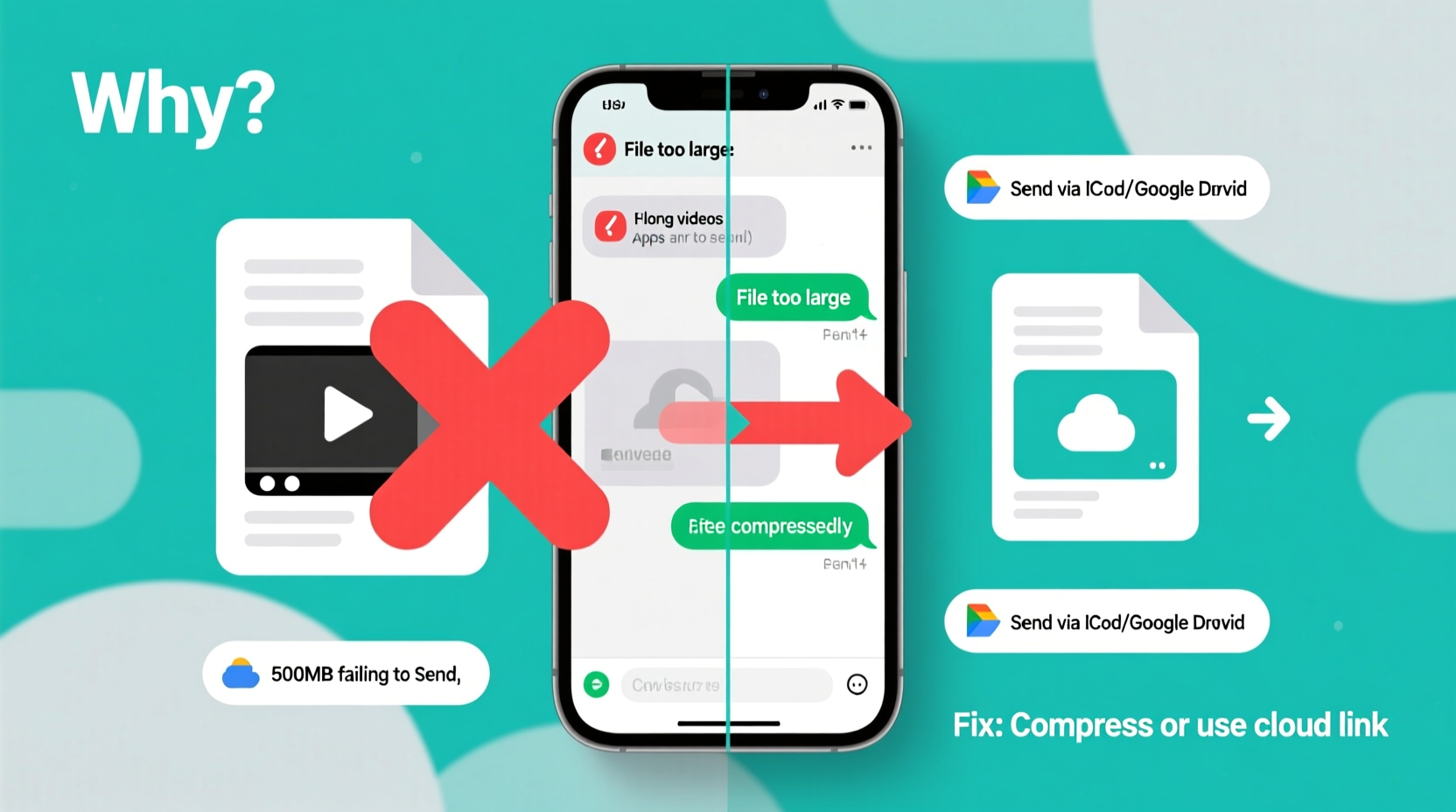
The inability to send long videos via standard messaging apps comes down to three primary factors: file size limits, network protocols, and app-specific rules. Most default messaging systems were designed for quick text and small media exchanges, not high-resolution video files that can easily exceed tens or even hundreds of megabytes.
For example, a 4K video recorded on an iPhone for just two minutes can be over 500MB. That’s far too large for most carrier-based SMS/MMS systems, which typically cap attachments at 2–5MB. Even iMessage and RCS (Rich Communication Services) have practical limits—usually capping video sends at around 100–200MB depending on connection quality.
“Carriers impose MMS size limits because large files strain legacy networks and increase delivery failure rates.” — David Lin, Mobile Network Engineer at T-Mobile (via public interview)
Additionally, operating system-level compression kicks in when sending videos through Messages. On iOS, clips longer than 30 seconds are often compressed heavily or segmented. Android devices behave similarly, especially when sending via SMS instead of data-based messaging like RCS or third-party apps.
Platform-Specific Limits: What You’re Up Against
Different platforms enforce different rules. Knowing these helps you anticipate issues before attempting to send.
| Platform | Max Video Length | Max File Size | Compression Applied? |
|---|---|---|---|
| iMessage (iOS) | No strict time limit* | ~100–200MB (varies by network) | Yes (auto-compresses large files) |
| SMS/MMS (All carriers) | 15–30 seconds | 2–5MB | Heavy (often reduces to 480p) |
| RCS (Android) | Up to 100MB file (~1 min HD) | 100MB | Moderate |
| 60 seconds (status), 16MB file otherwise | 16MB (documents up to 2GB) | Yes (unless sent as document) | |
| Signal | 2 minutes (under 100MB) | Yes |
*Note: While iMessage doesn’t technically limit duration, it will compress or fail to send videos exceeding size thresholds based on available bandwidth.
How to Successfully Send Long Videos: Proven Fixes
You don’t have to settle for clipped previews or low-quality versions. Several reliable methods bypass built-in restrictions while preserving video quality.
1. Use “Send as Document” (iOS and Android)
On both iPhone and Android, you can avoid automatic compression by sending the video as a file attachment rather than media.
- Open Messages (or compatible app like WhatsApp).
- Tap the “+” or paperclip icon to attach a file.
- Select “Document” or “File” instead of photo/video.
- Choose your video from the gallery or files app.
- Send.
This method preserves original resolution and length, though recipients may need to download the file before viewing.
2. Compress the Video Before Sending
If file size is the bottleneck, reduce it manually using tools that maintain acceptable quality.
- iOS: Use the free “Compress Videos” app or export via Photos > Edit > Crop > Done > Save as New Copy (reduces size).
- Android: Try “Video Compressor” by Bando or use Google Photos’ “Storage Saver” mode.
- Cross-platform: HandBrake (desktop) offers advanced control over bitrate and resolution.
Aim for 720p resolution and H.264 encoding for optimal compatibility and smaller sizes.
3. Share via Cloud Link
Upload your video to a cloud service and send the link instead.
- Google Drive (Android/iOS): Upload video, set sharing to “Anyone with the link,” copy link, paste into message.
- iCloud (iPhone): Use “Share Link” from Photos app—ideal for Apple users.
- Dropbox or OneDrive: Works across platforms with minimal setup.
This method supports videos of any length and quality, limited only by your storage plan.
Mini Case Study: Sharing a 10-Minute Birthday Video
Julie filmed a 10-minute birthday tribute for her sister using her iPhone 14. When she tried sending it via iMessage, the app notified her the video was too large. She attempted MMS next, but the video arrived truncated at 20 seconds in poor quality.
Frustrated, Julie uploaded the video to iCloud Photos, tapped “Share,” generated a link, and sent it via text. Her sister opened the link instantly and watched the full video in HD. The entire process took under two minutes. By switching from direct attachment to cloud sharing, Julie avoided compression and delivered exactly what she intended.
This real-world scenario reflects a growing trend: as video quality improves, traditional messaging infrastructure lags behind. Smart alternatives are now essential for seamless sharing.
Checklist: How to Fix Long Video Sending Issues
Follow this step-by-step checklist the next time you can’t send a video:
- ✅ Check the video file size (on iPhone: open Photos, swipe up on video; on Android: long-press > Details).
- ✅ If over 100MB, consider compressing or using cloud sharing.
- ✅ Try sending as a document/file attachment instead of media.
- ✅ For non-urgent sends, upload to Google Drive, iCloud, or Dropbox and share the link.
- ✅ Ensure Wi-Fi is enabled—large uploads fail more often on cellular data.
- ✅ Confirm recipient has enough storage to receive large files.
Frequently Asked Questions
Why does my video get cut off when I send it?
Your messaging app likely applies automatic compression or hits a file size limit. Carrier-based MMS usually restricts videos to under 30 seconds. Even iMessage may trim or compress long clips if they exceed ~200MB. To preserve full length, send as a document or via cloud link.
Can I send a 5-minute video on WhatsApp?
Directly as a video? No—WhatsApp compresses anything over 16MB and limits playback length. However, you can send it as a document (up to 2GB), preserving quality and duration. Open WhatsApp > Attach > Document > Select Video.
Does converting video to MP4 help?
Not always. While MP4 is widely supported, the issue is usually file size, not format. However, exporting to MP4 with optimized settings (e.g., lower bitrate, 720p) using apps like HandBrake or Clipchamp can significantly reduce size without noticeable quality loss.
Expert Insight: The Future of Messaging and Media
“As 5G adoption grows and RCS replaces SMS, we’ll see higher default limits and better video handling—but cloud-first sharing is already the smarter path.” — Lena Park, Senior UX Researcher at Samsung Mobile
The shift toward cloud-based sharing isn’t just about convenience—it’s a necessity. As smartphone cameras produce larger files, relying solely on built-in messaging becomes impractical. Forward-thinking users are adopting hybrid strategies: using Messages for quick exchanges and cloud links for meaningful media.
Conclusion: Take Control of Your Video Sharing
Not being able to send long videos through Messages doesn’t mean you’re stuck with clipped moments or blurry exports. The root causes—file size caps, network constraints, and outdated protocols—are well understood, and effective solutions exist. Whether you choose to compress smartly, send as a document, or leverage cloud links, the power to share fully remains in your hands.
Start applying these fixes today. The next time you capture something worth sharing in full, you’ll know exactly how to deliver it—intact, clear, and without compromise.




 浙公网安备
33010002000092号
浙公网安备
33010002000092号 浙B2-20120091-4
Comments
No comments yet. Why don't you start the discussion?