
Valorant, Riot Games' popular tactical shooter, has millions of players worldwide. But when you're ready to move on—whether due to performance concerns, storage limits, or simply losing interest—you might find that removing the game isn’t as simple as clicking “Uninstall.” Many users report being unable to delete Valorant through standard methods, with the uninstaller failing, missing, or blocked by background processes. This guide provides a comprehensive solution to permanently remove Valorant from your Windows system in 2025, even if previous attempts have failed.
Why You Can’t Uninstall Valorant Normally
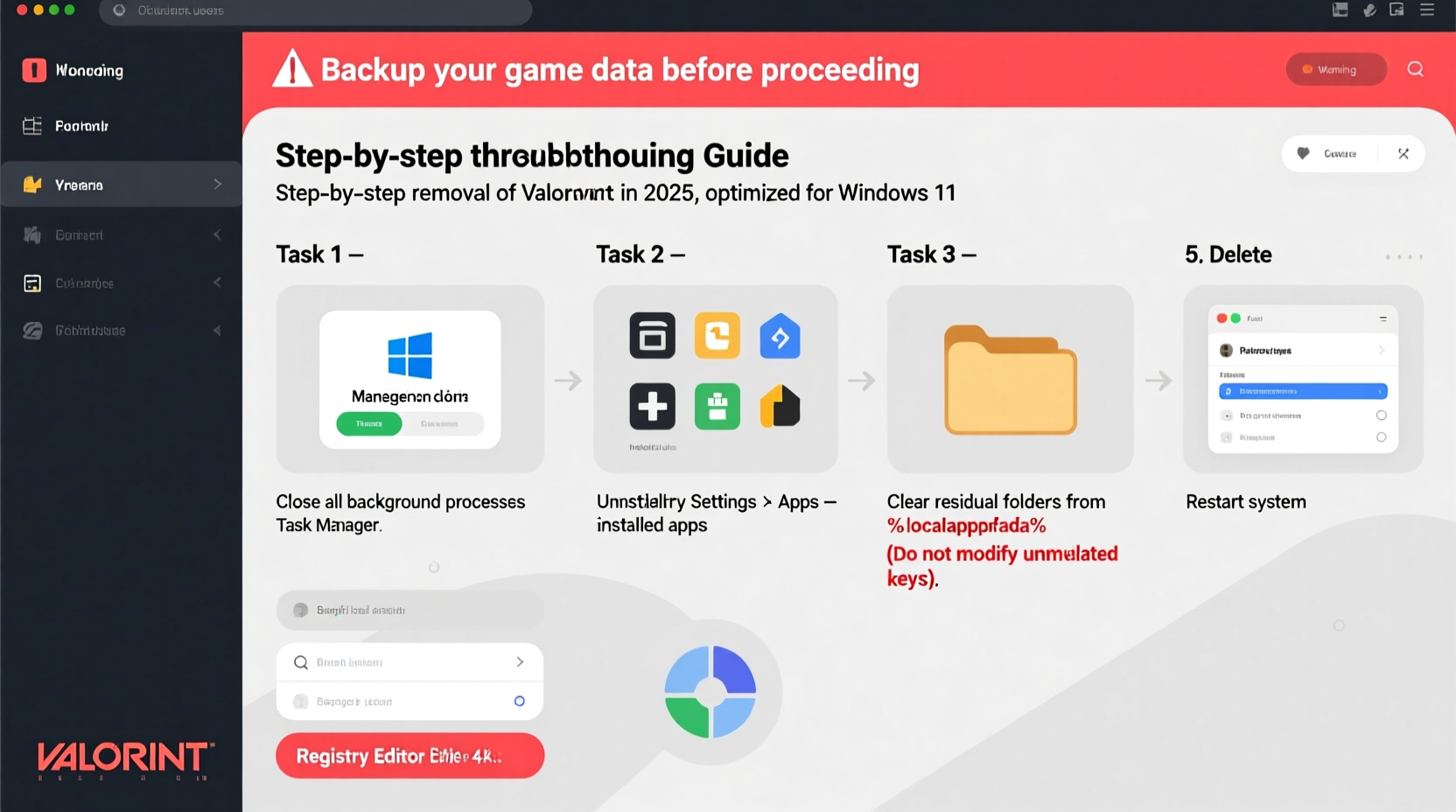
Unlike most PC games, Valorant uses a proprietary anti-cheat system called Vanguard. This kernel-level driver runs at startup and maintains deep integration with the operating system to prevent cheating. While effective for gameplay integrity, this design makes complete removal more complex than typical applications.
Common reasons why the standard uninstall process fails include:
- Vanguard service still running in the background
- Corrupted or missing uninstaller files
- Insufficient admin privileges
- File permission conflicts
- Third-party security software blocking changes
Riot Games does not allow disabling Vanguard without fully uninstalling the game, which means partial removal attempts often leave behind services, drivers, and registry entries that continue to consume resources.
Step-by-Step Guide to Fully Remove Valorant (2025 Method)
If the Control Panel or Settings app fails to remove Valorant, follow this structured approach to ensure complete deletion, including Vanguard.
- Close all Riot-related processes
PressCtrl + Shift + Escto open Task Manager. End any tasks related to:
- Riot Client Services
- VALORANT
- Vanguard (vgc.exe)
- Riot Vanguard Tray Icon - Stop the Vanguard service manually
PressWin + R, typeservices.msc, and press Enter.
Locate Riot Vanguard in the list, right-click it, and select Stop.
If it won’t stop, reboot into Safe Mode and try again. - Use the official Riot uninstaller
Navigate to:
C:\\Riot Games\\VALORANT\\uninstall.exe
If this file exists, run it as Administrator.
If the folder is missing or corrupted, proceed to manual removal. - Manually delete game files
Go to:
C:\\Riot Games\\
Delete the entire VALORANT folder.
Also check:
C:\\ProgramData\\Riot Games\\– delete if present. - Remove Vanguard driver
Open Command Prompt as Administrator.
Run:
sc delete vgc
sc delete vgk
These commands remove the Vanguard client and kernel services. - Clean up registry entries (optional but recommended)
PressWin + R, typeregedit, and back up the registry first.
Navigate to and delete these keys if they exist:
-HKEY_LOCAL_MACHINE\\SOFTWARE\\Riot Games
-HKEY_CURRENT_USER\\Software\\Riot Games
-HKEY_LOCAL_MACHINE\\SYSTEM\\CurrentControlSet\\Services\\vgk - Reboot your PC
After completing the above steps, restart your computer to finalize changes.
Confirm Vanguard no longer loads at startup via Task Manager’s Startup tab.
Troubleshooting Common Uninstall Errors
Even with careful execution, some users encounter persistent issues. Below are frequent problems and their solutions.
| Error | Possible Cause | Solution |
|---|---|---|
| \"Access Denied\" when deleting folders | File in use or insufficient permissions | Boot into Safe Mode and retry deletion. Use Unlocker tools if necessary. |
| Uninstall.exe not found | Corrupted installation or moved directory | Proceed with manual deletion using default paths. |
| Vanguard won’t stop in Services | Driver locked by OS | Use elevated Command Prompt: net stop vgc then sc delete vgc. |
| Game reappears after reinstall attempt | Leftover registry entries or cache | Clear Temp files and scan for residual Riot entries in AppData. |
Mini Case Study: Sarah’s Failed Uninstall Attempt
Sarah, a college student using a shared laptop, wanted to free up space after quitting Valorant. She tried uninstalling via Windows Settings, but the process froze at 78%. After restarting, the game was still listed, and launching it triggered a repair loop. She attempted deleting the folder directly, only to get “file in use” errors.
Following the full manual removal process—including stopping Vanguard in Safe Mode, deleting files, and removing services via Command Prompt—she successfully cleared all components. A final disk cleanup recovered over 15 GB of space. Her system now boots faster without the background Vanguard service.
“Kernel-level anti-cheat systems like Vanguard require deeper intervention than standard uninstalls. Manual service termination and driver removal are often necessary for full deactivation.” — Mark Tran, Windows Systems Engineer
Checklist: Complete Valorant Removal Verification
After following the removal steps, verify success with this checklist:
- ✅ VALORANT shortcut is gone from Desktop and Start Menu
- ✅ No Riot Client or VALORANT processes in Task Manager
- ✅
C:\\Riot Games\\VALORANTfolder no longer exists - ✅ Vanguard (vgc/vgk) services do not appear in
services.msc - ✅ No Riot-related entries in Windows Startup
- ✅ No automatic reinstallation upon reboot
- ✅ Disk space has increased by ~12–18 GB
Frequently Asked Questions
Can I disable Vanguard without uninstalling Valorant?
No. As of 2025, Riot Games requires Vanguard to be active whenever Valorant is installed. The only way to disable it permanently is to fully uninstall the game using the method described above.
Is it safe to delete Vanguard services manually?
Yes, as long as Valorant is no longer installed. Removing vgc and vgk services is safe and will not harm your system. These are third-party drivers with no role outside Valorant.
What if I want to reinstall Valorant later?
You can always download and reinstall Valorant from the official website. The installer will automatically set up Vanguard again. There’s no penalty for reinstalling, but ensure you trust the source.
Final Steps and Ongoing Maintenance
Successfully removing Valorant involves more than just deleting a folder—it requires terminating deep-running services and cleaning up system-level components. The process may seem technical, but each step is designed to protect your system’s stability while ensuring complete removal.
Going forward, consider monitoring startup programs and reviewing what software installs system drivers. Games with kernel-level access should be evaluated not only for performance but also for ongoing system impact—even when not actively played.
“Players should feel empowered to remove software that affects system behavior, especially when it runs continuously in the background.” — Lisa Park, Digital Rights Advocate
Take Back Control of Your System
If you’ve been struggling to remove Valorant, you’re not alone. Thousands face the same hurdle each year. But with the right approach, you can reclaim your disk space, eliminate unwanted background processes, and maintain a cleaner, more responsive PC.
Now that you know how to fully uninstall Valorant in 2025, apply these principles to other deeply integrated software. Share your experience or ask questions in the comments—your insight could help others break free from stubborn apps too.




 浙公网安备
33010002000092号
浙公网安备
33010002000092号 浙B2-20120091-4
Comments
No comments yet. Why don't you start the discussion?