
For streamers aiming to grow on Twitch, video quality is a silent ambassador. It shapes first impressions, affects viewer retention, and determines how seriously your audience takes your content. But when it comes to delivering that crisp, smooth feed, one critical decision looms: should you rely on your PC’s built-in streaming capabilities or invest in a dedicated capture card setup?
The answer isn’t binary. While built-in streaming via software like OBS Studio on a gaming PC dominates the landscape—especially among solo streamers—capture cards remain essential for console streamers, multi-device setups, and professionals seeking maximum flexibility. The real question isn't just about hardware; it's about workflow, compression efficiency, and the balance between convenience and control.
Understanding the Core Differences
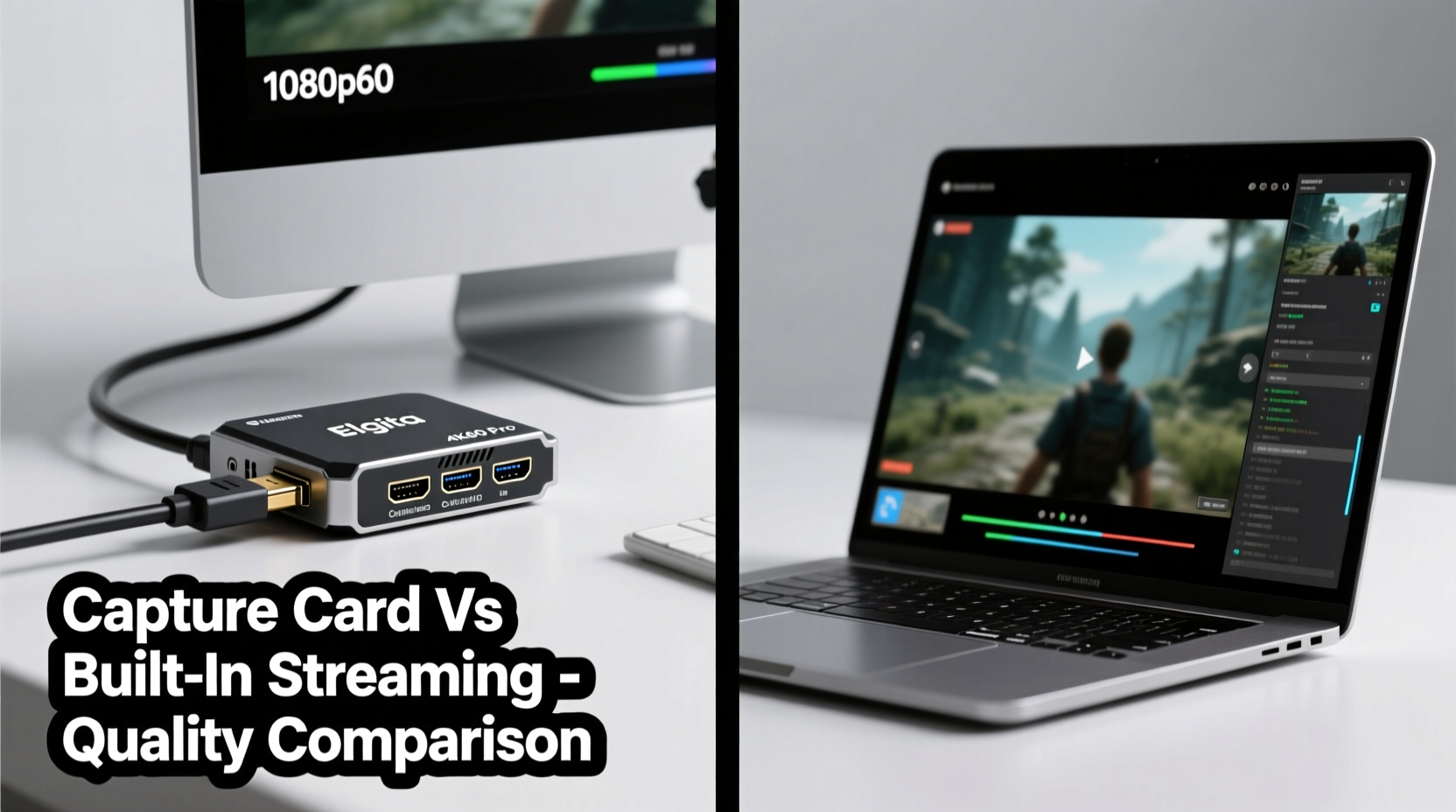
Built-in streaming refers to encoding video directly on your primary gaming PC using its CPU or GPU. This method captures gameplay through DirectX or Vulkan hooks (e.g., Game Capture in OBS) and processes the stream in real time using x264 (CPU-based) or NVENC (GPU-based on NVIDIA cards).
In contrast, a capture card is an external or internal device that receives video input from another source—such as a PlayStation, Xbox, or secondary PC—and passes it to your streaming machine. The key distinction: the source system outputs raw video, while a separate computer handles encoding and broadcasting.
This separation creates fundamentally different workflows. With built-in streaming, everything happens on one machine. With a capture card, responsibilities are split: one device plays the game, another streams it.
Video Quality: Compression, Bitrate, and Latency
Quality on Twitch depends on three factors: resolution, bitrate, and encoding efficiency. All else equal, higher bitrates mean better detail retention, especially during fast motion. But bandwidth and platform limits apply—Twitch caps at 6,000 kbps for most partners, with 3,500–6,000 kbps being the sweet spot for 1080p60.
Built-in streaming has direct access to uncompressed game frames before they’re rendered to screen. When using modern GPUs with hardware encoders like NVIDIA NVENC (available on GTX 10-series and newer), this results in minimal performance impact and excellent visual fidelity. Recent benchmarks show Turing and Ada-generation NVENC rivaling high-CPU x264 Medium presets in clarity while using negligible system resources.
Capture cards, however, must digitize incoming HDMI signals. Most consumer-grade models (like the Elgato HD60 S+) support up to 1080p60 HDR input but compress the signal using H.264 over USB 3.0. This introduces a second layer of compression: once by the source (console or secondary PC), then again by the streaming PC’s encoder. This “double compression” can degrade fine textures, text, and gradients—especially noticeable in anime-style games or UI-heavy titles.
“Even with lossless transmission claims, any analog-to-digital conversion or re-encoding step risks introducing artifacts. For pixel-perfect clarity, native capture beats external ingestion every time.” — Marcus Lin, Video Encoding Engineer at Twitch-partnered production studio StreamLift
Performance Impact and System Load
A major advantage of built-in streaming is resource integration. Modern GPUs offload encoding to dedicated silicon (NVENC, AMD VCE, Intel Quick Sync), freeing the CPU for gameplay. On a well-configured system, you can run 1080p60 streaming at 6,000 kbps with less than 5% performance hit in CPU-intensive titles.
Capture cards shift the load—but not always for the better. While your gaming machine runs unencumbered (ideal for consoles or older PCs), the streaming PC now bears full encoding duties. This demands a capable secondary system. A mid-tier Ryzen 5 5600 and RTX 3060 can handle 1080p60 streaming smoothly, but skimping on specs leads to dropped frames, stuttering audio, and unstable output.
Latency also differs. Built-in streaming adds 20–100ms depending on settings. Capture cards introduce additional delay: 1–3 frames from HDMI processing, plus buffering in USB transfer and software decoding. Total end-to-end lag can exceed 200ms, making real-time interaction feel sluggish.
| Factor | Built-in Streaming | Capture Card Setup |
|---|---|---|
| Max Resolution/Frame Rate | Up to 4K60 (with powerful GPU) | Limited to 1080p60 on most consumer models |
| Double Compression Risk | None | High (if source already compresses video) |
| System Requirements | Single high-end PC | Two capable machines |
| Setup Complexity | Low (software-only) | Moderate to high (cables, drivers, sync) |
| Audio Sync Accuracy | Precise (direct capture) | Requires manual calibration |
| Ideal Use Case | Solo PC streamers | Console streamers, dual-PC workflows |
Real-World Example: Two Paths to the Same Stream
Consider Alex, a competitive Fortnite streamer. Initially, Alex used a PlayStation 5 with an Elgato HD60 S+ connected to a mid-range streaming PC. Gameplay looked clean, but viewers complained about blurry text in menus and slight audio lag during shoutcasting. After upgrading to a gaming PC with an RTX 4070 and switching to built-in streaming via OBS + NVENC, the difference was immediate: HUD elements snapped into focus, chat responsiveness improved, and stream stability increased despite higher bitrate usage.
Meanwhile, Jamie, a Street Fighter 6 content creator, uses a capture card out of necessity—her main rig runs Windows for editing, but she fights on her PS5. She optimized by enabling “Direct” mode on her TV (reducing input lag), using a high-bitrate HDMI connection, and running her streaming PC with a dedicated NVENC encoder. Though she accepts minor softness in character details, the trade-off enables flawless cross-platform commentary and guest battles.
Their experiences highlight a truth: optimal quality depends on context. There’s no universal winner—only what works best for your setup and goals.
When a Capture Card Makes Sense
Despite inherent quality compromises, capture cards offer irreplaceable advantages in specific scenarios:
- Console Streaming: PlayStation and Xbox lack third-party streaming apps. A capture card is the only way to stream them professionally to Twitch.
- Dual-PC Workflows: High-end streamers often use one PC for gaming and another for overlays, alerts, and encoding. This isolates performance and allows richer production value.
- Multi-Source Switching: Capture cards enable seamless transitions between cameras, consoles, and PCs—essential for variety streamers or live events.
- Platform Agnostic Backup: If your primary PC fails, you can quickly switch sources without reinstalling software.
High-end models like the Elgato 4K60 Pro MK.2 or AVerMedia GC573 support 4Kp60 HDR10 passthrough with minimal compression, reducing quality loss. These use PCIe interfaces instead of USB, lowering latency and improving bandwidth. However, they cost significantly more and require desktop builds with open slots.
Optimization Checklist for Maximum Quality
Whether you choose built-in streaming or a capture card, these steps ensure the best possible output:
- Use Hardware Encoding: Enable NVENC (NVIDIA) or AMF (AMD) in OBS. Avoid CPU-based x264 unless you have a high-core-count processor and aren’t gaming simultaneously.
- Set Correct Base & Output Resolutions: Match your monitor’s native resolution in OBS. Downscale only if necessary, using high-quality resamplers like Lanczos.
- Adjust Rate Control Settings: Use CBR (Constant Bitrate) at 4,500–6,000 kbps for 1080p60. Avoid VBR unless you have unpredictable scene complexity.
- Sync Audio Properly: In OBS, right-click the audio source and select “Filters” > “Synchronization Offset” to align lip movement with voice.
- Update Drivers and Firmware: Keep GPU drivers, OBS, and capture card firmware current. New updates often improve encoder efficiency and fix bugs.
- Test Before Going Live: Run a private stream and review playback for blurriness, color banding, or dropped frames.
- Monitor Encoder Health: Use tools like OBS Stats or Streamlabs Desktop to track dropped frames and bandwidth usage.
FAQ
Can I get 4K streaming quality with a capture card?
Yes, but only with premium models like the Elgato 4K60 Pro MK.2 or AVerMedia GC573, and only if your source supports 4K60 HDMI output. Note that Twitch currently does not support 4K streaming—maximum display resolution is 1080p. So while 4K capture improves downscaling quality, it won’t change what viewers see.
Does built-in streaming cause FPS drops?
Minimally, if using hardware encoding (NVENC). Modern GPUs handle encoding with near-zero performance impact. However, using CPU-based x264 encoding during intensive games can reduce FPS by 10–30%, depending on core count and clock speed.
Is there a noticeable quality difference on mobile viewers?
Less so. Mobile clients often downscale to 720p or lower due to bandwidth constraints. That said, better source quality ensures cleaner downscaled images and fewer compression artifacts during fast scenes.
Step-by-Step: Choosing Your Path
Follow this decision timeline to determine the best route for your needs:
- Evaluate Your Source: Are you streaming from a PC or console? If PC, built-in streaming is likely sufficient. If console, a capture card is required.
- Assess Your Hardware: Do you have a single powerful PC or access to two machines? One strong PC favors built-in streaming. Two capable systems open the door to advanced capture setups.
- Determine Content Type: Solo gameplay? Built-in works. Multi-source, face cam, co-commentary? Consider capture cards for flexibility.
- Test Both Methods (If Possible): Borrow a friend’s capture card or test on a secondary monitor. Compare recordings side-by-side at the same bitrate.
- Optimize and Monitor: Whichever path you take, continuously refine settings based on viewer feedback and analytics.
Conclusion: Prioritize Workflow Over Hardware
Ultimately, “better quality” isn’t solely about pixels or bitrates—it’s about consistency, reliability, and viewer experience. Built-in streaming generally provides superior image fidelity due to direct access and avoidance of double compression. For the vast majority of PC streamers, it’s the smarter choice.
But capture cards unlock possibilities otherwise impossible: professional console streaming, complex productions, and resilient multi-machine setups. Their value isn’t in raw quality gains, but in expanded creative control.
The goal isn’t to pick the “best” tool universally, but the one that elevates your specific stream. Invest in understanding your workflow, optimize your encoding chain, and prioritize stable, clear delivery over chasing marginal technical improvements.




 浙公网安备
33010002000092号
浙公网安备
33010002000092号 浙B2-20120091-4
Comments
No comments yet. Why don't you start the discussion?