
Receiving an iTunes gift card is exciting—it means music, apps, movies, or subscriptions are just a few clicks away. But before you make a purchase, knowing the remaining balance is essential. Unlike physical gift cards for retail stores, iTunes (now part of the Apple ID balance system) doesn’t print the balance on the back. You need to check it through Apple’s digital ecosystem. This guide walks you through every reliable method to check your iTunes gift card balance—quickly, securely, and accurately.
Understanding iTunes Gift Cards and Apple ID Balance
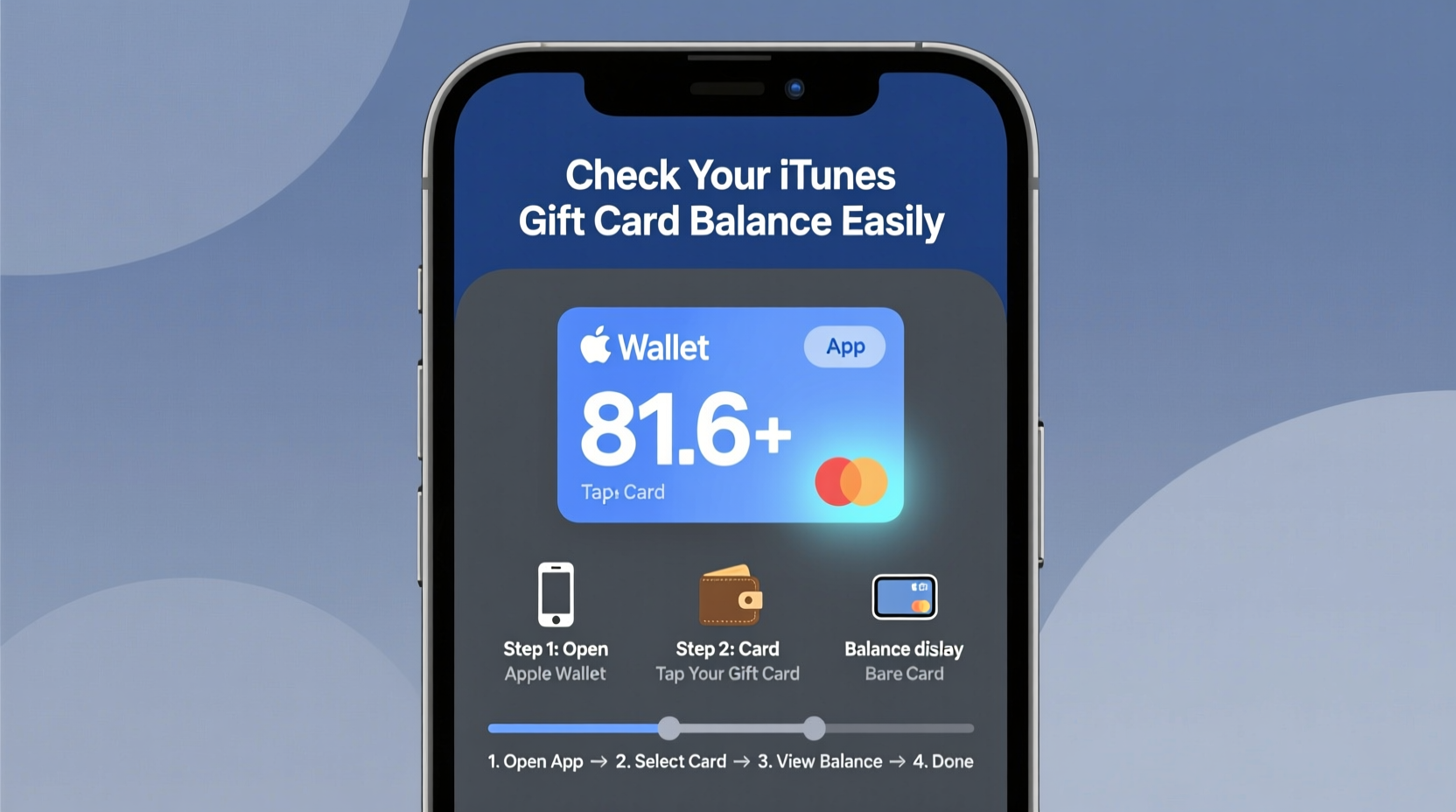
An iTunes gift card, whether physical or digital, adds funds directly to your Apple ID account. Once redeemed, that amount becomes part of your Apple ID balance, which can be used across the App Store, iTunes Store, Apple Books, Apple Music, iCloud+, and more. The key thing to remember: after redemption, the original card no longer holds value—the balance lives in your Apple ID.
This means you can't check the balance *on the card itself*. Instead, you must access Apple's systems using your Apple ID. Whether you’ve just received a card or have had one sitting around for months, these steps will help you find out exactly how much credit you have available.
Step-by-Step Guide to Check Your iTunes Gift Card Balance
The most accurate way to check your balance is through Apple’s official channels. Here’s how to do it from different devices:
- Redeem the Card First (If Not Already Done)
If your card hasn’t been redeemed, its full value won’t appear in your account. To redeem:- Go to apple.com/redeem on a computer or open the App Store on your iPhone/iPad.
- Sign in with your Apple ID.
- Enter the 16-digit code found on the back of the card (scratch off the coating if physical).
- Click “Redeem.”
- Check Balance via iPhone or iPad
After redemption:- Open the App Store.
- Tap your profile picture or initials in the top-right corner.
- Your Apple ID balance will appear at the top of the screen.
- Check Balance on Mac or PC
Using a computer:- Open the App Store app (macOS) or go to apple.com/account.
- Sign in with your Apple ID.
- Look for “Store Balance” under your account summary.
- Use the iTunes Application (Windows or Older macOS)
For users still on older systems:- Open the iTunes desktop app.
- Click “Account” in the menu bar, then “View My Account.”
- You may need to sign in again.
- Your balance appears near the top, under “Apple ID Balance.”
Alternative Methods and What to Do If the Balance Doesn’t Appear
Sometimes, even after entering the code, the balance doesn’t update immediately. Delays can occur due to server processing times, regional restrictions, or incorrect codes. Here’s what you can do:
- Wait 24 hours: Apple sometimes takes up to a day to reflect new balances, especially with large denominations.
- Double-check the code: Ensure you didn’t confuse “O” with “0” or “I” with “1.” Retype carefully.
- Verify region compatibility: iTunes gift cards are region-specific. A U.S. card won’t work in an Indian Apple ID account.
- Contact Apple Support: If the code was valid but not applied, call Apple or use the Support app. Have the code and purchase receipt ready.
“Always keep your gift card receipt until the balance reflects in your account. It’s your best proof of purchase if issues arise.” — Lisa Tran, Apple Customer Experience Advisor
Do’s and Don’ts When Managing iTunes Gift Cards
| Do’s | Don’ts |
|---|---|
| Redeem the card promptly after receiving it. | Don’t share the code with anyone—even partially. |
| Keep the receipt or photo of the card until balance is confirmed. | Don’t throw away the card immediately after redemption. |
| Use official Apple websites or apps to check balance. | Don’t use third-party sites claiming to check iTunes balances—they’re often scams. |
| Check your balance before making large purchases. | Don’t assume partial redemptions are possible; the full code applies at once. |
Real Example: Recovering a Lost Balance
Sophia received a $50 iTunes gift card for her birthday. She tucked it into her wallet and forgot about it for weeks. When she finally tried to buy a movie, she realized she didn’t know the balance. Worse, she had accidentally scratched off part of the code.
She visited apple.com/redeem, entered the visible digits, and got an error. Remembering she’d taken a photo of the card when she first opened it, she retrieved the full code from her cloud album. After successful redemption, her balance appeared instantly in the App Store. She also updated her Apple ID password afterward, just in case the exposed code had been compromised.
Sophia’s experience shows why documentation matters—and why acting quickly can save both money and stress.
Frequently Asked Questions
Can I check my iTunes gift card balance without redeeming it?
No. Apple does not allow balance checks without redemption. The only way to see the value is to apply the code to your Apple ID. However, once redeemed, you can view the updated balance immediately.
What if my iTunes gift card was stolen or used without permission?
If your card was compromised, contact Apple Support right away. Provide the original receipt and card details. While Apple cannot always refund unauthorized redemptions, they may assist if the theft is reported early and evidence is provided.
Does an iTunes gift card expire?
In most countries, including the U.S., iTunes gift cards do not expire. However, unused balances may be subject to local escheat laws after several years of inactivity. It’s best to use them within 2–3 years to avoid complications.
Final Checklist: Managing Your iTunes Gift Card Like a Pro
- ✅ Redeem the card as soon as you receive it.
- ✅ Confirm the balance appears in your App Store or account page.
- ✅ Save a copy of the card (photo or scan) until redemption is verified.
- ✅ Use only Apple’s official platforms—never third-party balance checkers.
- ✅ Monitor your Apple ID activity regularly for unauthorized use.
- ✅ Combine multiple small cards into one larger balance for bigger purchases.
Take Control of Your Digital Spending Today
Knowing your iTunes gift card balance isn’t just convenient—it’s a smart financial habit. By following these steps, you avoid surprises at checkout, protect yourself from fraud, and make the most of every dollar gifted to you. Whether it’s funding a year of Apple Music or downloading the latest productivity app, your Apple ID balance puts you in control.




 浙公网安备
33010002000092号
浙公网安备
33010002000092号 浙B2-20120091-4
Comments
No comments yet. Why don't you start the discussion?