
When connecting an external hard drive to a Mac, one of the most overlooked yet critical decisions is choosing the right file system format. The format determines how your Mac reads, writes, and organizes data on the drive. A poor choice can lead to incompatibility with other devices, reduced performance, or even data loss. Whether you're backing up photos, storing large video projects, or sharing files across platforms, selecting the correct format ensures seamless operation and longevity of your storage solution.
Understanding File Systems: The Foundation of Storage
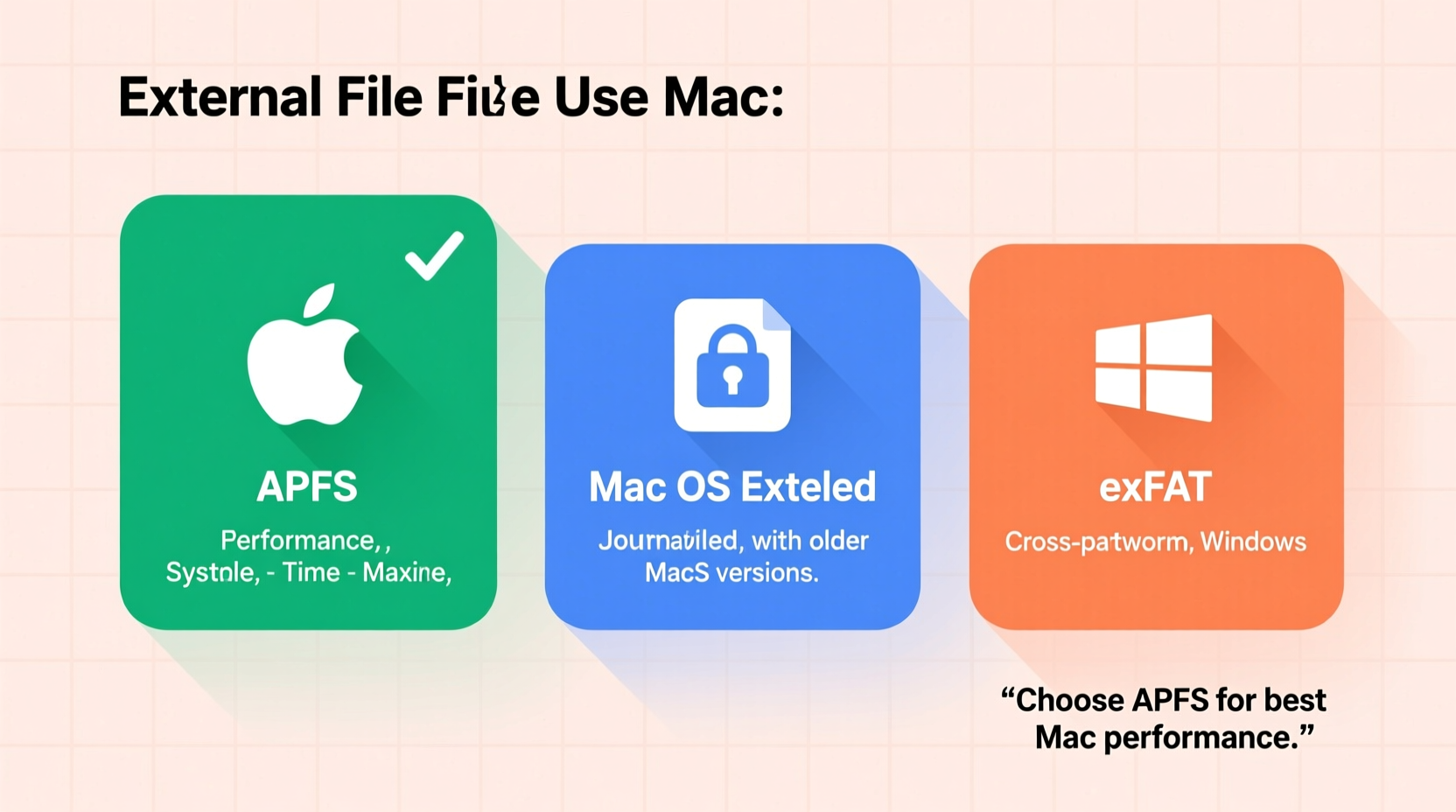
The file system acts as the organizational structure of your hard drive. It governs everything from file naming rules to maximum file sizes and permissions. macOS supports several file systems, each with distinct advantages and limitations:
- APFS (Apple File System): Introduced in 2017, APFS is optimized for flash and solid-state drives. It offers fast performance, strong encryption, and space-sharing between volumes.
- Mac OS Extended (HFS+): The predecessor to APFS, still used on older systems and mechanical drives. Reliable but lacks modern features like native snapshots.
- exFAT: Designed for cross-platform compatibility. Works seamlessly on both Mac and Windows without reformatting.
- FAT32: Highly compatible but outdated. Limited to 4GB per file and 8TB per volume—unsuitable for modern media work.
Your choice depends on intended use, device compatibility, and whether you plan to move the drive between operating systems.
When to Use APFS: Performance and Security First
If your external drive uses SSD technology and will primarily connect to Macs running macOS High Sierra or later, APFS is the optimal choice. It provides near-instant file copying via copy-on-write metadata, improved crash protection, and native support for full-disk and per-file encryption.
APFS shines in scenarios involving frequent file operations, such as video editing timelines or development environments. Its ability to create multiple volumes within a single physical drive without repartitioning adds flexibility.
However, APFS has notable drawbacks. Older Macs (pre-2011) may not support it, and Windows cannot read APFS drives without third-party software—a major limitation if you regularly switch between operating systems.
“APFS was built for speed and integrity on Apple silicon and SSDs. For dedicated Mac workflows, it’s unmatched.” — Jordan Lee, Senior Systems Architect at DataVault Labs
Cross-Platform Needs? exFAT Is Your Best Compromise
For users who frequently transfer files between Mac and Windows machines—such as photographers, students, or freelancers—exFAT strikes the ideal balance. Unlike FAT32, exFAT supports individual files larger than 4GB and volumes up to 512TB, making it suitable for high-resolution videos and disk images.
macOS and Windows both offer native read/write support for exFAT, eliminating the need for additional drivers. This plug-and-play convenience makes it a go-to for shared drives, presentations, or collaborative projects.
That said, exFAT lacks journaling, meaning sudden disconnections or power failures increase the risk of file corruption. It also doesn’t support Unix permissions or encryption, reducing its suitability for sensitive data or Time Machine backups.
Real-World Example: Freelance Photographer Workflow
Sophie, a travel photographer based in Vancouver, shoots RAW files that average 80MB each. She edits on her MacBook Pro but delivers final galleries using a client’s Windows laptop at exhibitions. Initially, she formatted her 4TB drive as Mac OS Extended, only to find it unreadable on Windows. After reformatting to exFAT, she gained seamless access across both systems. While she now takes extra care to eject the drive safely, the trade-off in reliability is minor compared to the gain in accessibility.
Comparing File Formats: A Quick Reference Table
| File System | Max File Size | Max Volume Size | Mac Read/Write | Windows Read/Write | Best For |
|---|---|---|---|---|---|
| APFS | No practical limit | Up to 8EB | Yes (macOS 10.13+) | No (without third-party tools) | Dedicated Mac SSDs, Time Machine (Catalina+), secure storage |
| Mac OS Extended (HFS+) | 8EB | 8EB | Yes | Limited (read-only via Boot Camp) | Older Macs, mechanical drives, legacy Time Machine |
| exFAT | 16EB | 512TB | Yes | Yes | Cross-platform transfers, large media files |
| FAT32 | 4GB | 8TB | Yes | Yes | Small USB sticks, firmware updates, simple file sharing |
Step-by-Step: How to Format Your Drive on Mac
Formatting an external drive on macOS is straightforward using Disk Utility. Follow these steps carefully:
- Connect the external hard drive to your Mac via USB, Thunderbolt, or another supported port.
- Open Disk Utility (found in Applications > Utilities).
- In the left sidebar, select the external drive (choose the top-level entry, not a sub-volume).
- Click the Erase button at the top of the window.
- In the dialog box:
- Name your drive (e.g., “Backup Drive”)
- Select the format from the dropdown:
- Choose APFS for Mac-only SSDs
- Select Mac OS Extended (Journaled) for older systems or HDDs
- Pick ExFAT for cross-platform use
- Set the scheme to GUID Partition Map (required for bootable drives and modern Mac compatibility)
- Click Erase, then confirm. Wait for completion.
- Click Done and safely eject the drive before disconnecting.
Key Considerations Before You Decide
Beyond technical specs, consider your real-world usage patterns:
- Primary Device Ecosystem: If you’re fully invested in Apple devices (iPhone, iPad, Mac), APFS or HFS+ may suffice. Mixed environments demand exFAT.
- Drive Type: SSDs benefit from APFS; traditional spinning drives perform adequately with HFS+.
- Time Machine Backups: As of macOS Catalina, Time Machine automatically converts drives to APFS when possible. For older versions, HFS+ remains standard.
- Data Sensitivity: If security matters, avoid exFAT. Use APFS with encryption enabled for confidential files.
Checklist: Choosing the Right Format
- ✅ Identify primary use case (backup, media, transfer)
- ✅ Confirm compatibility with connected devices (Mac, Windows, smart TVs)
- ✅ Determine if large files (>4GB) will be stored
- ✅ Decide whether encryption is needed
- ✅ Verify macOS version supports intended file system
- ✅ Backup existing data before reformatting
Frequently Asked Questions
Can I change the format later without losing data?
No—changing a drive’s format requires erasing all data. Always back up important files to another location before reformatting.
Why won’t my Mac let me write to an exFAT drive?
This is rare but can occur due to permission glitches or corrupted directory entries. Try repairing the drive using Disk Utility’s First Aid feature or reformatting it entirely.
Is FAT32 still useful in 2024?
Only in niche cases: small-capacity USB drives used for firmware updates or legacy systems. Avoid it for any modern file storage due to its 4GB file size cap.
Make the Right Choice for Long-Term Success
Selecting the best format for external hard drive Mac use isn’t about finding a universal solution—it’s about aligning the file system with your specific needs. Prioritize performance and security with APFS for Mac-centric workflows, opt for exFAT when collaboration across platforms is essential, and reserve HFS+ for legacy setups or mechanical drives. With the right format, your external drive becomes more than just storage—it becomes a reliable extension of your digital life.




 浙公网安备
33010002000092号
浙公网安备
33010002000092号 浙B2-20120091-4
Comments
No comments yet. Why don't you start the discussion?