
Google Chrome is one of the most powerful and widely used browsers in the world, but even the best tools can falter under unnecessary strain. One of the most common culprits behind sluggish browsing, high memory usage, and delayed page loads is an overabundance of browser extensions. While extensions enhance functionality—blocking ads, managing passwords, or boosting productivity—installing too many without oversight can cripple performance. The issue isn't just about having a few extra tools; it's about how those tools run in the background, consuming CPU, RAM, and network resources even when you're not actively using them.
This guide breaks down exactly how Chrome extensions impact your browser’s speed, how to diagnose extension-related slowdowns, and what steps you can take to clean up your setup for a faster, more responsive experience.
Why Extensions Slow Down Chrome
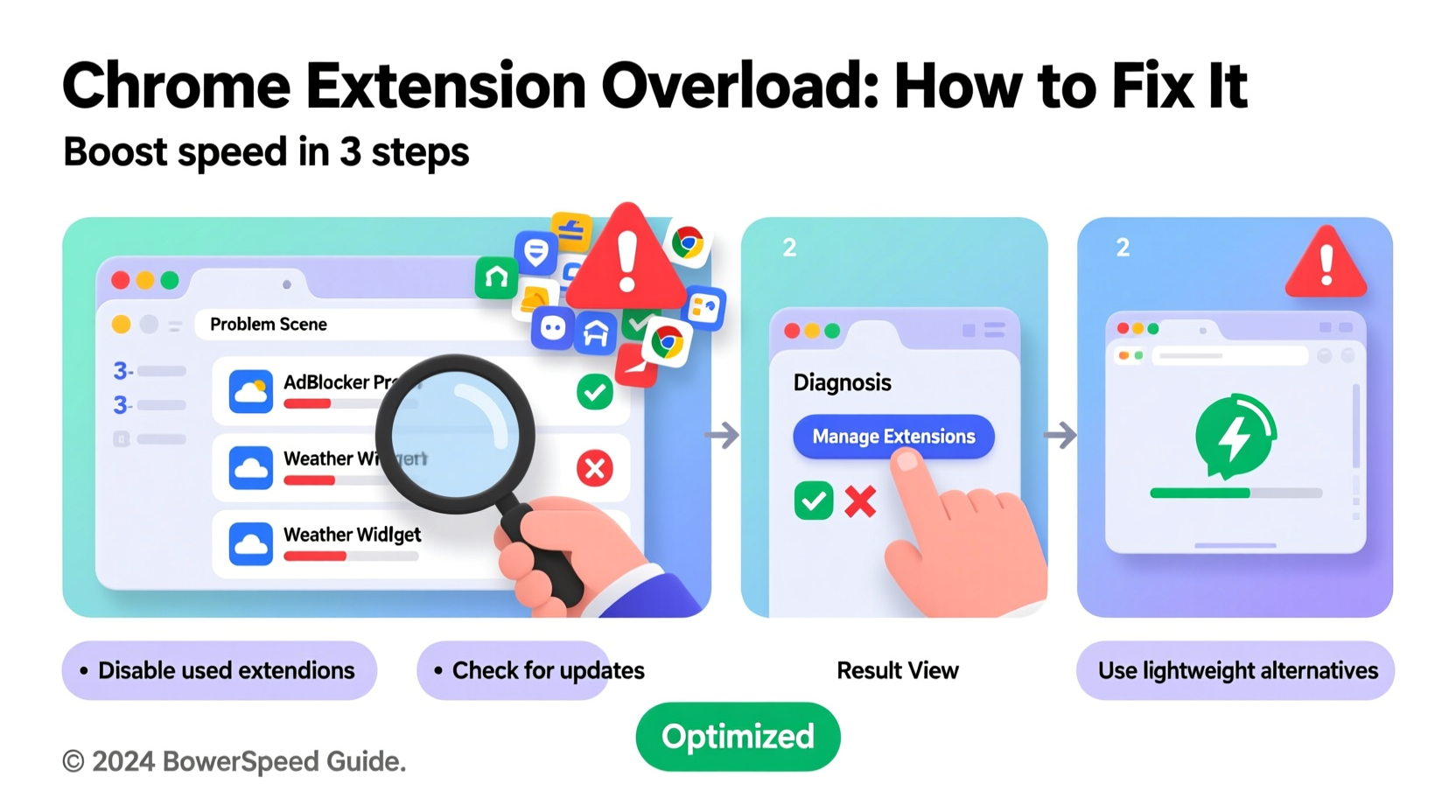
Every Chrome extension runs as a separate process or script within the browser environment. Some are lightweight and nearly invisible in terms of resource use, while others constantly monitor your activity, inject code into every webpage, or sync data across devices. When multiple such extensions are active simultaneously, they compete for system resources, leading to:
- Increased RAM consumption
- Higher CPU usage, especially on older machines
- Slower startup times for Chrome
- Delays in page rendering and responsiveness
- Battery drain on laptops and mobile devices
Even disabled extensions can contribute to overhead if they’re not fully uninstalled. Background scripts, persistent permissions, and auto-updates all add up. According to Google’s own developer documentation, “Each extension has access to powerful APIs that can affect browser behavior and performance.” That power comes with responsibility—and potential cost.
How to Diagnose Extension-Related Performance Issues
Before removing anything, confirm that extensions are indeed the problem. Chrome includes built-in tools to help you analyze performance and pinpoint resource hogs.
Step 1: Open Chrome’s Task Manager
Press Shift + Esc while in Chrome to open the browser-specific Task Manager. This shows real-time usage per tab, extension, and internal process.
Look for entries labeled “Extension: [Name]” and check their CPU and Memory columns. An extension consistently using over 5% CPU or hundreds of MB of RAM is worth investigating.
Step 2: Use Chrome’s Built-in Performance Report
Navigate to chrome://settings/performance. Chrome now includes a performance dashboard that flags tabs and extensions contributing to slowdowns. It may suggest disabling specific extensions based on recent impact.
Step 3: Test in Incognito Mode
Open an Incognito window (Ctrl+Shift+N) and browse normally. Incognito mode disables most extensions by default. If performance improves dramatically, the issue is almost certainly extension-related.
Step 4: Audit with Extension-Free Testing
Go to chrome://extensions, disable all extensions, then re-enable them one by one while monitoring performance. This isolation method helps identify which extension triggers lag, freezes, or high memory spikes.
“Many users don’t realize that extensions like grammar checkers or social media helpers run on every single page—even news sites and banking portals. That constant execution adds up quickly.” — David Kim, Web Performance Engineer at Mozilla
Common Offenders: High-Impact Extensions to Watch
Certain categories of extensions are notorious for performance drag. These aren’t inherently bad, but their design often prioritizes features over efficiency.
| Extension Type | Typical Resource Impact | Why It Slows Chrome |
|---|---|---|
| Ad Blockers (e.g., uBlock Origin, AdBlock Plus) | High RAM, Moderate CPU | Must scan every element on a page against filter lists, often in real time. |
| Password Managers (e.g., LastPass, Dashlane) | Moderate RAM, Low CPU | Constantly monitor input fields and auto-fill forms across all sites. |
| Social Media Tools (e.g., Hootsuite, Buffer) | Low-Moderate RAM, Background CPU | Run background syncs and notifications even when not in use. |
| Grammar & Writing Assistants (e.g., Grammarly) | High CPU, High RAM | Analyzes every keystroke on text fields across all websites. |
| VPN or Proxy Extensions | Moderate-High Network, CPU | Reroute all traffic through remote servers, adding latency. |
| Browser Customization (Themes, UI Overlays) | Low-Moderate RAM | Modify rendering engine behavior and inject CSS/JS on every page. |
While tools like Grammarly or ad blockers provide real value, their always-on nature means they’re working whether you need them or not. This constant background operation is what leads to cumulative slowdowns.
Step-by-Step Guide to Cleaning Up Your Chrome Extensions
Follow this structured approach to reduce bloat and reclaim browser speed.
- Access Extensions Page: Navigate to
chrome://extensionsin your address bar. - Review All Installed Extensions: Look beyond the names—read descriptions, developer info, and last update date. Outdated or abandoned extensions are security and performance risks.
- Remove Unused or Redundant Tools: Delete any extension you haven’t used in the past month. Ask: Does this serve a critical function? Is there a built-in alternative?
- Disable Before Deleting: Instead of immediate removal, disable suspicious extensions first. Test browsing for a day to ensure no workflow disruption.
- Limit Auto-Running Extensions: Click “Details” on each extension and restrict site access. Choose “On click” or “On specific sites” instead of “On all sites.”
- Enable Developer Mode Only Temporarily: Avoid leaving Developer Mode on at
chrome://extensions, as it can expose hidden or unstable extensions. - Clear Extension Data: After uninstalling, go to
chrome://settings/siteDataand search for remnants of deleted extensions. Clear associated cookies and cached data.
Mini Case Study: From Laggy to Lightning-Fast
Julia, a freelance writer and researcher, noticed her Chrome browser was taking over a minute to start and frequently freezing during video calls. Her machine had 16GB of RAM, so hardware wasn’t the issue. She opened Chrome’s Task Manager and discovered three extensions—Grammarly, a social media scheduler, and a cryptocurrency tracker—each consuming over 300MB of RAM and spiking CPU usage.
She followed the cleanup steps: disabled all extensions, tested performance (which improved instantly), then re-enabled only the password manager and dark mode tool—both set to run only on specific sites. She replaced Grammarly with a standalone desktop app for document editing and removed the crypto extension entirely.
Result: Chrome startup time dropped from 78 seconds to under 12. Tab switching became instant, and overall system responsiveness improved. Julia regained nearly 2GB of previously occupied RAM.
Best Practices for Sustainable Extension Management
Maintaining a fast browser isn’t a one-time fix—it requires ongoing discipline. Adopt these habits to prevent future overload.
- Adopt a “One In, One Out” Rule: Before installing a new extension, remove an old one.
- Audit Monthly: Set a calendar reminder to review
chrome://extensionsonce a month. - Prefer Built-In Features: Chrome now includes native dark mode, translation, and basic password management. Use these instead of third-party equivalents when possible.
- Check Reviews and Update Frequency: Install only extensions updated within the last 90 days and with thousands of positive reviews.
- Use Alternative Browsers for Specialized Tasks: Keep work-related extensions in Chrome, but use Firefox or Edge for shopping or media to isolate resource load.
FAQ
Can too many extensions cause Chrome to crash?
Yes. Excessive memory usage from multiple active extensions can exceed available RAM, leading to crashes, particularly on systems with 8GB or less. Chrome may also kill background processes automatically, causing instability.
Do disabled extensions still slow down Chrome?
Generally, no. Disabled extensions do not run scripts or consume CPU/RAM. However, they still occupy disk space and may retain permissions. For optimal cleanup, uninstall entirely if not needed.
Are Chrome Web Store extensions safe by default?
Not necessarily. While Google scans for malware, malicious or poorly coded extensions sometimes slip through. Always verify developer reputation, read user feedback, and avoid extensions requesting excessive permissions (e.g., “Read all data on all websites”).
Conclusion
Chrome extension overload is a silent but widespread issue affecting millions of users. What starts as a helpful tool can evolve into a performance anchor when left unchecked. By understanding how extensions operate, identifying resource-heavy offenders, and applying disciplined management practices, you can restore speed, stability, and efficiency to your browsing experience.
The goal isn’t to eliminate all extensions—it’s to curate a lean, purposeful set that enhances your workflow without sacrificing performance. Take control today: audit your current setup, remove the bloat, and configure the essentials wisely. A faster, smoother Chrome experience is just a few clicks away.
chrome://extensions now and remove at least one unused extension. Share your results or tips in the comments!




 浙公网安备
33010002000092号
浙公网安备
33010002000092号 浙B2-20120091-4
Comments
No comments yet. Why don't you start the discussion?