
In today’s digital workspace, the browser is more than just a gateway to the internet—it’s a command center for research, communication, task management, and creative work. As professionals spend hours navigating tabs, forms, and dashboards, even small efficiency gains can compound into meaningful time savings. Two primary tools shape this experience: Chrome extensions and built-in browser features. But which actually delivers greater productivity? The answer isn’t straightforward—context, workflow, and personal habits all influence the outcome.
While Chrome extensions offer powerful customization and automation, built-in tools provide stability, speed, and seamless integration without the risks of third-party code. Understanding the strengths and limitations of each helps users make informed choices that align with their goals, security needs, and long-term efficiency.
The Role of Built-In Browser Tools in Productivity
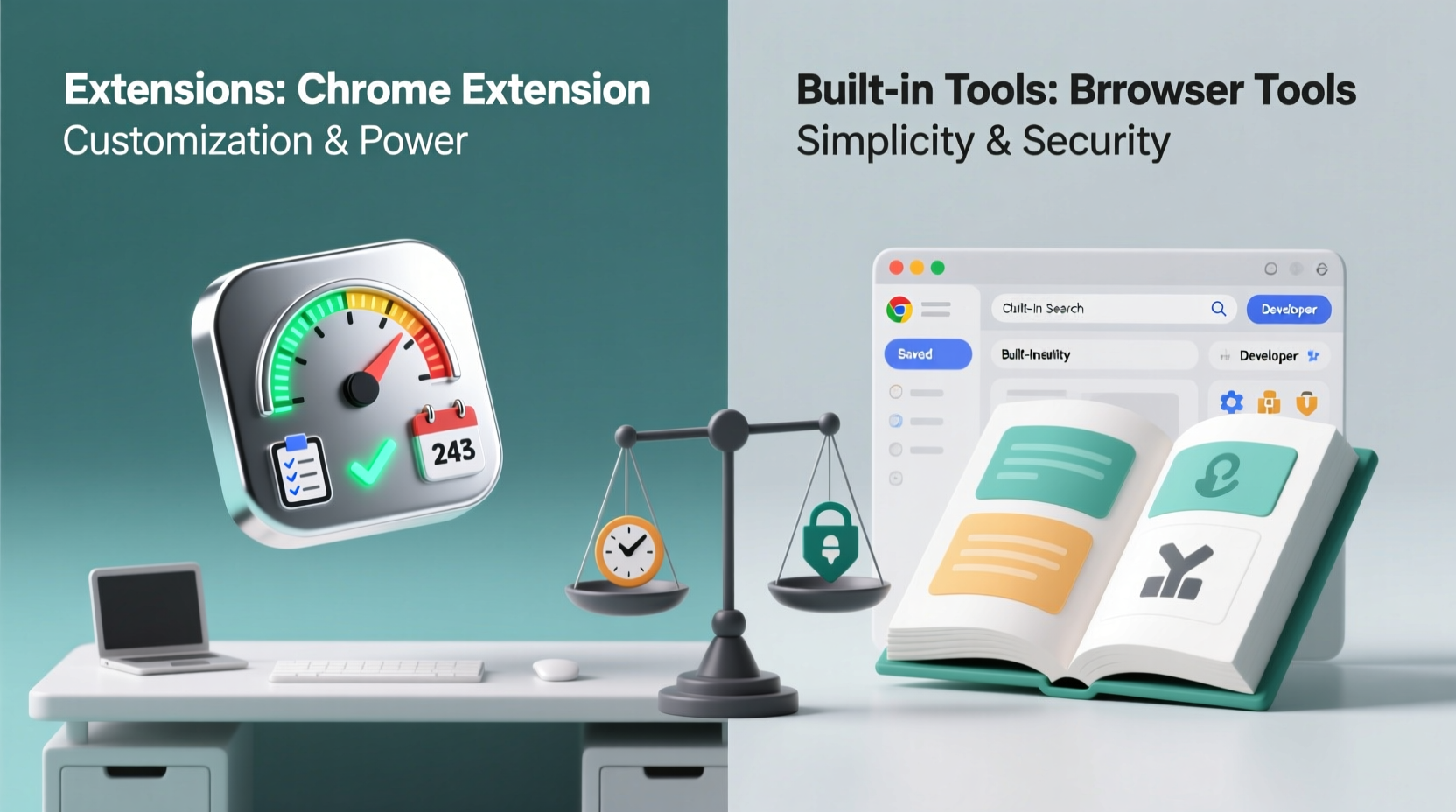
Google Chrome has evolved from a simple rendering engine into a full-fledged productivity platform. Over the years, its native capabilities have expanded significantly. Features like tab grouping, password managers, developer tools, reading list, translation, and incognito mode are now standard. These tools are designed to be fast, reliable, and secure because they’re maintained directly by Google’s engineering teams.
One major advantage of built-in tools is performance. Because they run natively within the browser’s core architecture, they consume fewer system resources compared to external extensions. For example, Chrome’s “Tab Search” function allows users to quickly locate open tabs without installing add-ons like OneTab or Toby. Similarly, the integrated password manager syncs across devices using Google’s ecosystem—securely and efficiently.
Built-in tools also benefit from automatic updates and compatibility assurance. There’s no risk of sudden breakage after a browser update, nor do they require permissions to access sensitive data beyond what’s already permitted at the system level.
Key Built-In Tools That Boost Efficiency
- Tab Groups: Color-code and collapse related tabs for clutter-free multitasking.
- Search Engine Shortcuts: Type keywords (e.g., “wiki” or “yt”) directly in the address bar to jump to specific sites.
- Find in Page (Ctrl+F): Quickly locate text on long web pages.
- Password Manager & Auto-Fill: Reduce form-filling time while maintaining strong credential hygiene.
- Reading List: Save articles for later without relying on bookmark managers or read-later apps.
These tools require zero setup and are instantly available. Their minimalist design ensures they don’t slow down your browser or introduce distractions—something many extensions inadvertently do.
How Chrome Extensions Amplify Productivity
Where built-in tools focus on universality and simplicity, Chrome extensions excel in specialization and automation. They allow users to tailor the browser to highly specific workflows—whether it’s automating repetitive tasks, integrating third-party services, or enhancing accessibility.
Consider Grammarly, which checks spelling and tone in real time across Gmail, Google Docs, and LinkedIn. Or Notion Web Clipper, which lets you save entire web pages directly into your knowledge base. These tools go far beyond what Chrome offers natively, creating seamless bridges between platforms.
Other high-impact extensions include:
- Dark Reader: Apply dark mode to any site, reducing eye strain during late-night work sessions.
- Honey: Automatically apply coupon codes at checkout, saving both time and money.
- Session Buddy: Recover lost tabs after crashes—a common pain point not fully addressed by Chrome’s default session restore.
- Toby: Organize bookmarks and open tabs into visual boards for ongoing projects.
- Vimium: Navigate the web using keyboard shortcuts only, ideal for developers and power users.
Extensions become especially valuable when dealing with fragmented workflows. Instead of switching between apps, users can embed functionality directly into the browser. For instance, a marketer might use Hunter.io to extract email addresses from LinkedIn profiles, then pass them into Mailshake—all within one tab.
“Extensions fill the gaps where native tools stop. When used wisely, they turn the browser into a personalized productivity engine.” — David Kim, Senior UX Engineer at Mozilla
Comparative Analysis: Extensions vs Native Tools
| Factor | Built-In Tools | Chrome Extensions |
|---|---|---|
| Performance | Fast, low-resource usage | Varies; some slow down browser |
| Security | High (first-party, sandboxed) | Moderate to low (depends on developer trust) |
| Reliability | Consistent across updates | Potential for breaking after Chrome updates |
| Customization | Limited to predefined options | Highly customizable and niche-focused |
| Setup Time | Instant access | Requires installation, configuration, permission grants |
| Data Privacy | Controlled under Google account settings | Risk of data harvesting if poorly vetted |
This table highlights a key trade-off: control versus capability. Built-in tools prioritize safety and consistency, while extensions offer deeper functionality—at a cost.
Real-World Example: A Content Creator’s Workflow
Take Sarah, a freelance content strategist who spends six hours daily researching trends, writing drafts, and managing client communications. Her morning routine used to involve toggling between 15+ tabs, manually copying stats, and losing track of sources.
She optimized her workflow by combining both approaches:
- Used Chrome’s Tab Groups to separate “Research,” “Writing,” and “Client Comms.”
- Installed Notion Web Clipper to archive relevant articles with metadata.
- Leveraged Grammarly for real-time editing feedback.
- Enabled Dark Mode via Dark Reader to reduce glare during evening edits.
- Relied on Chrome’s native Password Manager to auto-fill logins securely.
The hybrid approach reduced her daily tab overload by 40%, cut research time by nearly an hour, and improved output quality. Crucially, she avoided installing redundant tools—like multiple ad blockers or duplicate clipboard managers—that could degrade performance.
Sarah’s case illustrates a balanced strategy: use native tools as the foundation, then layer in trusted extensions only where they solve clear inefficiencies.
Best Practices for Maximizing Productivity
Neither built-in tools nor extensions are inherently superior. The real gain lies in intentional selection and disciplined maintenance. Here’s how to build a lean, effective browsing environment.
Step-by-Step Optimization Guide
- Start with native features: Before installing anything, explore what Chrome already offers. Try Tab Groups, Address Bar search shortcuts, and the Reading List.
- Identify bottlenecks: Track where you waste time—copy-pasting data, logging in repeatedly, formatting text, etc.
- Select one extension per problem: Avoid overlap. If you install Loom for screen recording, don’t also add Screencastify unless you need distinct features.
- Check permissions carefully: Only grant access to data essential for the tool’s function. Avoid extensions requesting “read and change all your data on websites you visit” unless absolutely necessary.
- Test for 7 days: Use the extension consistently before deciding to keep it. Monitor CPU usage via Chrome’s Task Manager (Shift + Esc).
- Update and review monthly: Disable outdated or unused extensions. Outdated code can pose security risks.
Productivity Checklist
- ✅ Enable Tab Groups for project-based organization
- ✅ Set up Chrome Profile separation (Work / Personal)
- ✅ Install only verified extensions from trusted developers
- ✅ Use Chrome’s Password Manager instead of third-party alternatives unless required
- ✅ Limit active extensions to 5–7 maximum
- ✅ Regularly clear cache and disable inactive extensions
Common Pitfalls to Avoid
Even well-intentioned optimization can backfire. Some users fall into the trap of “extension bloat”—installing dozens of tools in pursuit of efficiency, only to end up with a sluggish, unstable browser.
Others compromise privacy by accepting broad permissions without scrutiny. In 2022, researchers found over 500 malicious extensions in the Chrome Web Store that harvested user data under the guise of productivity tools.
Another issue is dependency. Relying too heavily on a single extension can create fragility—if it gets removed or stops working, your entire workflow may collapse.
“Simplicity is the ultimate sophistication in digital workflows. The most productive people use fewer tools—but use them exceptionally well.” — Laura Bennett, Digital Minimalism Advocate
Frequently Asked Questions
Can Chrome extensions slow down my browser?
Yes. Each extension runs background processes that consume memory and CPU. Multiple active extensions—especially those that inject scripts on every page—can noticeably reduce performance. To minimize impact, disable or remove extensions you don’t actively use.
Are built-in tools enough for professional work?
For many users, yes. Chrome’s native features cover core needs like tab management, autofill, security, and basic organization. However, specialized roles—such as SEO analysts, developers, or social media managers—often benefit from targeted extensions that integrate with external platforms or automate complex tasks.
How do I know if an extension is safe?
Look for indicators like high user ratings (4.5+), large install base (100k+), transparent developer information, minimal required permissions, and regular updates. Avoid extensions with vague descriptions or requests for excessive data access.
Final Verdict: Which Boosts Productivity More?
The question isn’t which tool is better—it’s which combination works best for you. Built-in browser tools provide a stable, secure, and efficient foundation. They should form the backbone of any productivity strategy. Chrome extensions, meanwhile, act as force multipliers—adding precision and automation where native functions fall short.
The most productive users don’t choose one over the other. They start with Chrome’s native capabilities, then selectively enhance them with high-value, well-vetted extensions. This hybrid model balances performance, security, and functionality.
Ultimately, productivity isn’t about having the most tools—it’s about reducing friction. Whether through a simple keyboard shortcut or an automated script, the goal is to make interactions faster, safer, and more intuitive. By auditing your current setup and applying the principles outlined here, you can transform your browser into a streamlined engine for focused work.




 浙公网安备
33010002000092号
浙公网安备
33010002000092号 浙B2-20120091-4
Comments
No comments yet. Why don't you start the discussion?