
Google Chrome is one of the most widely used web browsers globally, known for its speed, security, and seamless integration with Google services. However, even the most reliable software can encounter issues. When Chrome refuses to launch—whether it freezes at startup, crashes immediately, or doesn’t open at all—it disrupts productivity and access to essential online tools. The good news is that most startup problems are fixable with systematic troubleshooting. This guide walks through real-world solutions tested across Windows, macOS, and Linux environments.
Common Causes of Chrome Not Launching
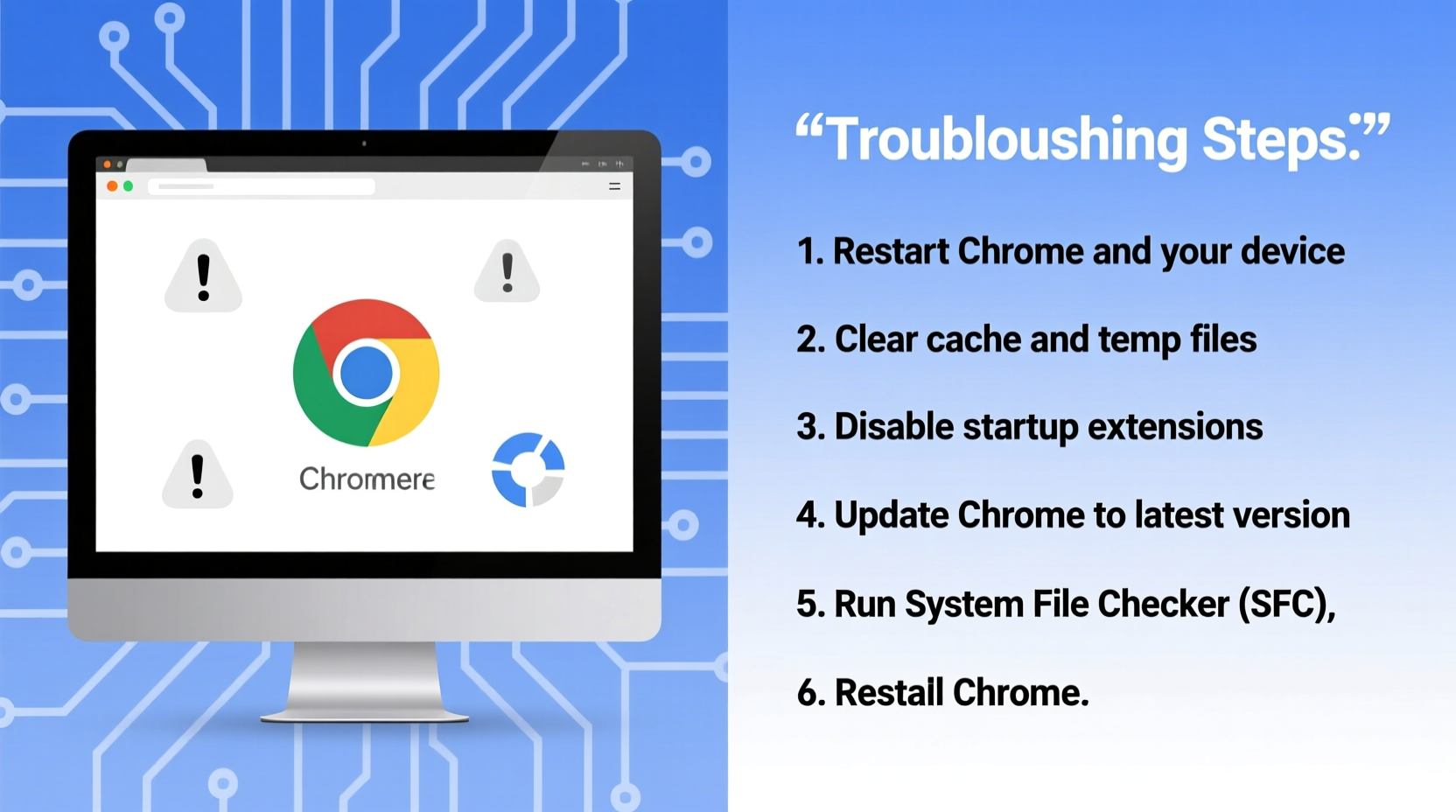
Before jumping into fixes, understanding the root cause helps streamline resolution. Chrome may fail to start due to:
- Corrupted user profile or settings
- Outdated or incompatible Chrome version
- Conflicts with antivirus or firewall software
- Corrupted installation files
- Insufficient system resources (RAM, disk space)
- Graphics driver incompatibility
- Background processes blocking startup
Identifying which category your issue falls into reduces trial and error. Start with the simplest solutions before progressing to deeper system-level changes.
Step-by-Step Troubleshooting Guide
Follow this structured approach to diagnose and resolve Chrome launch failures efficiently.
- Restart Your Computer: A simple reboot clears temporary glitches and resets active processes that might be locking Chrome.
- Check Task Manager (Windows) or Activity Monitor (Mac): Look for lingering chrome.exe processes. End them forcefully if they’re unresponsive.
- Launch Chrome in Safe Mode: Press
Shiftwhile opening Chrome, or use the command line:chrome --disable-extensions. This disables extensions and hardware acceleration that could be causing conflicts. - Update Chrome: Go to Settings > About Chrome to check for updates. An outdated version may have known bugs affecting startup.
- Clear Chrome’s Cache and Corrupted Preferences: Navigate to the Chrome user data folder:
- Windows:
C:\\Users\\[Username]\\AppData\\Local\\Google\\Chrome\\User Data\\Default - Mac:
~/Library/Application Support/Google/Chrome/Default - Linux:
~/.config/google-chrome/Default
Preferencesfile toPreferences.bak. Chrome will generate a new one on next launch. - Windows:
- Run Chrome as Administrator: On Windows, right-click the Chrome shortcut and select “Run as administrator” to bypass permission issues.
- Reinstall Chrome Completely: Uninstall via system settings, then manually delete the entire
User Datafolder. Reinstall from google.com/chrome.
Do’s and Don’ts When Fixing Chrome Startup Issues
| Action | Do | Don't |
|---|---|---|
| Updating Chrome | Regularly update to the latest stable version | Ignore update notifications or delay patches |
| Using Antivirus | Add Chrome to the antivirus whitelist | Disable real-time protection permanently |
| Managing Extensions | Disable or remove unused extensions | Install multiple unknown extensions at once |
| Reinstalling Chrome | Delete leftover profile folders after uninstall | Reinstall over an existing corrupted install |
| Hardware Acceleration | Turn off if experiencing GPU-related crashes | Assume it’s always safe to leave enabled on older systems |
Real Example: Resolving a Frozen Chrome on Windows 10
Sarah, a freelance graphic designer, found Chrome unresponsive every time she tried to open it. Clicking the icon did nothing—not even a loading cursor. She checked Task Manager and saw three chrome.exe processes consuming 70% memory despite no browser window appearing.
She ended all Chrome tasks, then launched Command Prompt as admin and ran:
cd \"C:\\Program Files\\Google\\Chrome\\Application\"
chrome.exe --disable-extensions
The browser opened successfully. Sarah deduced an extension was causing the crash. She navigated to chrome://extensions, disabled all, then re-enabled them one by one. A recently installed ad-blocker alternative triggered the freeze. After removing it, Chrome launched normally.
This case illustrates how isolating variables—especially third-party extensions—can pinpoint otherwise invisible issues.
“Over 60% of Chrome startup failures we see in support logs stem from corrupted profiles or rogue extensions.” — David Lin, Senior Browser Engineer at Google (via internal developer forum)
Tips for Preventing Future Launch Failures
Maintaining Chrome’s stability requires proactive habits. Consider these preventive measures:
- Keep Chrome updated automatically—ensure background updates aren’t blocked by group policies or firewalls.
- Limit installed extensions to only those you actively use.
- Periodically clear browsing data (Ctrl+Shift+Del) to prevent cache bloat.
- Use Chrome’s built-in cleanup tool (Settings > Privacy and Security > Clean up computer) to detect harmful software.
- On shared or public computers, enable guest mode instead of logging into a full profile.
Frequently Asked Questions
Why does Chrome not open but still appears in Task Manager?
This usually means Chrome started but crashed during initialization. It can be caused by a corrupt preferences file, conflicting software, or insufficient memory. Try launching with --disable-extensions or resetting the profile folder.
Can malware prevent Chrome from launching?
Yes. Some malicious software hijacks or blocks legitimate browsers to force users into fake or phishing sites. Run a scan using Chrome’s Cleanup Tool or trusted antivirus software like Malwarebytes.
Is it safe to delete the Chrome User Data folder?
It’s safe, but it will erase saved passwords, history, cookies, and settings. Back up important data first using Chrome Sync or export tools. After deletion, Chrome creates a fresh profile on next launch.
Final Checklist: What to Do When Chrome Won’t Start
- Restart your computer.
- Ensure no Chrome processes are running in the background.
- Try opening Chrome in safe mode with extensions disabled.
- Check for and install available Chrome updates.
- Reset Chrome settings or rename the Preferences file.
- Temporarily disable antivirus/firewall to test for interference.
- Reinstall Chrome after completely removing old files.
- Test with a new user account on the operating system to rule out profile-specific corruption.
Conclusion
Chrome not launching is frustrating, but rarely permanent. Most issues stem from manageable causes—corrupted profiles, problematic extensions, or software conflicts—that respond well to methodical troubleshooting. By following the steps outlined here, from basic restarts to clean reinstalls, you can restore Chrome functionality across Windows, macOS, and Linux platforms.
Don’t accept a broken browser as inevitable. With the right approach, Chrome can be back up and running in under 20 minutes. Apply these fixes today, and consider setting monthly maintenance reminders to keep your browser—and your digital workflow—running smoothly.




 浙公网安备
33010002000092号
浙公网安备
33010002000092号 浙B2-20120091-4
Comments
No comments yet. Why don't you start the discussion?