
Bluetooth is essential for connecting wireless headphones, speakers, keyboards, and mice to your Chromebook. When it stops working, productivity and convenience take a hit. Unlike traditional laptops, Chromebooks run on Chrome OS, which limits some diagnostic tools but offers streamlined fixes when you know where to look. This guide walks through proven methods to diagnose and resolve Bluetooth issues, from simple resets to advanced system checks—all without requiring technical expertise.
Understanding Common Bluetooth Issues on Chromebooks
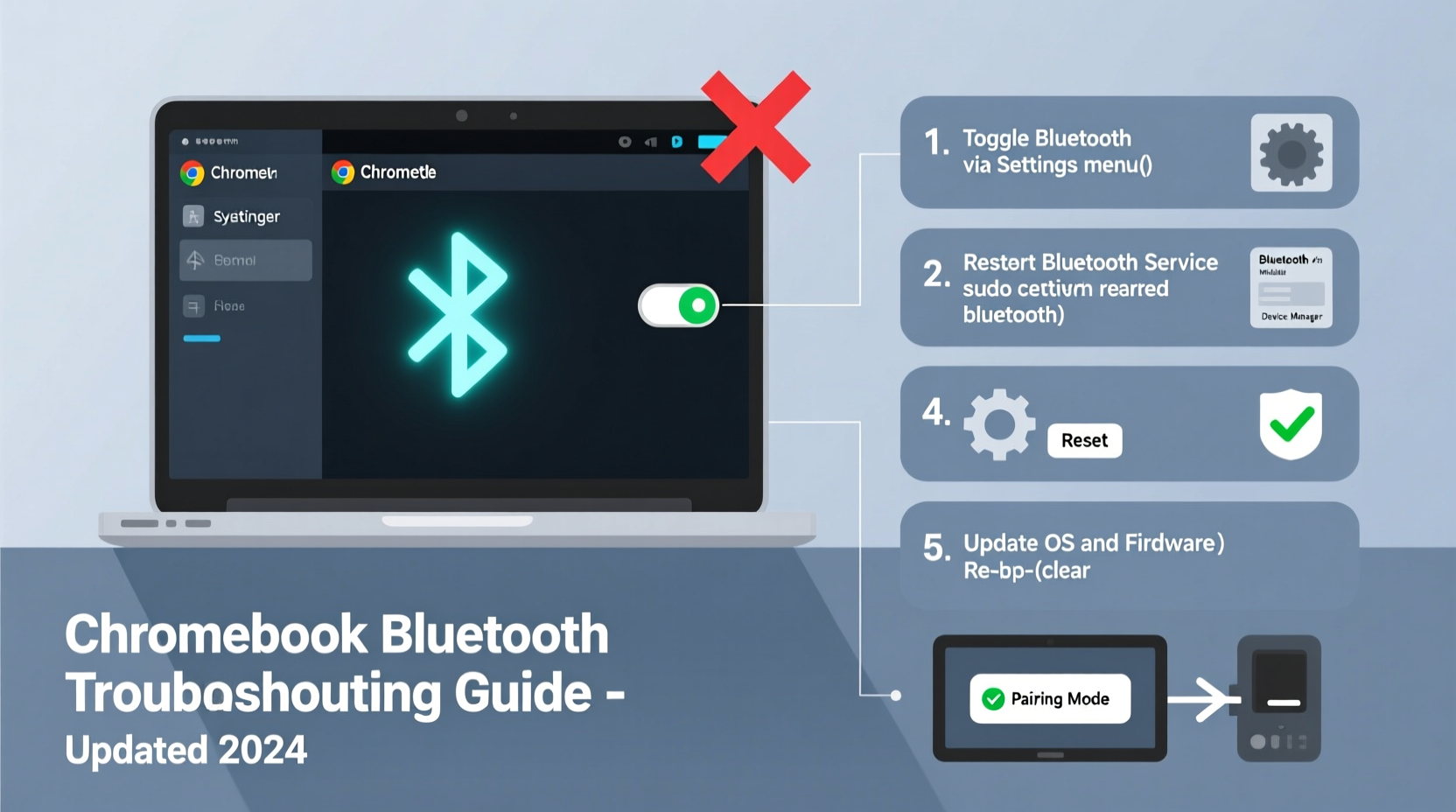
Before diving into fixes, recognize the symptoms of a failing Bluetooth connection. These include devices not appearing in the list, frequent disconnections, pairing failures, or no sound output despite successful pairing. The root cause could be software glitches, outdated firmware, hardware malfunctions, or interference from other wireless signals.
Chrome OS handles Bluetooth through a combination of system-level services and low-level drivers. Because Chromebooks are designed for simplicity, many background processes are automated—but that also means users have limited access to deep system settings. That’s why structured troubleshooting is crucial: start simple, escalate only when needed.
Step-by-Step Troubleshooting Process
Follow this logical sequence to isolate and fix the issue efficiently. Each step builds on the previous one, eliminating common problems before moving to more complex solutions.
- Restart Bluetooth: Turn Bluetooth off and on again via Settings > Bluetooth. This clears temporary glitches.
- Reboot Your Chromebook: A full restart often resolves stuck system services.
- Remove and Re-Pair the Device: Go to Bluetooth settings, forget the problematic device, then pair it again from scratch.
- Check Device Compatibility: Not all Bluetooth accessories work seamlessly with Chrome OS. Verify compatibility with the manufacturer’s website.
- Test with Another Device: Pair your Bluetooth accessory (e.g., headphones) with a phone or tablet to confirm it's functioning.
- Update Chrome OS: Outdated systems may lack critical driver patches. Go to Settings > About Chrome OS > Check for Updates.
- Reset Bluetooth Cache (Powerwash Alternative): While Chrome OS doesn’t allow direct cache clearing, a Powerwash resets all network and peripheral data—but use as a last resort after backing up files.
When to Suspect Hardware Failure
If none of the above steps restore functionality, and multiple known-working Bluetooth devices fail to connect, the issue may be hardware-related. Chromebooks use integrated Bluetooth/Wi-Fi chips; if Wi-Fi works but Bluetooth does not, the module might be disabled at the firmware level or physically damaged. In such cases, contact your manufacturer or school IT department (for education models).
Essential Checklist for Quick Recovery
Use this checklist whenever Bluetooth fails. Print it or keep it handy for rapid response.
- ✅ Restart Bluetooth toggle in system tray
- ✅ Reboot the Chromebook completely
- ✅ Ensure the external device is charged and in pairing mode
- ✅ Remove old pairings and re-pair the device
- ✅ Confirm Chrome OS is up to date
- ✅ Test with a second Bluetooth device if available
- ✅ Disable airplane mode and ensure no conflicting settings exist
- ✅ Perform a Powerwash only if all else fails
Do’s and Don’ts: Bluetooth Best Practices
| Do’s | Don’ts |
|---|---|
| Keep your Chromebook updated regularly | Ignore pending system updates |
| Store paired devices in settings until confirmed obsolete | Delete all pairings unnecessarily |
| Use Bluetooth 4.0+ certified accessories for better stability | Assume every Bluetooth device will work out of the box |
| Limit number of active connections (max 2–3 recommended) | Attempt to connect five or more devices simultaneously |
| Place devices close together during initial pairing | Pair across rooms or through thick walls |
Real-World Example: Classroom Headset Failure
In a middle school classroom in Portland, teachers reported that students’ Chromebooks wouldn’t connect to their wireless learning headsets. Initial attempts to re-pair failed across 12 devices. The IT coordinator discovered that a recent update had reset Bluetooth permissions silently. By rebooting each Chromebook and manually re-initiating pairing mode on the headsets, 10 out of 12 were restored immediately. The remaining two required a factory reset due to corrupted user profiles. This case highlights how software updates can inadvertently disrupt peripheral functions—and why consistent post-update checks matter.
“Bluetooth issues on Chromebooks are rarely hardware-based. Over 80% of cases we see stem from pairing conflicts or outdated system builds.” — Raj Mehta, Educational Technology Support Lead, Midwest Regional School District
Frequently Asked Questions
Why won’t my Bluetooth device show up in the list?
The device may not be in discoverable mode, or it could be out of range. Ensure it’s powered on, blinking (indicating pairing mode), and within 3 feet. Also, check if your Chromebook has reached its maximum number of saved devices—older models struggle beyond five pairings.
Can I use a USB Bluetooth adapter with a Chromebook?
Most third-party USB Bluetooth adapters are not supported by Chrome OS. The system relies on built-in hardware integration. Using unsupported dongles may result in no function or unstable performance. Stick to internal Bluetooth unless the adapter explicitly states Chrome OS compatibility.
Will a Powerwash fix Bluetooth problems permanently?
A Powerwash (factory reset) often resolves persistent Bluetooth issues by clearing corrupted settings and caches. However, it should only be used after exhausting other options, as it erases all local data. After resetting, reconnect devices one at a time to avoid overwhelming the system.
Advanced Tips for Persistent Problems
For users who’ve tried standard fixes without success, consider these deeper interventions:
- Enable Developer Mode (with caution): This allows access to terminal commands like
bluetoothctl, though most Chromebooks restrict Bluetooth debugging for security reasons. - Check Bluetooth Logs via Crosh: Press Ctrl + Alt + T, type
crosh, then enterhelp bluetooth. Some enterprise-managed devices support diagnostic logging here. - Contact Manufacturer-Specific Support: Brands like Acer, HP, Lenovo, and ASUS sometimes release firmware updates separately from Chrome OS updates. Check their support portals for Bluetooth driver patches.
Note: Modifying system behavior outside standard settings can void warranties or compromise security. Only proceed if under supervision or with technical confidence.
Conclusion: Regain Control of Your Wireless Experience
Bluetooth connectivity on Chromebooks is generally reliable, but occasional hiccups are inevitable. With the right approach—starting with basic toggles and progressing through systematic checks—you can resolve most issues quickly and confidently. Remember that updates, proper device management, and understanding limitations go a long way in preventing future disruptions.




 浙公网安备
33010002000092号
浙公网安备
33010002000092号 浙B2-20120091-4
Comments
No comments yet. Why don't you start the discussion?