
A Chromebook is designed for reliability and simplicity, but even the most dependable devices can run into problems. One of the most frustrating issues users face is a glitching screen—whether it's flickering, displaying strange lines, freezing, or suddenly going dim. These symptoms can disrupt work, online learning, or entertainment. The good news is that many screen glitches are fixable without professional repair. By systematically diagnosing the cause and applying targeted solutions, you can often restore your display to full functionality.
Understanding Common Chromebook Screen Glitches
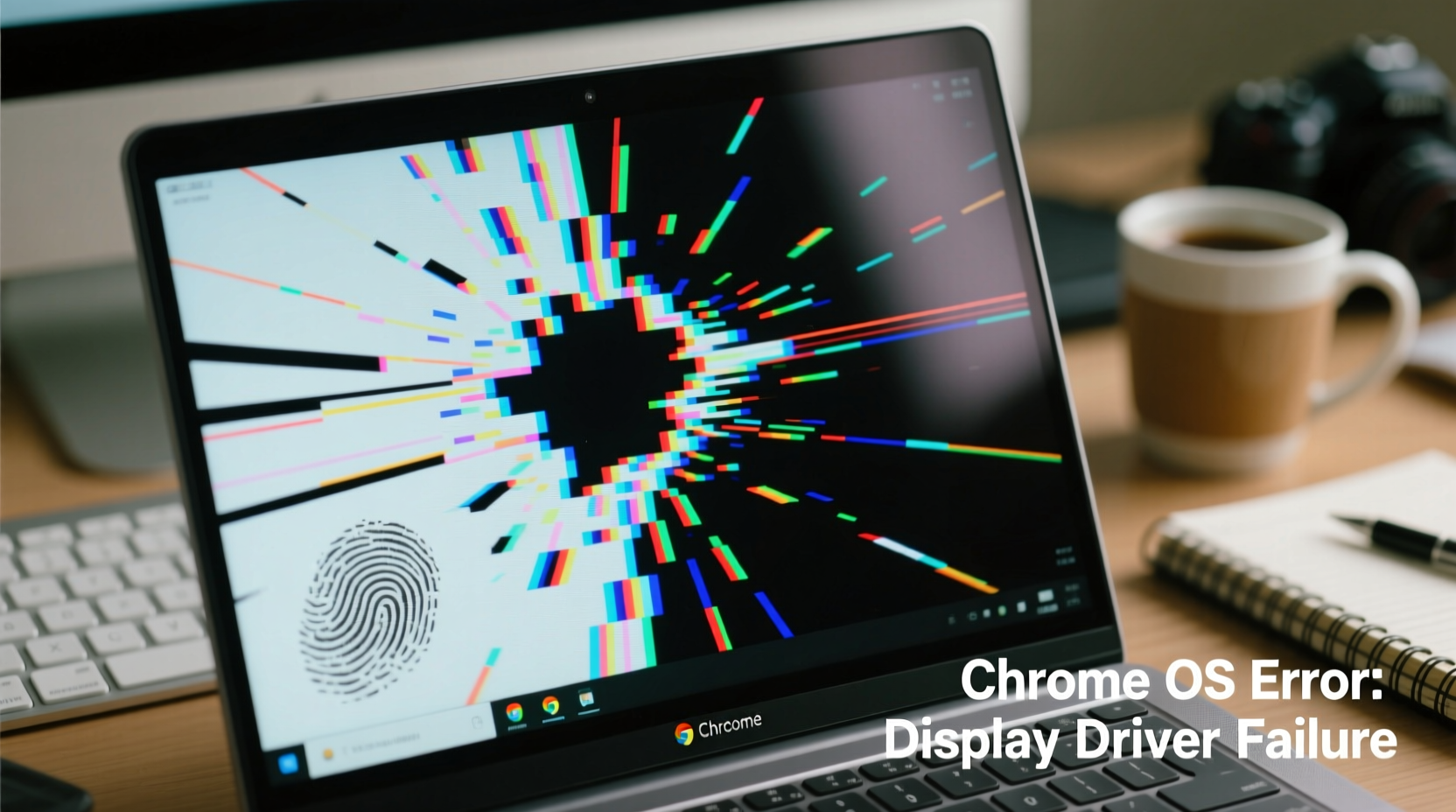
Before jumping into fixes, it’s important to identify what kind of glitch you're dealing with. Different symptoms point to different root causes:
- Flickering screen: Rapid flashing or pulsing brightness, often worsens when moving the device.
- Vertical or horizontal lines: Colored or black lines appearing across the display, sometimes static, sometimes shifting.
- Screen freezing: Display stops updating while audio or background processes continue.
- Dim or dark screen: Backlight fails or dims unexpectedly, though the image may still be faintly visible.
- Ghost touch or erratic input: Screen registers touches where none occurred, especially on touchscreen models.
These issues can stem from software bugs, corrupted updates, loose internal connections, hardware damage, or firmware conflicts. The key is to rule out simple fixes first before assuming hardware failure.
Step-by-Step Troubleshooting Guide
Follow this logical sequence to isolate and resolve the problem. Start with non-invasive methods and progress only if needed.
- Restart your Chromebook. A simple reboot resolves temporary software hiccups in over 50% of reported screen glitches.
- Check for system updates. Go to Settings > About ChromeOS > Check for updates. Install any pending updates—many display bugs are patched in newer versions.
- Disable hardware acceleration. This feature can conflict with certain graphics drivers:
- Open Settings > Advanced > System > Hardware acceleration.
- Toggle it off, then restart the device.
- Boot into Guest mode. This tests whether the issue is user-profile-related:
- Sign out, select “Browse as Guest,” and log in.
- If the screen works normally, the problem lies in your profile settings or extensions.
- Powerwash (factory reset). As a last resort, reset the device:
- Back up your files to Google Drive first.
- Go to Settings > Advanced > Reset settings > Powerwash > Restart.
“Over half of display-related support tickets we receive are resolved with a reboot or update. Don’t assume it’s hardware until you’ve ruled out software.” — Lena Patel, ChromeOS Support Lead at EdTech Solutions
Do’s and Don’ts: Handling Chromebook Display Issues
| Action | Do | Don't |
|---|---|---|
| When screen flickers | Restart immediately and check for updates | Ignore it repeatedly—could indicate worsening connection |
| After dropping the device | Inspect for cracks and test touch response | Assume it’s fine just because it turns on |
| Using third-party chargers | Use only certified USB-C chargers | Plug in cheap or high-wattage laptop chargers that may overload circuits |
| Trying to open the device | Consult official iFixit guides if under warranty allows | Pry open with metal tools—risk damaging ribbon cables |
| Updating ChromeOS | Keep automatic updates enabled | Skip multiple updates—this increases bug exposure |
Real-World Example: Resolving a Flickering Classroom Chromebook
In a middle school in Portland, teachers reported that several Chromebooks in their cart began flickering during remote lessons. Students couldn’t read assignments, and video calls were disrupted. The IT coordinator initially suspected a batch defect. However, after testing one unit in Guest mode, the flickering stopped. Further investigation revealed a recently installed classroom management extension that conflicted with GPU rendering. Disabling the extension and updating ChromeOS resolved the issue across all devices. No hardware replacement was needed.
This case highlights how environmental factors—like shared profiles and managed software—can trigger display issues that mimic hardware failure. Always consider software context before concluding physical damage.
When It’s Time to Suspect Hardware Failure
If software fixes don’t help, the issue may be physical. Common hardware-related causes include:
- Loose display cable between motherboard and screen
- Damaged LCD panel due to impact or pressure
- Failed backlight or inverter (on older models)
- Defective touchscreen digitizer
You can perform a basic hardware check:
While most Chromebooks aren’t designed for easy self-repair, some models (like certain Dell or Lenovo units) have service manuals available. If you’re comfortable with precision work, reseating the display ribbon cable might solve intermittent glitches. Otherwise, contact the manufacturer or authorized repair center—especially if under warranty.
Troubleshooting Checklist
Use this checklist to methodically address screen glitches:
- ✅ Restart the Chromebook
- ✅ Ensure ChromeOS is up to date
- ✅ Disable hardware acceleration
- ✅ Test in Guest mode
- ✅ Remove recently added extensions
- ✅ Try an external monitor (if supported)
- ✅ Perform a Powerwash (after backup)
- ✅ Inspect for physical damage
- ✅ Contact support if issue persists
Frequently Asked Questions
Can a Chromebook screen glitch be fixed without replacing parts?
Yes, in many cases. Software issues like driver bugs, corrupt profiles, or conflicting extensions are common culprits. Most of these can be resolved through updates, resets, or configuration changes without touching hardware.
Why does my screen flicker only when I move the lid?
This typically indicates a loose or damaged display cable running through the hinge. Movement stresses the connection, causing intermittent signal loss. While not immediately dangerous, it will likely worsen over time and may require professional repair.
Will using an external monitor help diagnose screen issues?
Absolutely. If the external display works perfectly, the Chromebook’s internal screen or its connection is the problem. If the external monitor shows the same glitches, the issue is likely GPU-related or systemic, pointing to software or mainboard concerns.
Final Steps and When to Seek Help
Most Chromebook screen glitches are solvable with patience and systematic troubleshooting. Begin with the simplest fixes—restart, update, disable acceleration—and escalate only when necessary. Keep your device updated, avoid untrusted extensions, and handle it with care to prevent future issues. If all software avenues fail and physical symptoms persist, reach out to your school’s IT department, employer’s tech support, or the manufacturer. Many Chromebooks come with multi-year warranties, especially in educational settings.




 浙公网安备
33010002000092号
浙公网安备
33010002000092号 浙B2-20120091-4
Comments
No comments yet. Why don't you start the discussion?