
In 2025, the choice between a Chromebook and an iPad for students is more nuanced than ever. Both platforms have evolved significantly—Chromebooks now run richer web and Android apps, while iPads support desktop-class multitasking with the M-series chips. But value isn’t just about price; it’s about longevity, functionality, compatibility with school workflows, and adaptability to future needs. For students balancing academics, creativity, and budget constraints, understanding these trade-offs is essential.
This guide cuts through marketing claims to deliver a realistic assessment of where each device excels—and where it falls short—for high school and college learners. Whether you're a parent helping a child choose their first laptop or a university student upgrading your setup, this breakdown will help you make an informed decision based on actual classroom demands and long-term utility.
Performance and Multitasking: Beyond Raw Speed
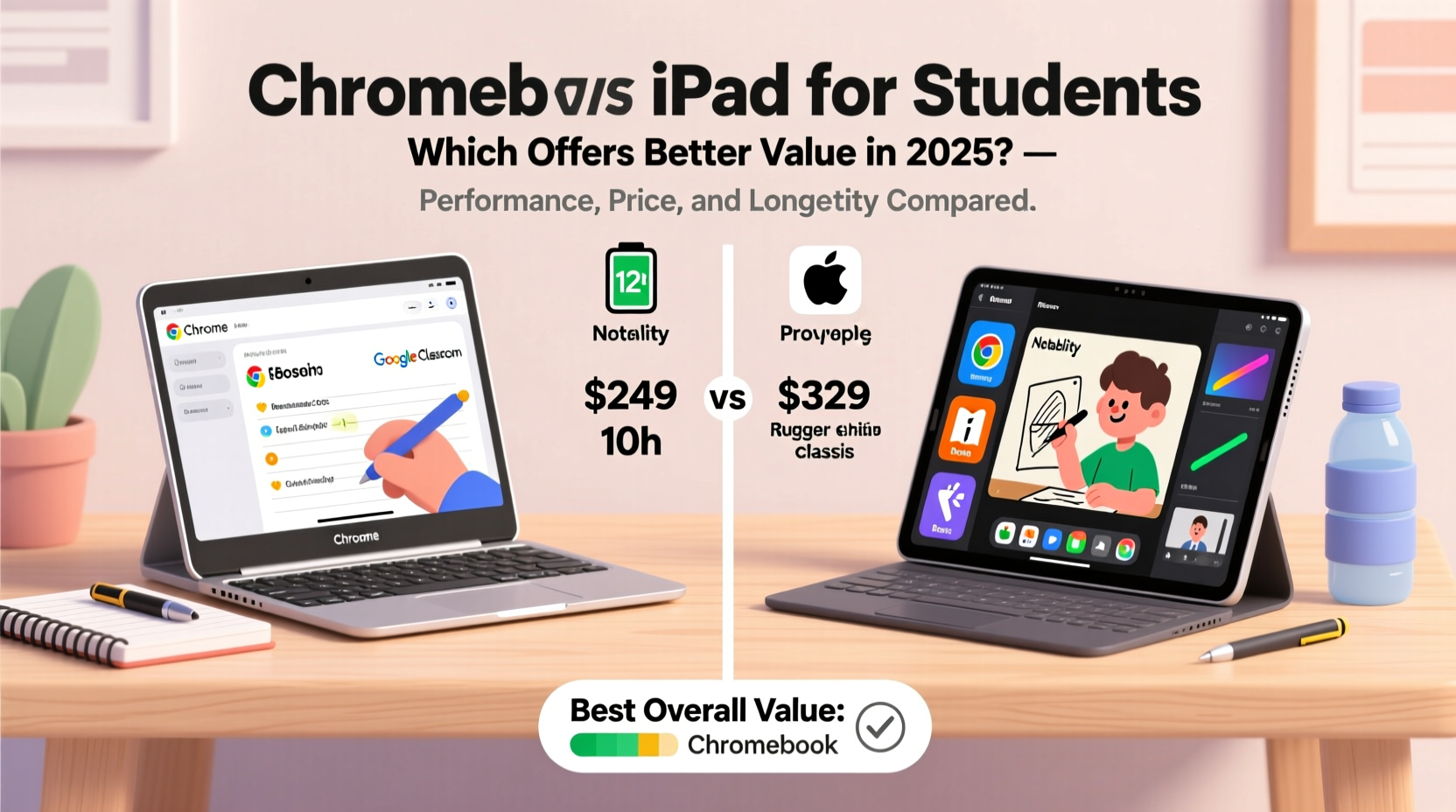
Performance matters most when juggling research tabs, video lectures, note-taking apps, and cloud documents—all at once. Chromebooks, powered by Intel Celeron, MediaTek, or newer ARM-based processors, are optimized for lightweight computing. Most models handle Google Workspace, Zoom, and basic photo editing without issue. However, sustained multitasking across dozens of browser tabs can lead to slowdowns, especially on sub-$300 models.
iPads, particularly those with Apple’s M1 chip or later (like the iPad Air and iPad Pro), offer desktop-grade performance. They excel in graphics-intensive tasks such as video editing, 3D modeling, and coding environments. With iPadOS 18, split-screen app layouts, stage manager, and external display support have matured, making complex workflows more feasible. Yet, despite this power, iPadOS still lacks true file system access and full desktop application parity, limiting its flexibility compared to traditional operating systems.
Software and App Ecosystem: Where Each Platform Shines
The app ecosystem is one of the starkest differentiators. Chromebooks run Chrome OS, which supports progressive web apps (PWAs), Linux applications (on supported models), and Android apps from the Google Play Store. This gives students access to tools like LibreOffice, GIMP, Python IDEs, and educational apps such as Khan Academy and Duolingo. Google Workspace integration is seamless, and file management via Google Drive feels natural.
iPads leverage the robust iOS/iPadOS App Store, home to polished, touch-first applications. Notable strengths include creative suites like Procreate, LumaFusion, and Notability, which are unmatched on Chrome OS. Many schools use Apple Classroom and Schoolwork, enhancing teacher-student interaction. However, some professional software—like full versions of Adobe Photoshop or MATLAB—is either unavailable or limited in functionality.
For STEM students relying on specialized software, Chromebooks with Linux support may provide a better path. Meanwhile, art, design, and language learners often benefit more from the tactile precision of Apple Pencil and the depth of creative apps on iPad.
“While iPads dominate in visual learning and digital annotation, Chromebooks offer broader software versatility for technical disciplines.” — Dr. Marcus Lin, Educational Technology Researcher at Stanford
Cost and Long-Term Value Comparison
Price is often the deciding factor. Entry-level Chromebooks start around $180, with reliable mid-range options between $250–$400. These devices typically receive 5–7 years of automatic OS updates from Google, ensuring security and compatibility well into a student’s academic journey. Repairs are generally affordable due to modular designs and widespread availability of parts.
iPads begin at $329 for the base model (9th generation), but that doesn’t include essential accessories. The Apple Pencil costs $99, and a quality keyboard case adds another $100–$180. Once equipped for productivity, total cost easily exceeds $500—sometimes rivaling MacBook pricing. While iPads receive strong software support (Apple typically provides 6+ years of updates), repair costs are high, especially for screen damage.
Moreover, resale value differs. Used iPads retain value better due to brand loyalty and consistent demand. However, initial affordability and lower total cost of ownership give Chromebooks an edge for families on tight budgets.
| Feature | Chromebook (Mid-Range) | iPad (With Accessories) |
|---|---|---|
| Base Device Cost | $250–$400 | $329–$799 |
| Pencil/Stylus | $40–$80 (USI-compatible) | $99–$129 |
| Keyboard Case | Often included or $30–$60 | $100–$180 |
| Total Setup Cost | $300–$500 | $530–$1,000+ |
| Expected Lifespan | 5–7 years (with updates) | 6+ years (with care) |
| Repair Affordability | Moderate to low | High (especially screen) |
Real-World Student Scenarios: Who Benefits From What?
Case Study: Maya, 10th Grade Art & Language Student
Maya takes AP Spanish, participates in digital illustration club, and maintains a visual journal. Her school uses Google Classroom, but teachers encourage handwritten annotations on PDFs. She chose an iPad 10th gen with an Apple Pencil and Logitech Combo Touch. The ability to sketch diagrams, annotate readings, and record voice memos directly in Notability transformed her study process. Although the upfront cost was steep, the tactile experience justified the investment for her creative workflow.
Case Study: Jamal, Computer Science Major, University Freshman
Jamal needed a portable device for coding labs, running virtual machines, and accessing Linux terminals. He selected an Acer Chromebook Plus with 16GB RAM and enabled Linux development mode. Using VS Code, Git, and Docker within a containerized environment, he completed assignments efficiently. The built-in webcam and microphone worked flawlessly for remote pair programming. At $380, it fit his budget and lasted through all four years of coursework.
These examples highlight a key insight: the best device depends not on specs alone, but on how closely it aligns with daily academic activities.
Educational Integration and School Support
School district policies heavily influence device viability. In the U.S., over 60% of K–12 schools use Google Workspace for Education, making Chromebooks a natural fit. Admin controls, easy deployment, and centralized management allow IT departments to push apps, enforce filters, and monitor usage at scale. Students log in with single sign-on, and files sync instantly to the cloud.
Apple has made strides with Apple School Manager and Shared iPad, enabling similar oversight. Some districts—particularly those emphasizing arts or STEM programs—opt for iPad deployments. However, managing hundreds of iPads requires more technical expertise and infrastructure investment. As a result, Chromebooks remain dominant in public education settings.
At the university level, neither platform has a clear institutional advantage. Professors expect students to bring capable devices, regardless of OS. That said, course-specific software requirements (e.g., SPSS, AutoCAD, RStudio) may necessitate Windows or macOS, pushing some students toward dual-boot Chromebooks with Linux or alternative solutions.
Portability, Battery Life, and Durability
Both devices score well in portability. Most Chromebooks weigh 2.5–3.5 lbs, while iPads average 1–1.5 lbs—making them easier to carry between classes. However, once you add a keyboard case, the weight difference narrows significantly.
Battery life favors Chromebooks slightly. Many last 10–13 hours under mixed use, ideal for back-to-back lectures and library sessions. iPads advertise up to 10 hours, but intensive tasks like video editing or prolonged Apple Pencil use reduce that marginally.
Durability varies by model. Budget Chromebooks often feature reinforced hinges and spill-resistant keyboards. Brands like Lenovo and Dell offer ruggedized education editions. iPads rely on glass construction, making them prone to cracking without protective cases. Drop protection is non-negotiable for students using iPads daily.
Step-by-Step: Choosing the Right Device for Your Needs
- Assess your primary academic workload: Are you writing essays, coding, drawing, analyzing data, or presenting?
- List required software: Identify if your courses need specific applications (e.g., LaTeX editors, CAD tools).
- Check school recommendations: Consult department guidelines or tech support pages.
- Set a realistic budget: Include accessories like styluses, keyboards, and cases.
- Test devices in person: Visit electronics stores to evaluate keyboard feel, screen size, and responsiveness.
- Consider long-term use: Will this device support graduate studies or freelance work after graduation?
Frequently Asked Questions
Can I code effectively on an iPad?
Yes, but with limitations. You can write code in apps like Swift Playgrounds, Textastic, or even SSH into remote servers. However, local compilation, debugging tools, and package managers are less accessible than on Chromebooks with Linux enabled. For computer science majors, a Chromebook or laptop remains preferable.
Do Chromebooks work offline?
Absolutely. Google Docs, Sheets, Gmail, and many Android apps function offline. Files sync automatically when reconnected. This makes Chromebooks viable for commutes or areas with poor internet.
Is the Apple Pencil worth it for note-taking?
For students who prefer handwriting, diagramming, or annotating PDFs, yes. The low latency and pressure sensitivity make it superior to most Chromebook styluses. But if you type notes, a good keyboard matters more.
Final Recommendation: Matching Value to Use Case
In 2025, the “better value” depends entirely on the student’s academic focus and financial context. For general education, collaborative projects, and budget-conscious buyers, Chromebooks deliver exceptional value. Their seamless integration with Google’s ecosystem, extended update policy, and low entry cost make them ideal for most high school and undergraduate students.
iPads shine when creativity, visual learning, or precise input is central to success. Art, architecture, music composition, and language learners gain meaningful advantages from the Apple Pencil and premium apps. But the full productivity experience requires additional investments in accessories, which can erode the perceived value unless fully utilized.
If forced to generalize: Choose a Chromebook for broad functionality and affordability. Choose an iPad for specialized, touch-driven workflows where creative expression is paramount.
“The best device isn’t the most powerful or expensive—it’s the one that disappears into your routine, letting you focus on learning.” — Dr. Lena Patel, Director of EdTech Innovation, University of Michigan
Take Action: Make Your Choice Count
Your device should empower—not hinder—your academic journey. Don’t default to trends or peer choices. Instead, audit your real needs: How do you take notes? What software do you actually use? How long must this device last?
Whether you go with a $280 Chromebook or a fully-loaded iPad Pro, what matters is how well it serves your goals. Evaluate objectively, invest wisely, and remember: technology is a tool, not a trophy. Choose the one that helps you learn, create, and succeed—without breaking the bank.




 浙公网安备
33010002000092号
浙公网安备
33010002000092号 浙B2-20120091-4
Comments
No comments yet. Why don't you start the discussion?