
When your Chromebook fails to power up, it can disrupt work, school, or daily tasks. Unlike traditional laptops, Chromebooks rely heavily on cloud integration and fast boot systems, making sudden startup failures especially frustrating. The good news is that most power-related issues have straightforward fixes. Whether the problem lies in the battery, charger, hardware, or software, a methodical approach can often restore functionality without needing professional repair.
Step 1: Confirm the Basics Are Covered
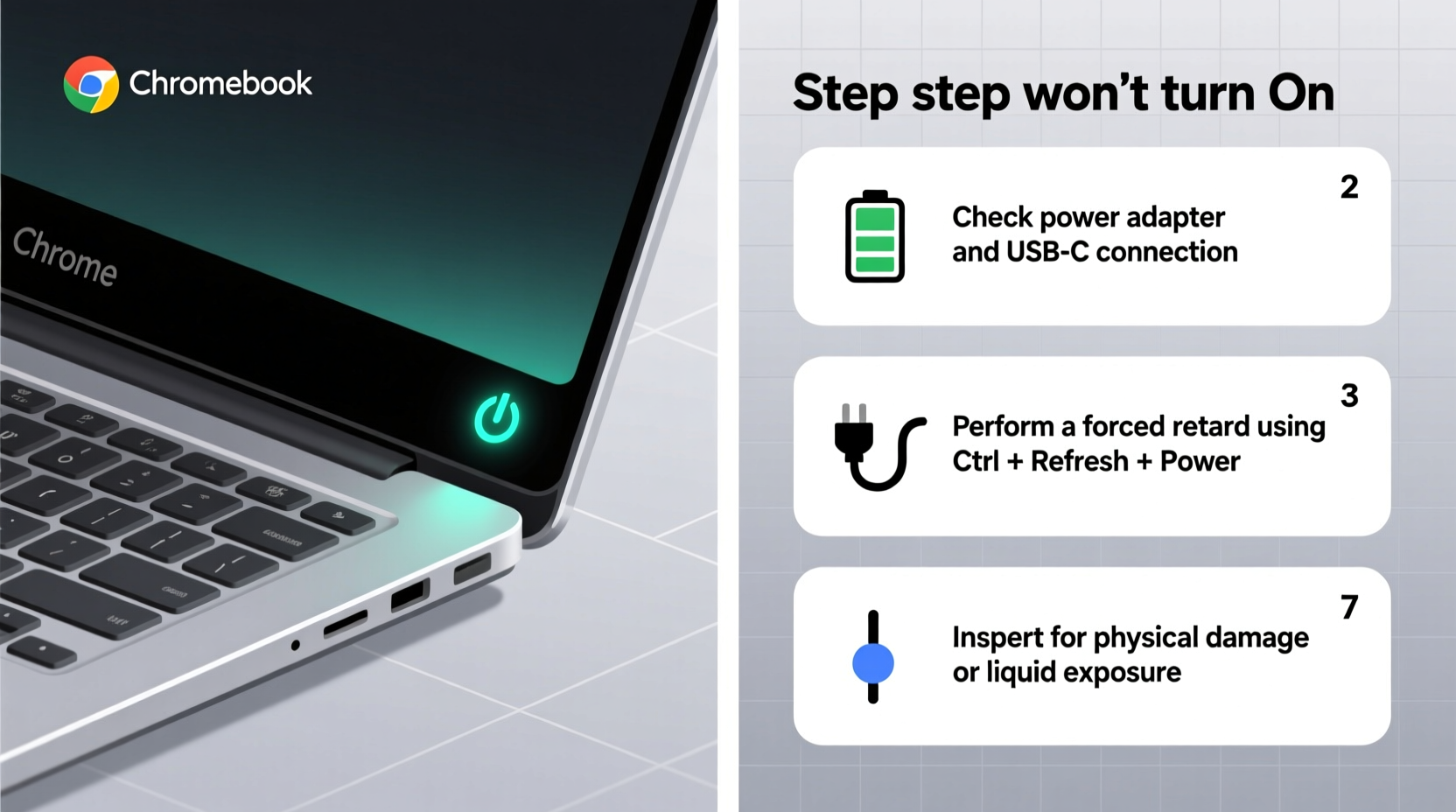
Before diving into complex diagnostics, rule out simple causes. Many users assume their Chromebook is broken when the issue is as basic as an uncharged battery or a loose connection.
- Ensure the power adapter is securely connected to both the wall outlet and the Chromebook.
- Test the outlet with another device to confirm it’s working.
- Check for visible damage to the charging cable or port.
- Look for LED indicators near the charging port—most Chromebooks display a light when charging.
Step 2: Perform a Hard Reset (Power Cycle)
A hard reset clears temporary glitches in the system and can revive a Chromebook that appears dead. This process forces the device to cut all power and restart its internal systems.
- Disconnect the charger from the Chromebook.
- Hold down the Power button for 60 seconds. Do not release it early.
- After a full minute, release the button.
- Reconnect the charger.
- Press the power button once normally to attempt startup.
This method often resolves issues caused by firmware hangs or residual electrical charge. It does not erase any data and is safe to perform regularly.
Step 3: Check the Charging Equipment
Faulty chargers are one of the most common reasons a Chromebook won’t turn on. Chromebooks use either USB-C or proprietary barrel-style chargers, both of which can degrade over time.
| Charger Type | Common Issues | Solutions |
|---|---|---|
| USB-C | Frayed cables, bent connectors, incompatible wattage | Use only 45W or manufacturer-recommended adapters; inspect cable ends |
| Barrel Plug | Loose connection, damaged tip, worn cord | Try a known-working replacement; avoid third-party knockoffs |
If possible, test your Chromebook with a different charger of the same voltage and amperage. Conversely, try using your charger with another compatible Chromebook to isolate the fault.
“Over 40% of reported ‘dead’ Chromebooks brought into our support center were simply undercharged or using faulty cables.” — Jordan Lee, Senior Technician at EduTech Support
Step 4: Diagnose Battery and Power Indicators
No power light? That’s a critical clue. Most Chromebooks have a small LED near the charging port that glows white, green, or amber when charging. No light means no power is reaching the system.
Possible Scenarios:
- No light, no response: Likely a charger, battery, or motherboard issue.
- Light turns on but screen stays black: The device may be booting—try pressing the brightness key or waiting 2 minutes.
- Light blinks then dies: Could indicate a failing battery or short circuit.
If you suspect the battery, remove it if your model allows (older models only). For sealed units, skip to advanced steps below.
Step 5: Use Recovery Mode to Rule Out Software Failure
If the Chromebook shows signs of life—like fan noise, LED lights, or brief screen flicker—but won’t fully boot, the issue might be software-related. Corrupted firmware or failed updates can prevent startup.
To access recovery mode:
- Download the Chromebook Recovery Utility on another computer.
- Create a recovery USB drive using a blank 8GB+ flash drive.
- Insert the USB drive into the non-responsive Chromebook.
- Press and hold Esc + Refresh (↻) + Power simultaneously.
- Release the Power button when the device vibrates or beeps, keeping Esc and Refresh held.
- When the recovery screen appears, follow on-screen instructions.
This process reinstalls the operating system and can resolve boot-loop issues. Note: You’ll lose local data unless previously backed up to Google Drive.
Mini Case Study: A Teacher’s Chromebook Revived
Sarah, a middle school teacher, arrived at school to find her Chromebook completely unresponsive. She had used it the night before with no issues. After checking the outlet and trying a colleague’s charger, she noticed no LED light. Assuming the worst, she almost submitted a repair request.
Instead, she performed a hard reset. After holding the power button for 60 seconds and reconnecting the charger, the charging light blinked. Five minutes later, the Chromebook booted normally. The root cause? A firmware glitch triggered by a background update that interrupted shutdown. Sarah now performs weekly reboots to prevent recurrence.
Troubleshooting Checklist
Follow this step-by-step checklist to systematically identify and solve the issue:
- ✅ Check that the charger is plugged in securely at both ends.
- ✅ Test the wall outlet with another device.
- ✅ Look for a charging indicator light on the Chromebook.
- ✅ Try a different, compatible charger if available.
- ✅ Perform a 60-second hard reset with the charger disconnected.
- ✅ Wait 30 minutes after plugging in if the battery was fully drained.
- ✅ Press the power button multiple times firmly—some buttons stick.
- ✅ Attempt recovery mode using a USB drive if partial signs of life appear.
- ✅ Inspect the charging port for lint, debris, or physical damage.
- ✅ Contact manufacturer support if all else fails and warranty applies.
Frequently Asked Questions
Why won’t my Chromebook turn on even when plugged in?
This usually points to a dead battery, faulty charger, or internal hardware failure. Start by testing with a known-good charger. If there’s still no response, the battery may need replacement or the motherboard could be damaged.
Can a Chromebook battery die permanently?
Yes. Most Chromebook batteries last 3–5 years with regular use. After that, they may fail to hold a charge or enter a deep discharge state from which they won’t recover. Extreme temperatures and constant charging accelerate degradation.
What should I do if my Chromebook heats up but doesn’t turn on?
Excessive heat during boot attempts suggests a possible short circuit or failing component. Stop trying to power it on immediately. Let it cool down, disconnect the charger, and seek professional service. Continued attempts could cause permanent damage.
Final Thoughts and Next Steps
A Chromebook that won’t turn on isn’t necessarily beyond repair. In most cases, the solution lies in one of the steps outlined above: verifying the power source, performing a hard reset, or using recovery tools. The key is patience and systematic testing—rushing to conclusions often leads to unnecessary replacements.
If you’ve gone through every step and still see no signs of life, it may be time to contact your manufacturer or IT department. Many Chromebooks come with warranties covering battery and hardware defects. For older models, consider whether repair costs justify replacement, especially given the affordable nature of most Chromebook devices.




 浙公网安备
33010002000092号
浙公网安备
33010002000092号 浙B2-20120091-4
Comments
No comments yet. Why don't you start the discussion?