
Comcast email, powered by Xfinity’s mail service, remains a widely used platform for personal and professional communication. However, like any web-based email system, it can occasionally fail—whether due to connection errors, incorrect settings, or account access problems. When your Comcast email stops working, it disrupts your workflow and daily routines. The good news is that most issues are fixable with methodical troubleshooting. This guide walks you through the most effective solutions to restore your email access quickly and reliably.
Common Causes of Comcast Email Issues
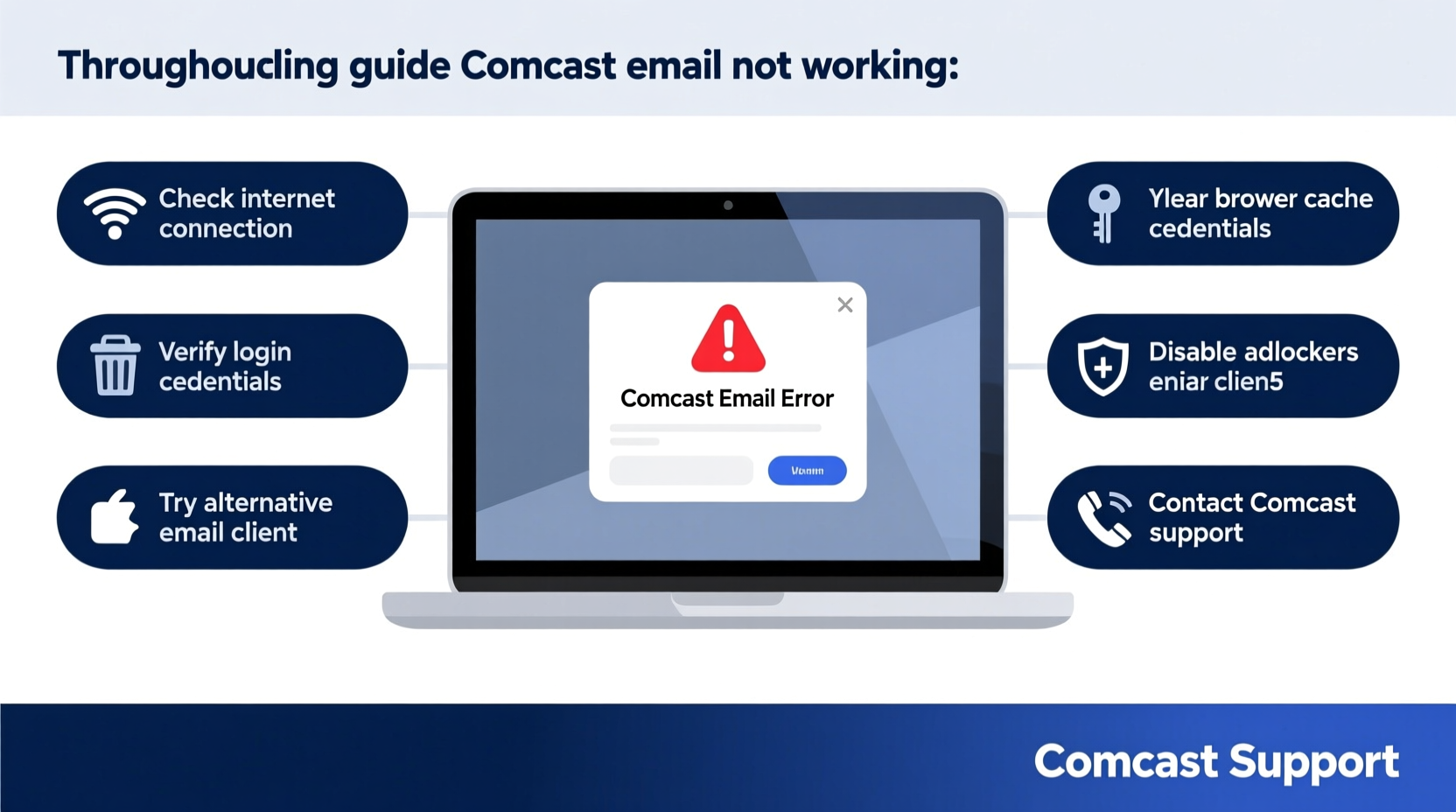
Before diving into fixes, it's important to understand what might be causing the problem. Identifying the root cause streamlines the troubleshooting process and prevents wasted effort on irrelevant solutions.
- Internet connectivity problems: Without a stable internet connection, no email service will function properly.
- Incorrect login credentials: A forgotten password or username typo blocks access immediately.
- Outdated browser or app: Older versions may lack support for current security protocols or interface updates.
- Server outages: Xfinity servers may experience downtime, affecting all users temporarily.
- IMAP/SMTP misconfiguration: If using third-party email clients (like Outlook or Thunderbird), incorrect server settings prevent syncing.
- Security restrictions: Suspicious login attempts may trigger temporary locks or two-factor authentication hurdles.
Step-by-Step Troubleshooting Guide
Follow this structured approach to diagnose and resolve your Comcast email issues efficiently.
- Check Xfinity Service Status
Visit Xfinity’s Outage Center to see if there’s a known service disruption in your area. If an outage is reported, wait for restoration—no local fix will work until the backend is restored. - Test Your Internet Connection
Open another website or use a speed test tool. If pages fail to load or speeds are abnormally slow, restart your router. Unplug it for 30 seconds, then plug it back in. Wait two minutes before testing again. - Verify Login Credentials
Go directly to login.xfinity.com. Enter your full email address and password carefully. Use the “Show Password” option to confirm accuracy. If unsure, click “Forgot Password” to reset it. - Clear Browser Cache and Cookies
Accumulated data can interfere with login sessions. In your browser settings, clear cache and cookies for xfinity.com. Then close and reopen the browser before attempting to log in again. - Try a Different Browser or Device
Attempt to access your email from another browser (e.g., switch from Chrome to Firefox) or a mobile device. If it works elsewhere, the original browser may need updating or resetting. - Disable Browser Extensions Temporarily
Ad blockers, privacy tools, or script blockers can interfere with Xfinity’s login flow. Disable extensions one by one to identify the culprit. - Update Email Client Settings (If Using Outlook, Apple Mail, etc.)
Ensure IMAP and SMTP configurations are correct:- IMAP Server: imap.comcast.net – Port 993 – SSL/TLS required
- SMTP Server: smtp.comcast.net – Port 587 – STARTTLS required
- Username: Your full Comcast email address
- Password: Your current email password
Email Configuration Comparison Table
| Setting Type | Server | Port | Encryption |
|---|---|---|---|
| IMAP (Incoming) | imap.comcast.net | 993 | SSL/TLS |
| POP3 (Incoming) | pop.comcast.net | 995 | SSL/TLS |
| SMTP (Outgoing) | smtp.comcast.net | 587 | STARTTLS |
Real Example: Resolving Persistent Login Failures
Sarah, a freelance writer in Philadelphia, couldn’t access her Comcast email one Monday morning. She received the error: “Login failed. Please check your username and password.” She was certain her credentials were correct. After verifying her internet worked and trying Chrome and Safari without success, she cleared her browser cache. Still locked out.
She called Xfinity support, where the agent discovered her account had been flagged for suspicious activity after a failed login attempt from another state. The solution? Sarah verified her identity via phone, reset her password using multi-factor authentication, and regained access within 15 minutes. Her issue wasn’t technical—it was a security lock triggered by anomaly detection.
This case illustrates why checking account status and security alerts matters as much as technical fixes.
Expert Insight on Email Security and Stability
“Modern email platforms balance accessibility with security. When users encounter login issues, it’s often a protective measure—not a malfunction. Always check for account alerts or verification prompts before assuming a system failure.” — Marcus Lin, Senior Network Analyst at TechSecure Solutions
Essential Troubleshooting Checklist
Use this checklist to systematically eliminate possible causes:
- ✅ Confirm there’s no Xfinity service outage in your area
- ✅ Test internet connectivity on other devices
- ✅ Verify your email address and password
- ✅ Clear browser cache and cookies for xfinity.com
- ✅ Try logging in from a different browser or device
- ✅ Disable ad blockers and browser extensions temporarily
- ✅ Check spam folder for verification emails
- ✅ Ensure date and time settings on your device are correct (incorrect time breaks SSL)
- ✅ Update or reconfigure email client settings if using Outlook, Thunderbird, etc.
- ✅ Contact Xfinity support if all else fails
Frequently Asked Questions
Why can I receive emails but not send them?
This typically points to an SMTP configuration issue. Double-check that your outgoing server (smtp.comcast.net) uses port 587 with STARTTLS encryption. Also ensure your password hasn’t expired or changed recently, as outdated credentials block outgoing messages.
Can I still use Comcast email if I no longer have Xfinity internet?
Yes. As long as your @comcast.net email account remains active, you can continue using it even after canceling Xfinity service. However, prolonged inactivity (usually 90–180 days) may lead to automatic deactivation. Log in at least once every few months to keep it active.
How do I contact Xfinity email support?
Visit xfinity.com/support/contact-us to chat online, schedule a callback, or get help via Twitter/X (@AskXfinity). For immediate assistance, call 1-800-XFINITY (1-800-934-6489) and select the email or account services option.
Final Steps and Proactive Maintenance
Once your Comcast email is working again, take steps to prevent future disruptions. Enable two-factor authentication for added security. Regularly update passwords and avoid using public Wi-Fi for email access unless connected to a trusted VPN. If you rely heavily on email for business, consider forwarding your Comcast email to a more robust platform like Gmail as a backup.
Also, monitor your account activity. Xfinity provides login history details under Account Settings. Review these periodically to detect unauthorized access early.
“Prevention is always faster than repair. Ten minutes of maintenance each month saves hours of troubleshooting later.” — IT Support Team, Northeast Business Solutions
Conclusion: Take Control of Your Email Experience
Comcast email not working doesn’t have to mean lost productivity or frustration. With the right approach—starting with basic checks and progressing to advanced configurations—you can resolve most issues independently. Whether it’s a simple password reset or correcting SMTP settings in Outlook, the solutions are within reach.




 浙公网安备
33010002000092号
浙公网安备
33010002000092号 浙B2-20120091-4
Comments
No comments yet. Why don't you start the discussion?