
A smart thermostat is designed to simplify home comfort—learning your habits, adjusting temperatures automatically, and saving energy. But when it keeps dropping its Wi-Fi connection, that convenience quickly turns into frustration. You lose remote access, scheduling stops working, and energy efficiency takes a hit. The good news? Most disconnection issues have straightforward causes and even simpler solutions. Understanding why your smart thermostat loses connection—and knowing exactly how to fix it—can save you time, money, and unnecessary service calls.
Weak or Unstable Wi-Fi Signal
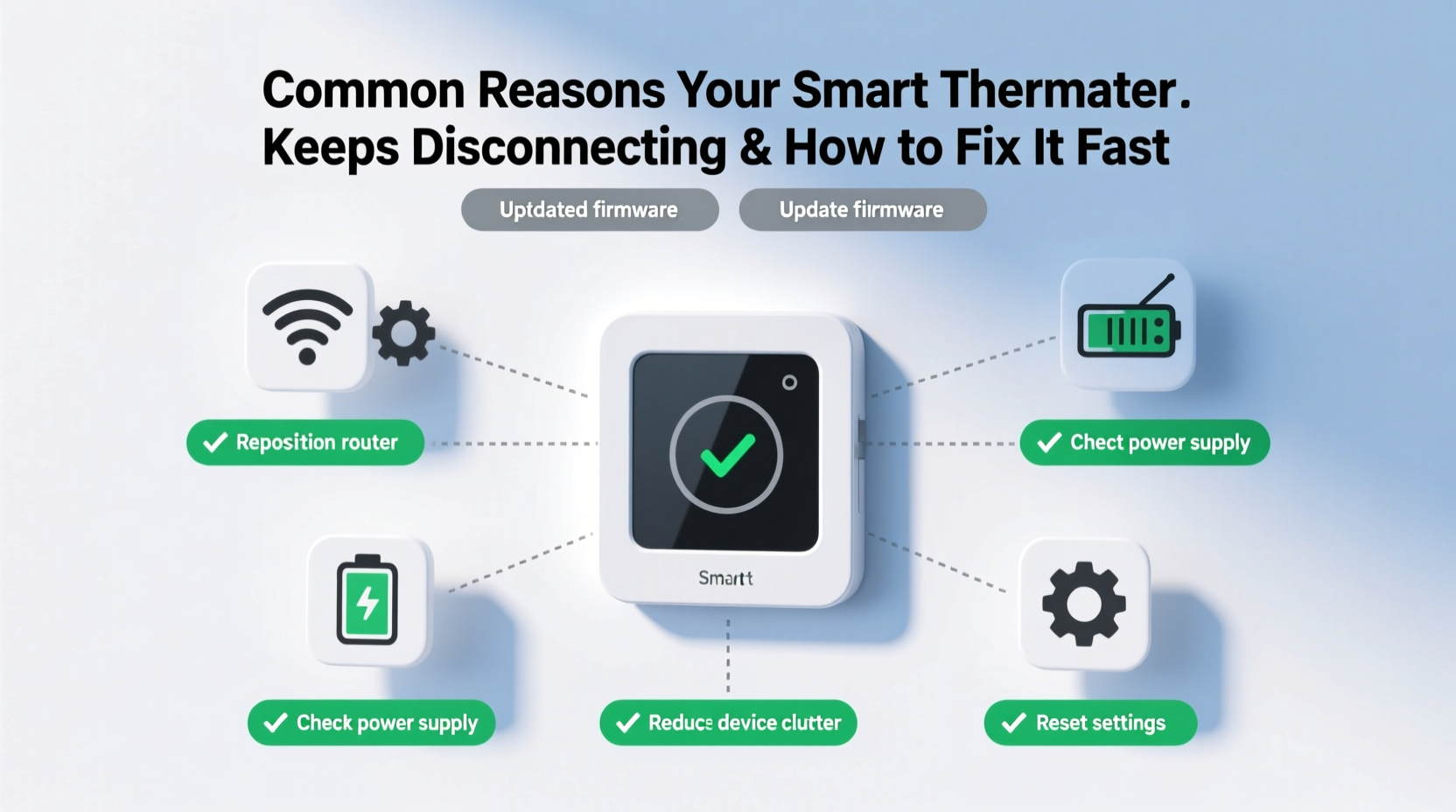
One of the most frequent culprits behind smart thermostat disconnections is a weak or inconsistent Wi-Fi signal. Unlike smartphones or laptops that can move closer to the router, thermostats are typically mounted on interior walls, often far from the router and surrounded by dense materials like drywall, metal ducts, or insulation—all of which weaken signal strength.
If your thermostat frequently shows “Offline” in the app or fails to respond to commands, start by checking the signal quality at the device’s location. Many smart thermostats report signal strength in their app settings (usually under Network or Diagnostics). Look for values below -70 dBm, which indicates a poor signal.
To improve signal strength:
- Reposition your router closer to the thermostat if possible.
- Install a Wi-Fi extender or mesh network node nearby to boost coverage.
- Ensure your thermostat isn’t placed directly behind large metal objects like breaker boxes or HVAC units.
“Thermostats need consistent, low-latency connections. Even brief drops can disrupt communication with cloud servers.” — David Lin, Smart Home Network Engineer
Incompatible or Insufficient Power Supply
Smart thermostats require continuous power to maintain Wi-Fi connectivity and run internal processors. Unlike traditional thermostats, they can’t operate passively off low-voltage HVAC signals alone. If your system lacks a C-wire (common wire), the thermostat may rely on “power stealing” techniques, which draw intermittent power from heating or cooling cycles. This can cause instability, especially in milder seasons when the HVAC runs infrequently.
Symptoms of power-related issues include:
- Frequent rebooting or screen dimming
- Random disconnections during mild weather
- Error messages like “Low Battery” or “Power Unavailable”
The best long-term solution is installing a C-wire. This dedicated 24VAC line provides constant power and eliminates reliance on power stealing. If adding a C-wire isn’t feasible, some manufacturers offer power adapter kits (like the Nest Power Connector or Ecobee PEK) that simulate a C-wire using existing wiring.
Wiring Check Checklist
- Turn off HVAC power at the breaker.
- Remove the thermostat faceplate and inspect terminal connections.
- Identify if a blue or black wire is connected to the “C” terminal on both thermostat and furnace.
- If no C-wire exists, consult an HVAC technician about retrofitting one or using a power extender kit.
Router or Network Configuration Issues
Your smart thermostat depends on your home network infrastructure. Even if Wi-Fi seems strong, certain router settings can interfere with stable device communication. Common network-level problems include:
- IP address conflicts: When multiple devices are assigned the same IP, connectivity fails.
- DHCP lease timeouts: Short lease durations force frequent reconnections, increasing drop risk.
- Overloaded networks: Too many connected devices can congest bandwidth.
- Firewall or AP isolation: Some routers block local device-to-device communication, preventing thermostat updates.
Modern smart thermostats use specific ports and protocols to communicate with manufacturer servers. Blocking these through overly restrictive firewall rules can sever connectivity.
Router Settings to Verify
| Setting | Recommended Value | Action |
|---|---|---|
| DHCP Lease Time | 24 hours or longer | Prevents frequent reconnection attempts |
| AP Isolation | Disabled | Allows thermostat to communicate with network |
| IPv6 Support | Enabled (if supported) | Improves future compatibility |
| Port Forwarding | TCP 443, UDP 53 | Ensures secure HTTPS and DNS traffic |
Firmware and App Glitches
Like any smart device, thermostats depend on up-to-date firmware to function reliably. Outdated software can introduce bugs that affect Wi-Fi stability, cloud syncing, or security protocols. Similarly, mobile app issues—such as corrupted cache or login session errors—can make it seem like the thermostat is offline when it’s actually functioning normally.
Manufacturers regularly release firmware updates to patch connectivity bugs and improve performance. However, these updates only install successfully with a stable internet connection. If your thermostat disconnects mid-update, it could enter a boot loop or fail to reconnect afterward.
How to Update Firmware Manually
- Open your thermostat’s companion app (e.g., Google Home, Ecobee, Honeywell Home).
- Navigate to Settings > Device Information > Software Version.
- If an update is pending, ensure the thermostat is powered and connected to Wi-Fi.
- Restart the thermostat and monitor the display for update progress.
- Wait 10–15 minutes without interruption—do not power off during update.
If the app shows outdated firmware but won’t update, try restarting your router first, then the thermostat. In persistent cases, perform a factory reset (after backing up schedules) and set up the device again.
“Firmware is the nervous system of a smart thermostat. Keeping it current prevents 60% of reported disconnection issues.” — Dr. Lena Patel, IoT Systems Analyst
Environmental Interference and Physical Obstructions
It’s easy to overlook how much your home’s physical layout impacts wireless performance. Thermostats installed near large appliances, metal studs, or thick concrete walls may struggle to maintain a reliable signal—even if the router is only one room away. Additionally, electromagnetic interference from microwaves, cordless phones, or fluorescent lighting can disrupt 2.4 GHz Wi-Fi bands commonly used by smart thermostats.
A real-world example: A homeowner in Denver reported daily disconnections at 7:30 PM. After investigation, it was discovered that their smart oven, programmed to preheat every evening, emitted interference on the same Wi-Fi channel as the thermostat. Switching the router to a less congested channel resolved the issue instantly.
Mini Case Study: The Garage Wall Problem
Jamal installed an Ecobee smart thermostat in his basement utility room, adjacent to the garage. Despite having five bars of Wi-Fi on his phone, the thermostat dropped connection twice daily. A site inspection revealed that the shared wall contained metal conduit and a steel support beam, creating a Faraday cage effect. By relocating the thermostat six feet to the left—away from the beam—and adding a mesh Wi-Fi pod in the hallway, Jamal achieved 100% uptime.
To minimize environmental interference:
- Use a Wi-Fi scanner app to identify channel congestion and switch your router to channels 1, 6, or 11 (least overlapping).
- Avoid placing thermostats near large motors, transformers, or microwave ovens.
- Consider upgrading to a dual-band router and ensure your thermostat supports 2.4 GHz (most do not support 5 GHz).
Comprehensive Troubleshooting Checklist
When your smart thermostat disconnects, follow this step-by-step checklist to diagnose and resolve the issue quickly:
- ✅ Confirm Wi-Fi signal strength at thermostat location (aim for -60 dBm or better)
- ✅ Verify thermostat is on the correct 2.4 GHz network (not 5 GHz)
- ✅ Check for a C-wire or install a power extender kit if missing
- ✅ Restart both the thermostat and your router
- ✅ Ensure firmware and mobile app are up to date
- ✅ Disable AP isolation and adjust DHCP lease time on router
- ✅ Assign a static IP to prevent address conflicts
- ✅ Eliminate sources of electromagnetic interference
- ✅ Perform factory reset and re-pair if all else fails
Frequently Asked Questions
Why does my smart thermostat disconnect only at night?
This often occurs due to reduced HVAC activity during mild nighttime temperatures. Without regular heating or cooling cycles, power-stealing thermostats may not receive enough charge, leading to shutdowns. Installing a C-wire or power adapter resolves this.
Can a mesh Wi-Fi system fix thermostat disconnections?
Yes. Mesh systems extend coverage more effectively than traditional extenders and provide seamless roaming. Place a node within two rooms of your thermostat for optimal results. Ensure the node uses the same SSID and security protocol as your main network.
Should I contact customer support if my thermostat keeps disconnecting?
If you’ve verified power, Wi-Fi, and firmware with no improvement, yes. Manufacturers like Nest, Ecobee, and Honeywell offer remote diagnostics and may detect server-side issues affecting your region. Keep logs of disconnection times to help them troubleshoot.
Stay Connected, Stay Comfortable
A smart thermostat should enhance your life—not complicate it. While occasional hiccups are normal, persistent disconnections point to solvable issues in power, network, or environment. By methodically addressing each potential cause—from checking for a C-wire to optimizing router settings—you can restore seamless operation and enjoy the full benefits of intelligent climate control. Don’t accept unreliable performance as inevitable. With the right knowledge and tools, you can fix most problems in under an hour and prevent them from returning.




 浙公网安备
33010002000092号
浙公网安备
33010002000092号 浙B2-20120091-4
Comments
No comments yet. Why don't you start the discussion?