
When your Windows system fails to start, runs slowly, or becomes unstable due to software conflicts or malware, knowing how to restore it effectively can save hours of frustration and prevent data loss. System restoration isn’t just about reverting changes—it’s a strategic process that combines built-in tools, preventive practices, and troubleshooting know-how. Whether you're dealing with a blue screen of death, corrupted updates, or accidental file deletion, this guide provides proven methods to recover your system efficiently and securely.
Understanding Windows System Restore
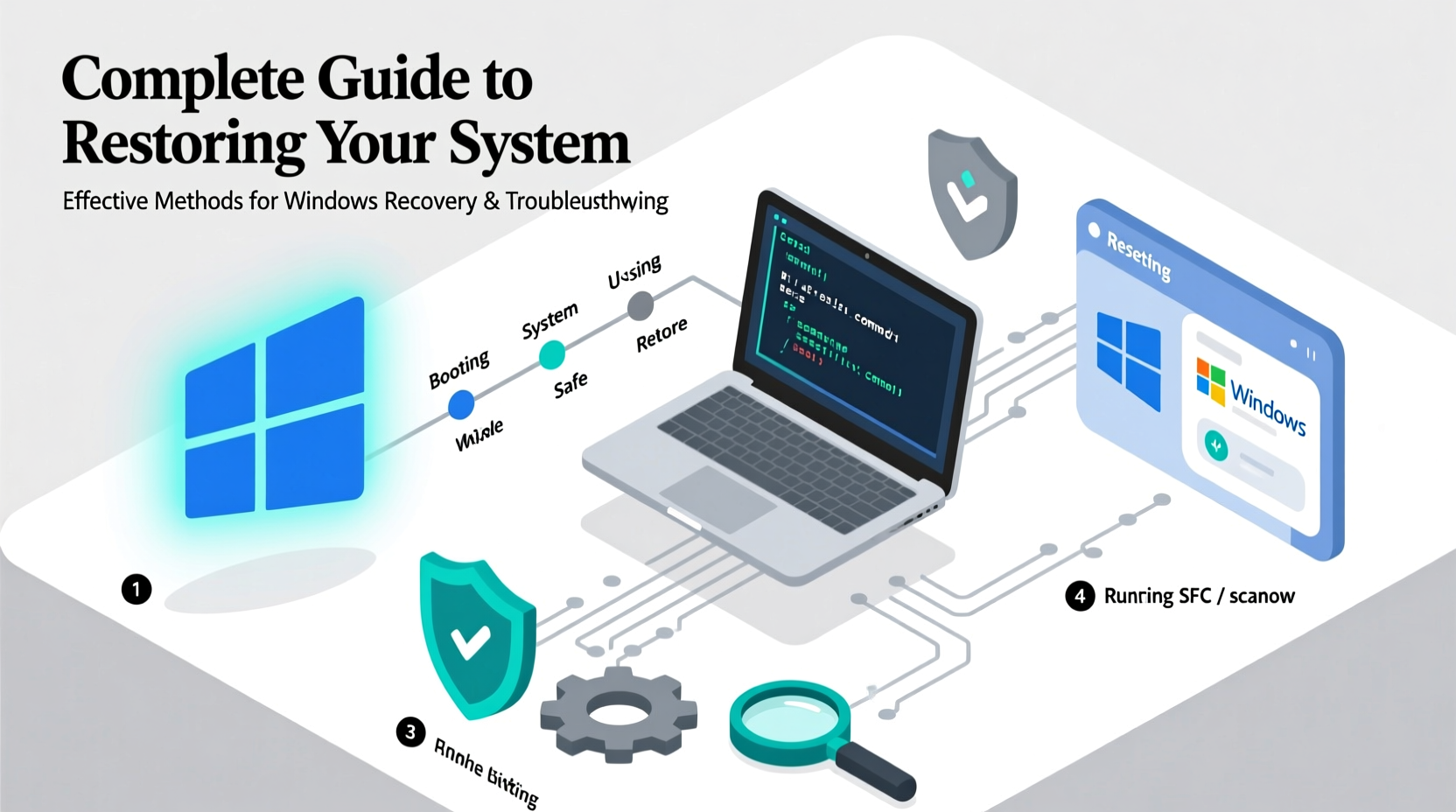
System Restore is one of Windows’ most powerful yet underutilized features. It creates \"restore points\"—snapshots of system files, registry settings, and installed programs—at key moments, such as before major updates or software installations. If something goes wrong, you can roll back your system to a point when it was functioning properly without affecting personal files like documents, photos, or emails.
However, System Restore does not protect against hardware failure, virus infections (unless the antivirus integrates with it), or user errors like deleting important files manually. It’s best used as part of a broader recovery strategy.
Step-by-Step Guide to Using Built-In Recovery Tools
Windows includes several recovery mechanisms, each suited for different scenarios. Follow these steps based on your current situation:
- Access Advanced Startup Options: Restart your PC while holding the Shift key, or go to Settings > Update & Security > Recovery > Restart now under Advanced startup.
- Navigate to Troubleshoot: After rebooting into the recovery environment, select \"Troubleshoot\" to access repair tools.
- Choose Your Method:
- System Restore: Revert system changes using a previous restore point.
- Startup Repair: Automatically fix issues preventing Windows from booting.
- Command Prompt (Advanced): Run manual diagnostics like
sfc /scannoworchkdsk. - Reset This PC: Reinstall Windows while keeping or removing your files.
For users who cannot reach the desktop, booting from a USB recovery drive or installation media may be necessary. Create one in advance using Microsoft’s Media Creation Tool to ensure preparedness.
Alternative Recovery Methods When Standard Tools Fail
Sometimes, even System Restore fails due to corrupted restore points or missing recovery partitions. In these cases, alternative approaches become essential.
Using Safe Mode with Networking
Boot into Safe Mode by pressing F8 (or Shift + F8) during startup (on older systems) or via Advanced Startup. Safe Mode loads only essential drivers and services, making it easier to uninstall problematic updates or remove malware.
Running SFC and DISM Commands
Open Command Prompt as Administrator and run these commands:
sfc /scannow
DISM /Online /Cleanup-Image /RestoreHealth
The System File Checker (SFC) scans for and repairs corrupted system files. Deployment Image Servicing and Management (DISM) fixes the underlying Windows image, which SFC depends on. These tools are especially useful after failed updates or sudden shutdowns.
Rebuilding the Boot Configuration Data (BCD)
If your system won’t boot at all, the BCD store might be damaged. From the recovery Command Prompt, use:
bootrec /rebuildbcd
bootrec /fixmbr
bootrec /fixboot
These commands rebuild the boot configuration and repair the master boot record, often resolving black-screen or “BOOTMGR is missing” errors.
“Many so-called ‘bricked’ Windows machines aren’t dead—they just need a proper boot repair sequence.” — David Lin, Senior Systems Engineer at TechRescue Labs
Comparison of Recovery Methods: When to Use What
| Method | Best For | Data Safety | Time Required |
|---|---|---|---|
| System Restore | Recent software conflicts, failed updates | Preserves personal files | 10–20 minutes |
| Startup Repair | Boot failures, missing files | Fully safe | 15–30 minutes |
| Reset This PC (Keep Files) | Severe instability, persistent errors | Keeps documents, removes apps | 30–60 minutes |
| Clean Install via USB | Hardware changes, unfixable corruption | Erases everything | 1–2 hours |
Mini Case Study: Recovering from a Failed Windows Update
Sarah, a freelance graphic designer, experienced a freeze during a Windows 11 feature update. Her laptop restarted into a loop showing “Preparing to configure updates… Undoing changes.” She couldn’t access her design projects, and deadlines were approaching.
She booted into Advanced Startup, selected \"Troubleshoot\" > \"Advanced options\" > \"Startup Repair,\" which failed initially. Then, she opened Command Prompt and ran sfc /scannow, but received an error indicating a corrupted image. Running DISM /Online /Cleanup-Image /RestoreHealth repaired the image. On reboot, Startup Repair succeeded, and Windows loaded normally—her files and applications intact.
This case highlights the importance of layered troubleshooting: when one tool fails, another may still succeed.
Essential Pre-Recovery Checklist
- ✅ Confirm the issue isn’t hardware-related (test RAM, check disk health with CrystalDiskInfo).
- ✅ Back up personal files externally if possible (use File History or manual copy).
- ✅ Identify recent changes (installed software, updates, driver upgrades).
- ✅ Prepare a bootable USB drive with Windows installation media.
- ✅ Charge your laptop fully or plug it into power to avoid interruption.
- ✅ Write down product keys for offline software (if not linked to Microsoft account).
Frequently Asked Questions
Can I restore my system without losing my files?
Yes, both System Restore and the “Reset this PC” option with “Keep my files” preserve personal data like documents, music, and pictures. However, they remove recently installed apps and revert system settings.
Why is there no restore point available?
System Protection might have been disabled, or no automatic restore point was created. Some versions of Windows don’t create them before every update. To improve coverage, create manual restore points after installing critical software.
What should I do if System Restore fails?
Try running it from Safe Mode or the recovery environment. If that doesn’t work, use DISM and SFC commands to repair system integrity first. As a last resort, reset the PC or perform a clean install.
Conclusion: Take Control of Your System’s Stability
Restoring your Windows system doesn’t have to mean starting over. With the right tools and knowledge, you can resolve most issues efficiently and return to productivity quickly. The key is preparation—enable System Protection, create recovery media, and understand the tools at your disposal before disaster strikes. Don’t wait until your PC won’t boot to learn how recovery works.




 浙公网安备
33010002000092号
浙公网安备
33010002000092号 浙B2-20120091-4
Comments
No comments yet. Why don't you start the discussion?