
Minecraft has evolved significantly since its early days, and one of the most impactful changes for players is the mandatory migration from Mojang accounts to Microsoft accounts. This shift isn't just a technical update—it's part of Mojang’s effort to enhance security, unify experiences across platforms, and provide better parental controls and support. While the process is straightforward, many players hesitate due to confusion or fear of losing access to their worlds, skins, or purchases. This guide walks you through every step, explains why the migration matters, and helps you avoid common pitfalls.
Why Migrate to a Microsoft Account?
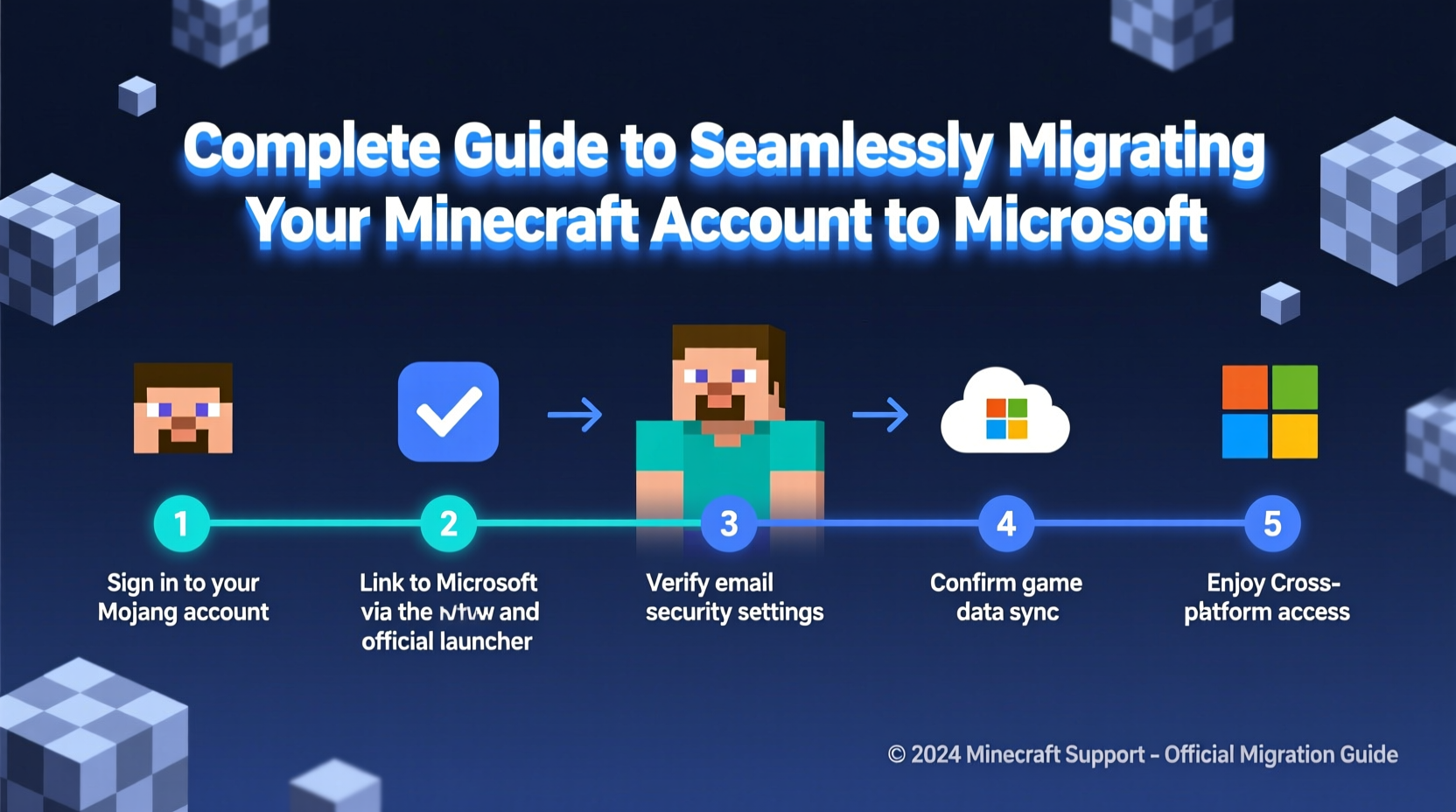
The transition from a standalone Mojang account to a Microsoft account is no longer optional for players using Minecraft: Java Edition on PC. Microsoft enforces this change to improve cross-platform compatibility, especially with Minecraft Bedrock Edition, and to strengthen account security through two-factor authentication and centralized identity management.
By moving to a Microsoft account, players gain:
- Better security: Access to Microsoft’s robust login protection, including two-step verification.
- Cross-play capabilities: Potential future integration with Xbox Live features and multiplayer across devices.
- Improved customer support: Unified access to help resources through Microsoft’s support system.
- Parental controls: For younger players, families can use Microsoft Family Safety tools to manage screen time and privacy settings.
“Migrating to a Microsoft account ensures players benefit from modern security standards and a more connected gaming experience.” — Mojang Support Team
Step-by-Step Migration Process
Migrating your Minecraft account is a linear process that takes under 15 minutes if you have all necessary information ready. Follow these steps carefully to ensure a smooth transition.
- Sign in to your Mojang account at minecraft.net.
- Navigate to your Profile section by clicking your username in the top-right corner.
- Select Account from the dropdown menu.
- Click the Migrate to Microsoft button when prompted (if not visible, ensure you’re using the correct region and account type).
- Review the migration details, including data retention and privacy updates.
- Sign in with an existing Microsoft account or create a new one using your current email address.
- Verify ownership via email or authenticator app if two-factor authentication is enabled.
- Confirm the transfer of your Minecraft license, username, and purchase history.
- Log out and back into the Minecraft launcher using your Microsoft credentials.
After completing these steps, your Minecraft: Java Edition will function as normal—your worlds, skins, and friends list remain intact. The only difference is how you log in.
Common Issues and How to Resolve Them
While most migrations proceed without incident, some users encounter obstacles. Understanding these ahead of time reduces frustration.
| Issue | Possible Cause | Solution |
|---|---|---|
| \"Migration not available\" message | Account already migrated or region restriction | Check account status; contact Mojang support if unsure |
| Email already used by another Microsoft account | Third-party service or old Xbox account | Use an alternate email or merge accounts via Microsoft recovery |
| Game won’t launch after migration | Launcher still using old credentials | Log out of the Minecraft launcher and re-login with Microsoft account |
| Lost access to marketplace content | Licensing sync delay | Wait up to 24 hours or restart the client |
Real Example: Sarah’s Smooth Transition
Sarah, a high school student and longtime Minecraft player, delayed her migration for months out of concern she’d lose her custom skin collection. When her school’s computer blocked her Mojang login, she decided to act. She followed the official migration steps using her personal email, which doubled as her Outlook account. After linking her Mojang profile to Microsoft, she logged into the Minecraft launcher with her Microsoft credentials. All her saved worlds, resource packs, and Marketplace purchases appeared instantly. Within ten minutes, she was back building her survival base—this time with improved account security.
Checklist: Pre-Migration Preparation
Before starting the migration, ensure everything is in place. Use this checklist to avoid interruptions.
- ✅ Confirm you own the email associated with your Mojang account
- ✅ Ensure access to that inbox for verification emails
- ✅ Back up your local Minecraft saves (
.minecraft/savesfolder) - ✅ Know your Microsoft account password or be ready to create one
- ✅ Close the Minecraft launcher during migration
- ✅ Use a stable internet connection
- ✅ Disable ad-blockers temporarily if the migration page doesn’t load
Frequently Asked Questions
Will I lose my Minecraft username after migrating?
No. Your current Minecraft username remains unchanged after migration. However, like all players, you’ll eventually have the option to change it once every 30 days through the Minecraft profile settings, provided the name is available.
Do I need an Xbox Live account to migrate?
You don’t need a separate Xbox Live account, but migrating links your identity to Xbox Live services. This enables future interoperability with Bedrock Edition and access to achievements, friends lists, and cloud saves on supported devices.
Can I reverse the migration?
No. Once you migrate to a Microsoft account, the change is permanent. Mojang does not support reverting to legacy Mojang accounts. This is why preparation and backups are essential.
Final Steps and Moving Forward
After successful migration, take a moment to secure your new Microsoft account. Enable two-factor authentication through the Microsoft Security Dashboard. This adds a critical layer of protection against unauthorized access, especially important for accounts linked to digital purchases.
Additionally, download the Microsoft Authenticator app or set up email/SMS verification. Update your recovery email and phone number. These small actions dramatically reduce the risk of being locked out in the future.
Finally, test your setup by logging out of the Minecraft launcher and logging back in. Verify that your worlds load correctly and that you can connect to multiplayer servers without issue.
“Security and continuity go hand-in-hand. A migrated account is not just compliant—it’s safer and more resilient.” — IT Specialist, Gaming Infrastructure Group
Conclusion
Migrating your Minecraft account to Microsoft is more than a compliance task—it's an upgrade. You retain all your content while gaining enhanced security, better support options, and alignment with the game’s long-term vision. Whether you're a casual builder or a dedicated modder, taking control of your account now ensures uninterrupted play for years to come.




 浙公网安备
33010002000092号
浙公网安备
33010002000092号 浙B2-20120091-4
Comments
No comments yet. Why don't you start the discussion?