
In today’s fast-paced digital environment, professionals across industries—from graphic designers and software developers to financial analysts and writers—are turning to dual monitor setups to boost productivity. Research from the University of Utah shows that using two monitors can increase productivity by up to 42% in certain tasks. The ability to view multiple applications side-by-side reduces context switching, minimizes time lost to window toggling, and enhances multitasking precision. Yet, many users set up their second screen without optimizing its placement, resolution, or software integration—missing out on real gains. This comprehensive guide walks through every aspect of building a high-efficiency dual monitor system, from selecting compatible hardware to fine-tuning display settings and organizing your digital workspace.
Choosing the Right Monitors and Hardware
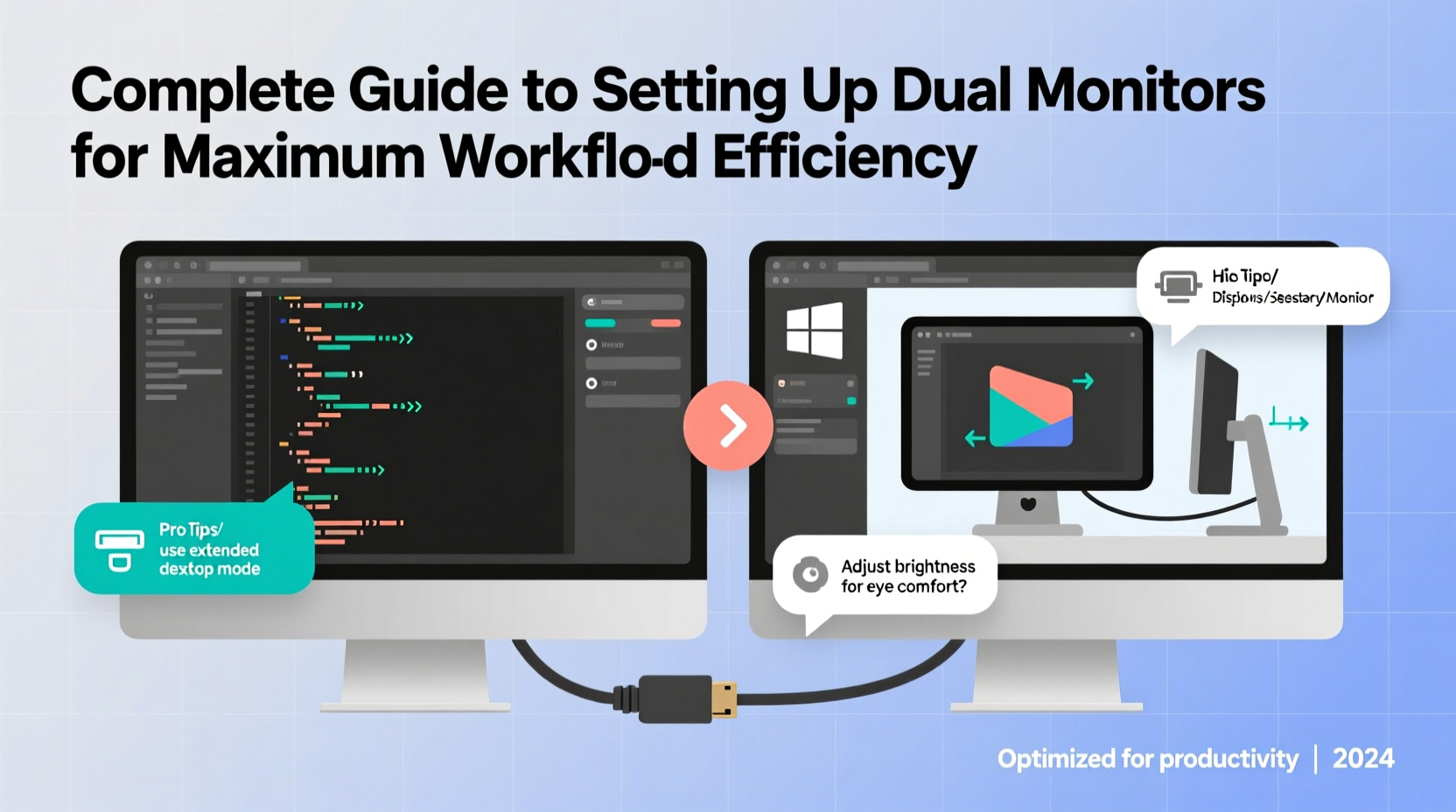
The foundation of an effective dual monitor setup lies in selecting compatible, high-performing displays and ensuring your computer can support them. Not all monitors are created equal, and mismatched specs can lead to visual inconsistency, performance lag, or even driver conflicts.
Start by assessing your current graphics card. Most modern GPUs support at least two display outputs via HDMI, DisplayPort, DVI, or USB-C/Thunderbolt. Check your system specifications to confirm output types and maximum supported resolutions. Integrated graphics on newer CPUs often handle dual 1080p or even 1440p displays with ease, but for higher refresh rates or 4K panels, a dedicated GPU is recommended.
When choosing monitors:
- Match size and resolution: Ideally, use two identical models (same brand, model number) to avoid scaling issues in Windows or macOS.
- Consider panel type: IPS panels offer better color accuracy and viewing angles; VA provides deeper blacks; TN is faster but has poorer color reproduction.
- Aim for uniform brightness and color temperature: Even slight differences can cause eye strain over long sessions.
- Evaluate ergonomics: Adjustable stands allow tilt, swivel, height, and pivot adjustments—critical for proper alignment.
Connection Options and Compatibility
Digital connections like HDMI and DisplayPort dominate modern setups. While both support high resolutions and refresh rates, DisplayPort offers advantages for multi-monitor configurations:
| Connection Type | Max Resolution (Single) | Daisy-Chaining | Audio Support |
|---|---|---|---|
| HDMI 2.0 | 4K @ 60Hz | No | Yes |
| DisplayPort 1.4 | 8K @ 60Hz or 4K @ 120Hz | Yes (via MST) | Yes |
| USB-C / Thunderbolt 3+ | 5K @ 60Hz or dual 4K | Yes | Yes |
If your laptop or desktop lacks sufficient ports, consider a docking station with video output capabilities or a USB-to-HDMI adapter (though these may reduce performance).
Step-by-Step Setup Process
Once hardware is selected and connected, follow this sequence to configure your dual monitor environment efficiently.
- Physically connect both monitors to available video outputs using appropriate cables (preferably DisplayPort or HDMI).
- Power on both displays and ensure they are detected by your operating system.
- Access display settings:
- Windows: Right-click desktop → “Display settings”
- macOS: System Settings → Displays → Arrangement
- Identify and arrange screens: Drag the on-screen representations to match your physical layout (e.g., left/right, above/below).
- Set primary display: Choose which monitor hosts the taskbar (Windows) or menu bar (macOS). Typically, this should be your main working screen.
- Adjust resolution and scaling: Set each monitor to native resolution. For mixed DPI setups (e.g., 4K + 1080p), enable “Let Windows try to fix apps so they're not blurry” to manage scaling.
- Calibrate orientation and refresh rate: Use advanced settings to match refresh rates if gaming or animation work is involved.
After configuration, test window movement between screens. A smooth drag indicates correct spatial mapping. If windows jump unexpectedly, revisit the arrangement diagram in settings.
Optimizing Workflow Layouts by Profession
The true power of dual monitors emerges when layout aligns with workflow. Generic side-by-side arrangements work, but tailored setups yield greater efficiency.
Software Developers
Keep code editor on the primary screen, terminal and version control tools on the secondary. Use IDEs like VS Code or IntelliJ that support split views across monitors. Debug consoles, API documentation, or Slack can reside off to the side without cluttering the coding space.
Graphic Designers and Video Editors
Place the canvas or timeline on the dominant screen. Use the secondary display for tool palettes, asset libraries, or preview windows. Adobe Creative Cloud applications integrate well with extended desktops, allowing floating panels to be moved freely between screens.
Financial Analysts and Traders
Spreadsheet or modeling software occupies the central screen; charts, news feeds, and trading platforms populate the second. Real-time data monitoring benefits immensely from constant visibility without tab-switching.
Writers and Researchers
Write on one monitor while keeping research sources, notes, or reference documents open on the other. Tools like Zotero or Notion can remain visible while drafting in Google Docs or Scrivener.
“Dual monitors aren’t just about more screen real estate—they’re about reducing cognitive load. Every time you switch tabs, you lose focus. With two screens, information stays in your peripheral vision, maintaining mental continuity.” — Dr. Lena Torres, Human-Computer Interaction Researcher, MIT Media Lab
Advanced Configuration Tips for Maximum Efficiency
Beyond basic setup, several underutilized features can elevate your dual monitor experience.
Use Virtual Desktops Alongside Dual Screens
Operating systems now support virtual desktops (Task View on Windows, Mission Control on macOS). Combine these with dual monitors to create context-specific environments. For example:
- Desktop 1: Email + Calendar (left), Web Browsing (right)
- Desktop 2: Coding IDE (left), Terminal + Documentation (right)
- Desktop 3: Design Software Suite across both screens
Leverage Third-Party Window Management Tools
Default OS snapping features (like Windows Snap Assist) are helpful but limited. Consider upgrading to tools such as:
- Microsoft PowerToys (FancyZones): Create custom grid layouts for precise window placement.
- Magnet (macOS): Snap windows to halves, quarters, or full screens with快捷键.
- DisplayFusion: Offers per-monitor taskbars, wallpaper rotation, and advanced rules-based window positioning.
Minimize Visual Distractions
Avoid placing highly dynamic content (e.g., social media feeds, video autoplay) on your non-primary screen. While having notifications visible might seem efficient, studies show that unexpected motion significantly disrupts concentration. Reserve the secondary screen for static or controlled-reference material.
Common Mistakes and How to Avoid Them
Even experienced users fall into traps that undermine the benefits of dual monitors. Recognizing these pitfalls ensures lasting gains.
| Mistake | Impact | Solution |
|---|---|---|
| Mismatched monitor sizes/resolutions | Cursor jumps, scaling issues, eye strain | Use identical models or disable scaling inconsistencies |
| Poor physical alignment | Neck strain, reduced glance efficiency | Align top edges; center combined display area with seated eye level |
| Using both screens at maximum brightness | Increased glare and fatigue | Lower brightness to ambient light levels; use dark mode UIs |
| Cluttering second screen with unused apps | Cognitive overload | Treat secondary screen as a purpose-driven extension, not dumping ground |
Mini Case Study: Remote Developer Boosts Output by 35%
Jamal, a freelance full-stack developer based in Austin, upgraded from a single 13-inch laptop screen to a dual 24-inch 1080p IPS setup. He placed his main IDE (WebStorm) on the left, browser debugging tools and local server logs on the right. Using FancyZones, he pinned GitHub, Slack, and Postman to fixed areas. Within two weeks, his average daily coding output increased from 2.1 hours of focused work to 2.8 hours, a 33% gain in deep-work capacity. He reported fewer headaches and faster debugging cycles due to immediate access to runtime feedback alongside source code.
Frequently Asked Questions
Can I use different brands or sizes of monitors together?
Yes, but expect some compromises. Mismatched resolutions require careful scaling settings to prevent blurry text. Differences in color temperature or response time may be noticeable during visual work. For best results, match size and resolution, or dedicate the lesser screen to non-critical tasks like email or music controls.
Why does my mouse disappear between screens?
This usually happens when the monitor arrangement in settings doesn’t reflect physical placement. Ensure the on-screen layout matches reality—drag the display icons so their edges align correctly. Also, check that both monitors run at stable refresh rates without intermittent disconnects.
Is ultrawide better than dual monitors?
Ultrawide monitors (e.g., 29” 21:9) eliminate the bezel gap and offer seamless panning, ideal for video editing or immersive spreadsheets. However, they lack the flexibility of independent window management across separate displays. Dual monitors allow running different resolutions, orientations (portrait/landscape), and even separate input sources. Choose based on workflow: ultrawide for continuous content, dual screens for multitasking diversity.
Checklist: Setting Up Your Dual Monitor System
- ✅ Verify GPU supports dual output
- ✅ Select two monitors with matching or compatible specs
- ✅ Connect both using reliable cables (HDMI/DP preferred)
- ✅ Align physical placement: same height, minimal gap
- ✅ Access OS display settings and identify screens
- ✅ Arrange on-screen layout to mirror physical setup
- ✅ Set primary display and adjust resolution/scaling
- ✅ Test window movement and cursor transition
- ✅ Install window management tools (optional but recommended)
- ✅ Organize apps by workflow priority, not convenience
Conclusion: Unlock Your Full Productivity Potential
A dual monitor setup is more than a luxury—it's a strategic investment in how you interact with digital information. When configured thoughtfully, it transforms fragmented workflows into cohesive, streamlined processes. From selecting harmonious hardware to designing intentional screen layouts, every decision compounds toward greater efficiency, reduced fatigue, and improved output quality. The initial setup takes less than an hour, but the long-term impact on daily performance can be profound. Whether you're analyzing data, writing code, designing visuals, or managing projects, dual monitors put control back in your hands—literally, within arm’s reach and line of sight.




 浙公网安备
33010002000092号
浙公网安备
33010002000092号 浙B2-20120091-4
Comments
No comments yet. Why don't you start the discussion?