
The Logitech Z407 is a compact, versatile 2.1 speaker system designed for desktops, laptops, and mobile devices. With built-in Bluetooth, a subwoofer, and digital signal processing, it delivers surprisingly rich audio for its size. However, many users fail to unlock its full potential due to incorrect setup or misconfigured settings. This guide walks you through every phase of installation, calibration, and optimization to ensure you experience the best possible sound quality from your Z407.
1. Unboxing and Initial Setup
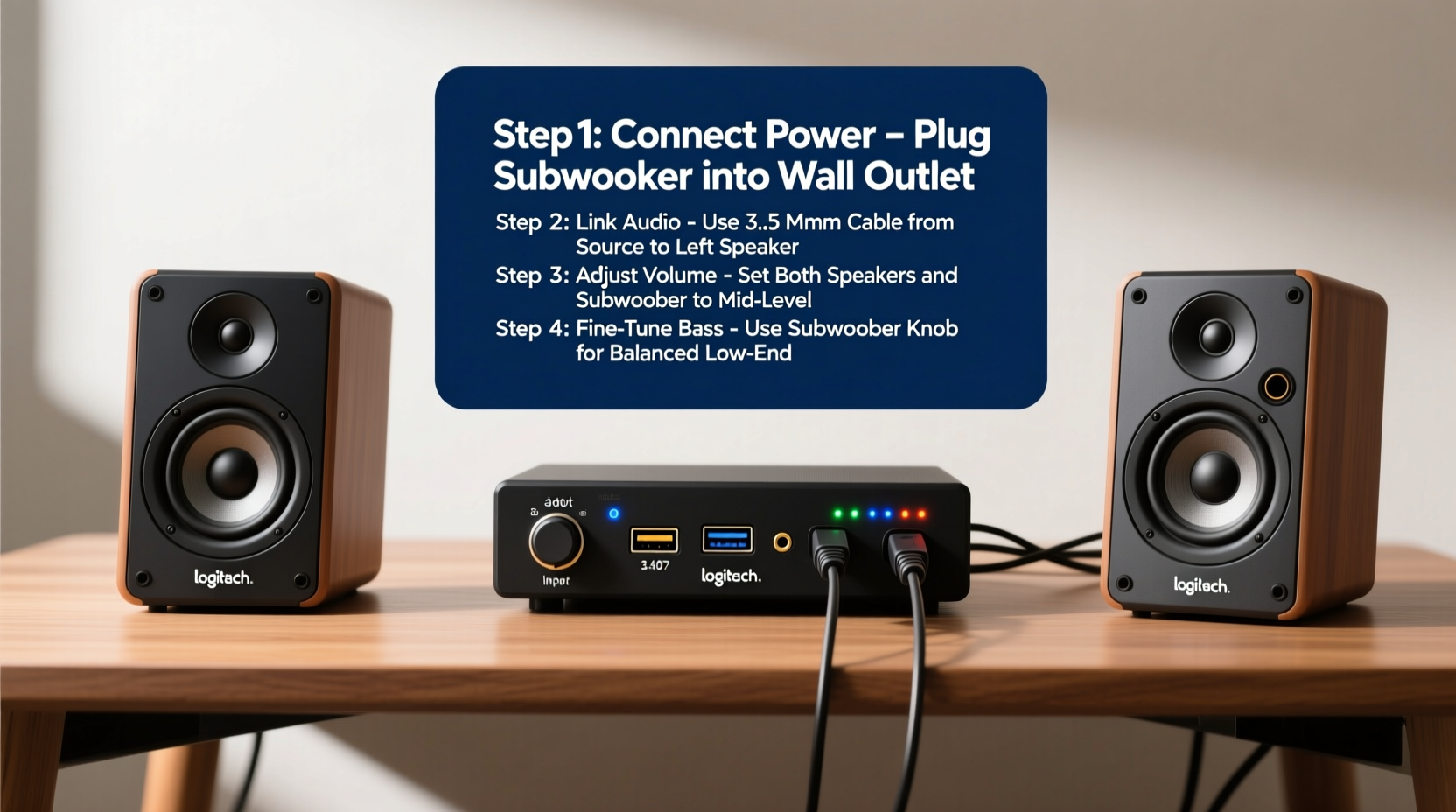
Before diving into advanced tuning, ensure your hardware is correctly connected. The Z407 package includes a powered subwoofer, two satellite speakers, an audio cable (3.5mm to dual RCA), a power adapter, and a remote control.
- Place the subwoofer: Position it on the floor near your desk, ideally against a wall or in a corner to enhance bass response. Avoid placing it under heavy furniture or in enclosed spaces that restrict airflow.
- Connect satellite speakers: Plug the satellite cables into the designated ports on the back of the subwoofer. Route the wires neatly to avoid tripping hazards.
- Power connection: Plug the power adapter into the subwoofer and connect it to a grounded outlet. The LED on the front should glow blue when powered.
- Audio source connection: Use the included 3.5mm-to-dual-RCA cable to link the subwoofer’s input to your device’s headphone jack, or pair via Bluetooth for wireless use.
2. Establishing a Stable Audio Connection
The Z407 supports both wired and wireless connectivity. Each method has advantages depending on your environment and usage.
Wired Connection (Recommended for Stability)
- Use the supplied 3.5mm stereo cable to connect your computer, laptop, or tablet directly to the “AUX IN” port on the subwoofer.
- Ensure your device’s volume output is set to 100% to allow full dynamic range control through the speaker system.
- Select “AUX” mode using the remote or button on the subwoofer.
Bluetooth Pairing (For Wireless Convenience)
- Press the mode button on the subwoofer until the LED blinks red and blue.
- On your smartphone, tablet, or PC, go to Bluetooth settings and search for available devices.
- Select “Logitech Z407” from the list.
- Once connected, the LED will turn solid blue.
3. Optimizing Speaker Placement for Acoustic Performance
Physical positioning significantly affects sound clarity, stereo imaging, and bass distribution. Follow these principles:
- Form an equilateral triangle: Place the satellite speakers at ear level, angled toward your listening position, forming a triangle between your head and the two speakers.
- Subwoofer placement: Corners amplify bass but may cause muddiness. If bass feels overwhelming, move the subwoofer slightly away from the wall or try centering it along a side wall.
- Avoid reflective surfaces: Keep speakers away from glass desks or bare walls that reflect high frequencies and create echo.
- Elevate satellites: Use small stands or isolation pads to decouple them from the desk and reduce vibration transfer.
| Factor | Optimal Setup | Avoid |
|---|---|---|
| Speaker Height | Ear level when seated | Below or above head height |
| Distance Between Satellites | 1.5–2 feet apart | Too close or too wide |
| Subwoofer Location | Near listening area, not enclosed | Under a bed or inside a cabinet |
| Room Size | Ideal for small to medium rooms | Large open spaces without acoustic treatment |
4. Fine-Tuning Audio Settings for Clarity and Balance
After physical setup, adjust the onboard controls to match your room and preferences.
Using the Remote Control
The Z407 remote allows adjustment of volume, bass, treble, and input selection. Begin with neutral settings:
- Set bass and treble to midpoint (12 o’clock position).
- Increase volume gradually while playing familiar music with balanced instrumentation.
- Adjust bass upward if lacking depth; reduce if boomy or distorted.
- Fine-tune treble to add crispness to vocals and cymbals—avoid excessive highs that cause listener fatigue.
Source Device Equalization
Complement speaker adjustments with software EQ:
- Windows: Use the built-in Enhancements tab in Sound Settings or third-party apps like Equalizer APO.
- Mac: Enable \"Sound Check\" in Music app or use Boom 3D for system-wide EQ.
- Mobile: Use Spotify’s equalizer or Poweramp’s advanced DSP settings.
“Even high-quality speakers can’t compensate for poor placement or unbalanced EQ. The room is part of the system.” — David Liu, Audio Calibration Engineer at Sonar Acoustics
5. Advanced Optimization and Troubleshooting
To achieve studio-grade performance from consumer-grade gear, attention to detail matters.
Checklist: Achieving Optimal Sound Quality
- ✅ Verify all cables are securely connected and undamaged
- ✅ Confirm the correct input mode (AUX/Bluetooth) is selected
- ✅ Set source device volume to maximum before adjusting speaker volume
- ✅ Calibrate bass and treblе using reference tracks (e.g., “Hotel California” by Eagles or “Billie Jean” by Michael Jackson)
- ✅ Test multiple content types (music, podcasts, movies) to validate balance
- ✅ Update firmware if Logitech releases new versions (check support site)
Mini Case Study: Home Office Upgrade
Mark, a freelance video editor working from a 10x12 ft home office, initially struggled with muddy dialogue in voiceovers. He had placed the Z407 subwoofer behind his monitor and satellites flat on his desk. After reading this guide, he moved the subwoofer to the floor near the left wall, elevated the satellites with bookshelf isolators, and reduced the bass by one notch. He also enabled a slight high-shelf boost (+2dB at 10kHz) in Windows’ spatial sound settings. The result? Dialogue became clearer, music mixes translated more accurately, and overall listening fatigue dropped significantly during long editing sessions.
Common Issues and Fixes
- No sound in one speaker: Check cable polarity and ensure both satellite plugs are fully inserted.
- Bluetooth disconnects frequently: Minimize interference from Wi-Fi routers or USB 3.0 devices; keep within 30 feet line-of-sight.
- Distorted bass at high volumes: Lower the subwoofer gain via the remote and avoid overdriving the input signal.
FAQ
Can I connect the Z407 to a TV?
Yes. Use the 3.5mm AUX input if your TV has a headphone jack or optical-to-analog converter. Disable the TV’s internal speakers in audio settings for best results.
Does the Z407 support multiple Bluetooth devices?
No, it remembers the last paired device only. You must manually re-pair when switching between phones, tablets, or computers.
Is there a way to mount the satellite speakers on walls?
While not officially supported, you can use third-party 1/4\"-20 threaded mounts with adhesive plates. Ensure the mounting surface can support the weight and doesn’t vibrate.
Final Thoughts
The Logitech Z407 offers exceptional value for users seeking immersive audio without complexity. But like any audio system, its performance depends heavily on proper setup and thoughtful calibration. By following this guide—from initial wiring to fine-tuning EQ—you transform a good speaker system into a great one. Whether you're editing audio, watching films, or enjoying music, optimized sound enhances every experience.




 浙公网安备
33010002000092号
浙公网安备
33010002000092号 浙B2-20120091-4
Comments
No comments yet. Why don't you start the discussion?