
One moment your computer is running smoothly; the next, it’s gone dark—no warning, no error message, just a sudden power loss. Random shutdowns are more than frustrating—they can lead to lost work, corrupted files, and long-term hardware damage. While occasional restarts are normal, frequent or unpredictable shutdowns signal underlying issues that demand attention. The good news: most causes are diagnosable and fixable with systematic troubleshooting. This guide walks you through the common culprits, step-by-step diagnosis, and practical solutions to restore stability to your system.
Understanding Why Computers Shut Down Unexpectedly
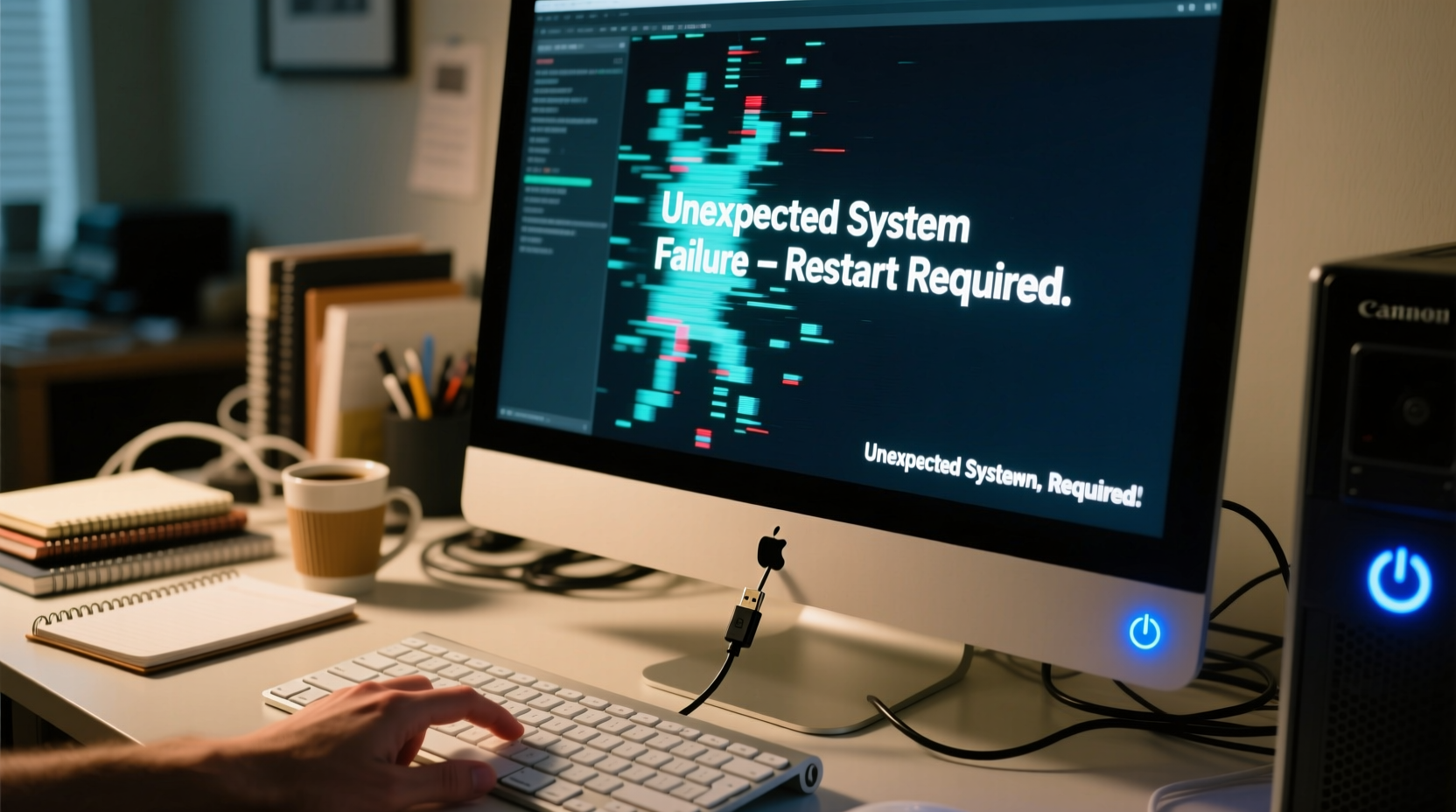
Modern computers are designed with multiple safeguards to prevent hardware damage. When a system shuts down without user input, it’s often an automatic response to a critical condition. These include overheating, power supply failures, software conflicts, or failing components. Unlike crashes that display error messages (e.g., Blue Screen of Death), silent shutdowns typically point to hardware-level problems or severe thermal events.
Overheating remains one of the most frequent causes. When internal temperatures exceed safe thresholds—usually due to dust buildup, failed fans, or dried thermal paste—the CPU or GPU triggers a thermal shutdown to avoid permanent damage. Power-related issues, such as a failing PSU or unstable voltage delivery, can also force abrupt shutdowns. Less commonly, firmware bugs, driver incompatibilities, or malware may trick the system into powering off.
Step-by-Step Diagnostic Process
Diagnosing random shutdowns requires methodical elimination of potential causes. Jumping to conclusions—like replacing the motherboard prematurely—can waste time and money. Follow this structured approach to isolate the issue efficiently.
- Monitor system temperature: Use tools like HWMonitor, Core Temp, or SpeedFan to check CPU and GPU temperatures during idle and under load. Sustained readings above 90°C indicate a cooling problem.
- Inspect for dust and airflow: Open the case and examine fans, heatsinks, and vents. Dust accumulation acts as insulation, trapping heat. Clean components with compressed air.
- Test the power supply: A failing PSU may deliver inconsistent voltage. Use a multimeter or a dedicated PSU tester to verify output on key rails (3.3V, 5V, 12V). Alternatively, swap in a known-good unit temporarily.
- Check Event Viewer logs: On Windows, open Event Viewer and navigate to Windows Logs > System. Look for critical errors labeled “Kernel-Power” or “Event ID 41,” which indicate unexpected shutdowns.
- Boot into Safe Mode: Restart and enter Safe Mode to rule out software conflicts. If the system remains stable, the issue likely stems from drivers or background applications.
Common Causes and How to Fix Them
Different symptoms point to different root causes. Identifying patterns helps narrow down the solution.
Overheating Components
Dust-clogged fans, dried thermal paste, or malfunctioning cooling systems cause processors and graphics cards to overheat. Laptops are especially prone due to compact designs and limited airflow.
- Clean all intake and exhaust fans regularly.
- Replace thermal paste on CPU/GPU every 2–3 years.
- Ensure case fans are properly oriented (intake front, exhaust rear).
- For laptops, use a cooling pad and avoid soft surfaces like beds or couches.
Failing Power Supply Unit (PSU)
A degraded PSU cannot sustain power under load. Symptoms include random reboots, flickering lights on peripherals, or failure to start after shutdown.
Software and Driver Conflicts
Buggy drivers, especially for GPUs or chipsets, can trigger system instability. Similarly, malware or poorly coded applications may consume excessive resources, leading to forced shutdowns.
Update all drivers through official manufacturer websites. Run a full system scan using reputable antivirus software. Uninstall recently added programs if shutdowns began afterward.
Troubleshooting Checklist
Use this checklist to systematically address potential issues:
- ✅ Check CPU/GPU temperatures under load
- ✅ Clean dust from fans, heatsinks, and vents
- ✅ Verify fan operation (listen for spinning, check BIOS/UEFI)
- ✅ Test with a different power cable or outlet
- ✅ Swap in a known-working PSU if possible
- ✅ Update BIOS/UEFI and chipset drivers
- ✅ Boot into Safe Mode and monitor stability
- ✅ Scan for malware and remove suspicious software
- ✅ Reapply thermal paste on CPU if older than 2 years
- ✅ Check Event Viewer for Kernel-Power or WHEA-Logger errors
Real-World Example: Office Workstation Failure
A small design firm reported that one of their primary workstations kept shutting down during rendering tasks. Initial suspicion fell on the high-end GPU, but monitoring revealed CPU temperatures spiking to 98°C within minutes of starting Blender. Upon inspection, the CPU cooler was caked with dust, and the fan spun intermittently. After cleaning the heatsink and replacing the thermal paste, temperatures dropped to 72°C under load, and the shutdowns ceased entirely. This case underscores how simple maintenance can resolve seemingly complex issues.
“Over 60% of ‘hardware failures’ we see in service centers are actually preventable thermal issues caused by poor airflow or neglected cleaning.” — Raj Mehta, Senior Technician at Apex PC Repair
Do’s and Don’ts Table
| Do’s | Don’ts |
|---|---|
| Keep vents clear and clean every 3–6 months | Place laptops on soft surfaces that block airflow |
| Use a surge protector to guard against power spikes | Ignore persistent fan noise or irregular spinning |
| Monitor system temperatures regularly | Open the PSU casing unless qualified |
| Update drivers and BIOS from official sources | Assume software issues without checking hardware first |
| Back up data frequently during troubleshooting | Continue using a machine that shuts down repeatedly |
Frequently Asked Questions
Can a virus make my computer shut down unexpectedly?
Yes, certain types of malware are designed to disrupt system operations, including forcing shutdowns or restarts. However, true random shutdowns are more often hardware-related. Always run a full antivirus scan, but prioritize checking temperature and power supply first.
Why does my laptop turn off when I move it?
This could indicate a loose power connection, failing battery, or internal wiring issue. If the shutdown occurs only when tilted or jostled, inspect the DC power jack and internal battery connectors. A professional diagnosis is recommended to avoid further damage.
Is it safe to keep using a computer that shuts down randomly?
No. Continued use risks permanent hardware damage, especially to the hard drive or SSD due to improper shutdowns. Data corruption is also a serious concern. Stop using the device until the cause is identified and resolved.
Final Steps and When to Seek Help
If you’ve followed the diagnostic steps and the issue persists, consider deeper hardware testing. Motherboard capacitor bulging, RAM faults, or GPU degradation may require professional tools like POST testers or logic analyzers. For desktops, component swapping is the fastest way to isolate failures. Laptop owners should consult certified technicians, as internal repairs often require specialized tools and knowledge.
Prevention is equally important. Establish a routine maintenance schedule: clean internals quarterly, update firmware annually, and monitor performance trends. A stable, reliable computer starts with proactive care—not reactive fixes.




 浙公网安备
33010002000092号
浙公网安备
33010002000092号 浙B2-20120091-4
Comments
No comments yet. Why don't you start the discussion?