
A computer screen that suddenly goes dark can be more than just an inconvenience—it disrupts work, interrupts communication, and raises concerns about hardware failure. While it may seem like a major technical fault, in many cases, the cause is simple and fixable without professional help. From power settings to failing backlight components, several factors can trigger this behavior. Understanding what’s behind the issue is the first step toward a reliable solution.
Common Causes Behind a Darkening Screen
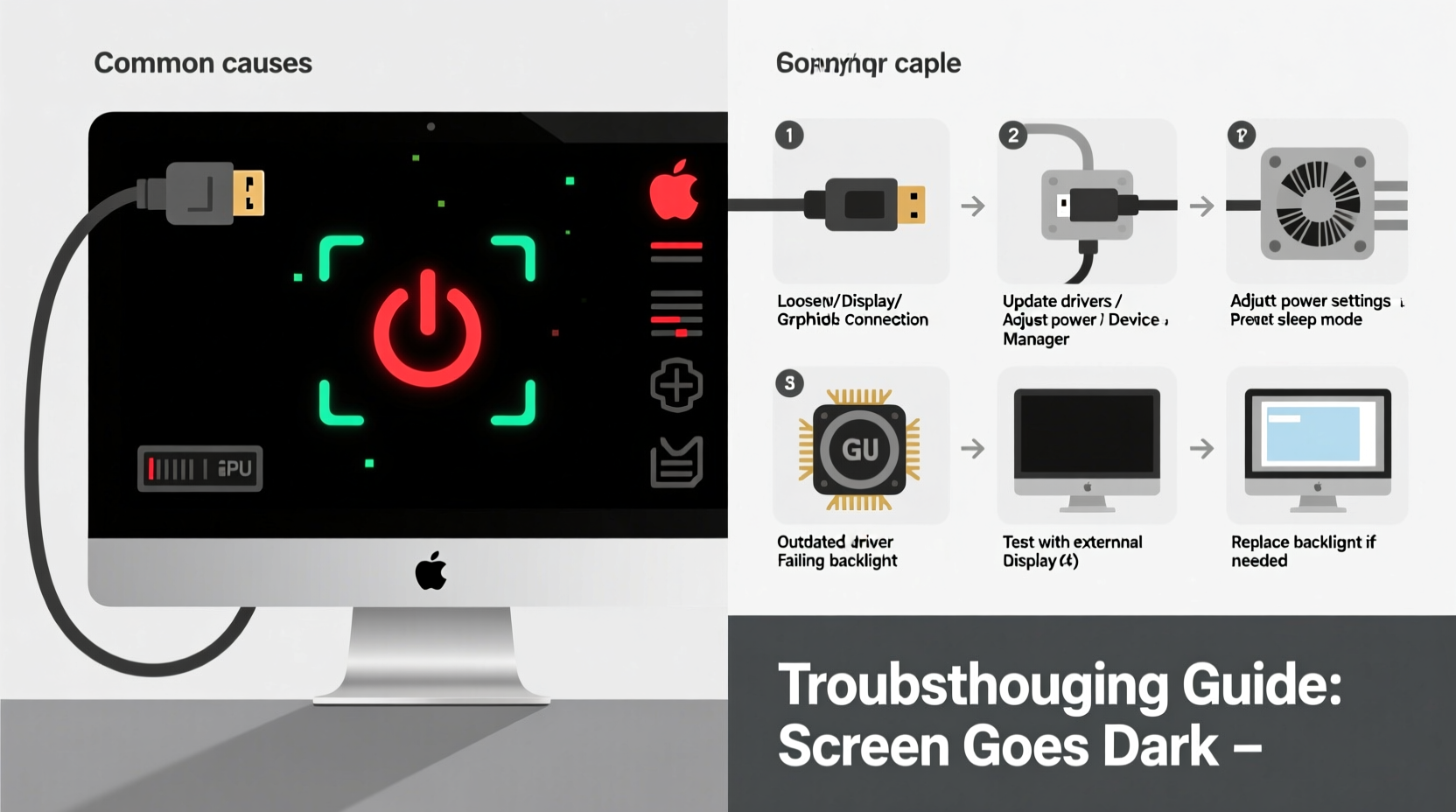
The root of a dimming or blacking-out screen often lies in one of several predictable areas: software settings, power management, hardware degradation, or connection problems. Identifying which category your situation falls into determines the best course of action.
- Power and sleep settings: Windows or macOS may be configured to turn off the display after a short period of inactivity.
- Brightness controls: Accidental key presses (like Fn + brightness down) can reduce brightness to zero.
- Failing backlight: LCD screens rely on a backlight; if it fails, the screen appears black even though the image is being rendered.
- Cable or port issues: Loose or damaged video cables (HDMI, DisplayPort, VGA) can interrupt signal transmission.
- Graphics driver problems: Outdated, corrupted, or incompatible drivers can cause display instability.
- Overheating GPU: Excessive heat in the graphics processing unit can lead to temporary shutdowns or flickering.
- Faulty inverter (older models): In older LCD monitors, inverters supply power to the backlight—failure here causes darkness.
Step-by-Step Troubleshooting Guide
Follow this systematic approach to diagnose and resolve the problem efficiently.
- Check for visible display output: Shine a flashlight on the screen. If you can see faint images, the backlight or inverter is likely faulty.
- Adjust brightness manually: Use keyboard shortcuts (e.g., Fn + F2/F3) or monitor buttons to increase brightness.
- Test with another device: Connect your monitor to a different computer or laptop to isolate whether the issue is with the display or the source.
- Inspect cables and ports: Ensure all connections are secure. Try a different cable or port if available.
- Boot into Safe Mode: This helps determine if third-party drivers or software are causing the blackout.
- Update or roll back graphics drivers: Visit the manufacturer’s website (NVIDIA, AMD, Intel) to download the latest compatible driver.
- Reset power settings: Restore default power plans in your operating system to eliminate aggressive sleep modes.
Software vs. Hardware: How to Tell the Difference
Distinguishing between software glitches and physical hardware failure is critical to avoid unnecessary repairs or replacements.
| Indicator | Software Issue | Hardware Issue |
|---|---|---|
| Screen turns black but wakes with input | ✔ Likely | ✘ Unlikely |
| Faint image visible under light | ✘ No | ✔ Yes (backlight failure) |
| Issue persists across multiple devices | ✘ No | ✔ Yes |
| Black screen only during high GPU load | ✔ Possible driver crash | ✔ Possible overheating |
| No display on boot (no BIOS screen) | ✘ Rare | ✔ Likely hardware fault |
Real-World Example: Office Worker Recovers from Daily Blackouts
Sarah, a project manager using a three-year-old desktop PC, began experiencing random screen blackouts during video calls. Initially, she assumed her monitor was failing. After testing it with her laptop—where the display worked perfectly—she realized the issue was with her desktop. She checked Event Viewer and found repeated graphics driver crashes. Updating her NVIDIA driver from version 472.39 to 511.79 resolved the instability. The blackouts stopped immediately, saving her from an unnecessary monitor replacement.
“More than half of ‘dead screen’ reports we see are actually driver or configuration issues—not hardware failure.” — David Lin, Senior Desktop Support Technician at TechAid Solutions
Essential Fix Checklist
Use this checklist to methodically address the most common causes:
- ✅ Confirm the monitor power light is on (solid or blinking)
- ✅ Press brightness up keys or use monitor OSD menu
- ✅ Verify the correct input source is selected (e.g., HDMI 1 vs. DP)
- ✅ Check that power and video cables are securely connected
- ✅ Test with a known-good cable or alternate port
- ✅ Boot into Safe Mode and observe display behavior
- ✅ Update or reinstall graphics drivers via Device Manager or manufacturer site
- ✅ Disable adaptive brightness and aggressive sleep settings
- ✅ Monitor internal temperatures using tools like HWMonitor or Core Temp
- ✅ Reset BIOS/UEFI settings to default if no display appears at startup
Advanced Fixes for Persistent Problems
If basic troubleshooting doesn’t resolve the issue, consider these deeper interventions.
Replace the inverter (for older CCFL-backlit monitors): If your monitor uses cold cathode fluorescent lighting (common in pre-LED displays), a failed inverter board prevents the backlight from turning on. Replacement inverters can be ordered online and installed with basic screwdrivers.
Reflow or replace GPU (laptops/desktops): In some cases, solder joints on the GPU degrade due to thermal cycling. While reflowing is a temporary fix, replacing the GPU or motherboard may be necessary for long-term reliability.
Disable adaptive brightness in Windows: Navigate to Settings > System > Power & sleep > Additional power settings > Change plan settings > Change advanced power settings. Expand \"Display\" and disable \"Enable adaptive brightness.\"
FAQ: Common Questions Answered
Why does my screen go black after a few seconds?
This is often due to a failing backlight, incorrect power settings, or a graphics driver crash. If the screen briefly shows the BIOS or login screen before going dark, suspect driver or OS-level issues. If it's black from power-on, the problem may be hardware-related.
Can a virus make my screen go dark?
Directly, no. However, malware can corrupt system files or drivers that control display output, leading to instability. Run a full antivirus scan if you suspect malicious software, especially if accompanied by unusual system behavior.
Is it worth repairing a monitor with a dead backlight?
For older or low-cost monitors, replacement is usually more economical. For high-end or large-format displays, replacing the backlight LED strip or inverter can cost $30–$80 in parts and is feasible for users comfortable with disassembly.
Conclusion: Take Control of Your Display Stability
A screen that keeps going dark doesn’t have to derail your productivity or lead to costly replacements. Most causes are diagnosable and fixable with patience and the right knowledge. Start with simple checks—cables, brightness, and power settings—before moving to driver updates and hardware tests. By understanding the underlying mechanisms, you gain control over your equipment and extend its usable life.




 浙公网安备
33010002000092号
浙公网安备
33010002000092号 浙B2-20120091-4
Comments
No comments yet. Why don't you start the discussion?