
If your contacts aren’t appearing on your Mac—or worse, changes you make aren’t reflecting across your iPhone, iPad, or iCloud—then you’re dealing with a sync issue that disrupts productivity and communication. While Apple’s ecosystem is designed for seamless integration, contact sync failures are surprisingly common. The good news: most problems have straightforward solutions. This guide walks through the root causes and delivers actionable fixes to get your contacts syncing reliably again.
Understanding How Contact Sync Works on macOS
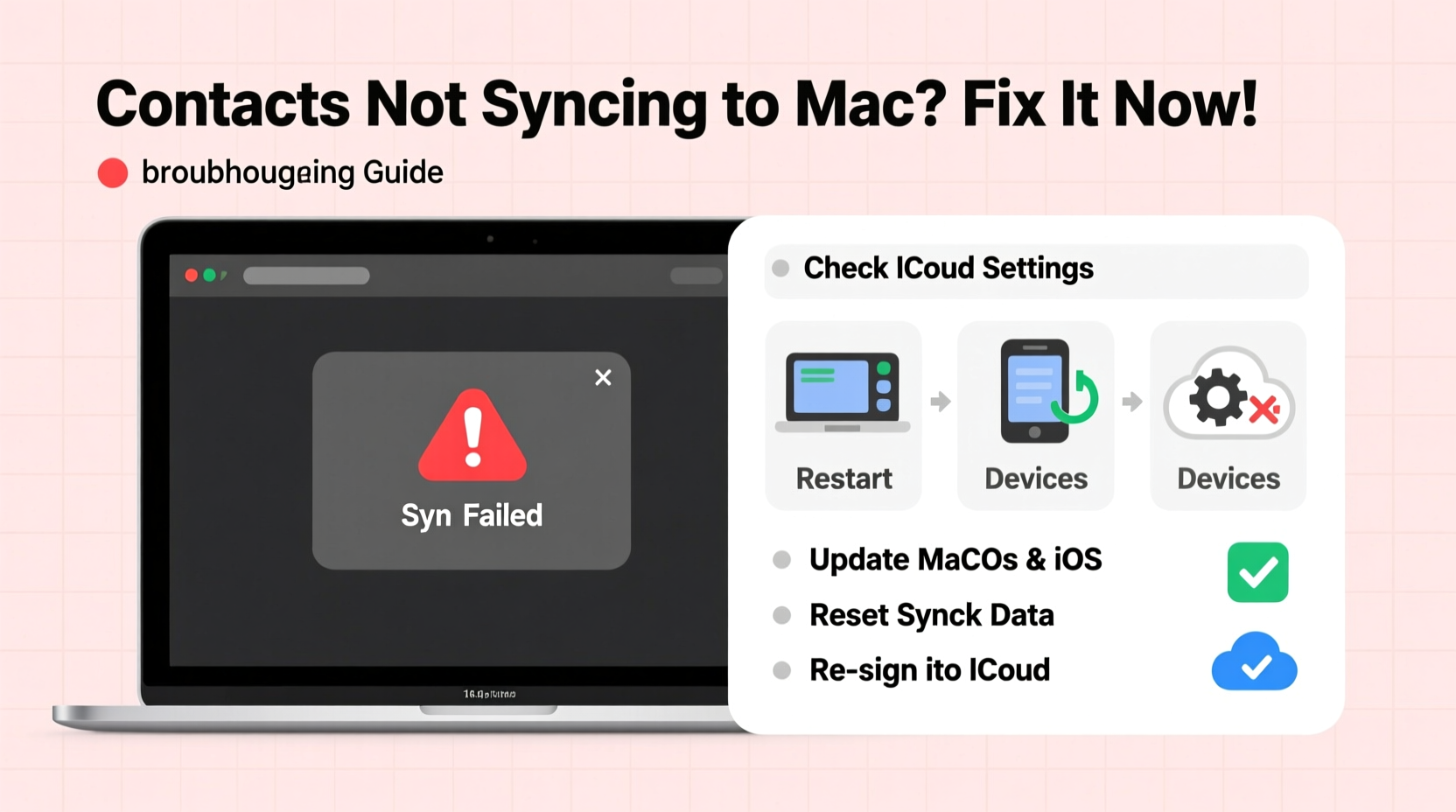
Contact synchronization on Mac relies primarily on iCloud, though some users may still use legacy services like Google or Exchange. When properly configured, any change made to a contact on one device—adding a phone number, editing an email, or creating a new entry—should instantly appear across all linked devices.
iCloud acts as the central hub. Contacts are stored in the cloud and pulled down by each device during regular sync intervals. If this process breaks at any point—due to network issues, incorrect settings, or corrupted data—the sync halts, leading to missing or outdated entries.
“Sync reliability depends on consistent authentication, stable internet, and correct account configuration. One misstep in any of these areas can halt contact updates.” — Jordan Lee, Apple Support Specialist with 12+ years of experience
Step-by-Step Troubleshooting Guide
Follow this structured approach to diagnose and resolve contact sync issues. Start with basic checks before moving to advanced fixes.
1. Verify Internet Connection and System Status
Synchronization requires a stable internet connection. First, confirm:
- You’re connected to Wi-Fi or Ethernet.
- The network allows outbound connections (no firewall blocking).
- iCloud services are operational. Check Apple’s System Status page for any outages affecting iCloud or Contacts.
2. Confirm iCloud Contacts Are Enabled
The most frequent cause of missing contacts is accidentally disabling iCloud sync for Contacts. To verify:
- Open System Settings (Ventura and later) or System Preferences (older versions).
- Click on your Apple ID (top of the sidebar).
- Select iCloud from the list.
- Ensure the toggle next to Contacts is turned on.
If it was off, turning it on will prompt a merge dialog. Choose “Merge” to combine local contacts with those in iCloud.
3. Sign Out and Back Into iCloud
If Contacts is enabled but still not syncing, sign out completely and re-authenticate:
- Go to Apple ID > iCloud.
- Scroll down and click Sign Out.
- When prompted, choose to keep a copy of contacts on your Mac (important for backup).
- Restart your Mac.
- Sign back into your Apple ID and re-enable Contacts under iCloud settings.
This refreshes authentication tokens and forces a full resync.
4. Reset the Sync Data on Mac
If corruption is suspected, resetting sync data can help. This doesn’t delete contacts but clears local sync caches:
- Quit the Contacts app.
- Open Finder and press Cmd + Shift + G.
- Type
~/Library/Application Support/AddressBookand press Enter. - Move all files in this folder to a temporary backup location on your desktop.
- Relaunch the Contacts app. It will rebuild the local database and initiate a fresh sync.
Note: Only do this if other methods fail. Always back up the folder first.
Common Sync Conflicts and Account Overlaps
Using multiple accounts—such as iCloud, Gmail, and Microsoft Exchange—can lead to sync confusion. Contacts may be assigned to the wrong account, causing them to disappear when switching devices.
Check Contact Account Assignment
To verify where a contact is stored:
- Open the Contacts app.
- Select a missing or inconsistent contact.
- Press Cmd + I or click “Edit.”
- Look at the top of the edit window: it shows which account (iCloud, On My Mac, Gmail, etc.) owns the contact.
If contacts are set to “On My Mac,” they won’t sync to other devices. Change the account assignment manually by dragging contacts into the iCloud group in the sidebar.
Disable Non-Essential Accounts Temporarily
To isolate the problem:
- Go to Apple ID > iCloud and disable Contacts temporarily.
- Then go to Mail, Contacts & Calendars settings and disable non-iCloud accounts one by one.
- Re-enable only iCloud Contacts and test syncing.
This helps determine if another service is interfering.
Troubleshooting Checklist
✅ Contact Sync Fix Checklist
- Check internet connection and iCloud system status.
- Verify iCloud Contacts toggle is ON in System Settings.
- Ensure you’re signed into the correct Apple ID.
- Restart your Mac and reopen Contacts app.
- Check date and time settings—incorrect time can break SSL handshakes.
- Review contact account assignment (avoid “On My Mac”).
- Sign out of iCloud and sign back in.
- Reset AddressBook cache if needed.
- Update macOS to the latest version.
- Contact Apple Support if sync still fails after all steps.
Do’s and Don’ts of Contact Sync Management
| Do’s | Don’ts |
|---|---|
| Use iCloud as your primary contact account for Apple devices. | Store important contacts solely on “On My Mac.” |
| Regularly update macOS to ensure compatibility. | Ignore sync warnings in Contacts or System Settings. |
| Backup contacts before making major account changes. | Enable multiple contact sync services without reviewing conflict risks. |
| Verify account assignments after adding new contacts. | Assume sync happens instantly—allow up to 5 minutes after changes. |
Real-World Example: Sarah’s Missing Client Contacts
Sarah, a freelance designer, noticed her client contacts vanished from her MacBook after upgrading to macOS Sonoma. Her iPhone still had them, but no new entries were transferring to her laptop. She followed these steps:
First, she confirmed iCloud Contacts was enabled—yes. Then she checked her Apple ID: same on both devices. Next, she discovered many contacts were labeled “On My Mac.” These were entries she’d added directly on her laptop months ago, never realizing they weren’t syncing.
She dragged all critical contacts into the iCloud group, waited ten minutes, and verified they appeared on her iPhone. To prevent future issues, she disabled the “On My Mac” option in Contacts preferences and now adds all clients via her iPhone, ensuring immediate cloud sync.
Within 20 minutes, her sync was restored and reliable.
Frequently Asked Questions
Why are my iPhone contacts not showing up on my Mac?
This usually means iCloud Contacts is disabled on the Mac or you're signed into a different Apple ID. Ensure both devices use the same Apple ID and that Contacts sync is toggled on in iCloud settings. Also, check that the contacts aren't stored locally under “On My Mac.”
Will resetting sync data delete my contacts?
No—if you’ve enabled iCloud Contacts and previously synced, your contacts are safely stored in the cloud. Resetting local sync data only clears cached files and forces a fresh download. However, always back up the AddressBook folder before proceeding.
How do I force a manual contact sync on Mac?
There’s no “sync now” button, but you can trigger a sync by toggling iCloud Contacts off and on, restarting the Contacts app, or signing out and back into iCloud. Changes typically propagate within seconds to minutes.
Conclusion: Regain Control Over Your Digital Connections
Contact sync issues are frustrating but rarely permanent. By methodically verifying account settings, eliminating conflicts, and resetting corrupted caches, most problems resolve quickly. The key is understanding where your contacts live—locally or in the cloud—and ensuring iCloud remains the central source of truth across your Apple devices.
Don’t wait for another missed call or lost client detail. Apply these fixes today, establish better contact management habits, and enjoy a seamless, synchronized digital life.




 浙公网安备
33010002000092号
浙公网安备
33010002000092号 浙B2-20120091-4
Comments
No comments yet. Why don't you start the discussion?