
When your computer slows to a crawl, programs freeze, or fans spin uncontrollably, the culprit is often a CPU running at 100%. While occasional spikes are normal, sustained maximum utilization degrades performance, increases heat, and shortens hardware lifespan. Understanding why this happens—and how to resolve it—is essential for maintaining a responsive system. This guide breaks down the most frequent causes of full CPU load and delivers practical, tested solutions.
Common Causes of 100% CPU Usage
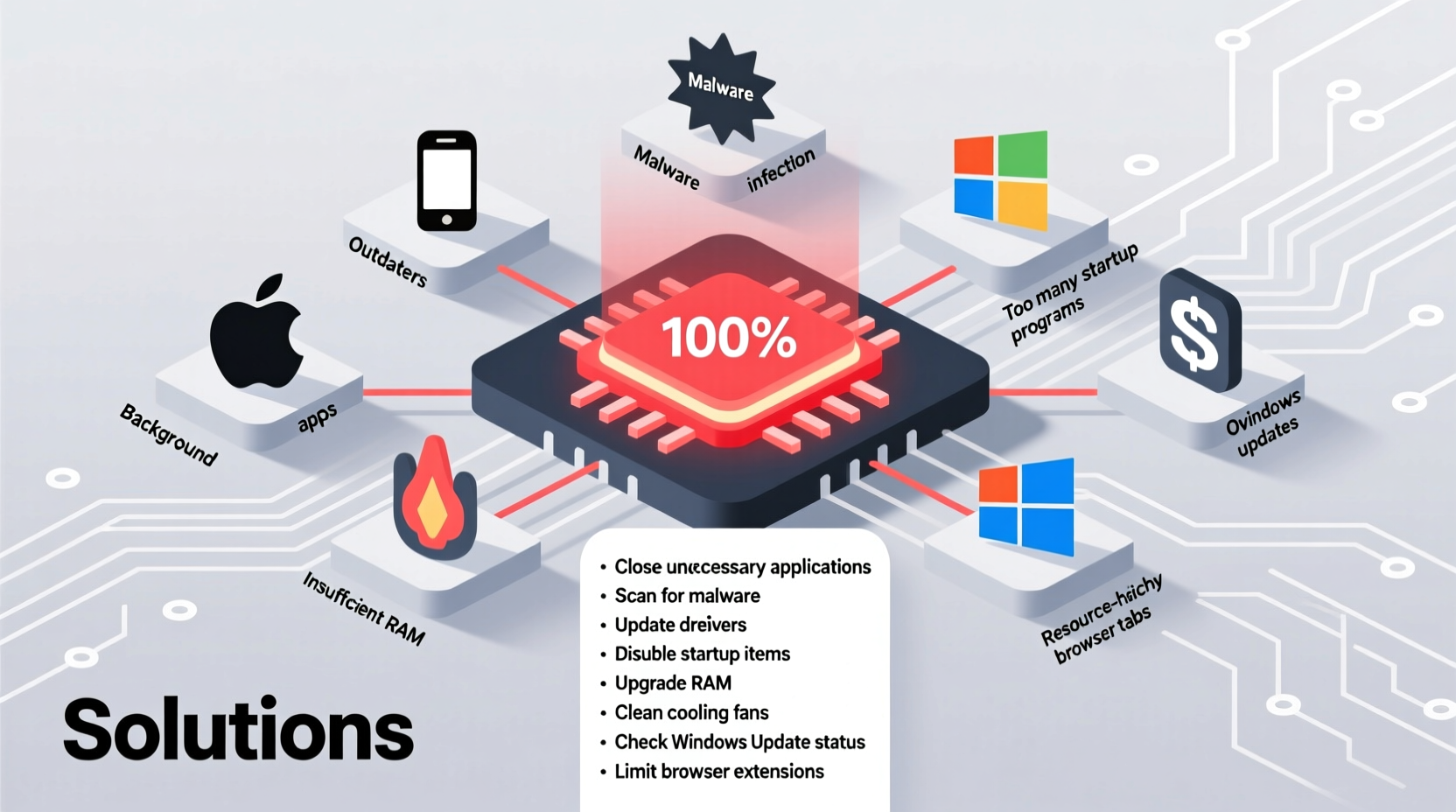
CPU overload rarely stems from a single source. More often, it’s the result of multiple processes competing for limited processing power. Identifying the root cause begins with recognizing patterns in system behavior.
- Background processes: Antivirus scans, software updates, or indexing services can consume significant CPU resources without user awareness.
- Malware or crypto-mining scripts: Malicious software often runs hidden processes designed to exploit CPU power, especially in browser-based attacks.
- Software bugs: Poorly optimized applications—particularly older or unpatched software—may enter infinite loops or fail to release system resources.
- Hardware limitations: Older CPUs or systems with low core counts struggle under modern multitasking demands.
- Driver conflicts: Outdated or incompatible drivers, especially for graphics or network adapters, can trigger excessive CPU interrupts.
Step-by-Step Diagnosis and Resolution
Resolving high CPU usage requires methodical troubleshooting. Follow this sequence to isolate and eliminate the issue efficiently.
- Open Task Manager (Windows) or Activity Monitor (macOS/Linux): Sort processes by CPU usage to identify top resource consumers.
- Check system idle time: A consistently low \"System Idle Process\" value indicates active workload. If it hovers near 0%, something is using the CPU heavily.
- End non-essential high-usage tasks: Right-click suspicious processes and select “End Task.” Observe if performance improves.
- Update or reinstall problematic software: If a specific application repeatedly spikes CPU, check for updates or reinstall it cleanly.
- Scan for malware: Run a full system scan using trusted antivirus software. Consider boot-time scans to catch root-level threats.
- Update drivers: Use Device Manager (Windows) or vendor-provided tools to ensure all drivers are current.
- Adjust power settings: On laptops, switch to “High Performance” mode temporarily to rule out throttling issues.
Real Example: The Case of the Overloaded Laptop
A freelance video editor noticed her laptop freezing during rendering. Task Manager revealed svchost.exe consuming 95% CPU. After investigation, she discovered that a third-party update service bundled with a downloaded codec was triggering constant background checks. Disabling the service through msconfig restored normal operation. This case underscores how seemingly innocuous software additions can create major performance bottlenecks.
Solutions by Operating System
Different platforms handle CPU management uniquely. Tailor your approach based on your OS.
| OS | Diagnostic Tool | Primary Fix | Advanced Option |
|---|---|---|---|
| Windows 10/11 | Task Manager / Resource Monitor | Disable startup bloatware via Settings > Apps > Startup | Use PowerShell: Get-Process | Sort CPU -desc | Select -first 5 |
| macOS | Activity Monitor | Quit apps using Force Quit (Cmd+Option+Esc) | Check Console logs for kernel_task spikes due to thermal throttling |
| Linux | htop / top | Kill runaway processes with kill -9 [PID] |
Use tuned-adm for CPU performance profiles |
“Over 60% of high CPU cases we see stem from unnecessary background services. Users install software without reviewing what runs at startup.” — Raj Mehta, Senior Systems Engineer at TechSupport Pro
Preventive Maintenance Checklist
Proactive habits reduce the risk of future CPU overloads. Incorporate these actions into your monthly routine.
- Review startup programs and disable non-essential entries
- Run a full antivirus and anti-malware scan
- Update operating system and all installed software
- Clear temporary files and cache (use Disk Cleanup or BleachBit)
- Monitor CPU temperature; sustained temps above 85°C indicate cooling issues
- Reboot the system to clear memory leaks and stuck processes
When Hardware Is the Limiting Factor
Sometimes, no amount of software tuning can overcome outdated hardware. If your CPU consistently hits 100% during everyday tasks like web browsing or document editing, consider these factors:
- CPU age: Processors older than 5–6 years lack modern efficiency features and multi-threading capabilities.
- Thermal throttling: Dust-clogged fans or degraded thermal paste reduce cooling efficiency, forcing the CPU to slow down or work harder.
- Insufficient RAM: Low memory forces the system to rely on swap space, increasing CPU overhead for memory management.
Upgrading to an SSD, adding RAM, or replacing the CPU (if socket-compatible) can dramatically improve responsiveness. For laptops, external cooling pads may help manage temperatures during intensive use.
Frequently Asked Questions
Is 100% CPU usage dangerous?
Occasional spikes are normal and not harmful. However, sustained 100% usage can lead to overheating, reduced component lifespan, and system instability. It should be investigated if it persists beyond short bursts during heavy workloads.
Why does my CPU run at 100% when nothing is open?
This usually points to hidden background activity. Common culprits include Windows Update, antivirus scans, telemetry services, or malware. Use Task Manager to sort by CPU and look for non-obvious processes like Runtime Broker, Service Host, or unfamiliar executables.
Can browser tabs cause high CPU usage?
Yes. Modern websites use JavaScript intensively. Multiple tabs, autoplay videos, or ad-heavy pages can collectively max out CPU. Use browser task managers (available in Chrome and Edge) to identify and close resource-heavy tabs.
Final Steps Toward a Smoother System
High CPU usage isn’t just an annoyance—it’s a signal that your system is under undue stress. Whether caused by software inefficiencies, malicious code, or aging hardware, the solution lies in systematic diagnosis and informed action. Start by monitoring your system regularly, eliminate unnecessary background loads, and keep software updated. Over time, these habits will not only reduce CPU strain but also extend the life and usability of your machine.




 浙公网安备
33010002000092号
浙公网安备
33010002000092号 浙B2-20120091-4
Comments
No comments yet. Why don't you start the discussion?