
In the world of business communication, first impressions matter. A well-formatted document doesn’t just convey information—it signals attention to detail, credibility, and professionalism. One often-overlooked element that can elevate your documents is the strategic use of borders. Far from being outdated or excessive, modern border design in Microsoft Word can frame content elegantly, guide the reader’s eye, and subtly reinforce brand identity. When used thoughtfully, borders add structure without distraction.
This guide explores inventive yet practical methods to customize borders in Word—methods that go beyond the default line options and transform standard pages into polished, visually cohesive pieces suitable for executive summaries, client proposals, internal memos, and more.
1. Beyond the Basic Border: Unlocking Word’s Built-in Tools
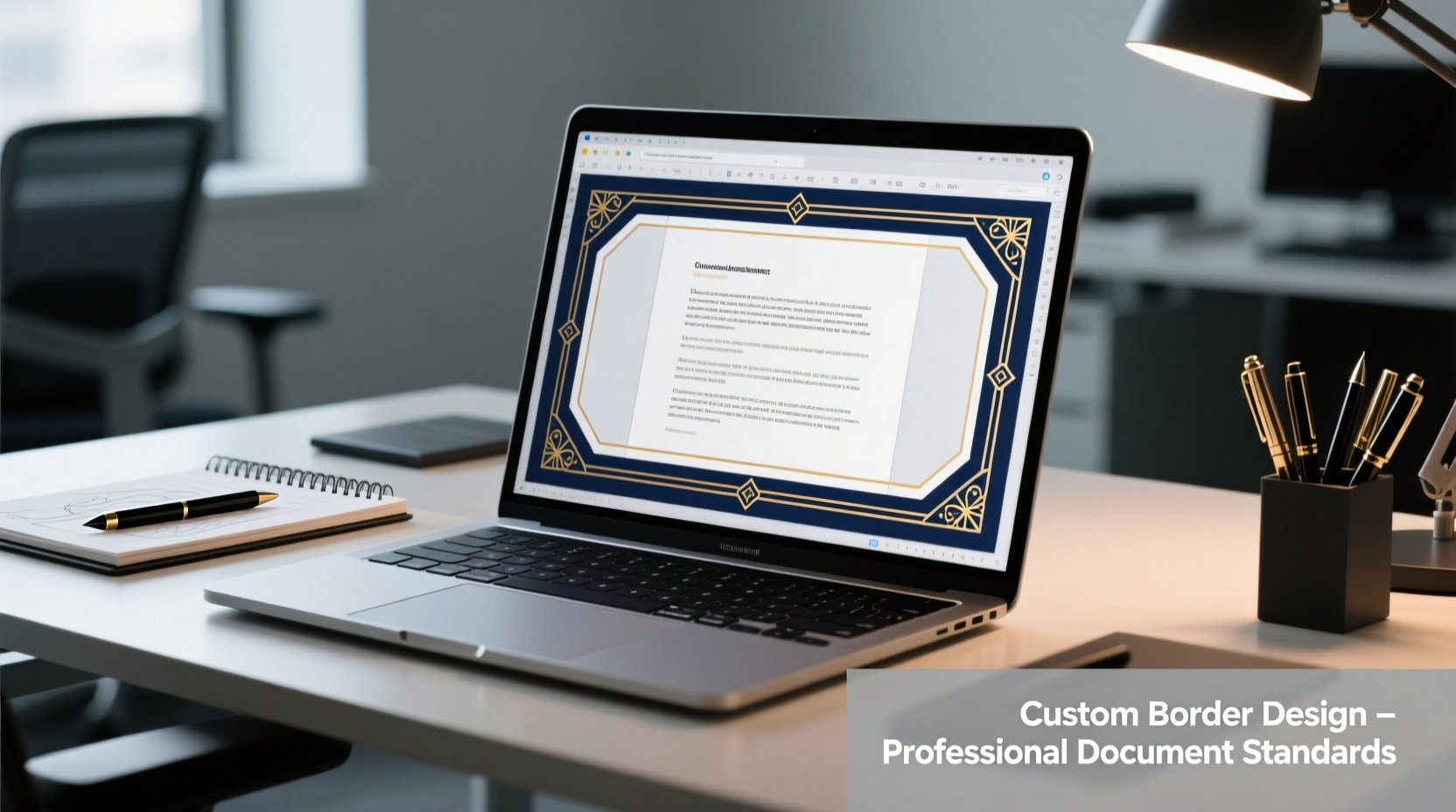
Microsoft Word offers robust border functionality through its Page Borders and Borders and Shading tools. Accessible via the Design tab (in newer versions) or the Paragraph group, these features allow users to apply borders to entire pages, specific paragraphs, tables, or text boxes.
To access page-level borders:
- Navigate to the Design tab.
- Click Page Borders.
- Choose from preset styles like shadow, boxed, or 3-D, or select Custom to personalize thickness, color, and art.
For paragraph-level control, highlight the desired text, right-click, select Borders and Shading, then choose which sides to apply (top, bottom, left, right). This is ideal for callout sections, quotes, or key takeaways.
2. Creative Border Techniques for Professional Impact
While basic lines serve a purpose, creativity lies in how you manipulate available tools. Here are four advanced techniques:
Use Artistic Lines and Dotted Patterns
Word includes decorative border art such as dots, dashes, stars, trees, and even holiday motifs. While festive designs should be avoided in formal settings, minimalist patterns like alternating dots and dashes or fine zigzags can add sophistication when used sparingly.
To apply:
- In the Borders and Shading dialog box, switch to the Art dropdown.
- Select a subtle pattern (e.g., “Dot,” “Dashed small circle”).
- Adjust width between 0.5–1.5 pt for balance.
Incorporate Brand Colors Strategically
Replace black or gray borders with your organization’s primary brand color. A navy blue or deep burgundy border along the top and bottom margins can reinforce identity while maintaining formality.
“Consistency in visual elements—even minor ones like borders—builds subconscious trust with clients.” — Laura Nguyen, Corporate Communications Director
Create Frameless Elegance with Marginal Rules
Instead of boxing the entire page, insert a thin vertical rule in the left or right margin. This mimics high-end report design seen in consulting firms and financial institutions.
To do this:
- Insert a one-cell table with no fill and no text.
- Set width to 0.1” and position it in the left margin using table properties.
- Apply a solid border only to the right edge.
- Align the table vertically to span the page height.
Leverage Text Boxes as Design Containers
Wrap important sections—such as disclaimers, executive summaries, or project timelines—in styled text boxes with custom borders. Modify corner radius, shadow effects, and border weight to achieve a clean, modern look.
3. Do’s and Don’ts of Professional Border Use
| Do | Don’t |
|---|---|
| Use consistent border styles across all company documents | Mix multiple border types on a single page |
| Limit decorative art to one border per document (e.g., top only) | Use bright colors or cartoonish patterns in formal reports |
| Ensure borders don’t interfere with page numbers or headers | Apply thick borders (over 3 pt) unless part of a deliberate cover design |
| Test print output to verify border clarity | Assume digital appearance translates perfectly to printed format |
4. Real-World Example: Transforming a Client Proposal
A mid-sized marketing agency was preparing a proposal for a healthcare client. The initial draft used plain white pages with minimal formatting. To enhance professionalism, the team applied a refined border strategy:
- A 1 pt navy border framed each page, echoing the client’s logo color.
- The cover page featured a top-only dotted border in silver-gray, adding elegance without clutter.
- Key deliverables were enclosed in rounded-corner text boxes with a 0.5 pt border and soft beige fill.
The result? The client remarked on the document’s “cohesive and trustworthy” appearance. Internal feedback confirmed that the subtle visual hierarchy helped stakeholders quickly identify critical sections.
5. Step-by-Step: Build a Custom Branded Border Template
Create a reusable template that ensures consistency across all team documents:
- Open a new blank document and set standard margins (1 inch).
- Go to Design > Page Borders.
- Select Custom, then choose a solid line style.
- Set width to 1 pt and color to your brand’s primary hue.
- Under Preview, click the top and bottom icons to apply only horizontal borders.
- Add a header with a matching thin line beneath the title using the paragraph border tool.
- Save as a .dotx template file: File > Save As > Word Template.
- Name it “Professional_Border_Template.dotx” and store in the Templates folder.
Now, any new document based on this template will automatically include your signature border style—saving time and ensuring brand alignment.
FAQ
Can I apply different borders to different sections of the same document?
Yes. Use section breaks (Layout > Breaks > Next Page) to isolate parts of the document. Then, in the Page Borders menu, ensure “This section” is selected before applying unique borders.
Will custom borders print correctly on all printers?
Most modern printers handle borders well, but very thin lines (<0.5 pt) may not appear on lower-resolution devices. Always test print one page before finalizing large jobs.
Are borders appropriate for legal or academic documents?
Context matters. Conservative fields may prefer no borders at all. If used, keep them minimal—thin lines in black or dark gray, limited to outer edges. Avoid decorative art in scholarly or legal submissions unless required by style guides.
Final Thoughts: Elevate Your Documents with Intentional Design
A border is more than a line—it’s a framing device, a signal of care, and an extension of professional standards. When customized wisely, borders in Word become silent ambassadors of quality. They don’t shout; they whisper competence.
Start small: apply a single refined border to your next report. Experiment with subtlety. Refine based on feedback. Over time, develop a library of templates that reflect your personal or organizational aesthetic.




 浙公网安备
33010002000092号
浙公网安备
33010002000092号 浙B2-20120091-4
Comments
No comments yet. Why don't you start the discussion?