
Turning a photograph into a circular shape is more than just a visual trend—it’s a design choice that adds elegance, focus, and modernity. While most people rely on basic cropping tools in apps like Instagram or Canva, there are far more advanced and creative methods to achieve a polished circular image. These techniques offer greater control, allow for layered effects, and integrate seamlessly into web and print designs. Whether you're crafting a profile photo, designing a digital portfolio, or preparing assets for a website, mastering these alternative approaches elevates your work from ordinary to professional.
Why Move Beyond Basic Cropping?
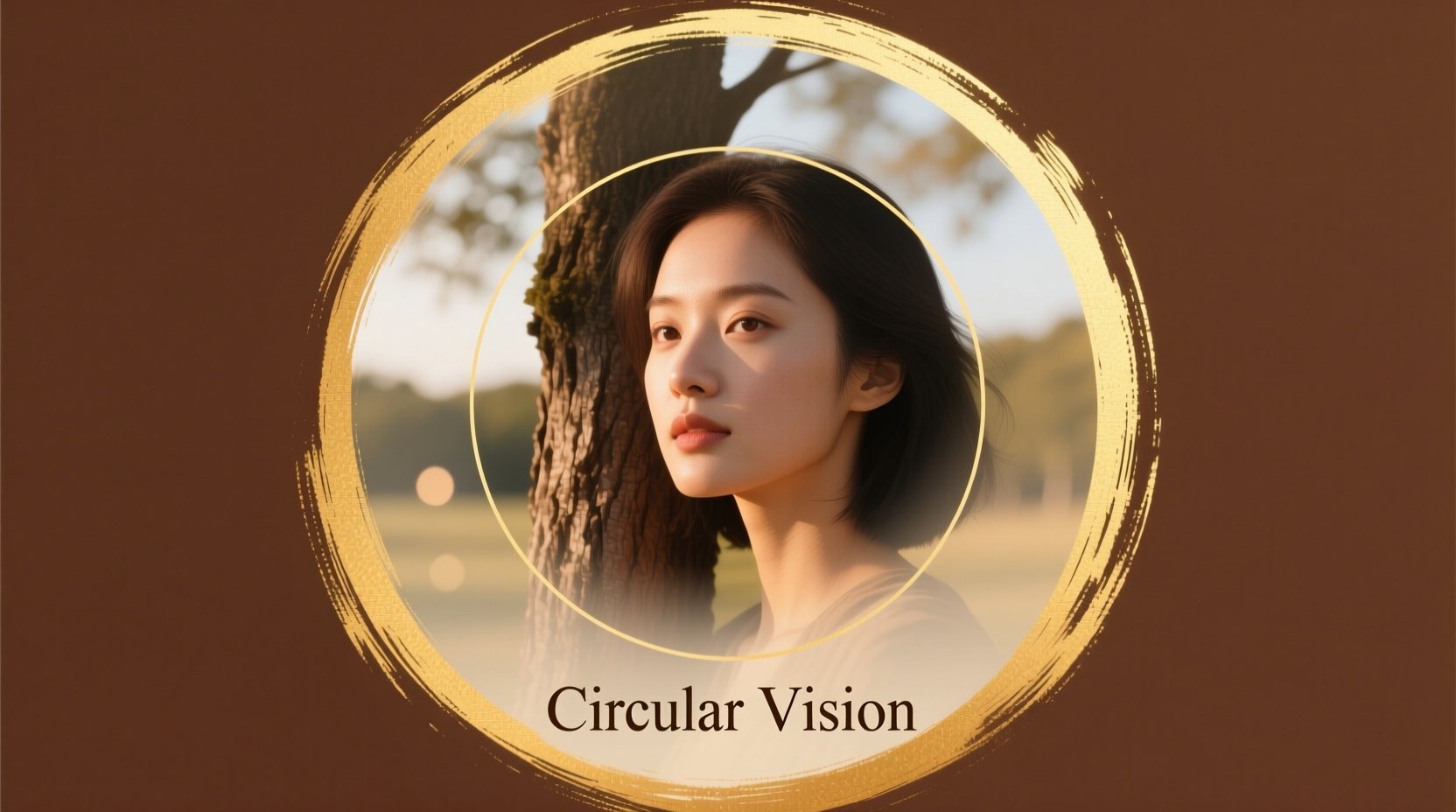
Basic cropping tools limit your flexibility. They often result in hard edges, pixelation, or unwanted background remnants. More importantly, they don’t support transparency, animation, or responsive behavior—key features in modern digital design. By using advanced techniques, you can create circular images with soft drop shadows, borders, hover effects, and even animated transitions, especially when working in web environments.
Designers and developers who understand these methods gain the ability to produce dynamic visuals that adapt across platforms while maintaining brand consistency and aesthetic precision.
Step-by-Step: Using Layer Masks in Photoshop
Adobe Photoshop offers powerful tools for creating circular images with full editing control. Instead of permanently cropping, use a layer mask to non-destructively shape your image.
- Open your image in Photoshop and unlock the background layer if necessary.
- Select the Elliptical Marquee Tool (M) and hold Shift while dragging to create a perfect circle.
- With the selection active, click the Add Layer Mask button at the bottom of the Layers panel.
- The outside of the circle will now be hidden, but the original pixels remain intact beneath the mask.
- To refine the edge, double-click the mask and adjust Feather settings for a softer border.
- Add a new layer behind the masked image to insert a colored background or shadow effect.
Using CSS for Circular Images on Websites
For web developers, CSS provides a clean, responsive way to display circular images without altering the original file. This method is ideal for profile pictures, team bios, or social media widgets.
The key property is border-radius: 50%, which transforms a square image into a perfect circle when applied correctly.
.circle-img {
  width: 200px;
  height: 200px;
  border-radius: 50%;
  object-fit: cover;
  box-shadow: 0 4px 8px rgba(0,0,0,0.1);
}
Ensure the image container is square (equal width and height) and use object-fit: cover to maintain aspect ratio and prevent distortion. You can also add transitions for interactive effects:
.circle-img:hover {
  transform: scale(1.05);
  transition: transform 0.3s ease;
}
“We rarely crop images directly anymore. With CSS masking, we preserve original assets and apply shapes dynamically based on layout needs.” — Lena Patel, Front-End Developer & UI Designer
Creating Circular Images with SVG Clipping Paths
Scalable Vector Graphics (SVG) offer pixel-perfect circular images that remain sharp at any size. Unlike raster-based cropping, SVG clipping allows for complex shapes, animations, and integration with other vector elements.
Here’s how to apply an SVG clip path to an image:
- Create an SVG element with a defined circle:
<svg height=\"0\">
  <defs>
    <clipPath id=\"circleClip\">
      <circle cx=\"100\" cy=\"100\" r=\"100\" />
    </clipPath>
  </defs>
</svg>- Apply the clip path to your image using inline or external CSS:
<img src=\"photo.jpg\" style=\"clip-path: url(#circleClip); width: 200px; height: 200px;\" />This method supports responsive scaling and works across modern browsers. It's particularly useful for animated interfaces or when combining photos with vector illustrations.
Mini Case Study: Redesigning a Portfolio Website
Jamal Thompson, a freelance photographer, wanted to update his online portfolio with a modern grid of circular portraits. He initially used basic cropped JPEGs, but noticed blurry edges on high-resolution screens and difficulty aligning them responsively.
After switching to CSS-based circular images, he achieved crisp, scalable results across devices. He added subtle hover zoom effects using transform and improved loading times by serving original images through efficient styling rather than multiple cropped versions.
The change not only enhanced visual quality but also reduced his asset management workload—proving that smarter techniques yield both aesthetic and practical benefits.
Comparison Table: Techniques at a Glance
| Method | Best For | Pros | Cons |
|---|---|---|---|
| Basic Cropping | Quick social media posts | Simple, fast, widely supported | Permanent edit, no transparency, low flexibility |
| Photoshop Layer Mask | Print, branding, high-res outputs | Non-destructive, editable, supports effects | Requires software, not web-responsive |
| CSS Border-Radius | Websites, blogs, dashboards | Responsive, lightweight, interactive | Only works with square images, browser-dependent |
| SVG Clipping | Animations, vector designs, scalable UI | Resolution-independent, animatable, precise | Steeper learning curve, larger code overhead |
Frequently Asked Questions
Can I make a circular image with a transparent background?
Yes. When using Photoshop, save the file as PNG with transparency enabled after applying a layer mask. In web design, ensure the surrounding HTML/CSS doesn’t impose a background color. SVG and CSS methods naturally support transparency.
Why does my circular image look oval in the browser?
This happens when the image dimensions aren’t perfectly square. Ensure both width and height are equal and set object-fit: cover in CSS to maintain proportions. Avoid relying solely on CSS to resize rectangular images into circles.
Is it better to crop in software or use CSS?
It depends on context. Use software cropping for final print assets or when sharing standalone images. Use CSS for websites where responsiveness, interactivity, and performance matter. Never sacrifice image quality—always start with a high-resolution square source.
Checklist: Creating Professional Circular Images
- ✅ Start with a high-resolution, square-format image
- ✅ Choose the right tool: Photoshop for static design, CSS/SVG for web
- ✅ Use non-destructive methods (masks, clipping) whenever possible
- ✅ Test responsiveness on mobile and desktop screens
- ✅ Add subtle enhancements like shadows or borders for depth
- ✅ Optimize file size without compromising clarity
- ✅ Preserve original files for future edits
Conclusion
Making a picture circular doesn’t have to end with a simple crop. By leveraging tools like layer masks, CSS properties, and SVG clipping paths, you unlock creative possibilities that enhance both form and function. These techniques give you precision, scalability, and design versatility—whether you’re building a personal brand, developing a website, or crafting visual content.




 浙公网安备
33010002000092号
浙公网安备
33010002000092号 浙B2-20120091-4
Comments
No comments yet. Why don't you start the discussion?