
In a world saturated with visual content, standing out means doing more than just posting a photo. Adding text to images—whether for social media, marketing, or personal projects—can dramatically increase engagement and clarity. But poorly executed text can ruin even the most stunning image. The key is balance: combining readability, aesthetics, and intention. This guide explores practical, creative strategies to make your image text not only visible but memorable.
Choose the Right Font for Maximum Impact
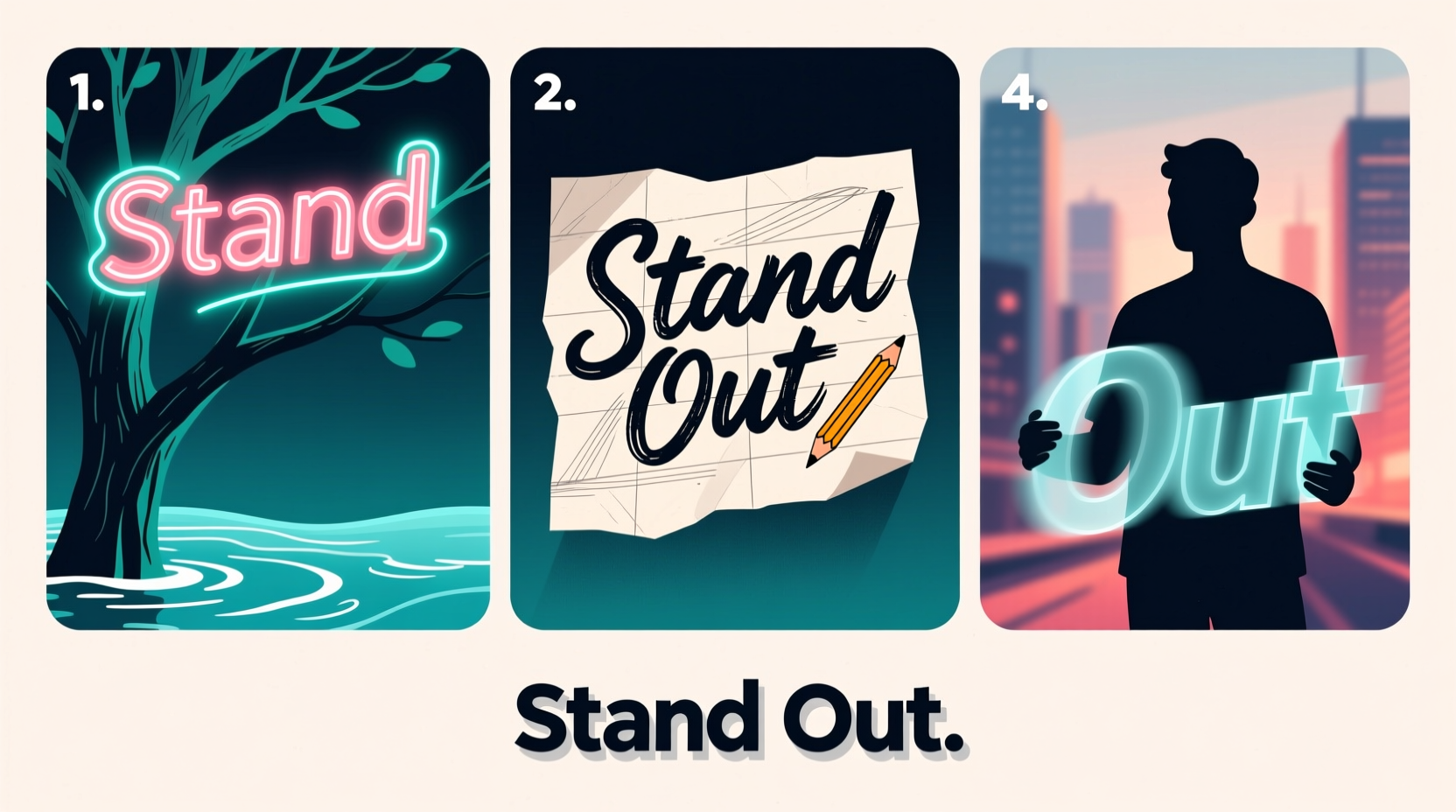
Typography plays a crucial role in how viewers perceive your message. A mismatched font can distract or confuse, while the right one reinforces tone and intent. For example, a bold sans-serif font works well for modern, energetic messages, while a script font might suit romantic or artistic themes—but use it sparingly.
Consider these principles when selecting fonts:
- Legibility first: If the text is hard to read, it defeats the purpose.
- Limit to two fonts: Pair a decorative headline font with a clean body font for contrast without clutter.
- Match the mood: A playful meme needs a different font than a professional quote graphic.
Use Contrast to Make Text Pop
Text must be clearly distinguishable from the background. Low contrast—like light gray text on a white sky—makes reading frustrating. High contrast ensures instant comprehension, especially on mobile devices.
To improve contrast:
- Add a semi-transparent overlay behind the text area (black at 50% opacity works well).
- Apply a subtle stroke or shadow to the text to separate it from complex backgrounds.
- Avoid placing text over busy parts of an image (e.g., faces, patterns).
“Contrast isn’t just visual—it’s psychological. It directs attention and creates hierarchy.” — Lena Torres, Visual Communication Designer
Strategic Placement: Where to Put Text on Images
Positioning text correctly improves both aesthetics and function. The rule of thirds—a principle from photography—can guide placement. Divide your image into nine equal sections using two horizontal and two vertical lines. Place important text along these lines or at their intersections for natural visual flow.
Common effective placements include:
- Top third: Ideal for headlines or attention-grabbing statements.
- Center: Best for short, powerful messages like quotes or calls to action.
- Bottom third: Most common for captions, hashtags, or secondary info.
| Placement | Best For | Avoid When |
|---|---|---|
| Top | Headlines, announcements | Image has strong top elements (e.g., sky, ceiling) |
| Center | Quotes, slogans | Focal point of image is central (e.g., person’s face) |
| Bottom | Captions, CTAs, credits | Important details are at the base (e.g., horizon, product label) |
Enhance Readability with Backgrounds and Effects
Sometimes, no amount of contrast fixes a problematic background. In such cases, use design elements to create readable zones:
- Text boxes: Subtle rectangles (rounded or sharp) behind text improve legibility.
- Gradient overlays: Dark-to-transparent gradients at the bottom allow text to stand out without covering the entire image.
- Drop shadows: Soft shadows (offset 2–3px, blur 2px) lift text off the background.
- Stroke outlines: A thin black or white border around letters helps them stand out against variable backgrounds.
Step-by-Step Guide: Adding Text That Stands Out
Follow this sequence to consistently produce high-quality text-on-image content:
- Select your image: Choose one with space for text and a clear focal point.
- Determine the message: Be concise—one sentence is often enough.
- Pick a font pairing: One decorative, one simple (e.g., Montserrat + Playfair Display).
- Apply contrast: Use overlays, strokes, or shadows as needed.
- Position strategically: Align text using the rule of thirds or center for impact.
- Review on mobile: Test how it looks on small screens—most users view content there.
- Export appropriately: Save in web-friendly formats (JPEG or PNG) at optimal resolution (1080px width for social media).
Real Example: Transforming a Dull Social Post
Sarah runs a wellness blog and shared a beautiful sunrise photo with the caption “Start your day with intention.” She initially placed light yellow text in the center, blending into the bright sky. Engagement was low.
She revised it: added a dark gradient overlay at the bottom, moved the text there in white Montserrat bold, and included a thin black stroke. She also added a smaller line underneath: “Mindful mornings begin here.”
The second version received 3x more shares. The improved contrast and layered messaging made it both readable and emotionally resonant.
Top Tools for Adding Text to Images
You don’t need advanced skills to create great text-on-image content. These tools offer user-friendly interfaces and professional results:
- Canva: Drag-and-drop editor with templates, fonts, and effects.
- Adobe Express: Free tool with AI-powered suggestions and brand kits.
- Figma: Great for custom designs and collaborative projects.
- Photoshop: Full control for advanced users; ideal for precise typography.
- Visme: Excellent for infographics and data-driven visuals with text.
Checklist: Before You Publish
Run through this checklist to ensure your text-enhanced image is ready for public viewing:
- ✅ Is the main message readable within 3 seconds?
- ✅ Does the text contrast clearly with the background?
- ✅ Is the font appropriate for the tone and audience?
- ✅ Is the placement aligned with design principles (e.g., rule of thirds)?
- ✅ Have you tested it on a phone screen?
- ✅ Are colors consistent with your brand or theme?
- ✅ Is the file size optimized for fast loading?
FAQ
Can I use any font I download online?
Not always. Some fonts are licensed for personal use only. Always check the license before using a font commercially. Google Fonts and Adobe Fonts offer many free, open-license options.
How much text should I put on an image?
Less is more. Aim for one primary message—under 10 words for headlines, up to 20 for short quotes. Too much text turns your image into a document.
Why does my text look blurry after exporting?
This usually happens when the image resolution is too low or text is rasterized improperly. Always work at a minimum of 1080px wide and export text as vector (if possible) or at high DPI.
Final Thoughts: Make Your Message Unmissable
Writing on images isn’t just about slapping words onto a picture. It’s a deliberate act of communication that blends design, psychology, and clarity. When done well, text-enhanced images stop scrolls, convey meaning instantly, and leave lasting impressions.
Whether you’re crafting social media posts, digital flyers, or inspirational quotes, applying these principles will elevate your visuals from ordinary to outstanding. The tools are accessible, the rules are clear—now it’s time to create.




 浙公网安备
33010002000092号
浙公网安备
33010002000092号 浙B2-20120091-4
Comments
No comments yet. Why don't you start the discussion?