
For professionals who spend hours navigating spreadsheets, financial models, and data dashboards in Microsoft Excel, monitor choice isn’t just about screen size or resolution—it’s a critical factor in long-term comfort and productivity. One of the most debated topics in workspace ergonomics is whether curved monitors genuinely reduce eye strain compared to traditional flat displays—especially during prolonged Excel sessions. With increasing reports of digital eye fatigue and workplace discomfort, understanding the real differences between these two display types can significantly impact your daily work experience.
While curved monitors have gained popularity for their immersive feel and aesthetic appeal, many users remain skeptical about their functional benefits, particularly for spreadsheet-heavy tasks. This article examines the science behind visual ergonomics, evaluates user experiences, compares performance metrics, and delivers evidence-based conclusions on whether a curved monitor truly helps reduce eye strain during extended Excel use.
The Science of Eye Strain in Office Work
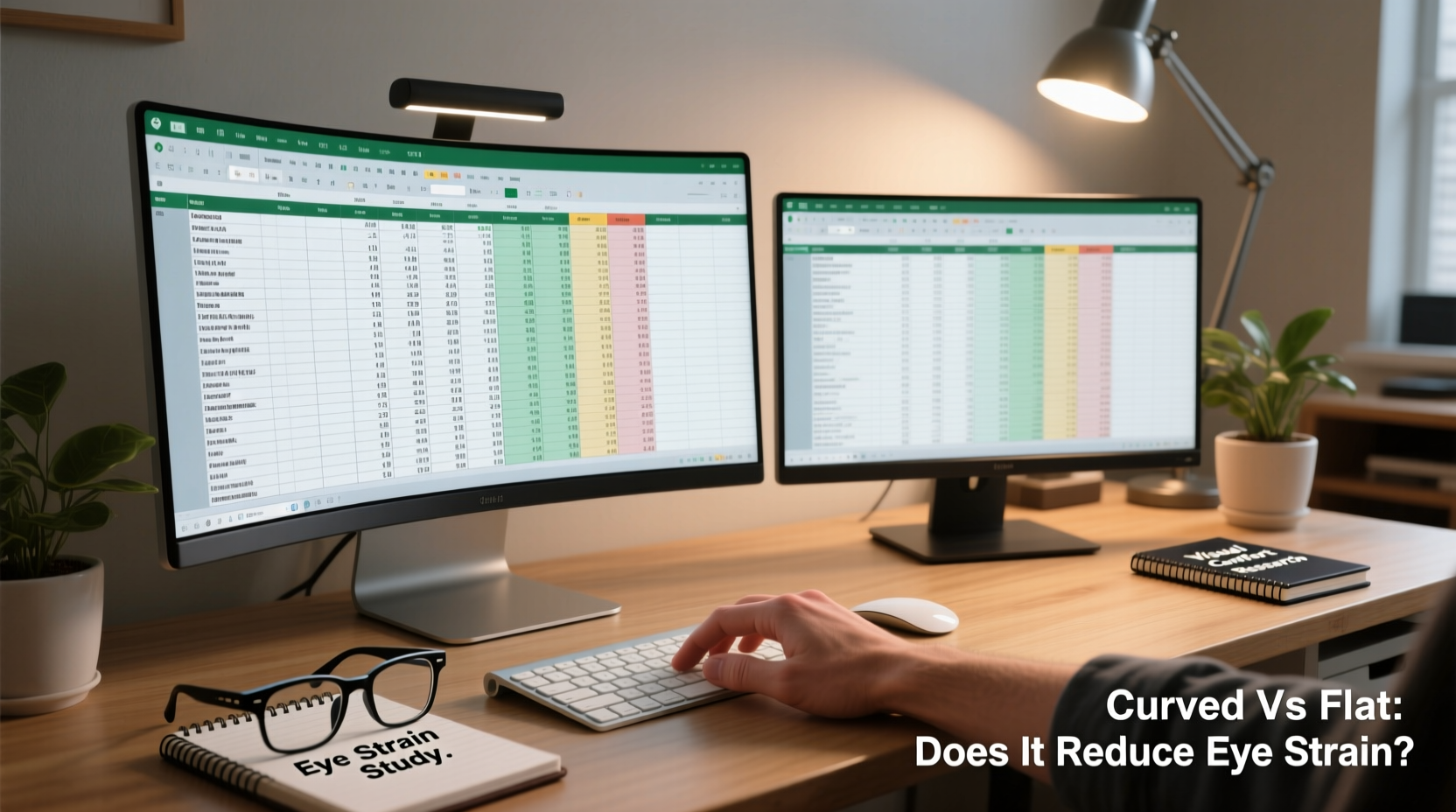
Eye strain, also known as asthenopia, results from intense visual tasks such as reading fine text, focusing on bright screens, or maintaining fixed gaze positions for long durations. In an Excel-centric workflow, users often face multiple contributing factors:
- High contrast between dark text and white background
- Frequent horizontal scrolling across wide datasets
- Poor ambient lighting causing glare or reflections
- Inadequate viewing distance or angle
- Lack of screen curvature leading to peripheral distortion
According to the American Optometric Association, over 50% of office workers experience some form of digital eye strain. Symptoms include dry eyes, blurred vision, headaches, and neck or shoulder pain—all of which can be exacerbated by suboptimal monitor setups.
The physical design of a monitor plays a crucial role in mitigating these symptoms. Flat monitors have dominated offices for decades due to their cost-effectiveness and compatibility with multi-monitor configurations. However, curved monitors aim to align better with the natural curvature of human vision, theoretically reducing the need for constant refocusing and minimizing peripheral distortion.
How Curved Monitors Affect Visual Ergonomics
Curved monitors are engineered with a radius measured in millimeters (e.g., 1800R, 3800R), indicating how tightly the screen bends. The idea is that this curvature matches the spherical shape of the human retina, creating a more uniform focal distance across the entire field of view.
When working with large Excel sheets—especially those spanning dozens of columns—a flat monitor requires your eyes to shift laterally from the center to the edges. Each movement forces slight adjustments in focus and convergence, which over time contribute to cumulative visual fatigue. A curved screen keeps the edges closer to your central line of sight, reducing saccadic eye movements and potentially easing cognitive load.
“Curvature can improve visual consistency across wide screens, especially for tasks requiring lateral scanning like financial modeling.” — Dr. Lena Patel, Vision Ergonomics Researcher at MIT Human Performance Lab
However, not all curves are equal. For optimal benefit, the curvature must match both the screen size and viewing distance. A 24-inch monitor with mild curvature may offer negligible advantage, while a 34-inch ultrawide with 1500R curvature used at 60–70 cm distance can provide measurable comfort improvements.
Flat vs Curved: Practical Comparison for Excel Users
To determine which monitor type performs better for spreadsheet work, we evaluated key criteria based on usability studies, professional feedback, and ergonomic standards.
| Feature | Flat Monitor | Curved Monitor |
|---|---|---|
| Edge Clarity | May appear slightly distorted when viewed off-center | Improved edge-to-edge sharpness due to aligned focal plane |
| Glare Resistance | Varies; flat surfaces reflect light more uniformly | Better diffusion of ambient light, but prone to hotspot reflections if poorly positioned |
| Multi-Column Navigation | Requires frequent head and eye movement | Reduces lateral eye travel; columns stay within natural peripheral vision |
| Ease of Multi-Monitor Setup | Straightforward alignment and bezel matching | Difficult to tile seamlessly; gaps and depth variations create visual breaks |
| Cost & Availability | Widely available, generally lower price point | Premium pricing, especially for high-resolution ultrawides |
| Viewing Angle Consistency | Color and brightness shift at extreme angles | More consistent color reproduction across the arc |
For standalone Excel use—particularly with complex financial models or data analysis tools—curved monitors demonstrate advantages in visual cohesion and reduced eye movement. However, if your workflow involves dual-screen setups (e.g., Excel on one side, email or documentation on another), flat panels remain more practical and flexible.
Real-World Case Study: Financial Analyst Transitioning to Curved Display
James Carter, a senior financial analyst at a mid-sized investment firm, spent nearly seven years using dual 24-inch flat monitors for portfolio modeling in Excel. After developing chronic tension headaches and eye discomfort, he consulted an occupational health specialist who recommended evaluating his display setup.
He replaced his twin monitors with a single 34-inch ultrawide curved display (3440x1440 resolution, 1500R curvature). Within two weeks, James reported notable changes:
- Reduced need to turn his head when reviewing multi-column forecasts
- Less frequent blinking and dry-eye sensation by end of day
- Improved ability to track formulas across distant cells without losing context
- Fewer instances of after-work eye fatigue
“I was skeptical at first,” James said. “But once I adjusted the brightness and positioned the curve directly in front of me, the difference was immediate. It feels like the data wraps around me instead of stretching out.”
His only drawback? Difficulty docking the laptop alongside the curved screen when presenting to clients. For collaborative settings, he now uses wireless mirroring to a secondary flat display.
Step-by-Step Guide to Optimizing Your Monitor for Excel Work
Whether you choose a flat or curved monitor, proper configuration is essential to minimize eye strain. Follow this sequence to maximize comfort and efficiency:
- Measure your viewing distance: Sit in your usual position and measure from your eyes to the screen. Ideal range is 50–100 cm (20–40 inches).
- Select appropriate screen size: For full-time Excel work, consider at least 27 inches (flat) or 34-inch ultrawide (curved).
- Adjust height and tilt: Top of the screen should be at or slightly below eye level. Tilt back 10–20 degrees to reduce glare.
- Enable dark themes or night mode: Use Excel’s dark gray interface or third-party add-ons to reduce brightness contrast.
- Optimize resolution and scaling: Set DPI scaling to 125–150% for readable cell text without excessive zooming.
- Position lighting correctly: Avoid overhead lights shining directly on the screen. Use indirect or task lighting behind the monitor.
- Take scheduled breaks: Apply the 20-20-20 rule—every 20 minutes, look at something 20 feet away for 20 seconds.
Expert Recommendations and Common Misconceptions
Despite growing adoption, several myths persist about curved monitors. Some believe they are only beneficial for gaming or video editing, while others assume any curve automatically reduces eye strain. Experts emphasize that benefits depend heavily on usage patterns and setup precision.
“The curvature itself doesn’t eliminate eye strain—it redistributes visual workload. Poor posture or incorrect placement can negate any ergonomic gains.” — Dr. Marcus Tran, Occupational Health Specialist
Key considerations include:
- Not all curvatures are effective: Mild curves (e.g., 3800R) on smaller screens offer minimal benefit.
- Single large screen vs dual flats: A curved ultrawide replaces two monitors but may limit application separation unless virtual desktops are used.
- Text rendering differences: Some users report slight blurring on extreme edges of curved screens, though modern IPS panels have largely resolved this.
Frequently Asked Questions
Does a curved monitor really reduce eye strain during long Excel sessions?
Yes, for many users—but only when properly matched to screen size, viewing distance, and task type. The reduction comes from decreased eye movement and more consistent focus across the display. However, individual results vary based on visual acuity and workspace layout.
Can I use a curved monitor with Excel's grid layout without distortion?
Modern curved monitors use advanced panel technologies (like VA or IPS) that maintain geometric accuracy. While extreme edges may show minor warping, Excel grids remain functionally accurate. Most users adapt within a few days, and the immersion often outweighs minor visual quirks.
Are there downsides to using a curved monitor for office work?
Potential drawbacks include higher cost, difficulty in multi-monitor tiling, sensitivity to reflection angles, and limited mounting options. Additionally, shared workspaces may find curved screens less adaptable for multiple users with different preferences.
Final Checklist Before Choosing Your Monitor
Before making a purchase decision, verify the following:
- ✅ Screen size is at least 27 inches (flat) or 34 inches (curved ultrawide)
- ✅ Resolution is 1440p or higher for crisp cell text and formula bars
- ✅ Curvature rating is 1500R–1800R for meaningful ergonomic benefit
- ✅ Panel type is IPS or high-quality VA for color and viewing angle accuracy
- ✅ Adjustable stand supports height, tilt, and swivel adjustments
- ✅ Compatibility with your GPU and operating system scaling features
- ✅ Includes blue light filters or flicker-free backlighting for prolonged use
Conclusion: Making the Right Choice for Your Eyes and Workflow
The debate between curved and flat monitors for Excel work ultimately hinges on personal preference, workspace constraints, and the nature of your data tasks. While curved monitors offer measurable advantages in reducing eye movement and enhancing visual continuity across wide spreadsheets, they are not a universal solution. Their benefits shine brightest in single-display environments where users engage deeply with expansive datasets.
Flat monitors continue to serve well in traditional office setups, especially when budget, compatibility, or multi-device integration are priorities. What matters most is not the shape of the screen, but how thoughtfully it’s integrated into an ergonomically sound workstation.
If you’re experiencing persistent eye strain, consider a trial period with a curved display—many retailers offer 14- to 30-day return policies. Pair any new monitor with good lighting, regular breaks, and proper posture, and you’ll significantly enhance both comfort and productivity.




 浙公网安备
33010002000092号
浙公网安备
33010002000092号 浙B2-20120091-4
Comments
No comments yet. Why don't you start the discussion?