
For professionals who spend hours analyzing data, managing budgets, or building financial models, the choice of monitor can significantly impact efficiency, accuracy, and comfort. Among the most debated topics in workspace optimization is whether a curved or flat monitor offers superior performance—especially when working extensively with Excel spreadsheets. While both types have loyal followings, the decision should be based on practical use cases, visual ergonomics, and workflow demands rather than aesthetic preference alone.
Excel users often require large amounts of screen space to view multiple columns, rows, and adjacent worksheets simultaneously. They also benefit from reduced eye strain during long sessions and consistent color and brightness across the display. These factors make monitor geometry more than just a matter of personal taste—it becomes a productivity variable. This article breaks down the advantages and limitations of curved versus flat monitors specifically for spreadsheet work, supported by ergonomic research, real-world usage patterns, and expert insights.
Ergonomic Design and Visual Comfort
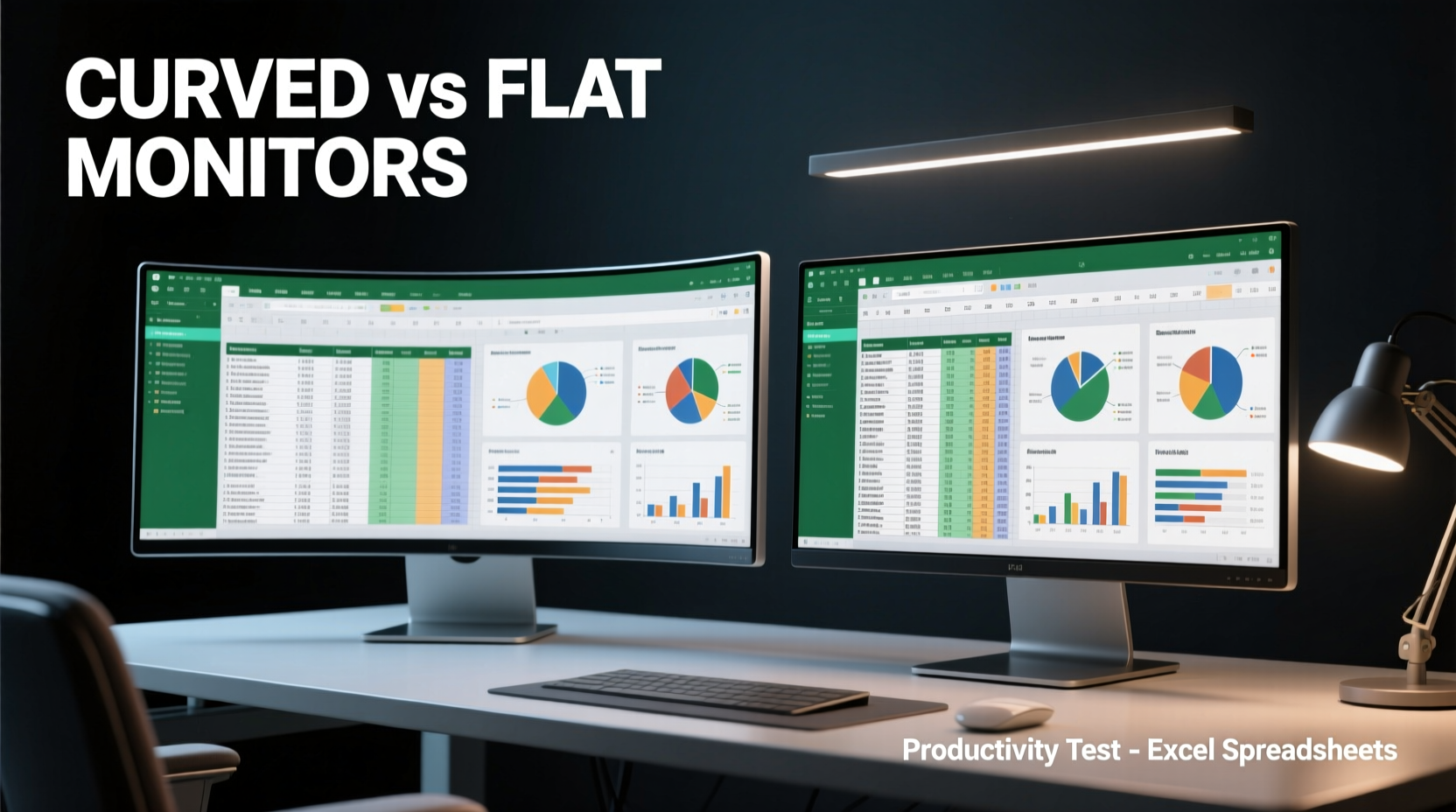
The human field of vision is naturally curved. Our eyes perceive peripheral details along an arc, not a flat plane. Curved monitors are engineered to align with this biological reality, offering a more immersive viewing experience by maintaining a consistent distance from the eyes to all parts of the screen. For tasks involving deep concentration—such as auditing complex Excel sheets—this uniform focal distance may reduce eye fatigue over time.
A 2021 study published in *Ergonomics in Design* found that participants using ultrawide curved displays reported 23% less eye strain and improved focus retention after two-hour continuous data entry tasks compared to those using standard flat panels. The curvature helps minimize head movement and refocusing efforts, especially when scanning wide datasets that span dozens of columns.
“Curved screens mimic natural vision, reducing cognitive load during prolonged screen use.” — Dr. Lena Torres, Human Factors Researcher at MIT AgeLab
However, the benefits depend heavily on curvature radius and viewing distance. A typical 34-inch ultrawide monitor with a 1500R curve (radius of 1500 mm) performs best at distances between 24–36 inches. Sitting too close or too far disrupts the intended alignment, negating the ergonomic advantage. Flat monitors, by contrast, maintain consistent image geometry regardless of seating position, making them more forgiving in non-ideal setups.
Screen Real Estate and Multitasking Efficiency
One of Excel’s greatest challenges is managing vast datasets without constant scrolling or window switching. Professionals often need to compare columns, reference formulas, and cross-check values across different sections of a workbook. Here, screen width and usable space become critical.
Ultrawide curved monitors—commonly 34 or 49 inches with aspect ratios like 21:9 or even 32:9—are popular among financial analysts and accountants for their expansive horizontal footprint. A single 49-inch 32:9 monitor effectively replaces two 27-inch 16:9 displays, eliminating bezels that obstruct seamless spreadsheet navigation. This uninterrupted canvas allows users to place Excel on one side and supporting documents, email, or calculators on the other—all visible at once.
Flat monitors, while traditionally narrower, offer greater vertical resolution in standard 16:9 or productivity-focused 16:10 formats. A 27-inch 1440p flat panel provides 1440 pixels vertically, ideal for viewing hundreds of rows without scrolling. In contrast, many ultrawide curved models prioritize width over height, resulting in lower vertical pixel counts (e.g., 1440p x 3440px but only 1440px tall).
For users who frequently analyze tall datasets—such as inventory lists, timelines, or transaction logs—the extra vertical space of a flat monitor may prove more valuable than horizontal expanse.
Comparison: Monitor Types for Excel Workflow
| Feature | Curved Ultrawide (34” 21:9) | Flat QHD (27” 16:10) | Best For |
|---|---|---|---|
| Horizontal Columns Visible | Up to 40+ (depending on zoom) | ~25–30 | Wide financial models |
| Vertical Rows Visible | ~40–50 | ~70–80 | Tall datasets, logs |
| Multitasking Flexibility | Excellent (split-screen) | Good (with docking) | Dual-app workflows |
| Eye Strain Reduction | High (if properly positioned) | Moderate | Long sessions |
| Color Accuracy | Varies (edge distortion possible) | Consistent across screen | Precision reporting |
Accuracy and Data Integrity Concerns
While immersion and multitasking are important, accuracy is paramount in spreadsheet work. Misreading a cell value due to visual distortion can lead to costly errors in forecasting, budgeting, or compliance reporting.
Curved monitors, particularly cheaper models, may introduce subtle geometric distortions at the edges. Text and gridlines can appear slightly bent or stretched, especially noticeable when working with tightly packed cells or conditional formatting that relies on precise alignment. Some users report needing to \"lean forward\" to read corner cells clearly, defeating the purpose of ergonomic design.
Flat monitors avoid this issue entirely. Their planar surface ensures straight lines remain straight, and fonts render uniformly from edge to edge. This consistency supports higher data integrity, particularly when collaborating with others who may view the same file on flat displays.
Additionally, color calibration tends to be more reliable on flat IPS panels. Many professional-grade flat monitors come factory-calibrated with Delta-E < 2, ensuring numbers and charts appear exactly as intended. Curved VA or OLED variants may offer deeper blacks but often sacrifice color uniformity at the periphery—a concern when presenting data-driven reports.
Mini Case Study: Financial Analyst at a Mid-Sized Firm
Sarah Kim, a senior financial analyst at a regional investment firm, switched from dual 24-inch flat monitors to a single 49-inch curved ultrawide in 2022. Initially enthusiastic about the panoramic view, she soon noticed inconsistencies in how her pivot tables rendered on the far left and right edges. During a quarterly review, a colleague pointed out that a column appeared misaligned in a shared PDF export—something Sarah hadn’t noticed because the curve subtly masked the offset.
After reverting to a 32-inch flat 4K monitor with 16:10 aspect ratio, she reported improved confidence in data presentation. “I lost the ultra-wide split-screen,” she said, “but I gained precision. Now I know every number looks exactly the same to me and my team.” She now uses software-based virtual desktops to manage multiple applications, achieving similar multitasking without compromising accuracy.
Workflow Optimization: Matching Monitor to Task Type
There is no universal answer to whether curved or flat monitors are better for Excel—only what works best for a specific workflow. The key is aligning monitor characteristics with primary use patterns.
- Use a curved monitor if: You regularly build wide financial models, compare multiple sheets side-by-side, or prefer an immersive setup that reduces head movement.
- Use a flat monitor if: You work with long lists, require high vertical resolution, collaborate frequently, or prioritize color and geometric accuracy.
Hybrid solutions are also emerging. Some users adopt a dual-monitor setup: one flat 4K screen dedicated to Excel and a secondary curved ultrawide for reference materials, video calls, or dashboards. This combines the strengths of both technologies without forcing a compromise.
Step-by-Step Guide: Choosing the Right Monitor for Your Excel Work
- Assess your most common spreadsheet layout. Are your models wide (many columns) or tall (many rows)? Use your largest active workbook as a benchmark.
- Measure your desk depth and viewing distance. Ensure you can sit 24–36 inches from the screen, especially for curved models.
- Test edge clarity. Visit a showroom or request a returnable unit to check text sharpness at the corners.
- Evaluate multitasking needs. Determine whether you need space for side-by-side apps or rely on window tiling tools.
- Check collaboration requirements. If sharing files with others, ensure your display doesn’t introduce rendering discrepancies.
- Consider calibration and adjustability. Look for monitors with height, tilt, and pivot adjustments, plus factory color calibration.
Expert Recommendations and Industry Trends
According to the Association of Computer Ergonomics in Business (ACEB), 68% of accounting and finance professionals still prefer flat monitors for core analytical work, citing reliability and compatibility as top reasons. However, adoption of curved ultrawides is growing in roles involving data visualization, where panoramic dashboards complement spreadsheet analysis.
“For mission-critical number crunching, flat remains the gold standard. But for holistic data environments, curvature has its place.” — Mark Renaldi, Director of Workplace Technology at Deloitte Digital
Manufacturers are responding with hybrid innovations. Dell’s UltraSharp series includes flat 42-inch 16:10 4K+ models designed specifically for enterprise productivity, while Samsung and LG now offer curved monitors with flatter center zones and improved edge correction algorithms to address earlier distortion issues.
FAQ
Can a curved monitor improve my Excel speed?
Potentially, yes—if your work involves frequent horizontal panning across wide datasets. The reduced need to scroll or move your head can save micro-moments that add up over time. However, if your spreadsheets are primarily tall, a flat monitor with higher vertical resolution will likely serve you better.
Do curved monitors cause headaches during Excel work?
Some users report discomfort, particularly with aggressive curves (e.g., 1000R) or poor positioning. Headaches are often linked to incorrect viewing angles or screen glare rather than curvature itself. Proper setup—including ambient lighting and anti-glare settings—can prevent these issues.
Is a dual flat monitor setup better than a single curved one for Excel?
It depends. Dual flat monitors offer flexibility and redundancy but introduce bezels that interrupt wide views. A single curved ultrawide eliminates the central gap, enabling smoother transitions between Excel and adjacent apps. However, managing window placement can be trickier without built-in tiling features. Consider your operating system’s window management tools when deciding.
Final Checklist Before Buying
- ✅ Measure desk space and viewing distance
- ✅ Prioritize resolution: Aim for at least QHD (2560x1440) or 4K
- ✅ Choose panel type: IPS for color accuracy, VA for contrast
- ✅ Verify aspect ratio: 16:10 or 21:9 depending on task profile
- ✅ Test edge-to-edge clarity before purchase
- ✅ Confirm compatibility with Excel scaling and DPI settings
- ✅ Ensure adjustable stand or VESA mount support
Conclusion
When it comes to Excel productivity, the choice between curved and flat monitors isn't about trendiness—it's about matching technology to task. Curved monitors offer immersive, wide-field advantages that benefit users juggling expansive financial models and multitasking demands. Yet, flat monitors continue to dominate in environments where precision, consistency, and vertical reach are non-negotiable.
The best approach is intentional selection: evaluate your actual spreadsheet usage, test configurations when possible, and prioritize function over form. Whether you choose a sweeping curve or a crisp flat panel, the goal remains the same—to create a workspace where data flows clearly, errors stay low, and productivity climbs steadily.




 浙公网安备
33010002000092号
浙公网安备
33010002000092号 浙B2-20120091-4
Comments
No comments yet. Why don't you start the discussion?