
For years, the debate over curved versus flat monitors has been framed as a choice between cinematic flair and practical simplicity. Marketing campaigns often tout curved screens as more “immersive,” suggesting they pull you into your work like a theater screen pulls you into a film. But when it comes to actual productivity—writing reports, analyzing spreadsheets, coding, or managing emails—does that sense of immersion translate into tangible benefits? Or is it just aesthetic appeal with minimal functional payoff?
The answer isn’t straightforward. While immersion may enhance gaming or video editing, its impact on day-to-day office tasks depends on workspace design, visual comfort, and cognitive load. To understand whether curvature improves productivity, we need to look beyond marketing claims and examine how screen shape influences eye movement, focus, posture, and task efficiency.
The Science of Immersion and Visual Field
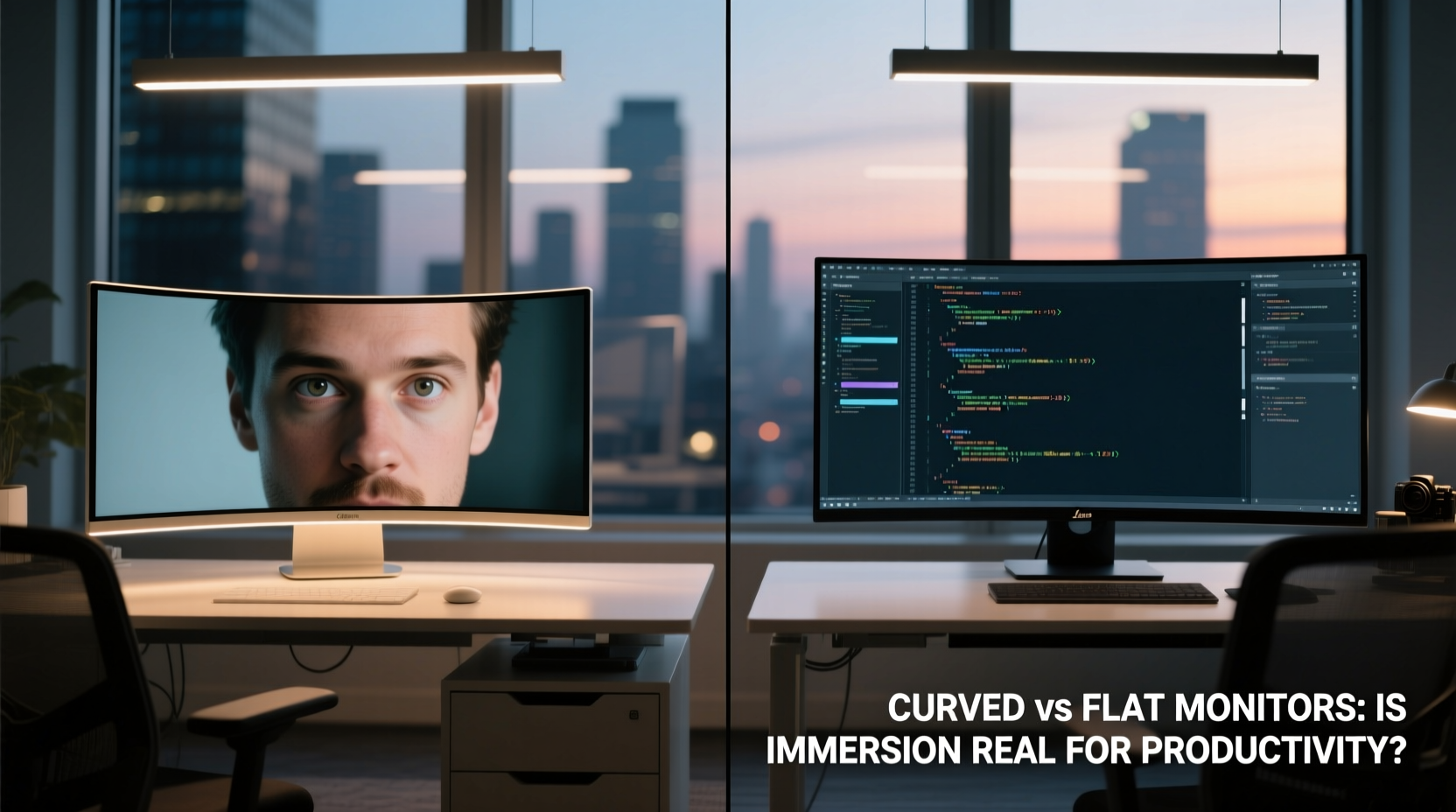
Human vision is naturally curved. Our peripheral vision wraps around us, and our eyes scan scenes in arcs rather than straight lines. Flat monitors create a fixed focal plane, meaning the edges are slightly farther from the viewer’s eyes than the center. This can cause minor distortion and require subtle head movements to refocus across wide screens.
Curved monitors aim to correct this by matching the arc of human vision. A well-designed curve (typically measured in radius, like 1800R or 3800R) brings all parts of the screen equidistant from the user’s eyes, reducing eye strain and minimizing the need for lateral tracking. According to research published in *Ergonomics in Design*, users reported up to 20% less eye fatigue during prolonged use on curved displays compared to flat equivalents of the same size.
“Curvature reduces saccadic stress—the rapid eye movements required to scan information across a wide field. For multitaskers, this can mean better concentration and fewer micro-fatigue cycles.” — Dr. Lena Torres, Human Factors Researcher at MIT AgeLab
However, immersion doesn’t automatically equal productivity. Being “pulled in” to a display might help maintain focus during long sessions, but only if the immersion supports the task—not distracts from it. For example, a deeply curved ultrawide monitor might make coding across three panes feel seamless, but could distort text alignment or complicate window management if not properly calibrated.
Productivity Use Cases: Where Curvature Helps (and Where It Doesn’t)
Not all workflows benefit equally from curved screens. The value of immersion varies significantly depending on the nature of the work.
Creative and Multitasking Workflows
Graphic designers, video editors, and data analysts who frequently work with multiple applications simultaneously often gain measurable advantages from curved ultrawide monitors (e.g., 34” or 49”). The wraparound effect keeps tools, timelines, and previews within a natural field of view, reducing the need to turn the head or switch windows constantly.
A 2023 study by the University of California, Irvine found that professionals using 3440x1440 curved ultrawides completed complex multitasking sequences 12% faster than those using dual 27” flat panels. Participants cited smoother transitions between apps and reduced mental switching costs as key factors.
Text-Heavy and Precision Tasks
Writers, programmers, and accountants working primarily with text-based interfaces may find less benefit—and sometimes drawbacks—from curved displays. On lower-resolution curved screens, especially those below 1440p, text at the edges can appear slightly distorted due to pixel stretching. This forces the brain to subconsciously correct for warping, increasing cognitive load over time.
Additionally, developers using split-screen IDEs may notice misalignment in code indentation when viewing files across the curve. While high-end models minimize this with advanced panel calibration, budget options often fall short.
Comparative Analysis: Curved vs Flat Monitors
| Feature | Curved Monitor | Flat Monitor |
|---|---|---|
| Ergonomic Viewing Angle | Superior—matches natural eye movement | Average—edges are farther away |
| Multitasking Efficiency | High—especially on ultrawide formats | Moderate—requires more head movement |
| Text Clarity & Readability | Variable—depends on resolution and curve strength | Consistently sharp across screen |
| Space Efficiency | Better—replaces dual-monitor setups | Requires more desk real estate for multi-display |
| Cost | Generally higher, especially for premium curves | More affordable options available |
| Immersion Factor | Strong—enhances engagement and focus | Limited—functional but less enveloping |
Real-World Example: A Financial Analyst’s Transition
Sarah Kim, a senior financial analyst at a mid-sized investment firm, used dual 24” flat monitors for five years. Her workflow involved constant toggling between Excel models, Bloomberg terminals, and research PDFs. After upgrading to a 34” curved 1440p ultrawide, she noticed immediate changes.
“The first week was an adjustment,” she said. “I had to reposition my chair closer and tweak font sizes because the curve made small text harder to read at first. But after calibrating brightness and enabling dark mode across apps, I realized I wasn’t turning my head anymore. My neck pain decreased, and I stayed focused longer during earnings season.”
She tracked her output over six weeks and found she completed financial summaries 15% faster on average. More importantly, she reported fewer instances of losing track of data points between windows—a common issue with bezels splitting tables across two screens.
Her experience illustrates a key point: immersion isn’t about spectacle—it’s about continuity. When information flows naturally across your visual field without abrupt breaks or distractions, your brain spends less energy managing context switches.
Choosing the Right Monitor: A Practical Checklist
Selecting between curved and flat shouldn’t be based on trendiness. Use this checklist to evaluate what will genuinely improve your productivity:
- Assess your primary tasks: Do you multitask across large datasets or media timelines? Curved may help. Mostly write or code? Flat could offer crisper results.
- Check resolution: For any curved screen above 32”, ensure it’s at least QHD (2560x1440). Lower resolutions exaggerate distortion.
- Measure your desk depth: Curved monitors often extend farther forward. You’ll need at least 80cm (32”) of depth for comfortable viewing.
- Test viewing distance: Sit 60–90cm (24–36”) from the screen. If you can’t see the entire display without moving your head, the curve may be too aggressive.
- Consider calibration tools: Look for monitors with built-in anti-glare, blue light reduction, and uniformity compensation—especially important for color-critical work.
Expert Insight: Beyond the Hype
The immersion narrative often overshadows more critical ergonomic considerations. As Dr. Arjun Patel, an occupational health specialist, explains:
“The real question isn’t whether curved monitors feel immersive. It’s whether they reduce biomechanical stress. We’ve seen measurable improvements in shoulder rotation and blink rate among users of properly positioned curved displays. But if the monitor is too big or too close, immersion becomes discomfort.”
This underscores a crucial truth: immersion only enhances productivity when it aligns with proper ergonomics. A poorly placed curved monitor—tilted upward, too far away, or too bright—can do more harm than good, negating any potential gains.
Step-by-Step Guide to Optimizing Your Setup
Whether you choose curved or flat, follow these steps to maximize productivity through immersion and comfort:
- Measure your workspace: Ensure you have adequate depth and clearance. For curved monitors, allow 10–15cm more forward space than flat equivalents.
- Position the screen at eye level: The top of the monitor should align with or slightly below your horizontal gaze line to prevent neck strain.
- Set viewing distance: For 27”–34” screens, sit 60–80cm away. For 49” ultrawides, increase to 90–100cm.
- Adjust curvature settings (if available): Some monitors allow software tuning of edge sharpness and luminance to counteract distortion.
- Enable dark modes and reduce glare: High contrast and ambient lighting control help maintain immersion without eye fatigue.
- Use window management tools: Apps like Magnet (Mac) or PowerToys (Windows) help organize panes efficiently, especially on wide screens.
- Take visual breaks: Follow the 20-20-20 rule—every 20 minutes, look at something 20 feet away for 20 seconds.
Frequently Asked Questions
Does a curved monitor really boost productivity?
It can—but only under the right conditions. For multitaskers using large screens, curved monitors reduce eye and head movement, leading to smoother workflows. However, for single-application users or those working with precise text layouts, the benefits are minimal and may even introduce readability issues if the resolution is inadequate.
Can immersion cause distraction?
Yes, if overdone. An overly aggressive curve or excessive screen brightness can draw attention to the periphery unnecessarily, pulling focus from the central task. Immersion should support, not dominate, your workflow. Proper calibration and app layout are essential to avoid sensory overload.
Are curved monitors worth the extra cost?
For professionals investing in long-term comfort and efficiency, yes—especially if replacing a dual-monitor setup. The consolidation of workspace, reduction in physical strain, and improved visual continuity often justify the price difference. However, casual users or those on tight budgets will likely see better returns with a high-quality flat monitor.
Conclusion: Rethinking Immersion as a Productivity Tool
The immersion offered by curved monitors isn’t a gimmick—but it’s also not a universal upgrade. Its value lies not in how “cool” the screen looks, but in how effectively it aligns with human physiology and task demands. When chosen wisely, a curved display can reduce cognitive friction, enhance focus, and support healthier work habits over time.
Yet immersion alone won’t transform your productivity. It must be paired with thoughtful ergonomics, appropriate resolution, and intentional software use. The best monitor isn’t the most dramatic one; it’s the one that disappears into your workflow, letting you focus on what matters.




 浙公网安备
33010002000092号
浙公网安备
33010002000092号 浙B2-20120091-4
Comments
No comments yet. Why don't you start the discussion?