
Discord is a go-to platform for real-time communication among gamers, communities, and remote teams. But when notifications fail on your Android or iPhone, you risk missing urgent messages, event reminders, or important updates from your server. While the issue can be frustrating, it's often solvable with targeted fixes. This guide walks through comprehensive solutions—ranging from app settings to system-level configurations—to restore reliable alerts on both mobile platforms.
Understanding Why Notifications Fail
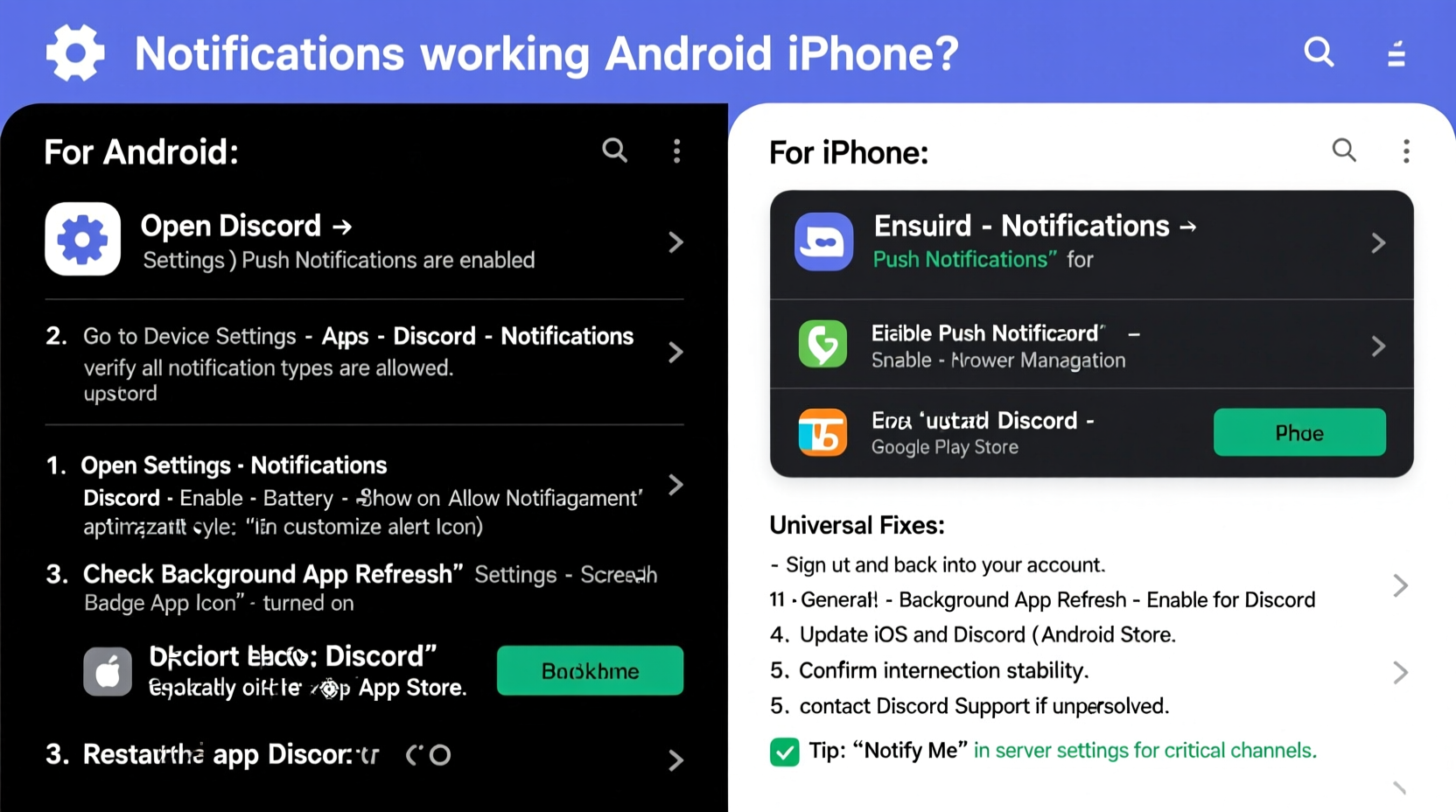
Notifications in Discord depend on a chain of systems: the app itself, your device’s operating system, network connectivity, and background processes. A break in any part of this chain can silence alerts. Common culprits include:
- Incorrect notification settings within Discord
- Operating system restrictions (battery optimization, background app limits)
- Outdated app versions
- Do Not Disturb or Focus modes
- Server-specific mute settings
- Push notification service disruptions
Before diving into complex troubleshooting, verify that the problem isn’t isolated. Test by sending a message from another account or checking if other users receive alerts normally.
Step-by-Step Fixes for Android Devices
Android’s flexibility comes with variability across manufacturers and OS versions. These steps apply broadly to Samsung, Google Pixel, OnePlus, and other Android phones.
- Enable Discord Notifications in App Settings
Open Discord → Tap your profile → Settings → Notifications. Ensure “Enable Notifications” is toggled on. Customize alert types (direct messages, mentions, keywords) as needed. - Check Android Notification Permissions
Go to Settings > Apps > Discord > Notifications. Make sure all notification categories are enabled. Some devices allow per-category control—ensure critical alerts aren’t silenced. - Disable Battery Optimization for Discord
Android often restricts background activity to save power. Navigate to Settings > Battery > Battery Optimization. Find Discord and set it to “Don’t optimize.” This allows the app to run in the background and receive push alerts. - Ensure Background Data is Allowed
In Settings > Apps > Discord > Mobile Data & Wi-Fi, confirm that background data usage is permitted. Blocking background data prevents Discord from syncing when the app is closed. - Clear Cache and Reinstall (if needed)
If issues persist, clear the app cache via Settings > Apps > Discord > Storage > Clear Cache. For deeper problems, uninstall and reinstall the app after backing up any local data.
Manufacturer-Specific Quirks
Brands like Samsung, Xiaomi, and Huawei impose aggressive battery management. On Samsung, use Device Care to add Discord to the “Unmonitored apps” list. On Xiaomi, disable “Auto-start” restrictions and turn off MIUI optimization for Discord in developer settings.
| Issue | Solution | Path to Fix |
|---|---|---|
| App killed in background | Disable battery optimization | Settings > Battery > Optimize Battery Usage |
| No sound/vibration | Check media volume & haptics | Adjust volume slider; enable vibration in app settings |
| Delayed alerts | Allow background data | App Info > Data Usage > Background Data |
Troubleshooting iPhone Notification Issues
iOS offers tighter control over notifications but can inadvertently suppress them through privacy features or misconfigurations.
- Verify Discord Notification Settings
Open Discord → Profile → Settings > Notifications. Confirm “Enable Notifications” is active. Adjust preferences for DMs, mentions, and keywords. - Check iOS Notification Permissions
Go to Settings > Notifications > Discord. Set alerts to “Allow Notifications,” choose an alert style (banners, alerts), and ensure Sounds and Badges are enabled. - Disable Focus Mode Conflicts
If Focus (formerly Do Not Disturb) is active, Discord may be excluded. Check Settings > Focus and review which apps are allowed. Add Discord to the allowed list under relevant Focus modes. - Re-enable Push Notifications
Toggle off “Allow Notifications” for Discord in iOS settings, restart the phone, then re-enable it. This forces iOS to re-register the push token with Discord’s servers. - Update or Reinstall Discord
Outdated versions may have bugs affecting notifications. Update via the App Store. If unresolved, delete and reinstall the app—iOS will prompt to re-enable notifications upon first launch.
Expert Insight: Server and Account-Level Factors
Not all notification failures stem from device settings. User behavior and server configuration play key roles.
“Many users overlook server-level mute settings. If you’ve muted an entire server or disabled mobile notifications for it, no alert will come through—even if your phone settings are perfect.” — Jordan Lee, Community Platform Analyst
To verify:
- Long-press a server icon in Discord → Check if “Mobile Notifications” are set to “All Messages” or “Mentions Only.”
- Tap the bell icon next to a channel to see if it’s muted.
- Review keyword alerts: Under Notification Settings, add custom words to trigger alerts even in busy servers.
Mini Case Study: Restoring Alerts for a Gaming Clan Leader
Alex, who manages a 500-member Discord server for a competitive gaming group, began missing raid coordination messages on his iPhone. Despite seeing new messages when manually opening the app, no alerts appeared.
After testing multiple fixes, Alex discovered that while Discord had notification permission, it was excluded from his “Gaming” Focus mode. Additionally, the main coordination channel had been accidentally muted at the channel level. By adjusting Focus settings and unmuting the channel, notifications resumed instantly.
This case highlights how layered controls—system, app, and server—can silently disrupt alerts without obvious indicators.
Comprehensive Checklist: Restore Discord Notifications
Use this checklist to systematically eliminate causes:
- ✅ Enable notifications in Discord app settings
- ✅ Grant notification permission in Android/iOS settings
- ✅ Disable battery optimization (Android) or check Focus modes (iOS)
- ✅ Allow background data and app refresh
- ✅ Verify server and channel mute status
- ✅ Update Discord to the latest version
- ✅ Restart device after making changes
- ✅ Reinstall Discord if issues persist
Frequently Asked Questions
Why do I get notifications on desktop but not on my phone?
This usually indicates a mobile-specific issue. Check if Discord has active notification permissions on your phone and isn’t restricted by battery-saving features. Also, ensure you’re logged into the same account and haven’t muted servers on mobile only.
Will clearing Discord cache delete my messages?
No. Cache stores temporary files like thumbnails and logs. Your messages, servers, and account data remain safe on Discord’s servers and sync back upon login.
Can I get notifications for specific keywords only?
Yes. In Discord settings under Notifications, enable “Keyword Notifications” and add custom terms (e.g., your username, “raid,” “urgent”). You’ll receive alerts when those words appear, even in muted channels.
Conclusion: Stay Connected Without Missing a Beat
Discord notifications are essential for timely communication, especially in fast-moving communities. Whether you're using an Android or iPhone, most notification failures stem from preventable settings conflicts rather than permanent bugs. By methodically reviewing app permissions, system restrictions, and server configurations, you can restore reliable alerts and stay engaged where it matters.




 浙公网安备
33010002000092号
浙公网安备
33010002000092号 浙B2-20120091-4
Comments
No comments yet. Why don't you start the discussion?