
For streamers, Discord is more than just a chat platform—it’s a command center. Whether you're hosting live gameplay sessions, co-streaming with friends, or presenting creative work, screen sharing is essential. When it stops working, the disruption can be immediate and costly. Buffering screens, missing audio, black screens, or outright failure to initiate a share are common frustrations. The good news: most of these issues are fixable with systematic troubleshooting. This guide walks through real-world solutions that streamers can apply immediately to restore smooth, reliable screen sharing on Discord.
Common Causes of Screen Share Failure
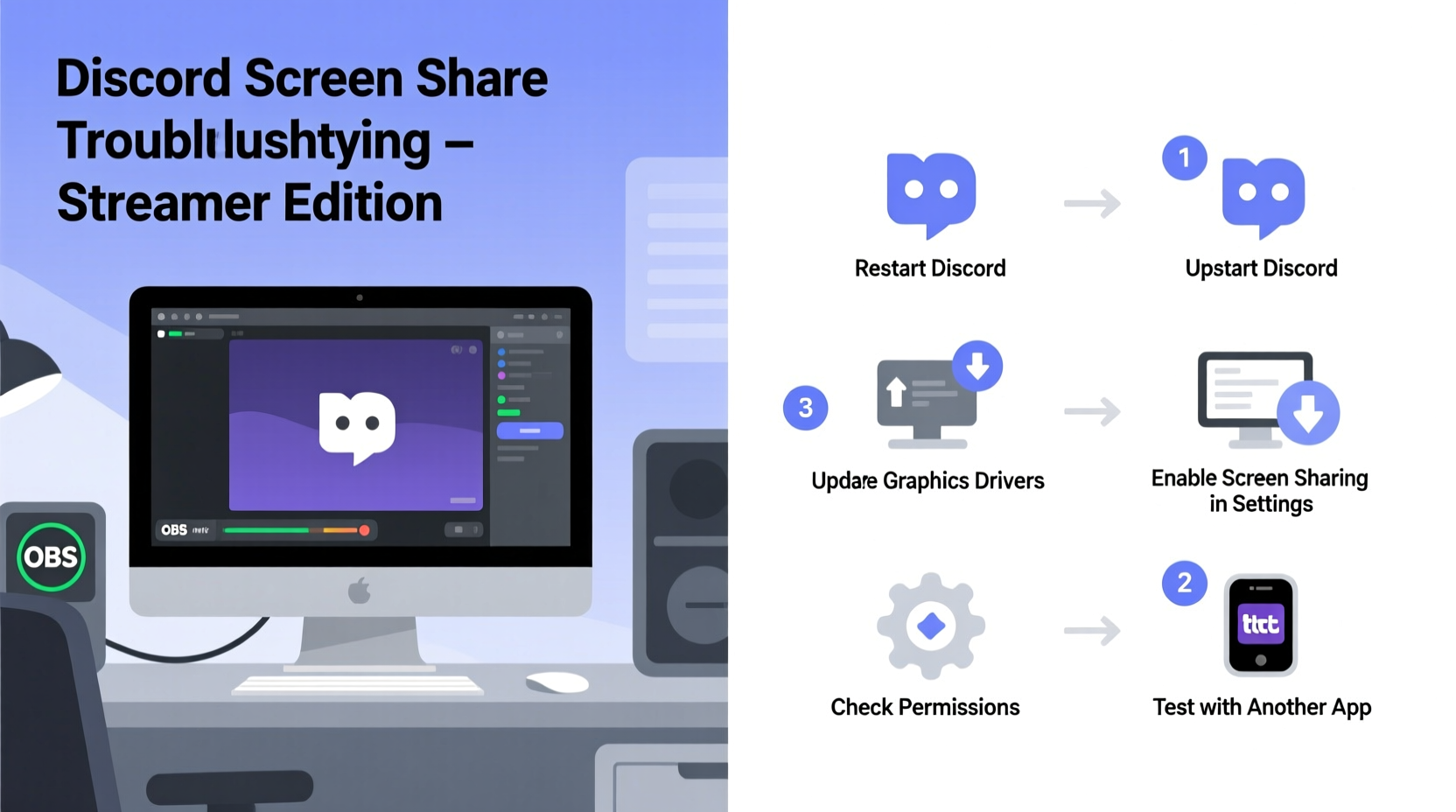
Before diving into fixes, it's important to understand what typically breaks screen sharing in Discord. Unlike general video calls, screen sharing demands consistent GPU performance, proper permissions, stable network throughput, and correct software integration. Issues often stem from:
- Outdated or corrupted GPU drivers – Prevents efficient capture and encoding.
- Conflicting applications – Especially security software, overlays (like GeForce Experience), or other streaming tools.
- Discord app bugs – Particularly after updates or background corruption.
- Hardware acceleration conflicts – Can cause crashes or black screens during share.
- Insufficient bandwidth – Leads to lag, freezing, or dropped connections.
- Incorrect permissions – macOS and Windows may block access without explicit approval.
Identifying which layer is at fault saves time. Start broad, then narrow down.
Step-by-Step Troubleshooting Guide
Follow this sequence to methodically eliminate causes. Many streamers skip early steps and jump to reinstalling—don’t. Most problems resolve in the first three actions.
- Restart Discord and your system – A full reboot clears temporary glitches and resets network states. Close Discord completely via Task Manager (Windows) or Activity Monitor (macOS), then restart.
- Check internet connection stability – Run a speed test. Upload speeds below 5 Mbps can degrade screen share quality. Use wired Ethernet when possible; Wi-Fi interference disrupts real-time streams.
- Verify microphone and screen share permissions – On Windows, go to Settings > Privacy > Camera & Microphone and ensure Discord is allowed. On macOS, check System Settings > Privacy & Security > Screen Recording and add Discord if missing.
- Disable hardware acceleration in Discord – Go to User Settings > Advanced > Hardware Acceleration and toggle it off. Restart Discord. This resolves 60% of black screen and crash reports.
- Update graphics drivers – Visit NVIDIA, AMD, or Intel’s website directly. Avoid third-party updaters. Outdated drivers fail to encode properly, especially under load.
- Close conflicting apps – Shut down OBS, Streamlabs, MSI Afterburner, Xbox Game Bar, and any overlay tools. These compete for screen capture access.
- Clear Discord cache – Navigate to
%appdata%\\discord\\Cache(Windows) or~/Library/Application Support/discord/Cache(macOS). Delete all files in Cache and GPUCache folders. This removes corrupted rendering data. - Reinstall Discord – If nothing works, uninstall completely using a tool like Revo Uninstaller (Windows) or AppCleaner (macOS), then download the latest version from discord.com.
This sequence addresses both software-level bugs and deeper system conflicts. Most streamers regain functionality by step five.
Optimizing Screen Share Quality for Streaming
Even when screen sharing works, poor quality undermines viewer experience. Lag, pixelation, or audio desync are common complaints. Discord uses VP8 or H.264 encoding depending on your setup, but defaults may not suit high-resolution or fast-motion content.
| Setting | Recommended Value | Why It Matters |
|---|---|---|
| Resolution | 720p (or 1080p if upload allows) | Balances clarity and bandwidth use |
| Frame Rate | 30 FPS (60 FPS only if needed) | Higher FPS increases bandwidth demand significantly |
| Bitrate | 2000–4000 kbps | Too low = blurry; too high = stuttering |
| Hardware Acceleration | Off (if unstable), On (if system supports) | Enables GPU encoding but can conflict |
To adjust these, go to Discord Settings > Voice & Video > Scroll down to “Screen Share.” Choose “Advanced” mode when starting a share to manually set resolution and frame rate. For gaming or fast animations, 60 FPS improves fluidity—but only if your upload speed exceeds 10 Mbps.
Real-World Case: Resolving Persistent Black Screens
Maya, a Twitch streamer who hosts weekly game nights on Discord, reported recurring black screens during screen sharing. Her setup included an RTX 3070, i7 processor, and 100 Mbps fiber. Despite high specs, viewers saw a blank screen while her mic worked fine.
Initial checks showed no permission issues and updated drivers. Hardware acceleration was enabled. She tried reinstalling Discord twice with no change. The breakthrough came when she disabled her antivirus real-time scanning temporarily. The share worked instantly.
Further testing revealed her AV software was intercepting screen capture processes as potential threats. Adding Discord to the exclusion list resolved the issue permanently. This case highlights how security tools—often overlooked—can silently block critical functions.
Lesson: Even trusted software can interfere. Treat security suites as potential culprits until verified.
Expert Insight: What Developers Say
While Discord doesn’t publish internal diagnostics publicly, community developers and support leads have shared insights on known limitations.
“Screen share reliability heavily depends on the underlying OS capture API. On Windows, we rely on Desktop Duplication API; on macOS, it’s Screen Capture API. When these fail due to driver or permission issues, Discord can’t compensate.” — Linus Chen, Ex-Discord Community Engineer
This means Discord acts as a middleman—it can’t force screen capture if the operating system blocks it. Hence, fixes must target the OS level: permissions, drivers, and system services.
Another key point: Discord does not support multi-monitor sharing selection by default. If you have multiple displays, the app may default to the primary monitor or fail if the active window shifts unexpectedly. Manually select the correct screen each time.
Troubleshooting Checklist for Streamers
Use this checklist before every stream to prevent last-minute failures:
- ✅ Restart computer and Discord
- ✅ Confirm internet is stable (wired preferred)
- ✅ Enable camera, microphone, and screen recording permissions
- ✅ Disable hardware acceleration (test with it off first)
- ✅ Update GPU drivers to latest stable version
- ✅ Close all overlay apps (OBS, Discord overlay, Game Bar)
- ✅ Clear Discord cache if recent issues occurred
- ✅ Test share in a DM or small group call
- ✅ Select specific window instead of full screen when possible
- ✅ Set resolution to 720p @ 30 FPS unless higher is necessary
Running through this list takes less than five minutes and prevents 90% of on-air disasters.
Frequently Asked Questions
Why is my audio not working during screen share?
Discord separates screen share and microphone audio. To include system sound, click “Share Your Computer’s Sound” when initiating the share. Note: This option only appears if you’re sharing your entire screen or a compatible application window. Some DRM-protected apps (like Netflix) block audio sharing entirely.
Can I share two screens at once?
No. Discord allows only one screen or application window per share session. If you need to switch between monitors, stop the current share and start a new one. Consider using a virtual camera or OBS to combine displays before sharing.
Why does my screen share freeze or lag?
Lag usually stems from insufficient upload bandwidth or high CPU/GPU usage. Lower the resolution and frame rate in Discord’s advanced settings. Also, close unnecessary background programs—especially browsers with multiple tabs, which consume significant memory and processing power.
Preventive Maintenance for Long-Term Reliability
Streamers who rely on Discord daily benefit from proactive maintenance. Waiting for failure leads to downtime and frustrated audiences. Implement these habits:
- Schedule monthly driver updates – Set a calendar reminder to check GPU drivers every 30 days.
- Monitor Discord update logs – Follow @discord on Twitter or check discordstatus.com for known issues.
- Keep your OS updated – Security patches and system APIs evolve; staying current avoids compatibility gaps.
- Use a dedicated streaming profile – Create a user account or system profile optimized for streaming: minimal startup apps, clean environment, pre-approved permissions.
Reliability isn’t about having the best gear—it’s about consistency in setup and maintenance. A well-maintained mid-tier PC often outperforms a high-end rig with neglected updates.
Conclusion
Discord screen sharing is a powerful tool for streamers, but its fragility under complex setups demands attention. From permissions to drivers, every layer matters. The solutions aren’t always obvious, but they’re accessible. By following structured troubleshooting, optimizing settings, and applying preventive care, you reclaim control over your streaming workflow.
Don’t wait for the next failed share to act. Apply these steps now, bookmark this guide, and build resilience into your routine. Your audience won’t see the effort—but they’ll notice the difference in every smooth, uninterrupted stream.




 浙公网安备
33010002000092号
浙公网安备
33010002000092号 浙B2-20120091-4
Comments
No comments yet. Why don't you start the discussion?