
In an age where we capture hundreds, if not thousands, of photos each year, managing them effectively is no longer optional—it's essential. Whether you're a casual photographer or a creative professional, disorganized image libraries lead to wasted time, lost memories, and missed opportunities. Apple’s Photos app offers basic functionality, but for those seeking more control, advanced editing tools, and intelligent organization, third-party photo management software can be a game-changer. The right solution should balance performance, usability, and affordability while integrating seamlessly into the macOS ecosystem.
Why Rely on Dedicated Photo Management Software?
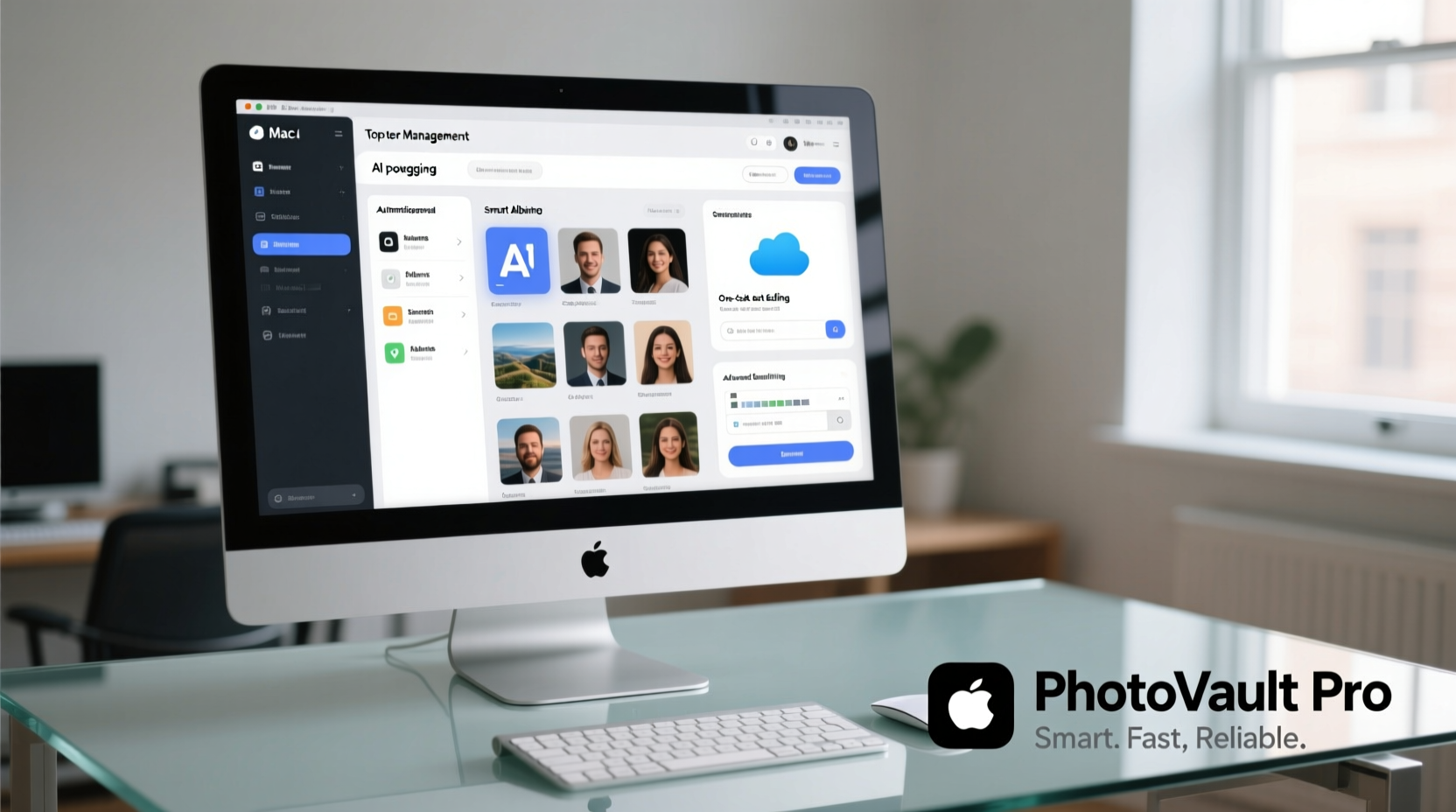
Built-in apps like Apple Photos are convenient but limited when it comes to granular control, metadata handling, batch processing, and non-destructive editing workflows. As photo collections grow—especially with high-resolution images from modern smartphones and DSLRs—users quickly hit performance bottlenecks and organizational walls.
Dedicated photo management software provides:
- Advanced tagging, keywording, and facial recognition
- Non-destructive editing with layers and presets
- Superior search capabilities powered by AI
- Better backup and synchronization options
- Support for RAW files and professional-grade formats
For Mac users, compatibility with macOS design principles, iCloud integration, and Retina display optimization are also critical factors in choosing the right tool.
Top Photo Management Solutions for Mac
Below is a comparison of five leading photo management applications tailored for macOS, evaluated across key criteria including price, AI features, editing power, and scalability.
| Software | Price (Annual) | AI Organization | Editing Tools | Cloud Sync | Best For |
|---|---|---|---|---|---|
| Adobe Lightroom Classic | $149.88 (via Creative Cloud) | Yes (face & object detection) | Professional-grade, non-destructive | Adobe Cloud (optional) | Photographers needing deep editing + library control |
| Phase One Capture One Pro | $359 (perpetual) or $24/mo | Limited | Industry-leading color grading | No native sync; requires external setup | Studio pros and commercial shooters |
| Skylum Luminar Neo | $139/year or $249 lifetime | Strong AI tagging & scene detection | AI-powered enhancements, intuitive interface | No built-in sync | Creatives wanting fast, smart edits |
| Axonia AcdSee Photo Studio for Mac | $79.99 (one-time) | Facial recognition, keyword indexing | Moderate RAW support, layer editor | Local-only; cloud via export | Users preferring one-time purchase |
| Apple Photos + PowerPhotos | $39.99 (PowerPhotos add-on) | Good (on-device AI learning) | Basic adjustments, no layers | iCloud Photos included | Minimalists staying within Apple’s ecosystem |
Real Example: How a Travel Blogger Streamlined Her Workflow
Sophie Chen, a full-time travel content creator based in Vancouver, used to spend hours every week manually sorting photos from her trips. She shot in RAW format with multiple devices and struggled with duplicate files and inconsistent metadata. After switching from Apple Photos to Adobe Lightroom Classic, she implemented smart collections filtered by country, subject, and rating. Using AI face recognition, she automatically tagged recurring subjects like family members. With synchronized presets, she applied consistent color grades across batches in seconds. Her weekly curation time dropped from 6 hours to under 90 minutes.
“Lightroom didn’t just save me time—it helped me rediscover forgotten shots buried in folders I hadn’t opened in years.” — Sophie Chen, Visual Storyteller & Blogger
Key Features to Prioritize When Choosing Software
Not all photo managers are created equal. To get real value, focus on features that align with how you actually use your photos.
Smart Search and AI Categorization
The best tools go beyond filenames and dates. They analyze image content using machine learning to identify people, pets, landscapes, events, and even emotions. This makes finding “the beach sunset with my dog” as simple as typing a phrase.
Non-Destructive Editing with Presets
Your original files should remain untouched. All edits should be saved as instructions, not alterations. This preserves quality and allows experimentation. Presets let you apply favorite looks instantly across dozens of images.
Flexible Library Management
If you work across multiple drives or projects, look for support for catalog-based organization, folder linking, and virtual albums. Some apps allow multiple libraries—a must for separating personal, client, or seasonal archives.
Performance on Large Libraries
Test how software handles 10,000+ images. Does scrolling lag? Do searches take seconds or minutes? Native Apple Silicon optimization ensures faster indexing and smoother previews on M1/M2/M3 Macs.
Step-by-Step: Migrating from Apple Photos to a Third-Party Manager
Moving your photo library doesn’t have to be risky. Follow this sequence to preserve data integrity and maximize efficiency.
- Back up your current library – Use Time Machine or clone your drive before making changes.
- Export from Apple Photos – Go to File > Export > Export Unmodified Originals to retain full-quality files.
- Choose your destination app – Install and set up your preferred manager (e.g., Lightroom Classic).
- Import with metadata preserved – During import, enable options to bring over titles, dates, keywords, and GPS data.
- Verify and organize – Spot-check random albums and test search queries to confirm everything transferred correctly.
- Create smart albums or collections – Leverage AI filters to auto-group photos by person, place, or theme.
Essential Checklist Before Committing to a Tool
Before purchasing or switching, run through this checklist to avoid costly mistakes:
- ✅ Does it support RAW files from your camera?
- ✅ Can it handle your current library size without slowdown?
- ✅ Is there a free trial available?
- ✅ Does it offer local storage options (not cloud-only)?
- ✅ Are keyboard shortcuts customizable?
- ✅ Can you back up catalogs externally?
- ✅ Is customer support responsive and Mac-focused?
- ✅ Does it integrate with other apps you use (e.g., Photoshop, Dropbox)?
Frequently Asked Questions
Can I keep using iCloud Photos with third-party software?
Generally, no—iCloud Photos syncs only with Apple Photos. However, some tools like Luminar Neo can import from iCloud, and others let you manually sync exported images via iCloud Drive. If cloud continuity is vital, consider staying within Apple’s ecosystem or using Adobe’s cloud as an alternative.
Is subscription pricing worth it compared to one-time purchases?
Subscriptions often include continuous updates, new AI features, and cloud services. One-time purchases may lack future-proofing but suit budget-conscious users who don’t need cutting-edge tools. Evaluate based on how frequently you update your workflow and whether new features deliver tangible benefits.
Will these programs slow down my Mac?
Well-optimized software like Lightroom Classic and Luminar Neo perform efficiently on modern Macs, especially those with Apple Silicon. Older machines or extremely large libraries (50,000+ images) may require SSD storage and sufficient RAM (16GB recommended). Always check system requirements before installing.
Final Thoughts: Choose Value, Not Just Features
The best photo management software isn’t necessarily the most expensive or feature-packed—it’s the one that fits your habits, enhances your creativity, and grows with your collection. Whether you choose Adobe Lightroom for its unmatched depth, Luminar Neo for its intuitive AI, or PowerPhotos to extend Apple’s native app, the goal is consistency and ease.
Take action today: audit your current photo library, identify pain points, and test two top contenders using free trials. Organizing your visual life isn’t just about convenience—it’s about reclaiming memories, reducing digital stress, and creating space for better storytelling.




 浙公网安备
33010002000092号
浙公网安备
33010002000092号 浙B2-20120091-4
Comments
No comments yet. Why don't you start the discussion?