
Streaming services have transformed how we consume entertainment, but even the most reliable platforms can run into technical hiccups. If you're encountering issues with discovery+, from constant buffering to login failures or app crashes, you're not alone. Millions of users across smart TVs, mobile devices, tablets, and streaming boxes have reported similar problems. The good news? Most discovery+ issues are fixable with a few targeted troubleshooting steps. This guide walks you through diagnosing and resolving the most common problems—so you can get back to watching your favorite shows without interruption.
Common discovery+ Issues and What They Mean
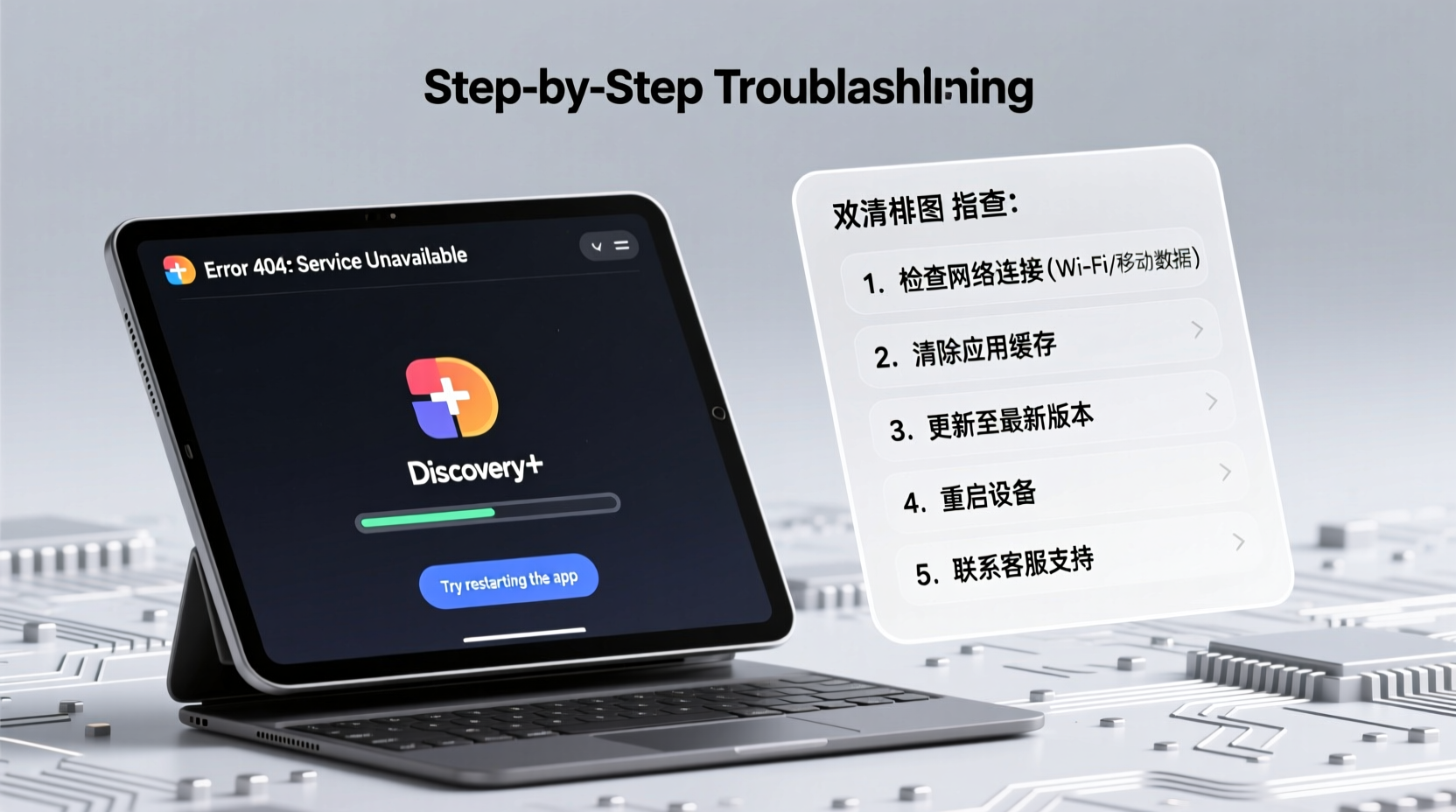
Before jumping into fixes, it's important to identify the type of issue you're facing. Symptoms often point to specific underlying causes:
- App won’t open or crashes immediately: Could be due to corrupted app data, outdated software, or device incompatibility.
- Buffering or low-quality playback: Usually tied to internet speed, network congestion, or server-side performance.
- “Something went wrong” error: Often appears after failed authentication or temporary glitches in the app’s backend.
- Login or authentication failure: May result from incorrect credentials, session timeouts, or account sync issues.
- Content not loading or missing episodes: Can stem from regional restrictions, app bugs, or incomplete updates.
Understanding the symptom helps narrow down the solution path. Start with the basics before moving to advanced fixes.
Step-by-Step Troubleshooting Guide
Follow this structured approach to systematically eliminate possible causes. Begin at Step 1 and move forward only if the issue persists.
- Check Your Internet Connection
Poor or unstable internet is the most common culprit behind streaming issues. Run a speed test using a trusted service like Speedtest.net. discovery+ recommends:- Minimum 3 Mbps for HD streaming
- Recommended 10 Mbps or higher for 4K (where available)
- Restart the Device
A simple reboot clears temporary memory glitches. Turn off your phone, tablet, smart TV, or streaming stick completely, wait 30 seconds, then power it back on. This resolves many unexplained app crashes. - Close and Reopen the discovery+ App
Force-close the app from your device’s app manager or recent apps menu. Then relaunch it. This refreshes the app session and often resolves playback freezes. - Clear App Cache and Data (Android & Fire Stick)
On Android-based systems, go to Settings > Apps > discovery+ > Storage > Clear Cache. If the problem continues, tap \"Clear Data\" (note: this logs you out). - Update the discovery+ App
An outdated app version may lack critical bug fixes. Visit your device’s app store (Google Play, Apple App Store, Amazon Appstore) and check for updates. - Reinstall the App
Uninstall discovery+, restart your device, then reinstall the latest version from the official store. This replaces any corrupted installation files. - Check discovery+ Server Status
Sometimes the issue isn't on your end. Visit downdetector.com and search for \"discovery+\" to see if others are reporting outages in your region.
Tips for Specific Devices
Each platform has unique quirks. Here’s how to troubleshoot based on your device:
| Device | Common Issue | Solution |
|---|---|---|
| Smart TVs (Samsung, LG) | App crashes on launch | Clear app cache via Settings > Apps > discovery+ > Delete Cache |
| Amazon Fire Stick | Stuck on loading screen | Uninstall update, clear data, then reinstall from Amazon Appstore |
| iOS (iPhone/iPad) | Playback freezes | Turn off Background App Refresh for discovery+, then restart |
| Roku | Sign-in loop | Remove channel, restart Roku, reinstall, and log in again |
| Web Browser (Chrome/Firefox) | Video won’t play | Disable ad blockers, clear cookies, or try incognito mode |
Real Example: Fixing Persistent Buffering on a Samsung Smart TV
Sarah, a long-time discovery+ subscriber, noticed her app kept freezing during episodes of *My 600-lb Life*. She was using a 2020 Samsung QLED TV connected via Wi-Fi. Initial attempts—restarting the app and TV—didn’t help. She ran a speed test and found her download speed was only 2.1 Mbps, below the recommended threshold.
After restarting her router and moving closer to it, her speed jumped to 12 Mbps. She also cleared the discovery+ app cache through her TV’s settings menu. Upon relaunching, the buffering stopped completely. The root cause? A weak Wi-Fi signal compounded by background downloads on other devices.
This case highlights how multiple factors—network strength, device placement, and concurrent usage—can combine to disrupt streaming, even when the app itself is functioning correctly.
“Over 70% of streaming issues are related to home network conditions, not the app or service provider.” — David Lin, Senior Network Engineer at Broadband Insights Group
Preventive Checklist for Smooth Streaming
To minimize future disruptions, follow this proactive checklist:
- ✅ Ensure your internet plan delivers at least 10 Mbps for consistent HD streaming
- ✅ Keep your device’s operating system and discovery+ app updated
- ✅ Restart your router monthly to clear congestion
- ✅ Use Ethernet over Wi-Fi when possible, especially for smart TVs
- ✅ Limit the number of devices streaming simultaneously
- ✅ Log out and back in periodically to refresh your session token
- ✅ Avoid using third-party DNS unless necessary; stick to your ISP’s default
Frequently Asked Questions
Why does discovery+ keep logging me out?
This can happen due to app bugs, expired session tokens, or syncing issues across devices. Try signing out on all devices, then log back in on one at a time. Also, ensure your device’s date and time settings are correct—incorrect settings can interfere with authentication.
Can a VPN cause discovery+ to stop working?
Yes. discovery+ uses geolocation to enforce regional content rights. If you're using a VPN, the service may block access or display an error. Disable the VPN and connect directly to resolve playback or login issues.
Is discovery+ down or is it just me?
Visit downdetector.com and search for \"discovery+\". If hundreds of users in your area are reporting problems, it’s likely a server-side outage. In such cases, wait a few hours and try again—no local fix will work until the service is restored.
Final Steps When Nothing Works
If you’ve tried every solution and discovery+ still isn’t working, contact customer support directly. Provide them with:
- Your device model and OS version
- The exact error message
- Steps you’ve already taken
- Screenshots (if applicable, though not included here)
Support teams can check account status, reset streaming licenses, or escalate technical bugs to their engineering team. You can reach discovery+ support via their official website under the Help or Contact Us section.
Conclusion
Encountering issues with discovery+ doesn’t mean you’re stuck without solutions. From checking your internet speed to clearing app data and reinstalling the platform, most problems can be resolved with methodical troubleshooting. By understanding the root causes—whether it’s network instability, outdated software, or regional restrictions—you gain control over your viewing experience.




 浙公网安备
33010002000092号
浙公网安备
33010002000092号 浙B2-20120091-4
Comments
No comments yet. Why don't you start the discussion?